Upcoming Canvas ChangesCanvas Release Schedule Adjustments: July 15Starting July 15, the Canvas Release Schedule will be adjusted to support two-week deploys and monthly releases every third Saturday of the month. For more information, please see Upcoming Canvas Changes.
In this Canvas release (July 13), users with permission to generate pairing codes can export a CSV file with newly-generated pairing codes for all students in a course.
Admins can request Gradebook exports and the Grade Export report to include integration IDs. The sort arrow in the account-level People and Courses pages has been inverted to display the correct sorting for a specified column.
For all users, Finnish (Suomi) has been added as an available language in Canvas.
Feature Options
- For institutions using the New Gradebook, the New Gradebook includes a grade posting policy, which sets how grades and comments are released to students.
External Tools (LTI)
- For institutions using Commons, the Search page includes featured content to highlight or promotes specific resources. Additionally, the Imported page includes a search field for users to search for, sort, and filter previously imported resources.
Release notes also include API updates and fixed bugs.
Release notes describe upcoming Canvas functionality and are subject to change. |
Feature OptionsThe following feature options are addressed in this release: |
Release Notes Change Log
BACK TO TABLE OF CONTENTS
New Gradebook
Grade Post Policies
This feature is used in conjunction with an existing feature option in Canvas. Please view the content below for additional details. For more information about feature options, please see the Canvas Release Notes FAQ.
Release Advisory (2019-07-17)The Grade Posting Policy inadvertently affected the visibility of existing grades that were posted before the release. Some assignments may need to be manually posted for grades to display to students. If a Gradebook previously included assignments that were previously muted and graded prior to the release, the grades will remain unposted until they are manually posted with the Post Grades button.For any assignments that have not yet been graded, they will be graded according to the course-level policy set in the New Gradebook Settings at the time of grading, unless the assignment is anonymous or moderated, which always have a manual post policy. Changing the policy for a course does not affect grade or comment visibility for existing assignments.
Feature Availability | 15 July |
Location to Enable Feature | New Gradebook |
Configuration Details | New Gradebook Feature Option |
Affected Canvas Areas | New Gradebook SpeedGrader |
Affects User Interface | Yes |
Affected User Roles | Instructors, Students |
Feature Enhancement Ideas | Existing New Gradebook feature ideas |
Specified Tag for Feature Ideas | gradebook_new |
Summary
The New Gradebook includes a grade posting policy, which sets how grades and comments are released to students.
Change Benefit
This change redefines assignment-wide muting to an individual assignment level, making grades visible down to individual sections of a course, or hide previously posted grades if needed. For a summary of Post Policy changes, please see the Post Policies Overview and API Changes document.
This change only benefits the New Gradebook. Instructors using the Old Gradebook must continue to mute and unmute individual assignments and release grades to all students at the same time.
Affected User Roles & Behaviors
Instructorsc
Instructors are able to control when grades are released to all students. Assignment grades may be manually or automatically posted.
Automatically posted grades for an assignment are the equivalent of an unmuted assignment where grades and comments are immediately posted.
Manually posted grades allows an instructor to hide all grades and comments until the instructor chooses to post the grades.
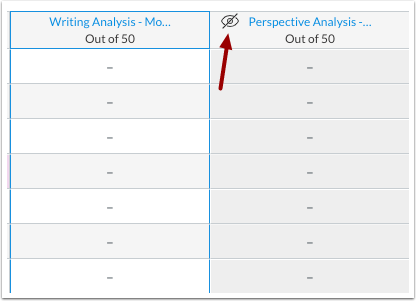
The concept of muting grades has also been visually updated by replacing the previously known Mute icon with an Eye icon, which represents the assignment’s grade visibility. A transparent eye icon displays for assignments with a manually posted grading policy.
Course Grade Posting Policy
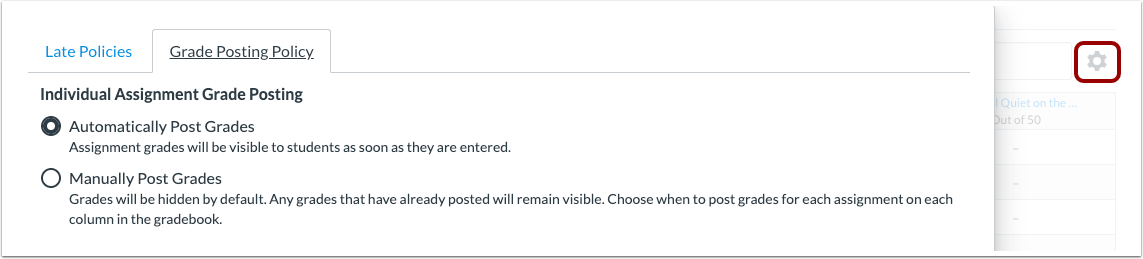
A posting policy for the entire course can be set in the settings, which will be set for all current and future assignments. By default, the policy is for grades to be posted automatically.
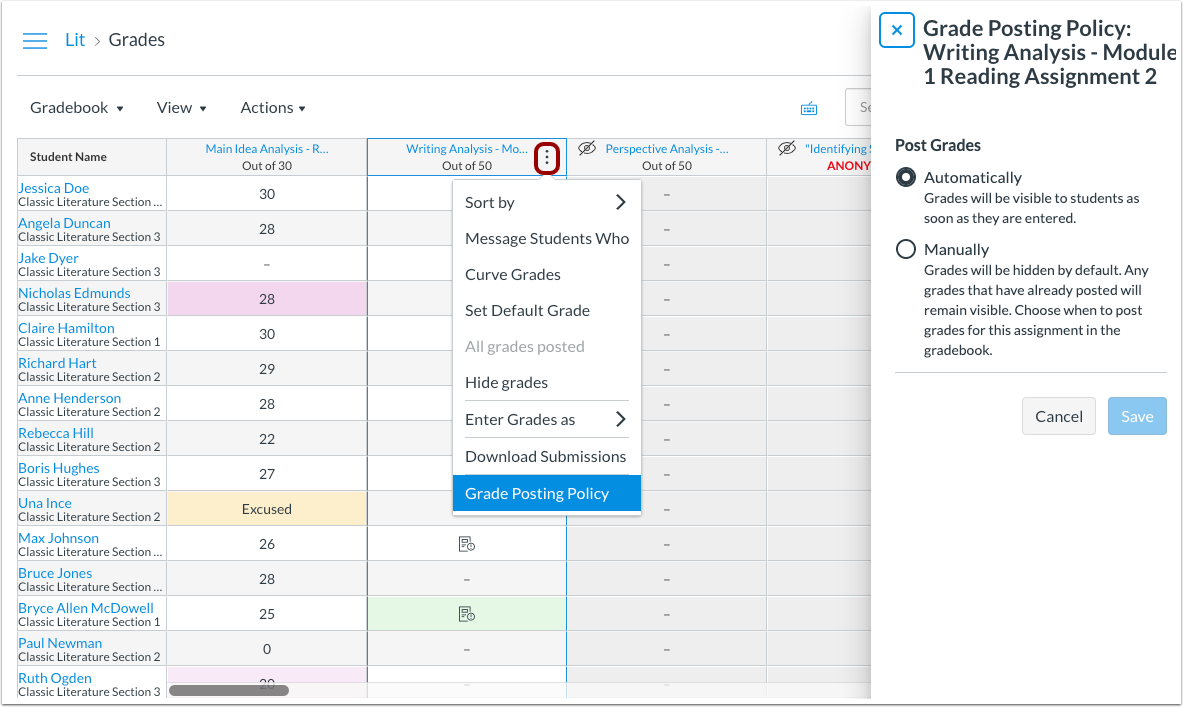
After a course policy has been applied, any additional changes must be made to individual assignments. Any assignment can be changed to support an individual policy that varies from the course policy. Policies can be updated in the assignment menu.
Manually Posted Grades
With manual posting, grades and comments are not revealed until the instructor chooses to post the assignment grades.
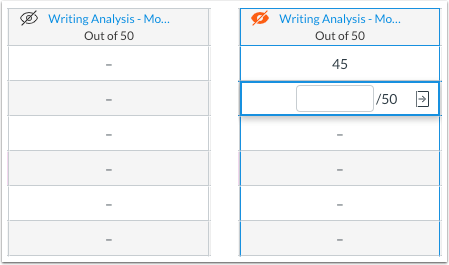
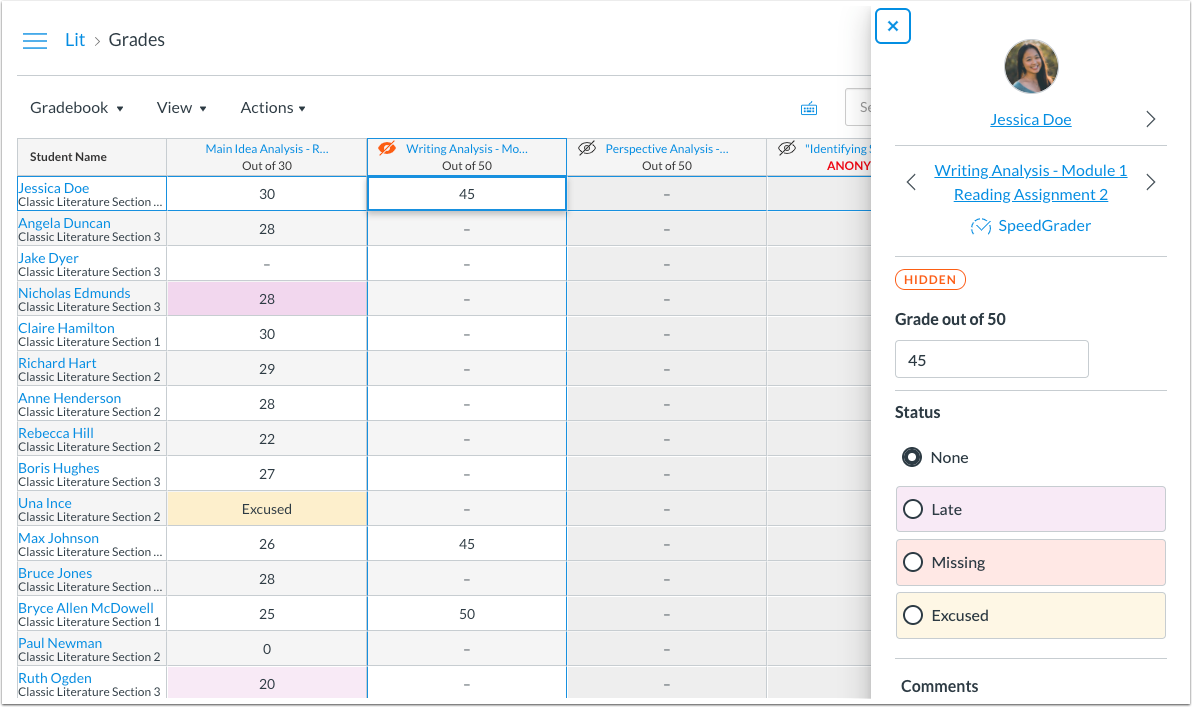
When an instructor enters a grade for a manually posted assignment, the icon changes to a solid state to show the assignment has been assigned grades that are not visible to a student.
When open, the Grade Detail Tray also displays a hidden label for each hidden submission.
Post Grades Process
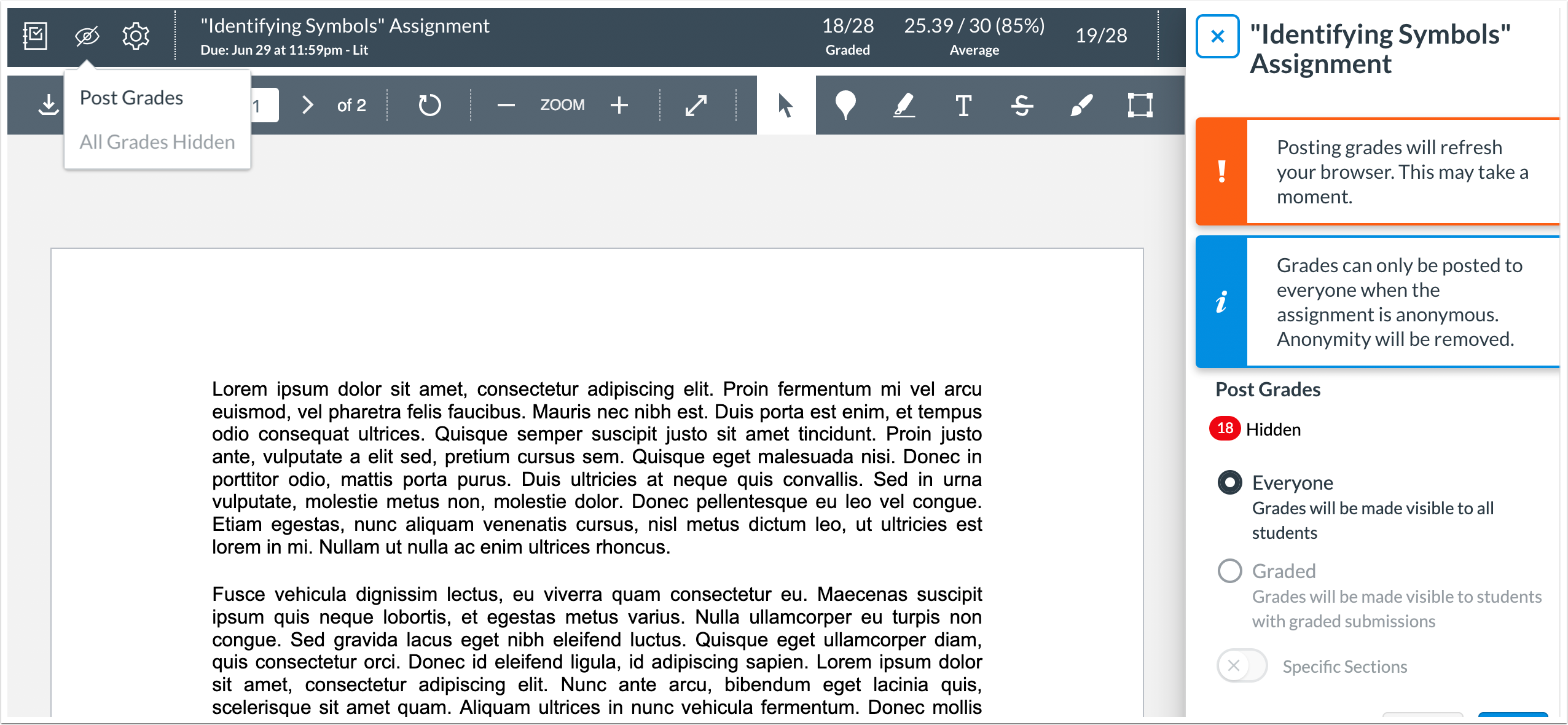
At any time, an instructor can open the assignment menu in the Gradebook and choose to post grades to students. When the Post Grades option is selected, the Post Grades sidebar indicates the number of submissions that are hidden, including the number of submissions graded but not posted. Additionally, a dot also displays next to the individual submissions.

Grades can be posted to everyone, which means they are visible to all students, or they can be posted for only students with graded submissions. Additionally, both options support posting to one or multiple specific sections in the course. When posting by section, at least one section must be selected.
Hide Grades Process
Grades can also be hidden or re-hidden at any time, which may be needed to conceal or adjust previously posted grades. This behavior is the equivalent of muting and unmuting an assignment. The assignment menu Hide Grades option displays for any assignment where grades are visible to students, and instructors can choose to hide grades at any time.
When selected, the Hide Grades sidebar allows instructors to hide grades to all students by default, or instructors can select one or multiple specific sections where grades should be hidden. When hiding by section, at least one section must be selected.
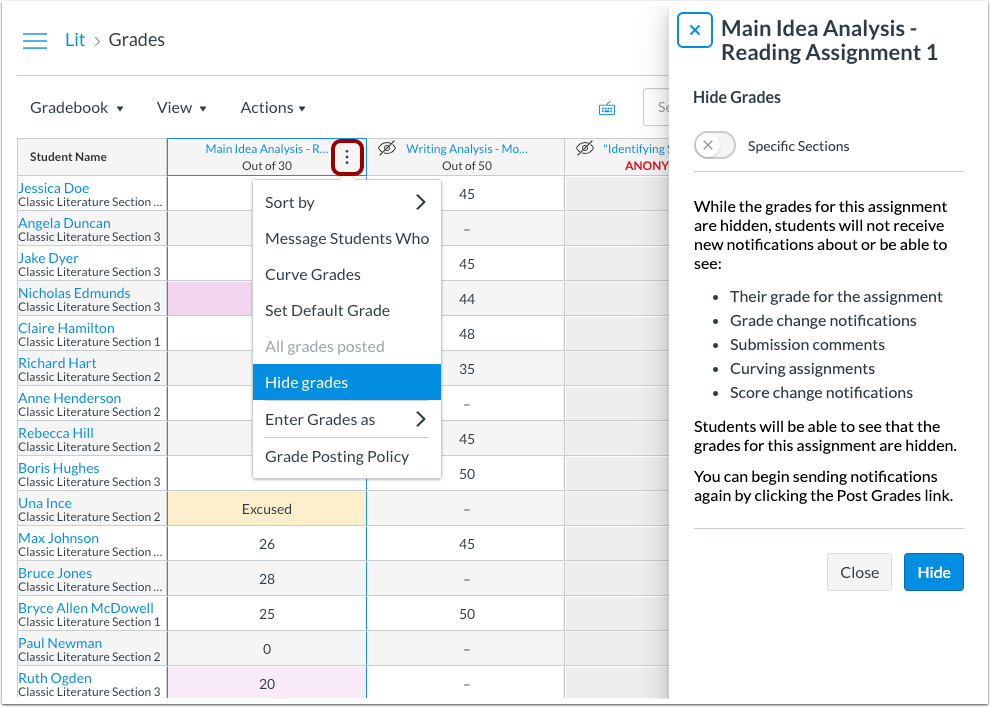
When grades are hidden, the visibility icon changes to a solid state to indicate grades have been assigned that are not visible to students. Grades can be re-posted at any time using the assignment menu.
Student View
When assignment grades are manually posted and hidden to students, students see the Eye icon in the Grades page. When grades have been posted, the grade and any comments are visible in the Grades page.

SpeedGrader Functionality
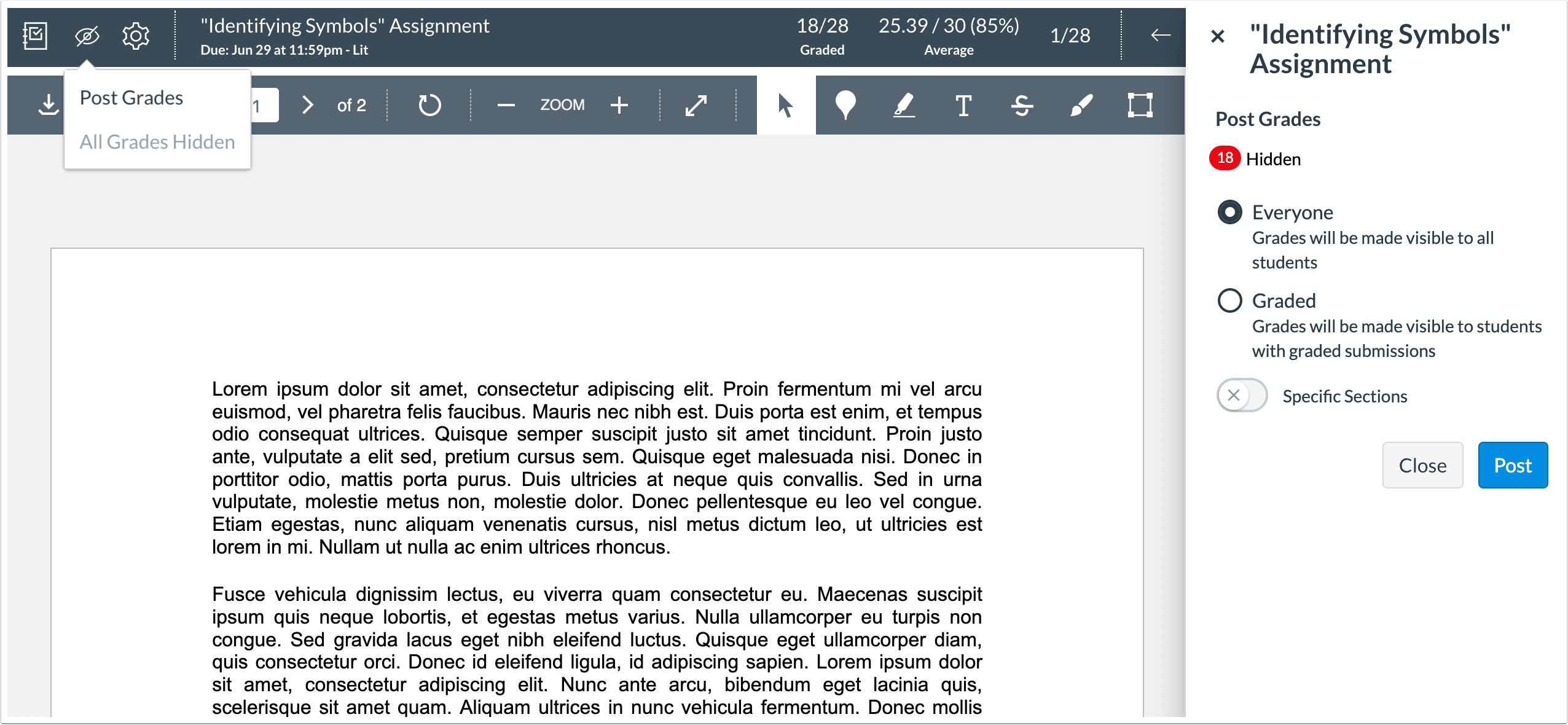
Grades can also be hidden and posted in SpeedGrader.
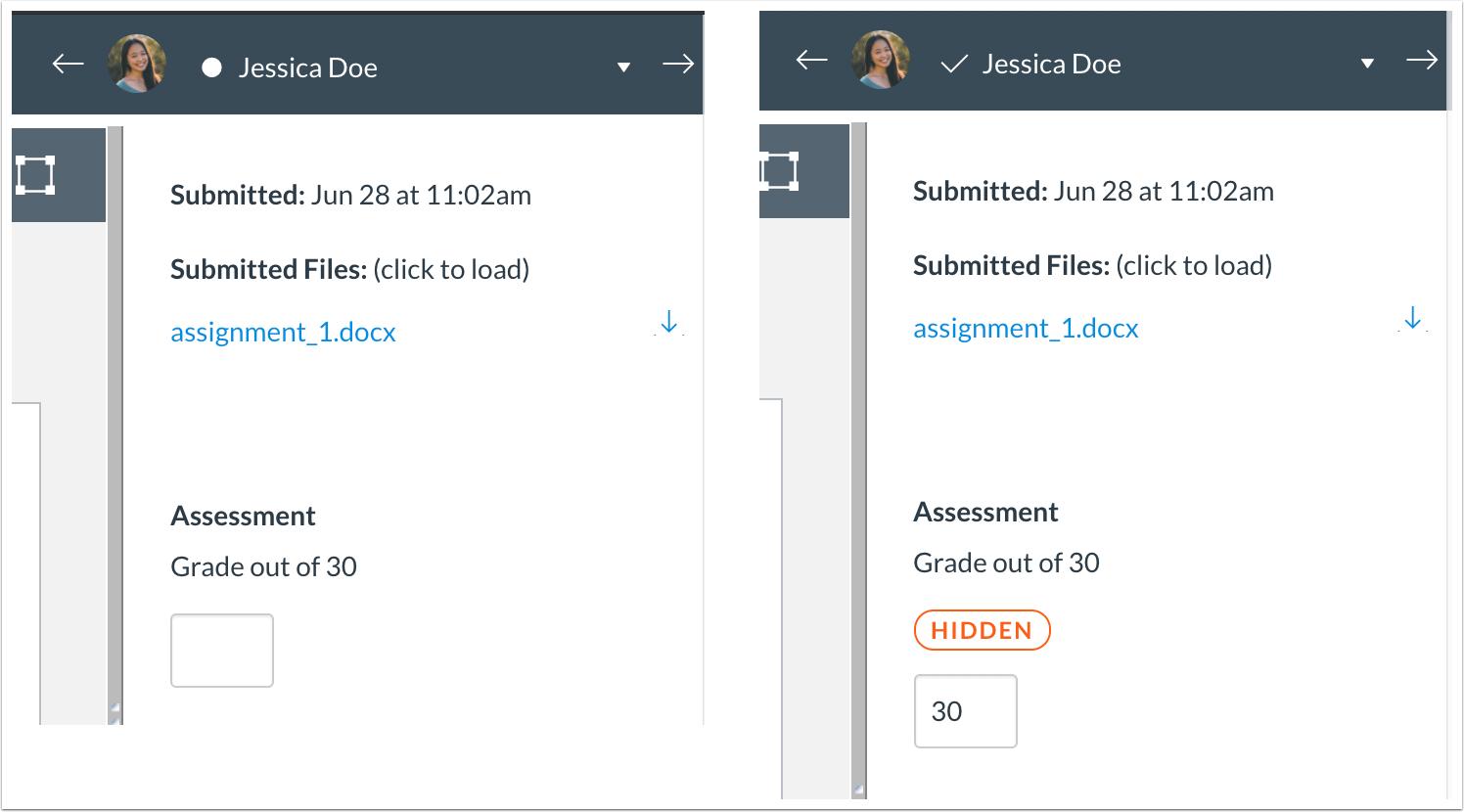
Individual unposted hidden submissions are also indicated by the hidden label in the SpeedGrader sidebar. The hidden label displays once the submission receives a grade.
The visibility icon manages the grade policy the same way as the assignment menu does in the Gradebook.
Anonymous Assignment Process
Anonymous assignments must always be manually posted regardless of the course-level grade policy. This behavior protects student anonymity. Anonymous assignments must be posted or hidden for all students in the assignment and cannot be managed by section.
Anonymous assignments that are hidden show a Hidden label in both the Grade Detail Tray and the SpeedGrader sidebar.
After grades are posted, SpeedGrader reloads to remove anonymity from all submissions, and grades are visible in the student Grades page.
Moderated Assignment Process
To be included in the Gradebook, moderated assignments must follow the regular moderation workflow. After the moderator has selected grades for all students and posted grades, the grades display in the New Gradebook. If the moderator wants to keep grades hidden, the Display to Students option should not be selected, and grades can be posted to students in the Gradebook at a later date. However, if grades are displayed to students and an instructor wants to keep them hidden, grades can be re-hidden in the Gradebook using the Hide Grades option.
BACK TO TABLE OF CONTENTS
Commons
These features are used in conjunction with an external tool (LTI) in Canvas. Please view the content below for additional details. For more information about LTI tools, please see the Canvas Release Notes FAQ.
Location to Enable Feature | Commons LTI |
Configuration Details | Commons LTI |
Affected Canvas Areas | Commons LTI |
Beta/Test Environment Support | Functionality affects content in the beta environment only; New/updated features not available until production deploy |
Permissions | Course Content - add / edit / delete Discussions - view Assignments and Quizzes - add / edit / delete |
Affects User Interface | Yes |
Affected User Roles | Instructors |
Feature Enhancement Ideas | Existing Commons feature ideas |
Specified Tag for Feature Ideas | Commons |
Featured Content
Summary
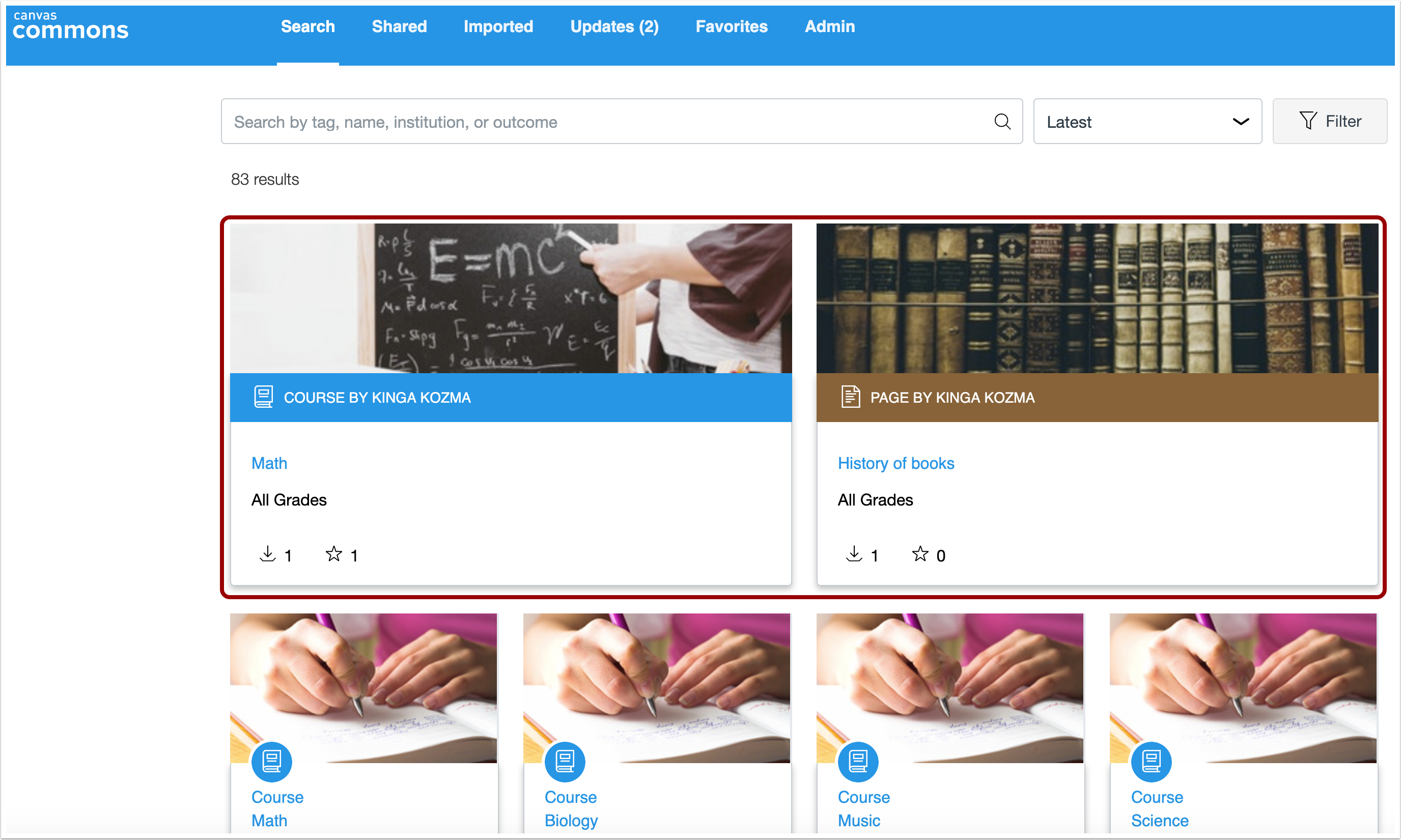
Commons includes featured content at the top of the Search page that highlights or promotes specific resources.
Change Benefit
This change allows instructors to easily identify high quality instructional content in Commons. Featured content is currently curated by the Commons team and highlighted to benefit all Commons users.
Affected User Roles & Behaviors
Instructors
Instructors can view and import featured content from the Commons Search page. Content can be viewed by clicking the content, the same as accessing any other resource item.
Featured content is viewable to all Commons users and cannot be minimized in the page.
Imported Tab Search Field
Summary
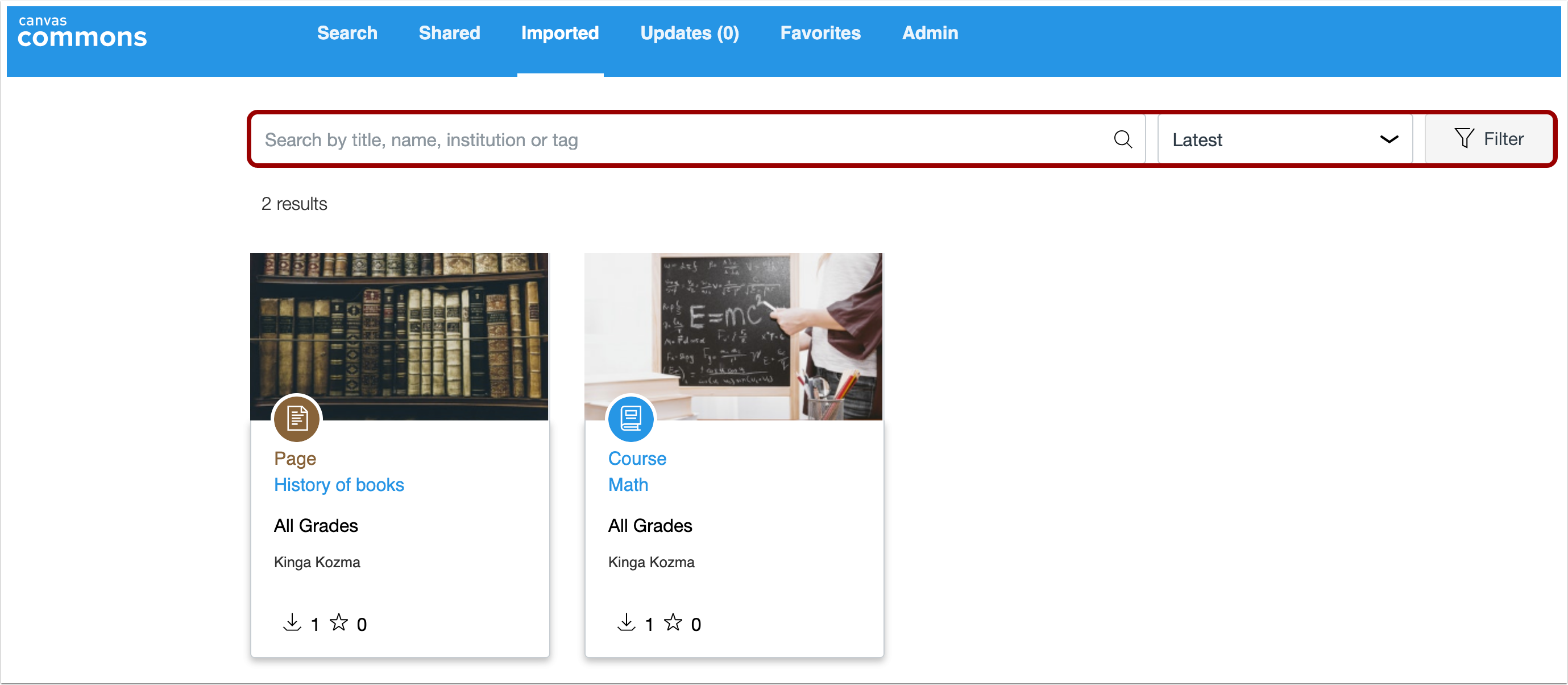
The Imported page includes a search field for users to search for, sort, and filter previously imported resources.
Change Benefit
This feature allows users to find specific resources on the Imported page.
Affected User Roles & Behaviors
Instructors
Instructors can open the Imported page and view the search field. The search field functions the same way as the search field available throughout Commons.
People
Pairing Codes CSV Export
Location to Enable Feature | People - Options Menu |
Configuration Details | Self-Registration must be enabled for the account |
Affected Canvas Areas | People |
Beta/Test Environment Support | Yes |
Permissions | Users - generate observer pairing codes for students |
Affects User Interface | Yes |
Affected User Roles | Instructors |
Feature Enhancement Ideas | View existing people feature ideas |
Specified Tag for Feature Ideas | People |
Summary
Users with permission to generate pairing codes can export a CSV file with newly-generated pairing codes for all students in a course.
Change Benefit
This change allows instructors to generate pairing codes for all course students in a single CSV file. Previously, pairing codes could only be generated individually.
Affected User Roles & Behaviors
Instructors
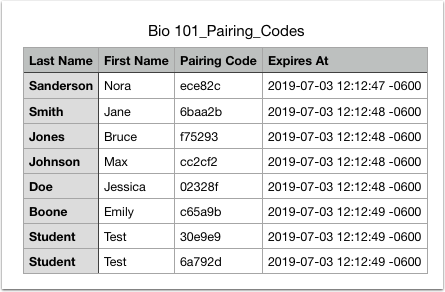
Instructors with permission to generate pairing codes can export codes for all students. Located in the Options icon, the Export Pairing Codes option downloads codes as a CSV file. This option only displays in accounts with self-registration enabled.
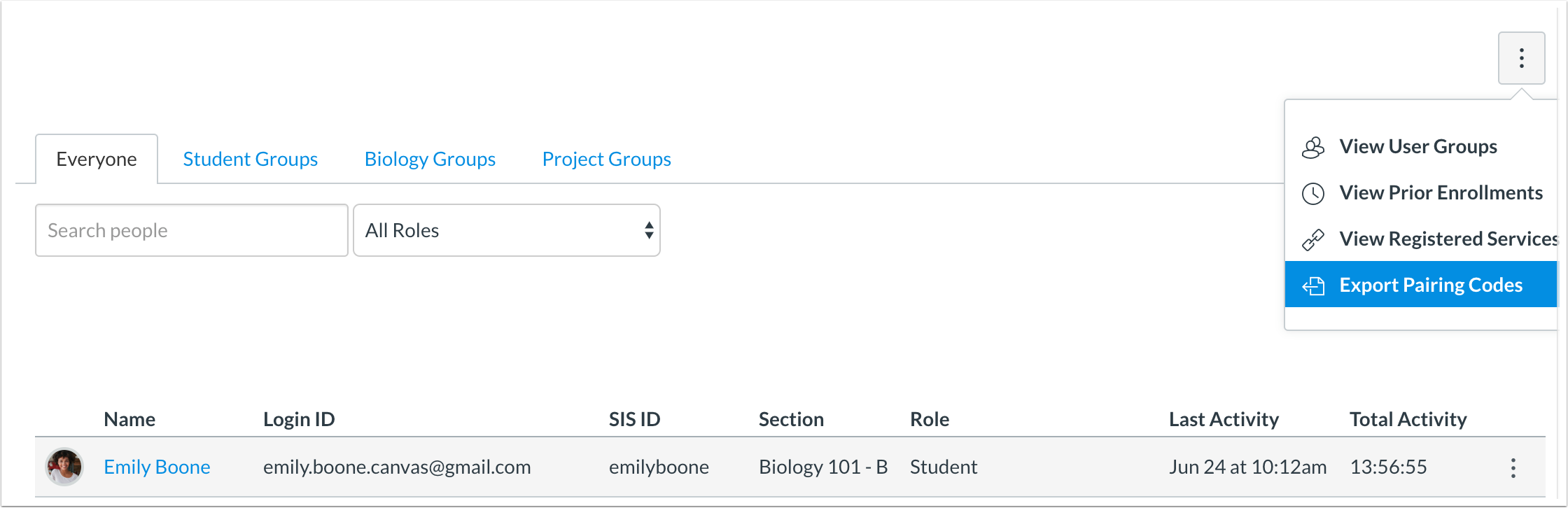
The CSV file includes the students’ names, pairing codes, and the date and time that each code will expire. These pairing codes can then be used to link observers to the students’ Canvas accounts.
Reports
Integration ID
Location to Enable Feature | <SPAN style="font-size: 11pt; color: #000000; background-color: transparent; font-weight: |