In this Canvas release (March 9), discussion topics can be searched by author name in addition to title.
Feature Options
- For institutions using Moderated Grading, the Moderated Grading Audit Trail feature option no longer has to be enabled separately. Any user who has permission to view the moderated grading audit log will be able to view it for a moderated assignment at any time.
- For institutions using the New Gradebook, the Final Grade Override column is included in Gradebook CSV export files.
External Tools (LTI)
- For institutions using the Canvas Commons LTI, when viewing the Resource Details tab in Commons, users can view filtered search results that only display resources from their specific institution, and resource cards display the number of times a resource has been downloaded or imported and the number of times a resource has been favorited. Federal- and state-level outcomes can also no longer be added to resources. Additionally, the Rich Content Editor allows instructors to view and import content from their Commons Favorites directly in Canvas.
- For institutions using the Quizzes.Next LTI, on-screen calculators can be used in assessment questions.
Release notes also include small non-functionality changes, API updates, and fixed bugs.
Release notes describe upcoming Canvas functionality and are subject to change. |
Feature OptionsThe following feature options are addressed in this release: - Account: Moderated Grading Audit Trail (Removed)
- Course: Moderated Grading, New Gradebook
|
Release Notes Change Log
BACK TO TABLE OF CONTENTS
Assignments
Moderated Grading Audit Trail Enforcement
This feature is used in conjunction with an existing feature option in Canvas. Please view the content below for additional details. For more information about feature options, please see the Canvas Release Notes FAQ.
Location to Enable Feature | N/A |
Configuration Details | Moderated Grading Feature Option |
Affected Canvas Areas | SpeedGrader |
Affects User Interface | Yes |
Affected User Roles | Instructors |
Summary
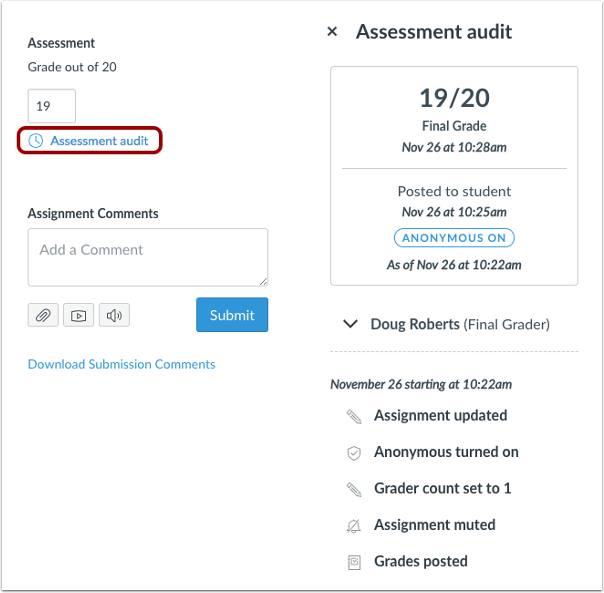
As part of a moderated assignment, the Assessment Audit section displays automatically within SpeedGrader for any user with permission to view the moderated grading audit log.
Change Benefit
This change removes the Anonymous Moderated Marking Audit Trail feature option and no longer requires this feature option to be enabled separately when creating moderated assignments.
Affected User Roles & Behaviors
Instructors
Instructors with the Grades - view audit trail permission can act as an auditor for a course and always view the Assessment Audit section in SpeedGrader. Auditing also displays any changes made for moderated assignments that are also anonymous. All details about the Assessment Audit section are included as part of the Canvas Release Notes (2018-12-08).
Feature Idea Contributions
Canvas features are always welcome to feedback. Product teams may make adjustments at any time via the Canvas Feature Idea process.
Commons
These features are used in conjunction with an external tool (LTI) in Canvas. Please view the content below for additional details. For more information about LTI tools, please see the Canvas Release Notes FAQ.
Location to Enable Feature | Commons LTI |
Configuration Details | Commons LTI Resource Previews has been removed as an opt-in account setting and is enabled for all accounts |
Affected Canvas Areas | Commons LTI Any area with imported content |
Beta/Test Environment Support | Functionality affects content in the beta environment only; New/updated features not available until production deploy |
Permissions | Course Content - add / edit / delete Discussions - view Assignments and Quizzes - add / edit / delete |
Affects User Interface | Yes |
Affected User Roles | Admins, Instructors |
Favorites and Downloads Sorting
Summary
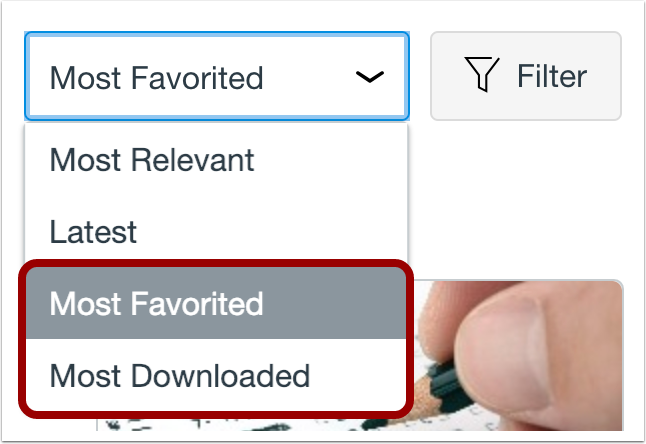
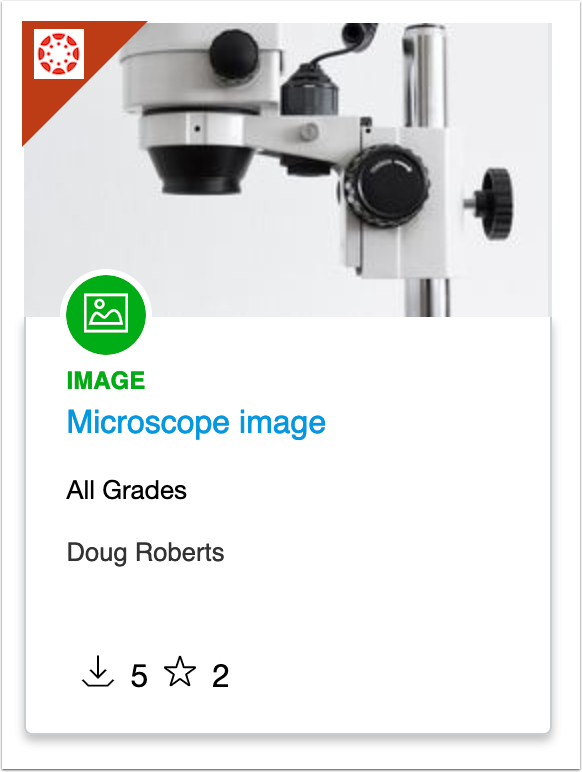
Resource cards display the number of times a resource has been downloaded or imported and the number of times a resource has been favorited. Users can also sort search results by Most Favorited and Most Downloaded.
Change Benefit
This update allows instructors to easily view how many times a resource has been favorited and downloaded. It also allows instructors to sort search results by Most Favorited or Most Downloaded.
Affected User Roles & Behaviors
Instructors
The resource card displays the number of times a resource has been favorited and downloaded, allowing instructors to easily find content in Commons. Instructors can also sort search results by Most Favorited or Most Downloaded.

Institution Search Results
Summary
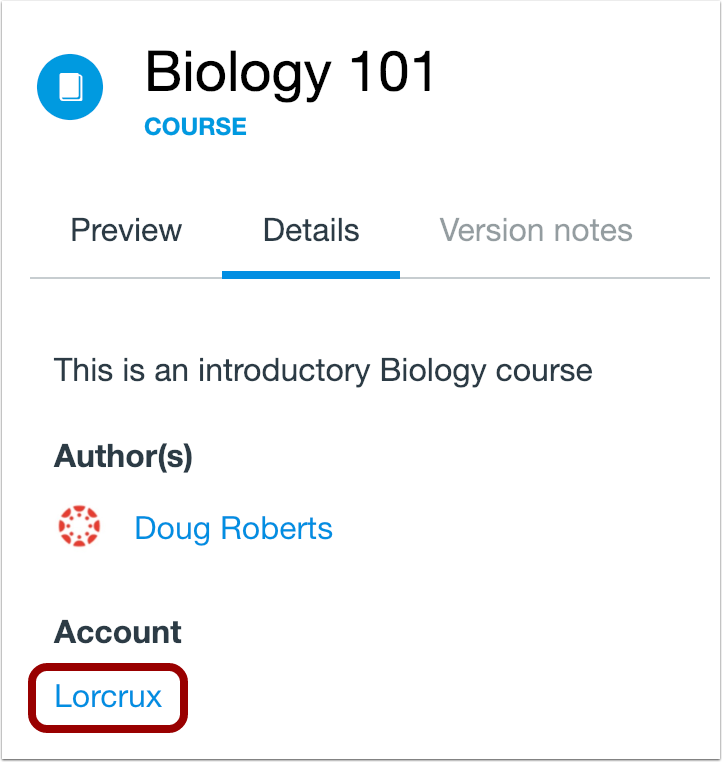
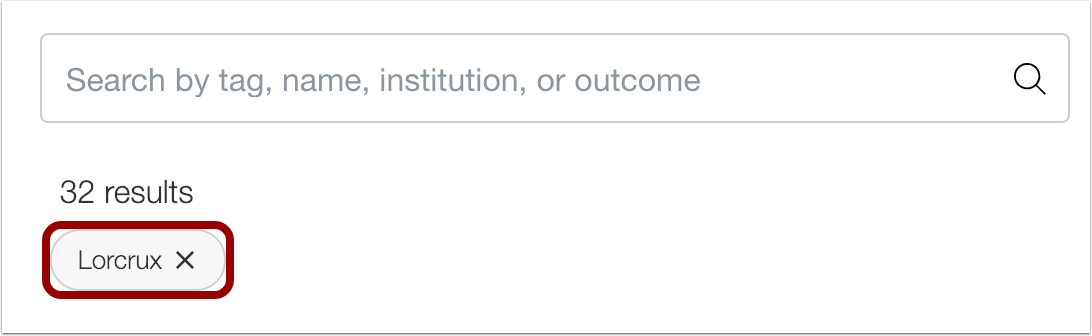
When viewing the resource Details tab in Commons, users can view filtered search results that only display resources from their specific institution.
Change Benefit
This update allows users to find resources from the same institution as the resource they’re currently viewing.
Affected User Roles & Behaviors
Instructors
When an instructor views the Resource Details tab for a resource in Commons, they can click the Institution name to view filtered search results that only display resources from that institution.
Resource Card Improvements
Summary
This update includes several changes to the interface of resource cards in Commons search results. The updated resource cards now show updated icons, resource type, grade level, and the number of times a resource has been downloaded and added as a favorite.
Change Benefit
This update simplifies the information displayed on the resource card.
Affected User Roles & Behaviors
Instructors
The updated resource card displays in the Commons search results and in the Favorites page.
Outcomes Removal
Summary
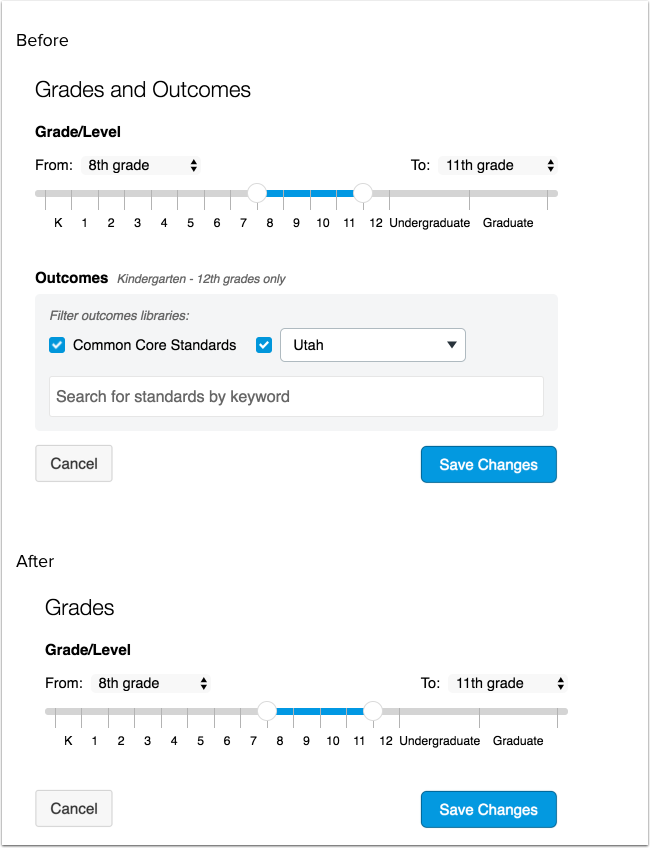
Commons resources no longer include a section to tag resources with K-12 Federal or State outcome standards. Resources with existing associated outcomes will not be affected. This change only applies to tagging and searching outcomes in Commons and does not affect rubrics and outcomes linked to assignments, discussions, and quizzes shared from Canvas.
Change Benefit
This change simplifies resource management and allows instructors to import resources and add the outcomes that are specific to their teaching needs.
Affected User Roles & Behaviors
Instructors
Instructors sharing a new resource or editing a resource will no longer be able to tag resources with outcomes within Commons. This only applies to the Federal and State K12 outcomes standards and does not apply to rubrics and outcomes created within Canvas and linked to assignments, discussions, and quizzes.
Any resource that has an existing associated outcome still displays the resource in the details page and in the resource card.
Feature Idea Contributions
Canvas features are always welcome to feedback. Product teams may make adjustments at any time via the Canvas Feature Idea process.
Discussions
Author Search Functionality
Location to Enable Feature | Discussions |
Configuration Details | N/A |
Affected Canvas Areas | Discussions |
Beta/Test Environment Support | Yes |
Permissions | Assignments and Quizzes - add / edit / delete Discussions - view Discussions - moderate Discussions - create Discussions - post |
Related APIs | Discussion Topics API |
Affects User Interface | Yes |
Affected User Roles | All Users |
Summary
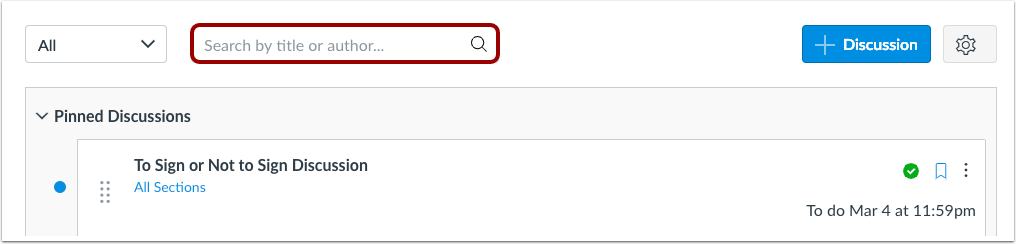
Users can search discussion topics by author name in addition to title.
Change Benefit
This change restores previous author search functionality within the Discussions page.
Affected User Roles & Behaviors
All Users
When viewing the Discussions page, users can use the search field to search for a discussion by title or author. The Search field help text has been updated to specify the search options.
Any discussions that have been copied from a previous course do not include an author.
Feature Idea Contributions
https://community.canvaslms.com/ideas/12662-reinstating-ability-to-filter-discussion-topics-by-author
Canvas features are always welcome to feedback. Product teams may make adjustments at any time via the Canvas Feature Idea process.
New Gradebook
Gradebook Export CSV Final Grade Override Column
This feature is used in conjunction with an existing feature option in Canvas. Please view the content below for additional details. For more information about feature options, please see the Canvas Release Notes FAQ.
Location to Enable Feature | New Gradebook |
Configuration Details | New Gradebook Feature Option |
Affected Canvas Areas | New Gradebook |
Related APIs | Custom Gradebook Columns API |
Affects User Interface | No |
Affected User Roles | Instructors |
Summary
When the Final Grade Override feature option is enabled, any entries in the Override column display in CSV Gradebook exports. However, override grades are not valid as part of Gradebook uploads.
Change Benefit
This change adds override grades to Gradebook exports.
Affected User Roles & Behaviors
Instructors
Instructors can enable the Final Grade Override feature, add override grades, and view the override grades in the Gradebook CSV export file.
The Gradebook download file includes override grades for the entire course. If a course includes grading periods, override grades are included in the download for the selected grading period.
Canvas features are always welcome to feedback. Product teams may make adjustments at any time via the Canvas Feature Idea process.
Quizzes.Next
On-Screen Calculators
These features are used in conjunction with an external tool (LTI) in Canvas. Please view the content below for additional details. For more information about LTI tools, please see the Canvas Release Notes FAQ.
Location to Enable Feature | Quizzes.Next Assessment Items |
Configuration Details | Quizzes.Next LTI |
Affected Canvas Areas | Assignments |
Beta Environment Support | No |
Affects User Interface | Yes |
Affected User Roles | Instructors, Students |
Summary
Quizzes.Next supports enabling on-screen calculators for assessment questions.
Change Benefit
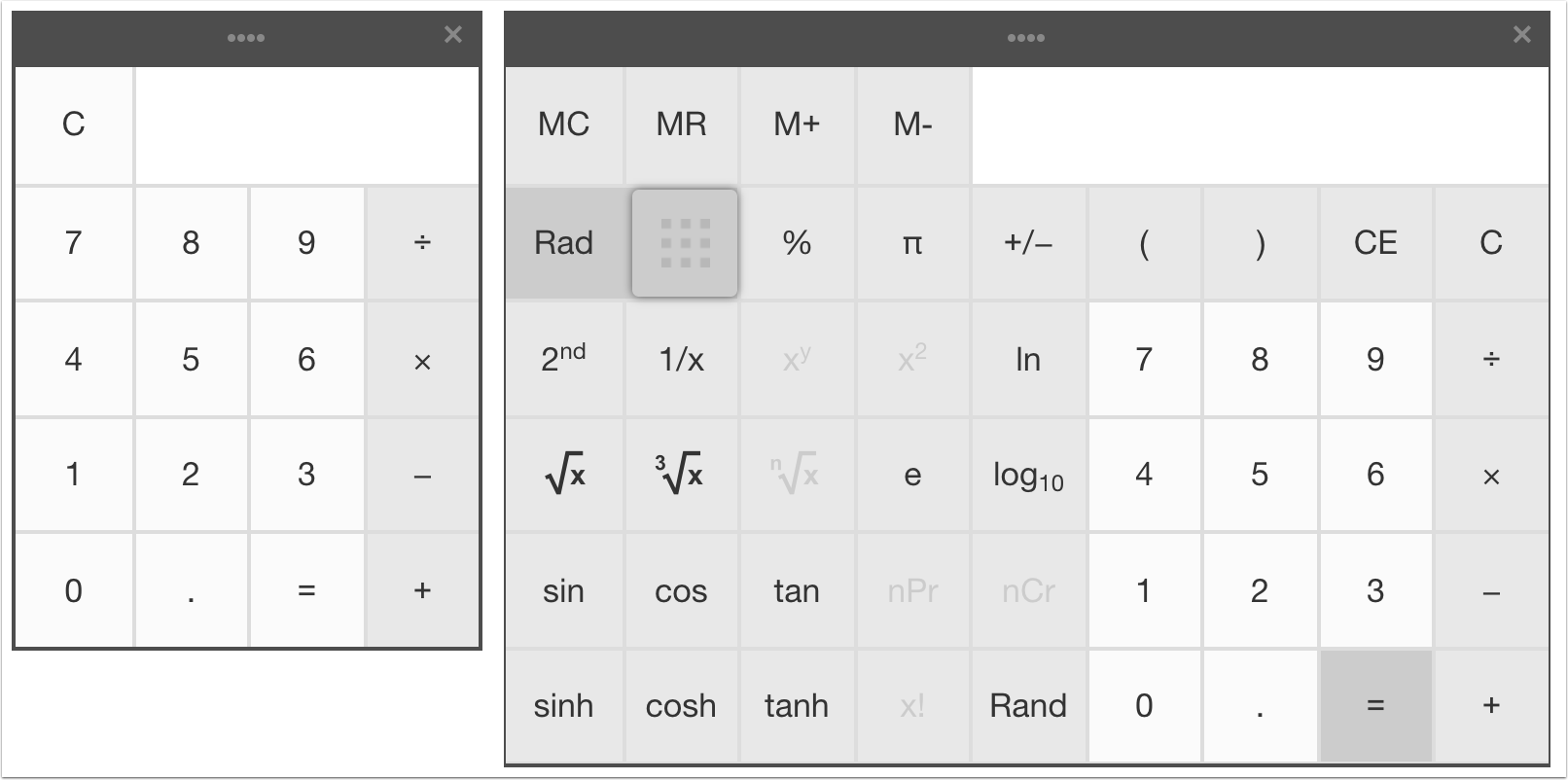
This feature allows students to use a basic or scientific calculator when answering assessment questions.
Affected User Roles & Behaviors
Instructors
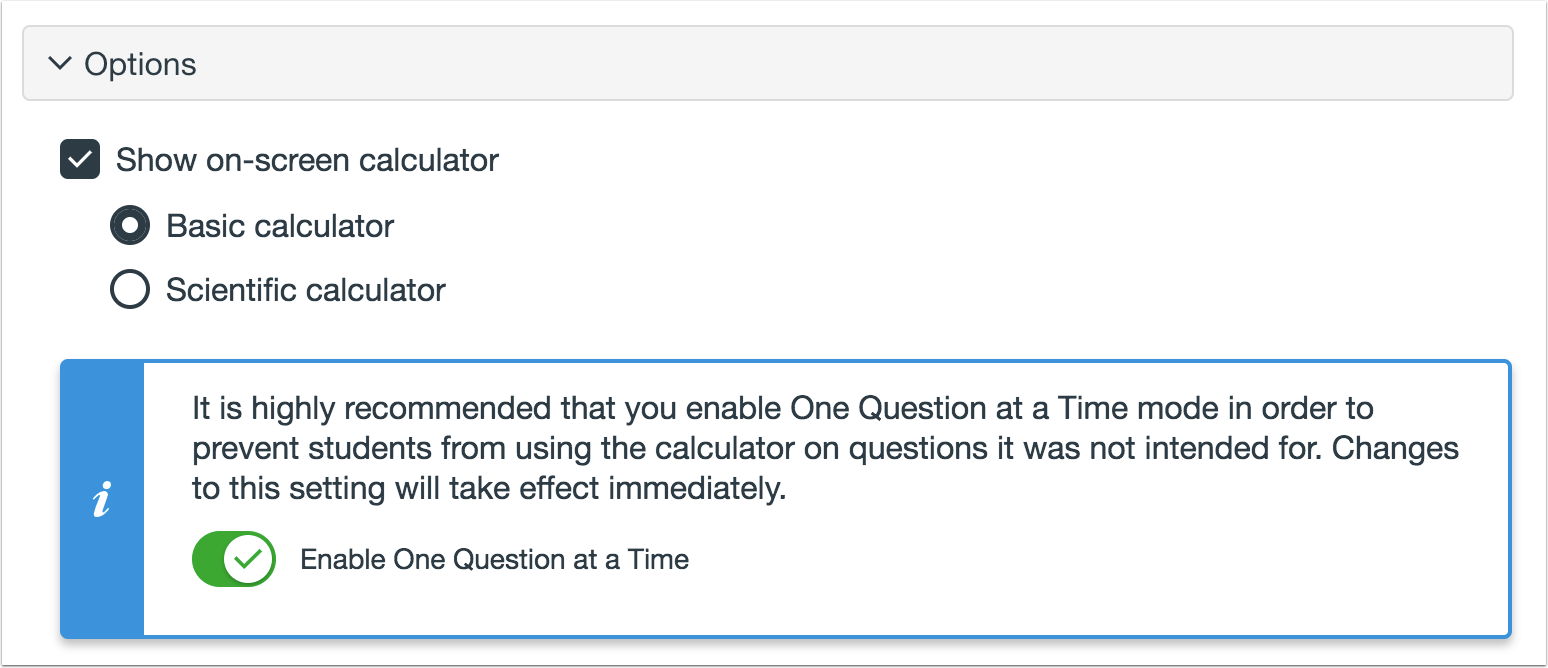
Instructors can enable an on-screen calculator with basic or scientific functions from the Options menu of any question type.
On-screen calculators are best used for assessments presented in One Question at a Time mode. If a calculator is enabled in an assessment where students can view all questions on the same page, students can use the calculator to answer any question.
A warning message allows instructors to enable One Question at a Time mode within the question after the on-screen calculator is enabled.
Students
If the calculator is enabled, students can open the calculator by clicking the Calculator icon.
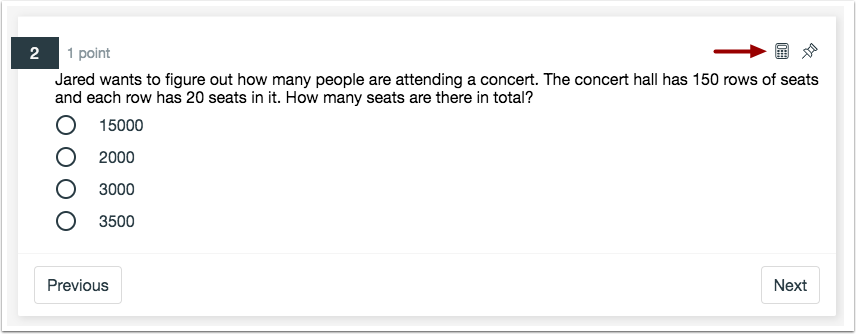
Basic calculators include the functions to add, subtract, multiply, and divide. Scientific calculators include all basic functions in addition to several scientific functions.
Feature Idea Contributions
https://community.canvaslms.com/ideas/7754" modifiedtitle="true" title="Calculator available for quiz questions
Canvas features are always welcome to feedback. Product teams may make adjustments at any time via the Canvas Feature Idea process.
Rich Content Editor
Commons Favorites Importing
This feature is used in conjunction with an external tool (LTI) in Canvas. Please view the content below for additional details. For more information about LTI tools, please see the Canvas Release Notes FAQ.
Location to Enable Feature | Rich Content Editor |
Configuration Details | Commons LTI |
Affected Canvas Areas | Commons LTI, Rich Content Editor |
Beta/Test Environment Support | Functionality affects content in the beta environment only; New/updated features not available until production deploy |
Permissions | Course Content - add / edit / delete <SPAN style="font-size: 11pt; color: |