In this Canvas release (February 16), DocViewer supports stylus tools to create annotations within supported touchscreen devices. For embedded images in the Rich Content Editor, the Canvas files folder structure displays thumbnail images. Interface updates have also been made in Pages and the Rich Content Editor Accessibility Checker.
Feature Options
- For institutions using the New Gradebook, instructors can replace a student’s final grade calculated through Canvas activities with a manually entered grade.
External Tools (LTI)
- For institutions using the Canvas Commons LTI, when viewing the Resource Details tab in Commons, users can view filtered search results that only display resources from their specific institution, and resource cards display the number of times a resource has been downloaded or imported and the number of times a resource has been favorited [REMOVED].
- Additionally, the Rich Content Editor allows instructors to view and import content from their Commons Favorites directly in Canvas [REMOVED].
- For institutions using Quizzes.Next LTI, instructors can reopen submitted assessment attempts from the Moderation page. And the Restrict Student Result View option supports additional options to display or hide points, items, responses, and feedback.
Release notes also include API updates and fixed bugs.
Release notes describe upcoming Canvas functionality and are subject to change. |
Feature OptionsThe following feature options are addressed in this release: - Course: Final Grade Override
|
Release Notes Change Log
BACK TO TABLE OF CONTENTS
New Gradebook
Final Grade Override
This feature is used in conjunction with an existing feature option in Canvas. Please view the content below for additional details. For more information about LTI tools, please see the Canvas Release Notes FAQ.
Summary
Instructors can replace a student’s final grade calculated through Canvas activities with a manually entered grade.
Change Benefit
This change allows instructors to adjust the final grade for a student if needed in the course, such as before sending course grades to a student information system. However, once this feature is enabled, it cannot be turned off.
Affected User Roles & Behaviors
Instructors
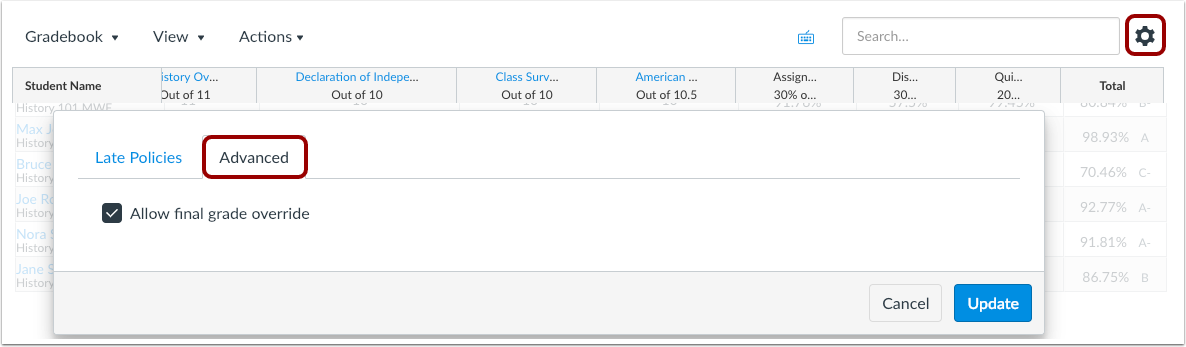
When the Final Grade Override feature option is enabled for a course, instructors can enable the final grade override in the Gradebook Settings menu.
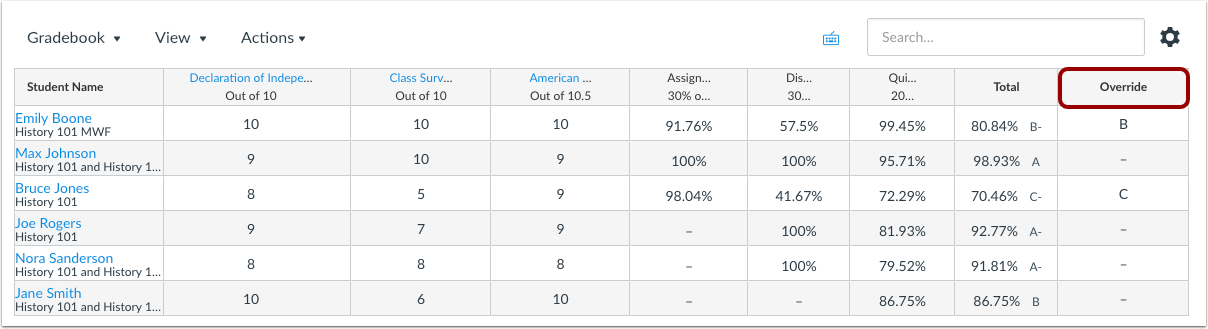
The Gradebook displays an Override column where a new grade can be entered. In the Individual View Gradebook, the grade overrides can also be enabled.
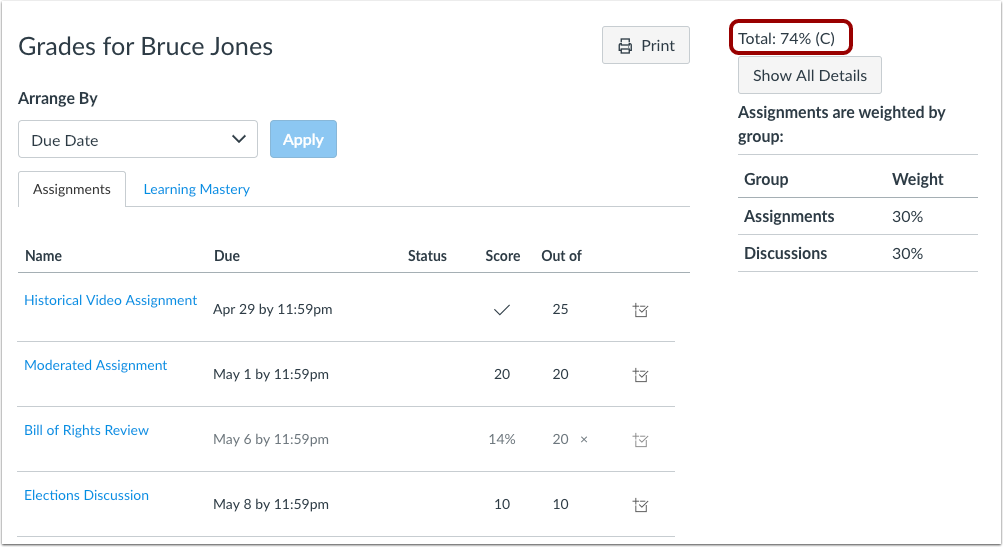
For an override score, a letter grade results in the lower value of the grading scheme. This behavior varies from entering letter grades for individual assignments, where entries take the higher value of the grading scheme. A percentage is retained as the percentage as the override score. Overridden grades can be removed by deleting the grade from the column.
Students will view the overridden score in their Grades page. However, they will not know the score has been overridden.
Notes:
- When enabled in a course by one instructor, the Override column will not automatically display for all instructors. The column must be enabled by instructors individually.
- Final grade override actions are not recorded in the Grading History page, which only records changes for individual assignments.
- Currently final grade overrides are not displayed in the student context card and will be updated in a future release.
Feature Idea Contributions
Canvas features are always welcome to feedback. Product teams may make adjustments at any time via the Canvas Feature Idea process.
Quizzes.Next
Reopen Student Assessment
Location to Enable Feature | Assignments |
Configuration Details | Quizzes.Next LTI |
Affected Canvas Areas | Assignments |
Beta Environment Support | No |
Affects User Interface | Yes |
Affected User Roles | Instructors, Students |
Summary
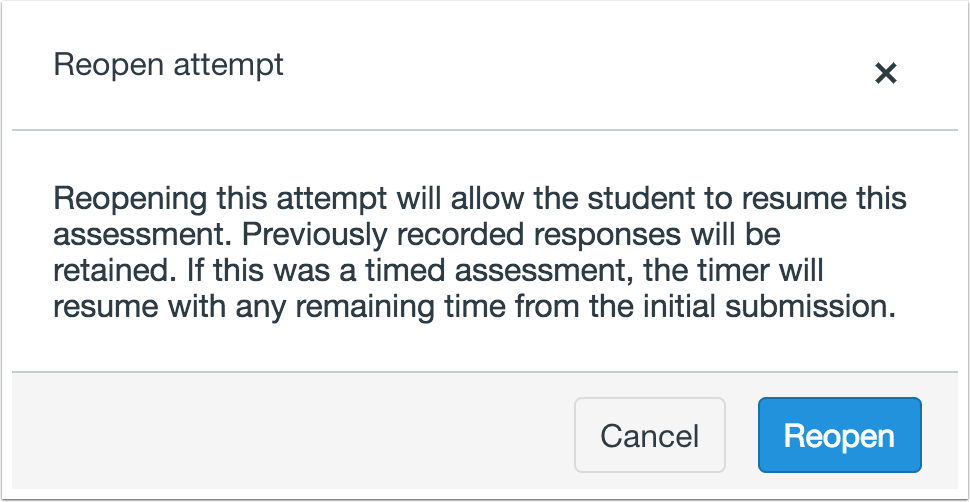
Quizzes.Next supports reopening submitted assessment attempts from the Moderation page.
Change Benefit
This feature allows instructors to grant a student access to an assessment that was submitted before it was complete.
Affected User Roles & Behaviors
Admins, Instructors
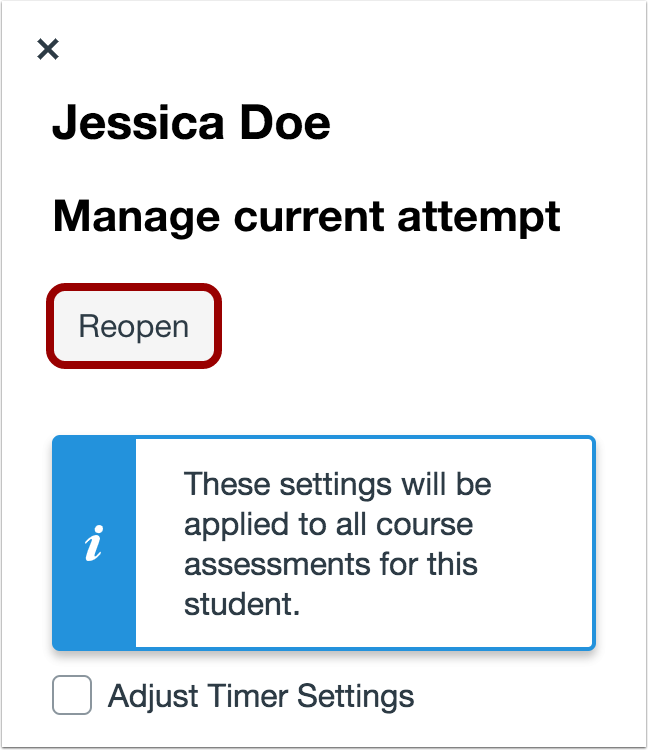
Instructors can reopen an assessment attempt for an individual student from the Moderation page. Reopening an assessment will reopen the most recent attempt.
Students
When a student resumes a reopened assessment, previously recorded responses will be retained and can be changed, unless the assessment displays one question at a time with backtracking disabled. The assessment timer will resume from its remaining time from the attempt.
Feature Idea Contributions
Canvas features are always welcome to feedback. Product teams may make adjustments at any time via the Canvas Feature Idea process.
BACK TO TABLE OF CONTENTS
Commons
Favorites and Downloads Sorting
This feature is used in conjunction with an external tool (LTI) in Canvas. Please view the content below for additional details. For more information about LTI tools, please see the Canvas Release Notes FAQ.
| Status | REMOVED 2019-02-11 |
| Location to Enable Feature | Commons LTI |
Configuration Details | Commons LTI Resource Previews must be enabled by a Commons admin |
Affected Canvas Areas | Commons LTI Any area with imported content |
Beta/Test Environment Support | Functionality affects content in the beta environment only; New/updated features not available until production deploy |
Permissions | Course Content - add / edit / delete Discussions - view Assignments and Quizzes - add / edit / delete |
Affects User Interface | Yes |
Affected User Roles | Admins, Instructors |
Summary
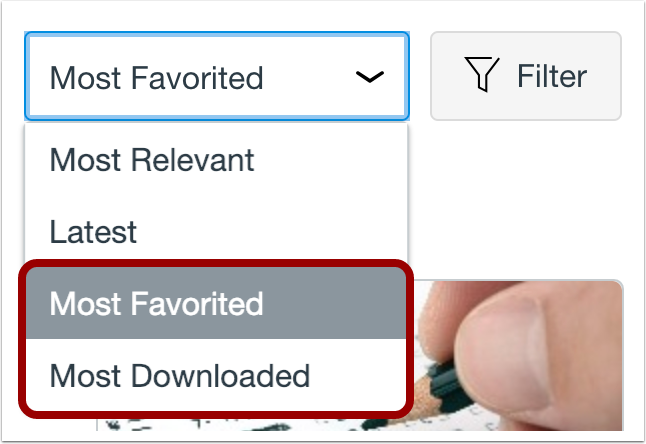
Resource cards display the number of times a resource has been downloaded or imported and the number of times a resource has been favorited. Users can also sort search results by Most Favorited and Most Downloaded.
Change Benefit
This update allows instructors to easily view how many times a resource has been favorited and downloaded. It also allows instructors to sort search results by Most Favorited or Most Downloaded.
Affected User Roles & Behaviors
Instructors
The resource card displays the number of times a resource has been favorited and downloaded, allowing instructors to easily find content in Commons. Instructors can also sort search results by Most Favorited or Most Downloaded.

Feature Idea Contributions
Canvas features are always welcome to feedback. Product teams may make adjustments at any time via the Canvas Feature Idea process.
Institution Search Results
This feature is used in conjunction with an external tool (LTI) in Canvas. Please view the content below for additional details. For more information about LTI tools, please see the Canvas Release Notes FAQ.
Status | REMOVED 2019-02-11 |
Location to Enable Feature | Commons LTI |
Configuration Details | Commons LTI Resource Previews must be enabled by a Commons admin |
Affected Canvas Areas | Commons LTI Any area with imported content |
Beta/Test Environment Support | Functionality affects content in the beta environment only; New/updated features not available until production deploy |
Permissions | Course Content - add / edit / delete Discussions - view Assignments and Quizzes - add / edit / delete |
Affects User Interface | Yes |
Affected User Roles | Instructors |
Summary
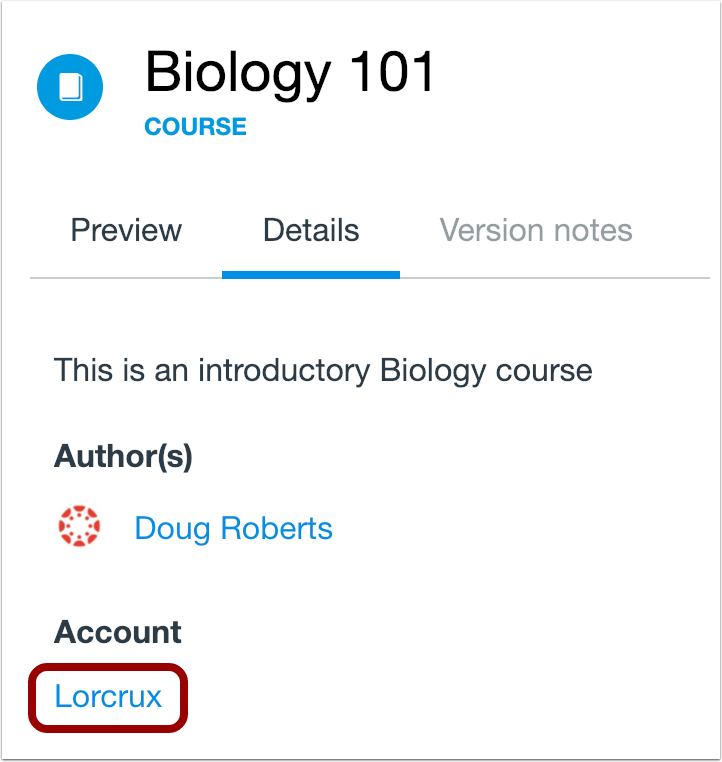
When viewing the Resource Details tab in Commons, users can view filtered search results that only display resources from their specific institution.
Change Benefit
This update allows users to find resources from the same institution as the resource they’re currently viewing.
Affected User Roles & Behaviors
Instructors
When an instructor is viewing the Resource Details tab for a resource in Commons, they can click the Institution name to view filtered search results that only display resources from that institution.

Feature Idea Contributions
Canvas features are always welcome to feedback. Product teams may make adjustments at any time via the Canvas Feature Idea process.
DocViewer
Stylus Support
Location to Enable Feature | DocViewer |
Beta Environment Support | No |
Affected Canvas Areas | DocViewer |
Affects User Interface | Yes |
Affected User Roles | Instructor, Student |
Summary
DocViewer supports the use of a stylus for annotations in certain browser configurations on touchscreen devices.
Change Benefit
This feature allows instructors and students to use a stylus to make annotations in DocViewer on supported touchscreen devices.
Affected User Roles
All Users
Stylus functionality is supported for any user who can access DocViewer. Support is provided for the Microsoft Surface Pro running Windows 10 using the Chrome or Edge browser. Stylus support is limited to Bamboo Ink and any stylus officially supported by Microsoft for the Surface Pro. Limited stylus compatibility is also available in the Firefox browser.
Feature Idea Contributions
https://community.canvaslms.com/ideas/8810-use-of-stylus-with-docviewer
Canvas features are always welcome to feedback. Product teams may make adjustments at any time via the Canvas Feature Idea process.
Quizzes.Next
Additional Result Restriction Settings
Location to Enable Feature | Quizzes.Next Delivery Settings |
Configuration Details | Quizzes.Next LTI |
Affected Canvas Areas | Assignments |
Beta Environment Support | No |
Affects User Interface | Yes |
Affected User Roles | Instructors, Students |
Summary
The Restrict Student Result View option in Quizzes.Next supports additional options to display or hide points, items, responses, and feedback.
Change Benefit
This change gives instructors additional options when determining the information that students can view in their assessment results.
Affected User Roles & Behaviors
Instructors
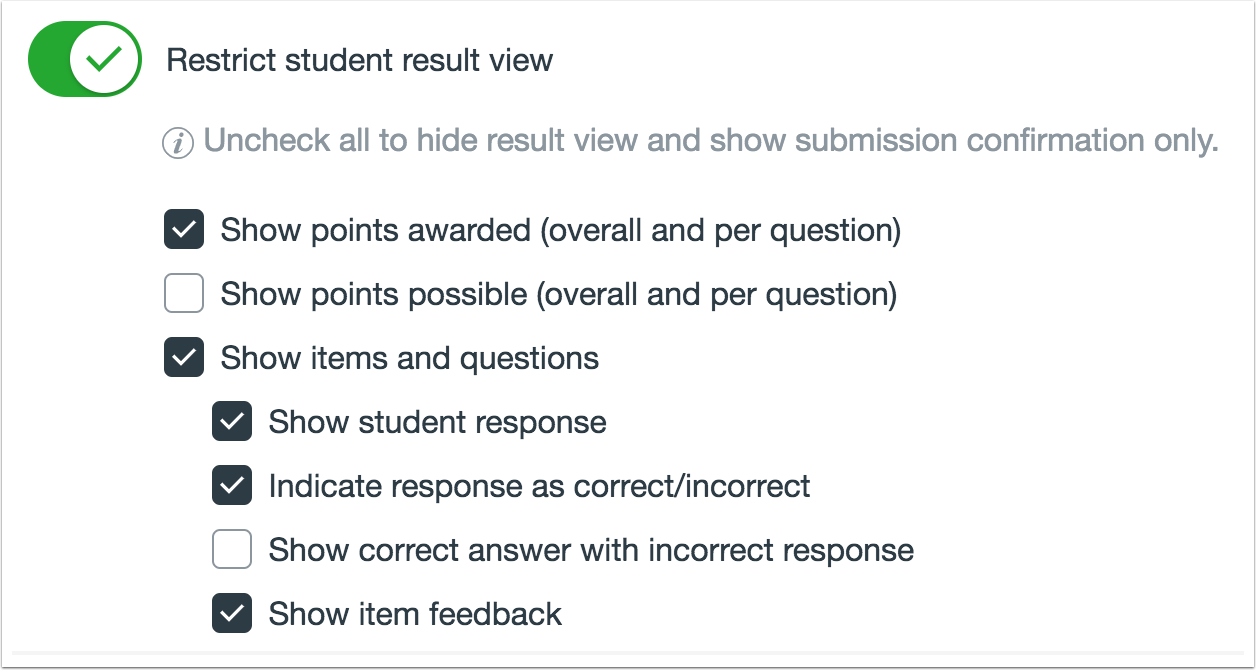
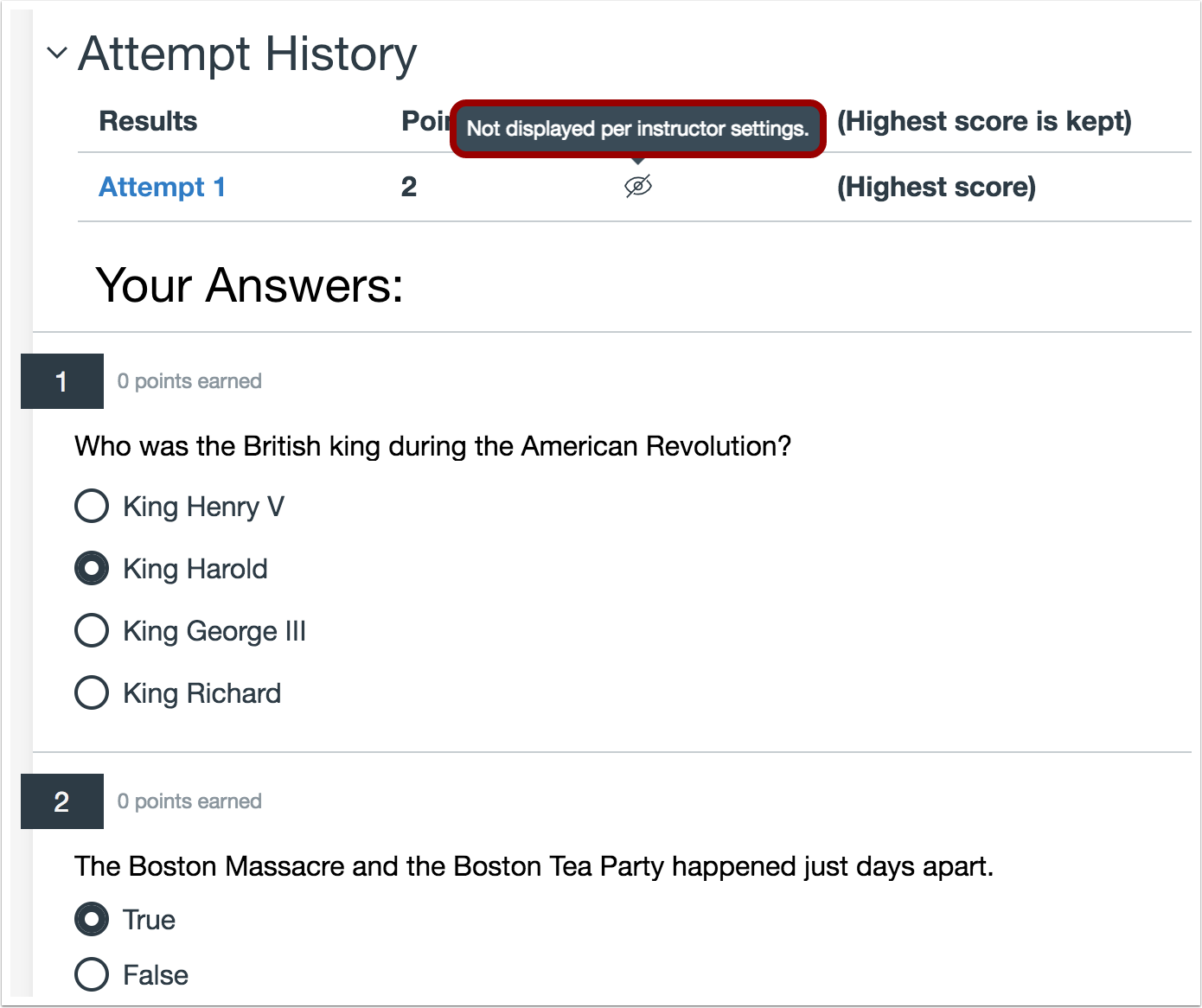
Instructors can manage additional settings when the Restrict Student Result View option is selected. Student result settings include displaying total points awarded, total points possible, and assessment items and questions. The options to show total points awarded and show points possible apply to overall points and individual question points.
When the option to display assessment items and questions is selected, instructors can also manage the option to display student responses and item feedback. When the option to display student responses is enabled, instructors can also manage options to indicate whether answers are correct or incorrect and display correct answers if an incorrect answer was selected.
To completely hide all assessment results, instructors will need to uncheck all options on the Restrict student result view settings.
Students
The information displayed in the assessment results page will vary for students based on the options selected by their instructor.
Feature Idea Contributions
https://community.canvaslms.com/ideas/11598-additional-options-for-quiz-response-settings
Canvas features are always welcome to feedback. Product teams may make adjustments at any time via the Canvas Feature Idea process.