Upcoming Canvas ChangesNew Canvas User Interface (UI): July 9On July 9, 2016, the New Canvas Interface will no longer be a Feature Option in Canvas and will be enabled for all Canvas users as a standard feature. Enabling the New UI affects the user interface for the entire Canvas account.
In this production release (January 9), admins can enable additional authentication methods through third-party providers. Instructors benefit from improved processes in moderated grading and student information system (SIS) assignments. And all users outside the United States can enable SMS notifications. Additionally, this release also brings the first round of Community Holiday features to benefit multiple user roles in several Canvas areas.
Note: As part of Saturday's release, all Canvas documentation lessons will be changed so all images display functionality in new Canvas User Interface. However, to assist institutions that have not switched to the new Canvas UI, all lessons displaying contrasting navigation will still include a step showing functionality for the legacy interface.

Canvas New Feature Screencast (2016-01-09)
The next release schedule:
- Beta release and notes: January 18
- Production release notes: January 25
- Production release and documentation: January 30
Production release notes indicate Canvas updates that will be included with Saturday’s release and are subject to change. New features may differ from those available in your beta environment. Learn more about the Canvas Release Schedule.
< BACK TO TABLE OF CONTENTS
Assignments
SIS Sync Icon
Instructors using a supported and enabled SIS integration, such as PowerSchool or Skyward, can tell if an assignment, graded discussion, or quiz is set up to be sent to their institution’s student information system. Assignments can be enabled or disabled by clicking the sync icon in the index page.
The sync icon only appears for institutions using an SIS integration and is currently available in the Assignments Index Page and the Quizzes Index Page.
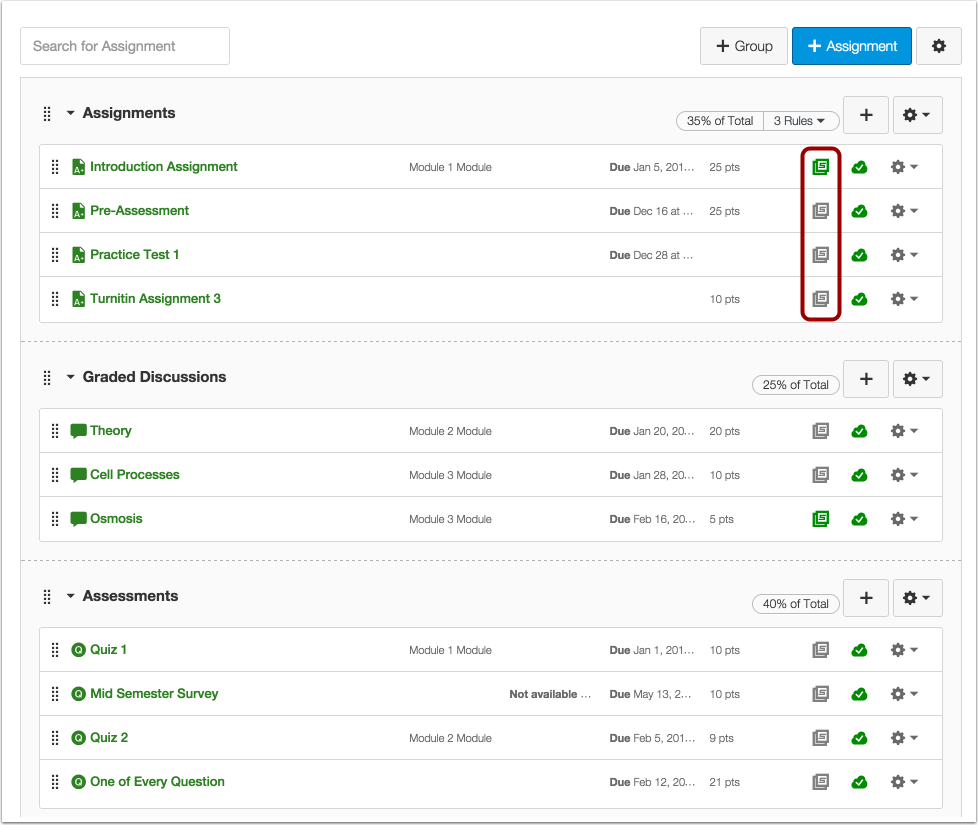
See a related update for this feature in the Community Holiday section.
Authentication
Authentication Providers
Canvas supports authentication with a variety of third-party identity providers, such as Google Apps and Twitter. However, once the provider has been saved in Canvas, the provider’s authentication login credentials must be added to each Canvas user’s account through API or SIS import. (Currently there is no support for adding user credentials through the Canvas interface.)
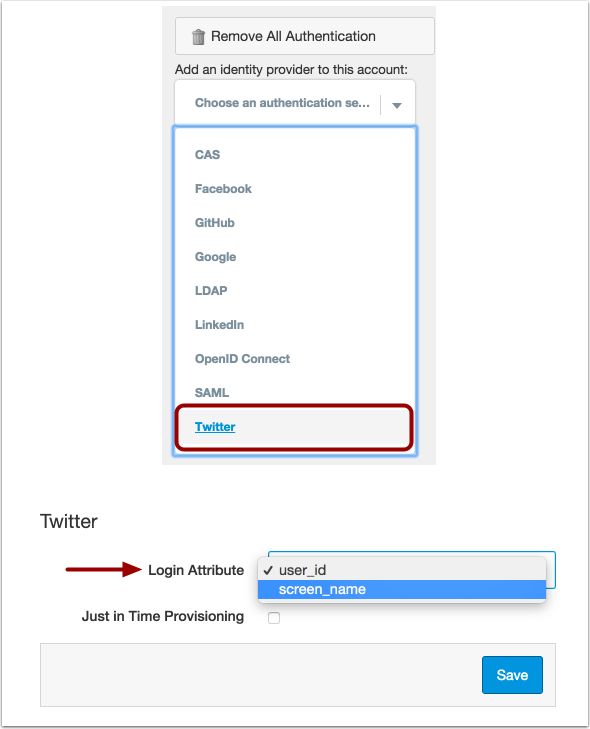
Add Identity Provider
Admins can use the Authentication Settings page to configure an identity provider to their account. Each provider requires the admin to set an attribute to be associated with the account, such as a user ID, email, or login. Attribute-only services include Facebook, Github, LinkedIn, and Twitter. Google, CAS, LDAP, OpenID, and SAML require additional custom components for configuration.
Authentication providers can be removed from an account with the Remove All Authentication button. However, removing an authentication service restricts students from using the provider to log in to Canvas.
Note: The sidebar Remove All Authentication button only removes any previously configured authentication services. It does not affect single sign-on (SSO) settings or Canvas authentication.
Add User Credentials
Once the credentials for the provider has been saved in the Canvas interface, admins can add the authentication login credential attributes as parameters to each Canvas user’s account through API or SIS. Documentation for creating and adding authentication providers is available in the Authentication Providers API. Each authentication provider supports specifically recognized parameters; some providers may recognize additional parameters. Unrecognized parameters are not supported.
Just In Time Provisioning
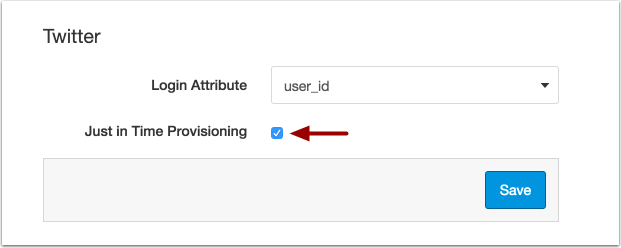
As part of setting up a third-party authentication provider, admins can select the Just in Time Provisioning checkbox, which automatically creates user accounts if one does not already exist.
Currently when a user logs in to Canvas using a third-party authentication system, Canvas searches users in the account looking for a matching user parameter for that service. If a matching parameter is not found, Canvas returns the user to the authentication provider portal with a message the user could not be found. When Just in Time Provisioning (JIT) is enabled, Canvas automatically creates the user using an ID that matches the username used with the authentication provider.
JIT provisioning must be configured via API for the specific authentication provider (see the Authentication Providers API). It does not need to be configured for individual users via API or SIS.
Note: JIT Provisioning is available for all authentication providers except for Canvas, which already provides a similar concept through Self Registration. See a related update for Self Registration in the Other Updates section.
Notifications
International SMS
International SMS is a two-part feature option. The first component, International SMS - Send from Recipient's Country, is a feature option that has been enabled for all institutions and is viewable in the account-level feature options list. However, international SMS will not work without the second component, which is called International SMS and must configured with the support of your Canvas Customer Success Manager (CSM). Please contact your CSM for assistance.
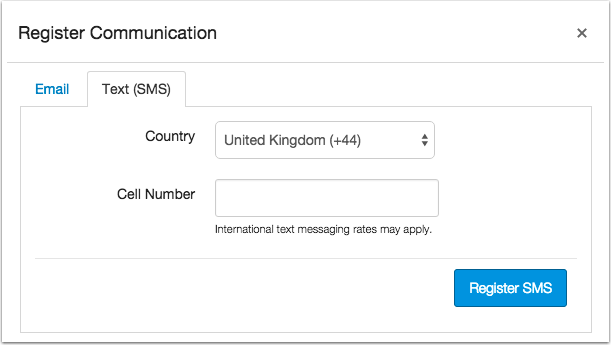
Canvas offers SMS notification support to users outside the United States. Cellular numbers for can be added in a user’s profile. Unlike in the United States, international carrier details are not required as part of the communication setup.
Currently SMS notifications are available for cellular numbers registered in Argentina, Australia, Belgium, Brazil, Canada, Chile, Colombia, Denmark, Finland, Germany, Honduras, Hong Kong, Ireland, Luxembourg, Malaysia, Mexico, Netherlands, New Zealand, Norway, Panama, Peru, Philippines, Qatar, Saudi Arabia, Singapore, Spain, Sweden, Switzerland, United Arab Emirates, and the United Kingdom.
Note: Notifications cannot be sent from the Canvas beta environment.
< BACK TO TABLE OF CONTENTS
Account Settings
Student Term Dates and Content Access Restrictions
Student term dates and the Restrict students from viewing course before start date checkbox setting have been redefined to resolve several conflicting behaviors in Canvas.
When setting term dates, student dates control when students have access to view published courses in the term. Some institutions automatically publish their courses at the term start date, which avoids any issue of students viewing content until the start date of the term—students cannot access any course content until courses are published. However, other institutions allow instructors to publish courses before the term begins.
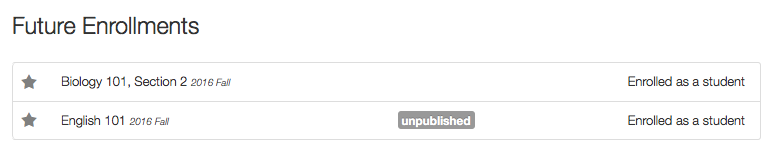
When students are enrolled in future courses, students can now always view the name of their future enrollment in the Courses list. If a course is published before the term start date, students can access course content but cannot participate (such as submitting an assignment or contributing to a discussion topic). On the term start date, students can fully participate in the course. This behavior also applies to any courses with course date or section date overrides.
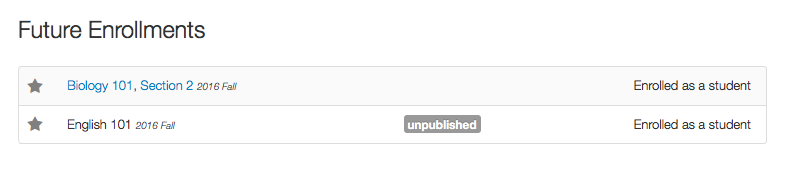
For institutions that allow courses to be published before the term start date, admins or instructors can use the Restrict students from viewing course before start date checkbox, which will remove links to the course before the term or course start date. With this setting, students can still view their future enrollment in the Courses list but cannot click any published courses to view course content (unpublished courses are not affected). On the term start date, students can view the course link and participate in the course.

Current Courses
Institutions with current courses that have been affected by this workflow change and want to restrict access can quickly apply the setting to the entire account and all sub-accounts. In Account Settings, click the Restrict students from viewing course before start date checkbox AND the Lock this setting for sub-accounts and courses checkbox. The first checkbox only applies the default setting to any new courses created in the account, but locking the setting automatically applies to all existing courses in all sub-accounts.

Note: The Restrict students from viewing course after END date checkbox has not been affected; when enabled, it hides concluded enrollments from a student's Courses list.
Assignments
Moderated Grading
When creating Moderated Grading assignments and assigning students to a moderation set, the Moderation page only adds a second reviewer column when it is needed. Although the Moderation page supports provisional grades for two reviewers and one moderator, not all provisional grades may be needed in the course.
Additionally, if a student who was not previously in the moderation set is added to the set at a later date, the Moderation page adds a SpeedGrader link to the 1st Reviewer column. If the student received a grade before being added to the set, the SpeedGrader link is added to the 2nd Reviewer column and opens directly in the 2nd Reviewer tab.
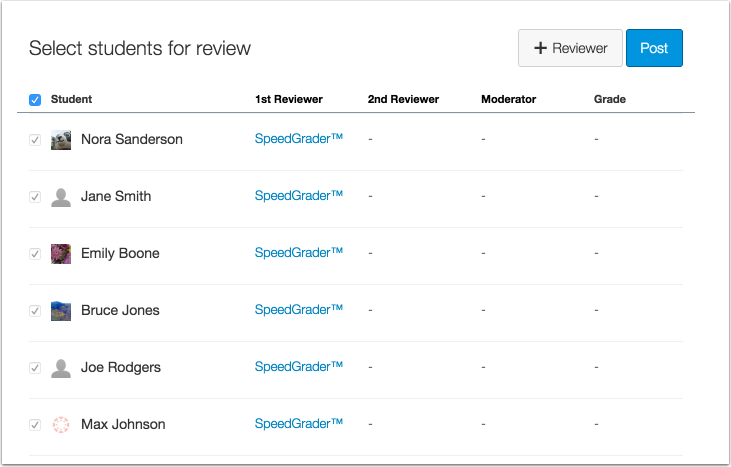
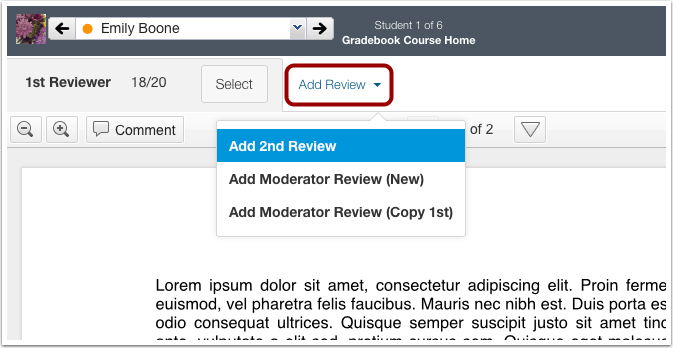
Moderated grading supports provisional grades for up to two reviewers and one moderator. As clarification, if a moderator does not want to use the score from the 1st Reviewer, the moderator can add a second review or a moderator review in SpeedGrader to use for grading.
New Canvas UI
The New Canvas User Interface (UI) is an account-level feature option, which can be enabled by any Canvas admin in Account Settings. Enabling the New UI affects the user interface for the entire Canvas account. The New Canvas UI will be an account opt-in feature until July 9, 2016.
Global Navigation
The Global Navigation links have been rearranged, with the User Account link at the top. Other links include Admin, Dashboard, Groups, Calendar, Inbox, and LTI Tools. Links are hidden unless the user has the proper permissions or the link includes content (such as being in a group to view the Groups link).
Dashboard Cards
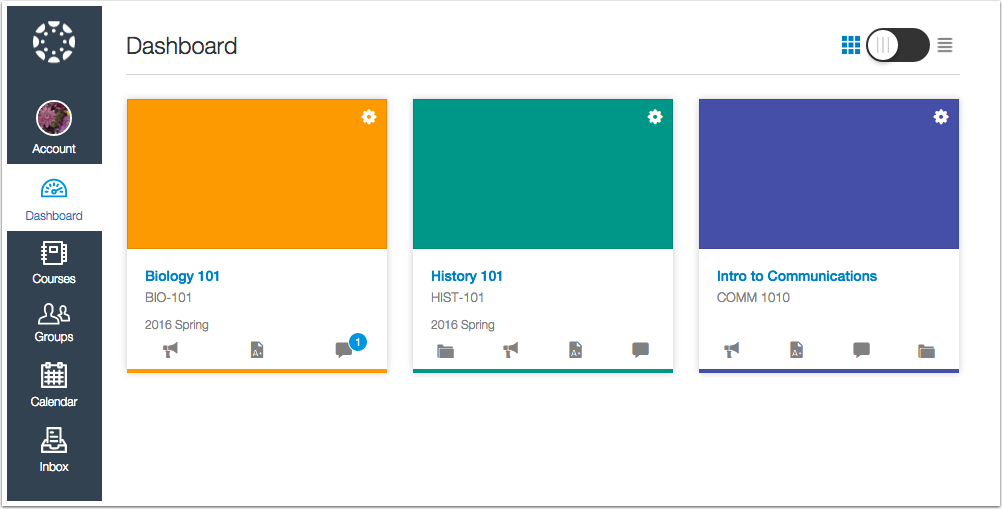
The course cards on the dashboard have also been updated with a slightly refined look.
Course Navigation Menu
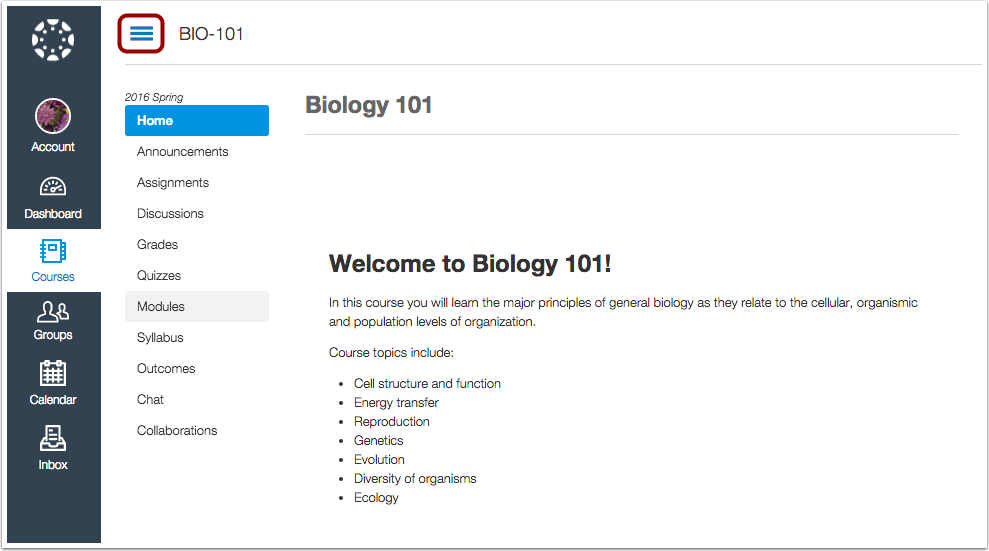
The Course Navigation Menu no longer collapses unless it is minimized manually by a Canvas user. Regardless of screen size, browsers no longer include a breakpoint that force the menu to collapse automatically.
 This feature was originally suggested by the Canvas Community.
Theme Editor Templates
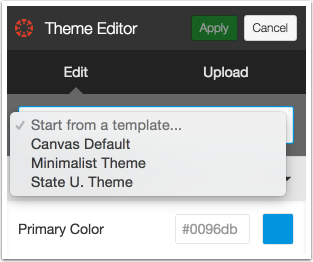
The Theme Editor includes two additional templates: Minimalist Theme and State U. Theme. Both of these themes are intended as a foundation for admins to easily modify. Minimalist is for admins who prefer a more low-key look and feel, while State U. is intended for schools with a more vibrant brand palette.
People
Login ID/SIS ID Columns
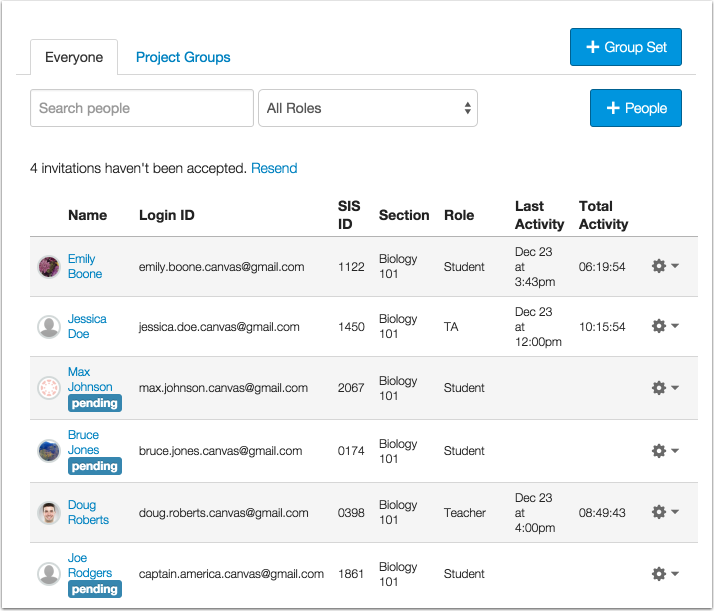
The Login ID/SIS ID column has been separated into two columns. Only users with permissions to Read SIS Data can view the SIS column.
< BACK TO TABLE OF CONTENTS
Community Holiday is a collection of popular feature ideas specifically developed to say thank you to the Canvas Community.
Account Settings
Post to SIS Assignment Default
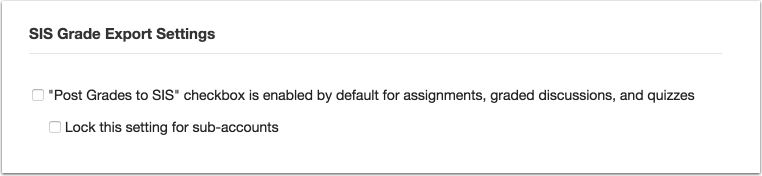
Institutions using a supported SIS integration, such as PowerSchool or Skyward, can choose to automatically enable the Post Grades to SIS checkbox for all assignments, graded discussions, and quizzes. Currently the Post Grades checkbox is only automatically applied to assignments.
Admins can enable this option in Account Settings. The Post Grades to SIS checkbox is located in the Settings tab under the SIS Grade Export Settings heading.
When SIS assignments are enabled as default, instructors can still manage individual assignments in their courses manually remove any assignments that should not be sent to the student information system.
 This feature was originally suggested by the Canvas Community.
Assignments
Filter by Grading Period
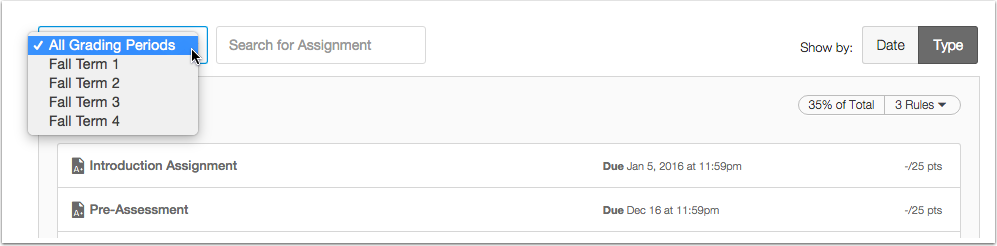
If a course is using the Multiple Grading Periods feature option, Canvas users can sort and filter the Assignments page by grading period. This feature allows user to view assignments that are relevant within a specific grading period.
Note: This filter only appears in the Assignments Page.
 This feature was originally suggested by the Canvas Community.
Grades
Hide Assignment Group Totals with Final Grade
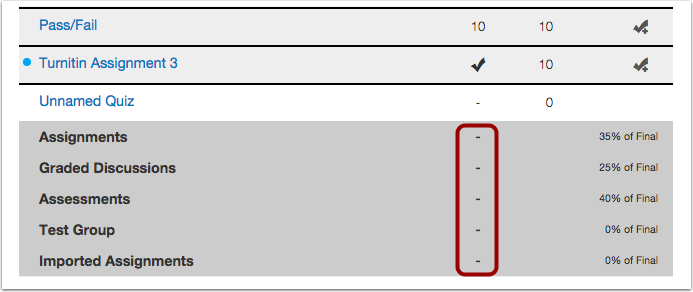
When an instructor chooses to hide the final grade from students in Course Settings, assignment group totals are also hidden from students.
Note: This setting does not affect courses using Multiple Grading Periods. To hide total grades from students when using Multiple Grading Periods, instructors can choose to disable the Display Total Grade feature option.
 This feature was originally suggested by the Canvas Community.
Gradebook
Remove Student Names from Message Students Who
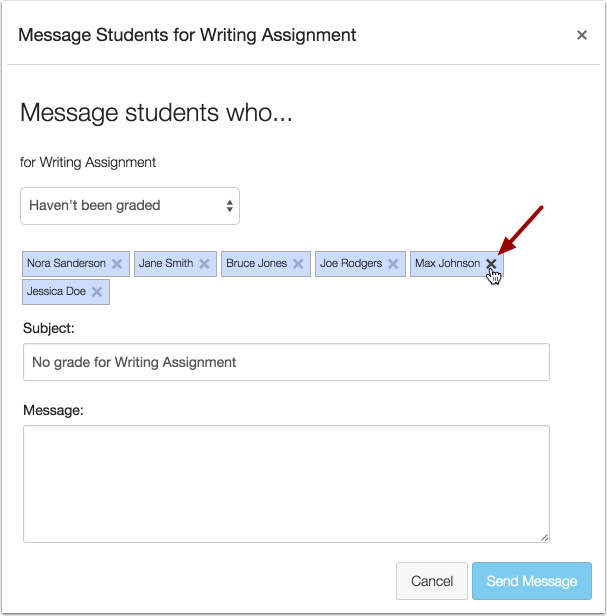
When using the Message Students Who feature in the Gradebook, instructors can remove student names that are shown in the student list. If a student is removed from the message list, the student will not receive the message.
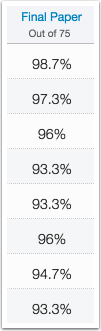
Percent Symbol in Percentage-based Assignments
When an instructor displays an assignment grade as a percentage, the percent sign appears in the Gradebook column. The percent sign is already included in the Student Grades page.
 This feature was originally suggested by the Canvas Community.
People
Inactive Enrollment Type
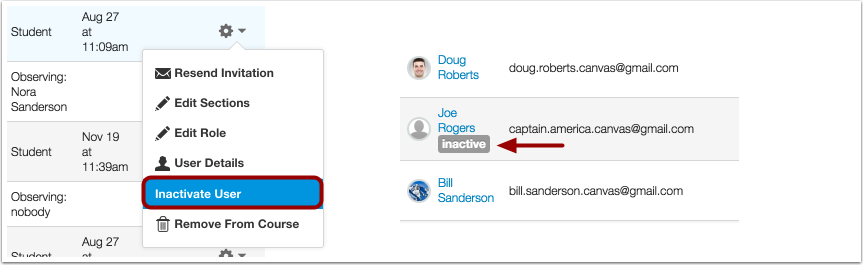
Admins and instructors can specify users as an inactive enrollment. Inactive enrollments allow admins and instructors to view prior activity in a course but does not allow the student to access course content. This status can be used for students who do not pay tuition or drop the course at a future date. Students cannot view inactive users.
An inactive enrollment:
- Can be deleted like other enrollments
- Does not appear in any messaging list
- Cannot participate in the course
- Can’t be assigned to groups
- Includes no grading or moderation restrictions—grades still display and can be edited in the Gradebook
Note: Managing inactive enrollments is associated with the Add/remove students and Add/remove others teachers account- and course-level permissions.
 This feature was originally suggested by the Canvas Community.
Edit Enrollment Type
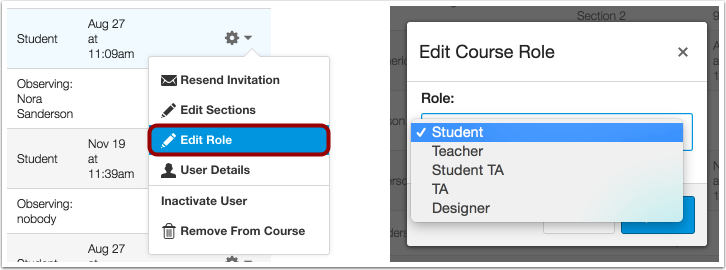
Admins and instructors can edit the enrollment type for a user in the course through the People page. Unlike section edits, role edits do not require the user to accept a new course invitation. This feature allows instructors to make modifications to course enrollment types without having to delete the existing enrollment.
Notes:
- Currently editing a role can only be done through the Canvas interface; it is not available in the Enrollments API.
- Existing users cannot be edited to have an observer role. Additionally, existing observers cannot have their roles change to any other role type. Observers can only be added by adding a new user to the course.
- Editing enrollment types is associated with the Add/remove students and Add/remove others teachers account- and course-level permissions. Users without the Add/remove other teachers permission cannot select teacher, TA, or any other custom role as an enrollment type. Users without the Add/remove students permission cannot select the student role as an enrollment type.
 This feature was originally suggested by the Canvas Community.
< BACK TO TABLE OF CONTENTS
Authentication
Canvas Self Registration
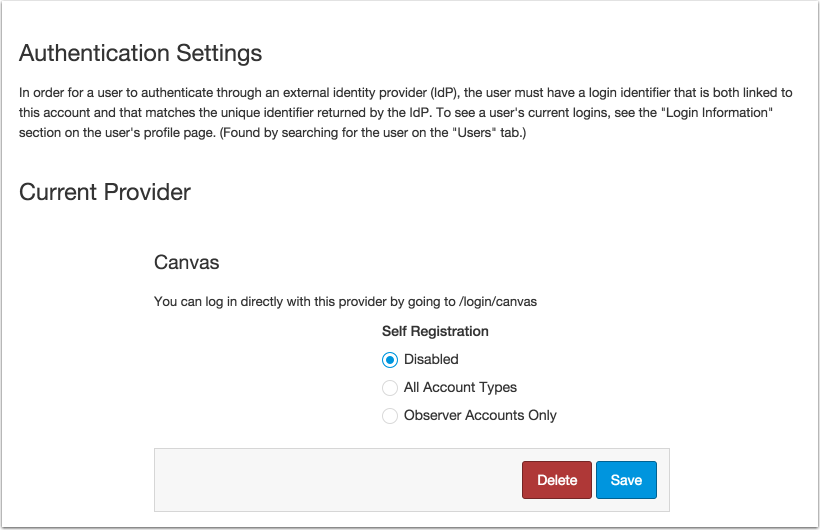
The Self Registration option for Canvas authentication is now part of the Authentication Provider page. All accounts can view the Self Registration options at the end of the page and the current setting for that option has been retained. Canvas Self Registration cannot be deleted as an authentication option, but it can be disabled at any time.
Discussions
Discussion Reply Performance Enhancements
The database query for loading discussion replies has been optimized for performance.
Course Settings
Link Validator
The Link Validator find links to deleted and unpublished content. Instructors can choose to hide unpublished links. Additionally, the Link Validator provides a warning when links direct to different courses.
Grades
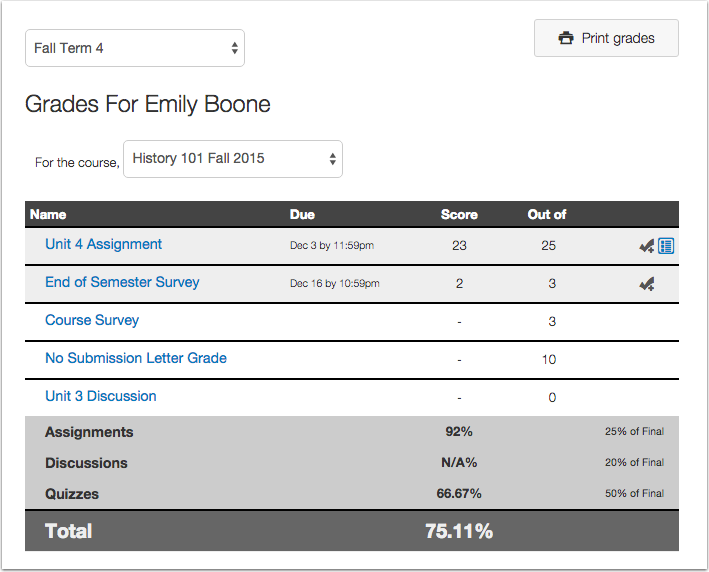
Graded Anonymously Column
The Student Grades page no longer includes the Graded Anonymously column. Previously used for Anonymous Grading, the Graded Anonymously column showed students if an assignment was graded anonymously in SpeedGrader by hiding student names.
Gradebook
Individual View Download Submissions Button
In the Gradebook Individual View, quiz submissions do not display the Download Submissions button. Previously the button was only grayed out as quiz submissions cannot be downloaded.
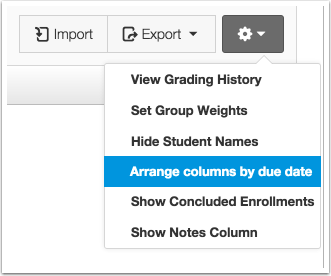
Differentiated Assignments and Arranging Columns by Due Date
When arranged in the Gradebook by due date in the Gradebook Settings, assignments with differentiated due dates are ordered according to the latest due date. For instance, if an assignment with three sections includes a different due date for each section, the assignment will be arranged in the Gradebook according to the latest due date in the assignment.
Notifications
Bounced Channels
If a user’s communication channel bounces once, Canvas displays a warning icon in User Settings. Bounces can occur from invalid addresses (caused by address typos, changed addresses, etc.) or blocked servers and does not allow the channel to attempt to generate or send a notification. Previously the channel had to bounce several times before the warning would appear.
Custom Role Names
When admins create custom user roles, users receive course notifications with the name of the custom role. For instance, if a custom role called Student TA is created based on the TA role, the user invitation will show that the user has been invited to participate in the course as a Student TA.
 This feature resolves a fixed bug in Canvas:
When an admin created a custom account role, the notification showed the base role name rather than the custom role name. This behavior occurred because notifications only generated the base role name. Canvas code has been updated to display the names of custom roles in Canvas notifications.
Reports
Last User Access Report
The Last User Access Report includes a deleted enrollments checkbox. This checkbox is part of the report configuration menu and allows admins to include deleted enrollments as part of the report. By default, deleted enrollments are not included in the report.
 This feature resolves a fixed bug in Canvas:
When an admin configured the Last User Access Report, any student enrollments that were deleted display in the report. This behavior occurred because deleted enrollments were not specifically coded to be removed from the report. Canvas code has been updated to allow admins to choose whether or not they want to include deleted enrollments in the report.
Rich Content Editor
Text Line Height
The line-height CSS property has been changed to a unitless height, which calculates line heights based on the font size shown in a user’s computer. The height value is set to 1.5, which the browser multiplies by the font size to determine the line height.
 This feature resolves a fixed bug in Canvas:
When users set a large font size in the Rich Content Editor, the text was overlapping in the page. This behavior occurred because the CSS line height was set at a fixed height. Canvas code has been updated to set the line height as a limitless height, which allows users to enlarge a page in a native browser and not view any overlapped font lines. This change affects both the new and legacy Canvas interface.
< BACK TO TABLE OF CONTENTS
APIs
Assignment Group API
In the Assignment Group API, users can include submissions as a parameter when listing assignment groups or getting assignment groups.
Enrollments API
In the Enrollments API, users can inactivate an enrollment, or re-active an enrollment.
SIS CSV Format
In the SIS CSV Format page, users can set an inactive status in the enrollments.csv. When placed in an inactive state, the student is listed in the course roster for instructors but cannot view or participate in the course unless the enrollment is changed to an active status.
External Apps (LTI)
Media Full-screen Viewing
LTI tools that support media viewing can display embedded videos in full screen.
< BACK TO TABLE OF CONTENTS
Accessibility
Calendar
Calendar events retain focus for keyboard navigation. Focused events display a blue outline.
Courses
After viewing a search element in the Account Courses page, such as Find a Course or Find a User, the page returns focus to the original search location.
Dashboard
The Enter and Escape keys function as shortcuts for the course nickname feature. Pressing the Enter key saves a course nickname, and pressing the Escape key closes the Nickname window.
The Course Activity toggle can be read as a button by screen readers. When the toggle is changed on or off, the button label is also updated.
Files
The files quota information does not include any ARIA attributes related to progress bars, as the files quota is a usage indicator. Screen readers can read the amount of space used in the files quota.
After selecting a file, keyboard users can navigation through the option buttons in order. Keyboard focus is retained on each option.
File previews can be read by screen readers.
Modal Windows
Canvas modal windows do not attach an aria-hidden element in the body property.
Modules
In the Add Module and Edit Module Settings windows, the prerequisite and requirement options display focus indicators for keyboard users.
After an item is added to a module, keyboard focus returns to the the Add Item button.
In the Add Modules window, keyboard users do not see a second set of Cancel and Add Module buttons.
Rich Content Editor
The line-height CSS property has been changed to a unitless height, which calculates line heights based on the font size shown on their computer. The height value is set to 1.5, which the browser multiplies by the font size to determine the line height. Users can enlarge a page in a native browser and not view any overlapped font lines in both the new and legacy Canvas interface.
Dashboard
Screen readers can identify items in each sidebar section, which no longer include conflicting gray check marks. Items in the To Do list are indicated by their respective assignment icon. Coming Up items include calendar icons for upcoming events. Green check marks only display in the Recent Feedback section to indicate completed assignment feedback.
Announcements
Global Announcements and Languages
Users can create global announcements in any language.
Explanation: When an account-level default language was set to a language other than English or Maori, users were unable to assign start and end dates to global announcements using the Calendar icon. This behavior occurred because of an inconsistency in the date and time variables. Canvas code has been updated to add calendar dates for any non-English language.
Disable Comments on Announcement and Marked As Read
When users read an announcement, the announcement is marked read even if commenting is disabled.
Explanation: When an instructor set the course option to disable comments for announcements, reading an announcement did not mark the announcement as read and retained the bold text. This behavior occurred because Canvas wasn’t coded to mark a post as read if it was locked. Canvas code has been updated to change locked announcements as read if the topic is visible for the current user.
Assignments
Assignment Groups
When creating an assignment, instructors can always view the assignment group drop-down list.
Explanation: When an instructor created an assignment, selected the assignment group drop-down menu, and selected the [New group] option, the assignment group modal window wasn’t able to be reopened if the instructor used the close icon instead of the Cancel button. This behavior occurred because of a Javascript rendering error. Canvas code has been update to reset the assignment group modal window regardless of how it was closed.
Grading Schemes
Instructors can edit the default grading scheme when editing an assignment.
Explanation: When an instructor edited an assignment with a Letter Grade or GPA scale grade display, any changes made to the default grading scheme weren’t being saved. This behavior occurred because the assignment was not associating the ID of the grading scheme. Canvas code has been updated to save edits made to the default grading scheme in the assignments page.
Muted Assignments and Assignment Group Totals
Muting an assignment does not factor the score into an assignment group.
Explanation: When an instructor muted an assignment in a course with assignment groups, the score of the assignment was appearing as part of the associated assignment group. This behavior occurred because the page cache was overriding the muted assignment status and refreshing the grades. Canvas code has been updated to hide muted scores in assignment groups.
Calendar
Calendar Event Times
Calendar events after 11:30 pm retain their correct times.
Explanation: When an instructor used the calendar to move an assignment to another date, any default time of 11:59 pm was being changed to 11:30 pm. This behavior occurred because of a date formatting error. Canvas code has been updated to retain correct times for calendar events after 11:30 pm.
Conversations
Non-favorite Courses and Concluded Status
When a user has set up favorite courses, non-favorite courses only display in the concluded menu if they are concluded.
Explanation: When a user set up favorite courses, non-favorite courses displayed in the Concluded courses menu. This behavior occurred because of misclarification in the code regarding the definition of complete courses. Canvas code has been updated to clarify code regarding term dates and end at dates and only display truly concluded courses in the Concluded menu.
Course Settings
Grading Schemes
Canvas retains edits made to a grading scheme in the Course Settings page.
Explanation: When an instructor enabled a course grading scheme and then clicked the Get Grading Scheme link, any edits made to the grading scheme failed up to two times. This behavior occurred because of inconsistencies in the grading standards APIs. Canvas code has been updated to retain any edits to grading schemes in the Course Settings page.
Courses
Course Home Page and Assignment List
When a Course Home Page is set to the Assignment List, instructors do not view an overdue section.
Explanation: When an instructor set the Assignments List as the Course Home Page, instructors and admins were viewing the assignments list with past due dates as overdue. This behavior occurred because the display was not confirming the user’s permissions and viewing rights. Canvas code has been updated to not display the student view of the Assignment List for admins and instructors.
Course End Date Setting and Concluded Enrollments
Instructors can view quiz results in concluded courses.
Explanation: When an account enabled the Restrict Students from Viewing Quiz Questions after Course End Date option, instructors and TAs with concluded enrollments were also restricted from viewing quiz results in both the quiz and SpeedGrader. This behavior occurred because the restriction was not verifying multiple permissions to review grades. Canvas code has been updated to allow users to view quiz questions if they have grading permissions.
Sub-account Admins and SIS IDs
Sub-account admins can view the SIS IDs for courses and sections in the sub-account.
Explanation: When a sub-account admin tried to courses and sections in the sub-account, they were not able to view SIS IDs. This behavior occurred because Canvas was checking SIS permissions for the root account instead of the sub-account. Canvas code has been updated to allow sub-admins to view SIS information for sub-account courses, sections, and groups.
Discussions
Close for Comments and Marked As Read
When users read a discussion, the discussion is marked read even if the discussion is closed to comments.
Explanation: When an instructor set the course option to close a discussion to comments, reading a discussion did not mark the discussion as read and retained the bold text. This behavior occurred because Canvas wasn’t coded to mark a post as read if it was locked. Canvas code has been updated to change locked discussions as read if the topic is visible for the current user.
Enrollments
Multiple Enrollments
Canvas doesn’t show future enrollment messages when a user also has an active enrollment.
Explanation: When a student has both an active enrollment and an enrollment for a future date, Canvas displayed a message that said the course hadn’t started yet. However, the student was still able to submit assignments to the course. This behavior occurred because the enrollment was only verified based on the context of the URL, so URLs pointing to future enrollments displayed the future message. Canvas code has been updated to sort enrollments by state and not display future access messages when active enrollments exist.
Self Registration
Users can log in to Canvas using an institution’s self registration page.
Explanation: When a user tried to log in to Canvas using an institution’s self registration page, the user was being redirected to the Canvas login page and then viewed an error message. This behavior occurre