Upcoming Canvas Changes2020-02-18End-of-Life functionality related to New Quizzes (Live Events) 2020-03-21End-of-Life functionality for existing course and user analyticsEnforcement of New Course and User Analytics For more information, please see Upcoming Canvas Changes.
In this Canvas release (January 18), admins can allow users to associate their user profiles with pronouns. The New Gradebook, Course Card Images, Rubric Criterion Range, and Student Context Card feature options will be turned on for all institutions and will no longer be optional in Canvas. These changes were previously included in Upcoming Canvas Changes.
In the New Gradebook, the Student Name column includes additional sorting options. Additionally, for assignments with a manual posting policy, comments can be posted without a grade.
Feature Options
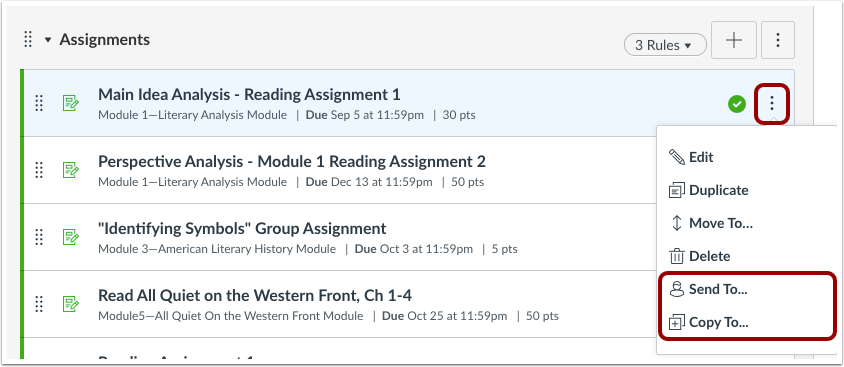
- The Direct Share feature option allows users to copy individual course items to another course and share individual items with other users.
- The Responsive Layout feature option enables institutions to confirm any of their custom code in Canvas with recent default layout changes. This feature option will be turned on for all institutions in the 2020-02-15 Canvas release.
- The Rich Content Editor feature option enables institutions to allow the New Rich Content Editor in Canvas courses. The current Rich Content Editor is deprecated.
Beta Environment Feature Options
- The Assignment Enhancements - Student feature option enables institutions to explore student enhancements in Canvas course assignments.
External Tools (LTI)
- For institutions using New Quizzes, the New Quizzes Settings menu allows answers to be shuffled for each student in supported quizzes, and users can search course outcomes within New Quizzes.
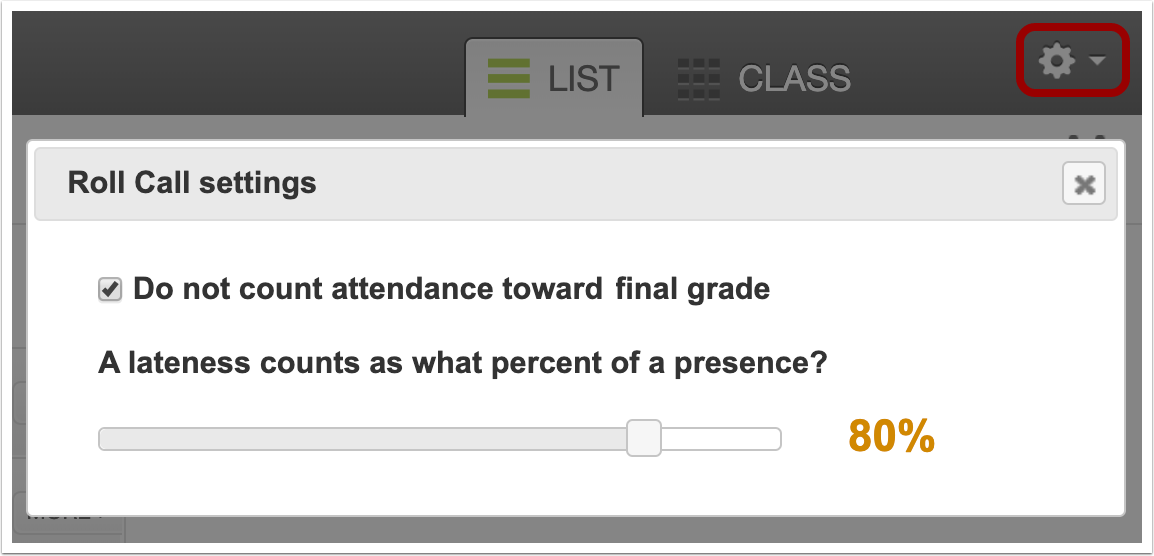
- For institutions using the Attendance tool, instructors can choose to omit the Attendance assignment from the course final grade directly in the Attendance Settings menu.
Release Notes Change Log
BACK TO TABLE OF CONTENTS
Assignments
Direct Share
This feature can be enabled in Canvas through a feature option in Account Settings. Please view the content below for additional details. For more information about feature options, please see the Canvas Release Notes FAQ.
Location to Enable Feature | Account Settings |
Configuration Details | Direct Share Feature Option |
Affected Canvas Areas | User Navigation, Assignments, Quizzes, Discussions, Pages |
Beta/Test Environment Support | Yes |
Affects User Interface | Yes |
Affected User Roles | Instructors |
Feature Enhancement Ideas | Existing Direct Share feature ideas |
Specified Tag for Feature Ideas | direct_share |
Feature Video | |
Summary
Instructors can copy individual course items to another course and share individual items with other users.
Change Benefit
This change allows instructors to copy and share content directly in Canvas without having to use a secondary repository like Commons.
Additional Details
For full details about Direct Share, please see the Canvas Release: Direct Share document.
Student Enhancements
This feature can be enabled in Canvas through a feature option in Account Settings. Please view the content below for additional details. For more information about feature options, please see the Canvas Release Notes FAQ.
Summary
Supported student assignments display an improved interface and submission workflow.
Change Benefit
This change improves the student experience in completing and submitting assignments, viewing rubrics, and locating instructor feedback.
Additional Details
For full details about student assignment enhancements, please see the Canvas Release: Student Assignment Enhancements document.

BACK TO TABLE OF CONTENTS
Attendance
Do Not Count Toward Final Grade Settings Checkbox
Location to Enable Feature | Attendance |
Configuration Details | Attendance LTI |
Affected Canvas Areas | Attendance, Assignments, Gradebook |
Beta/Test Environment Support | No |
Environment Limitations | Unlike other LTI tools in Canvas, updates to the Attendance tool may not be available with the initial notes for a release and may be added at any time. |
Affects User Interface | Yes |
Affected User Roles | Instructors |
Feature Enhancement Ideas | View existing Attendance feature ideas |
Specified Tag for Feature Ideas | attendance |
Summary
The Settings menu includes the option to not count the Attendance assignment toward the final grade.
Change Benefit
This change allows instructors to not count attendance toward the final grade without having to edit the assignment.
Affected User Roles & Behaviors
Instructors
If instructors want to omit the Attendance assignment from the students’ final grade, they can open the Settings menu directly in the Attendance tool and select the checkbox to remove attendance from the final grade.
Course Settings
Dashboard Course Card Feature Option Enforcement
Location to Enable Feature | Course Settings |
Configuration Details | N/A |
Affected Canvas Areas | Course Settings, Dashboard |
Beta/Test Environment Support | Yes |
Related API | Courses API, Users API |
Affects User Interface | Yes |
Affected User Roles | Instructors, Students |
Feature Enhancement Ideas | Existing Course Settings feature ideas |
Specified Tag for Feature Ideas | Course settings |
Original Feature Introduction | 2016-08-27 |
Summary
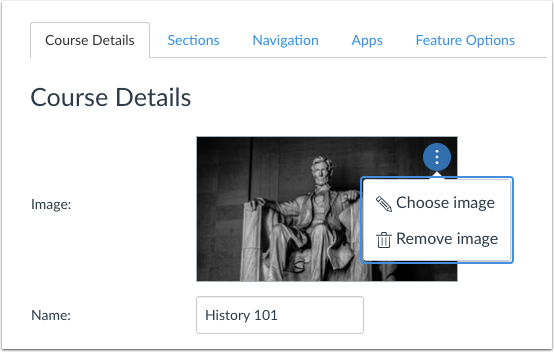
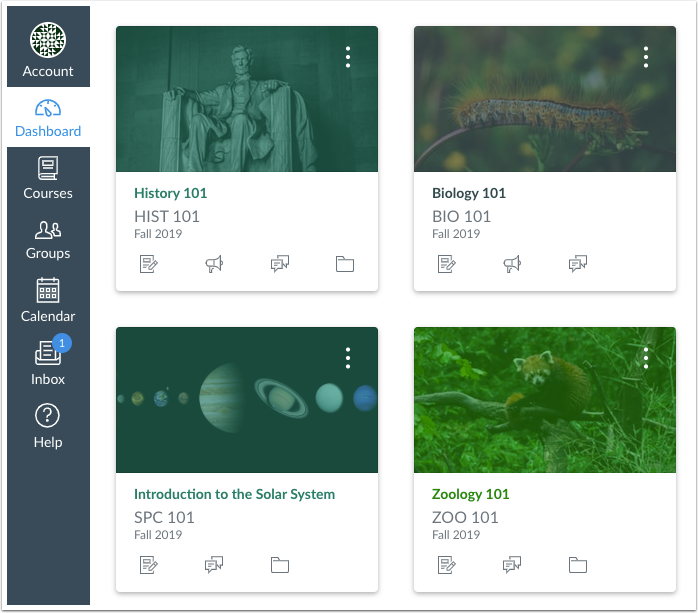
Course cards in the Dashboard can contain an image as uploaded through Course Settings.
Affected User Roles
Instructors
The Course Settings menu includes an option to add an image to course cards. Images can be dragged and dropped into the browser window or uploaded from a computer. Accepted images include JPG, JPEG, GIF, and PNG files. Larger images may take a few seconds to process. Images can also be added from Unsplash. Once the Course Details page is saved, the Dashboard image displays in the course card behind the course color. The image also displays for instructors in their Card View Dashboard.
Students
Students can view the course card image in their Card View Dashboard. As with all courses shown in the Dashboard and Calendar, instructors cannot control the course color. Colors are automatically assigned by Canvas, though students can change the course color at any time.
New Gradebook
New Gradebook Feature Option Enforcement
Location to Enable Feature | N/A |
Configuration Details | N/A |
Affected Canvas Areas | New Gradebook |
Beta/Test Environment Support | Yes |
Affects User Interface | Yes |
Affected User Roles | Instructors |
Feature Enhancement Ideas | Existing New Gradebook feature ideas |
Specified Tag for Feature Ideas | gradebook_new |
Original Feature Introduction | 2017-11-18 |
Summary
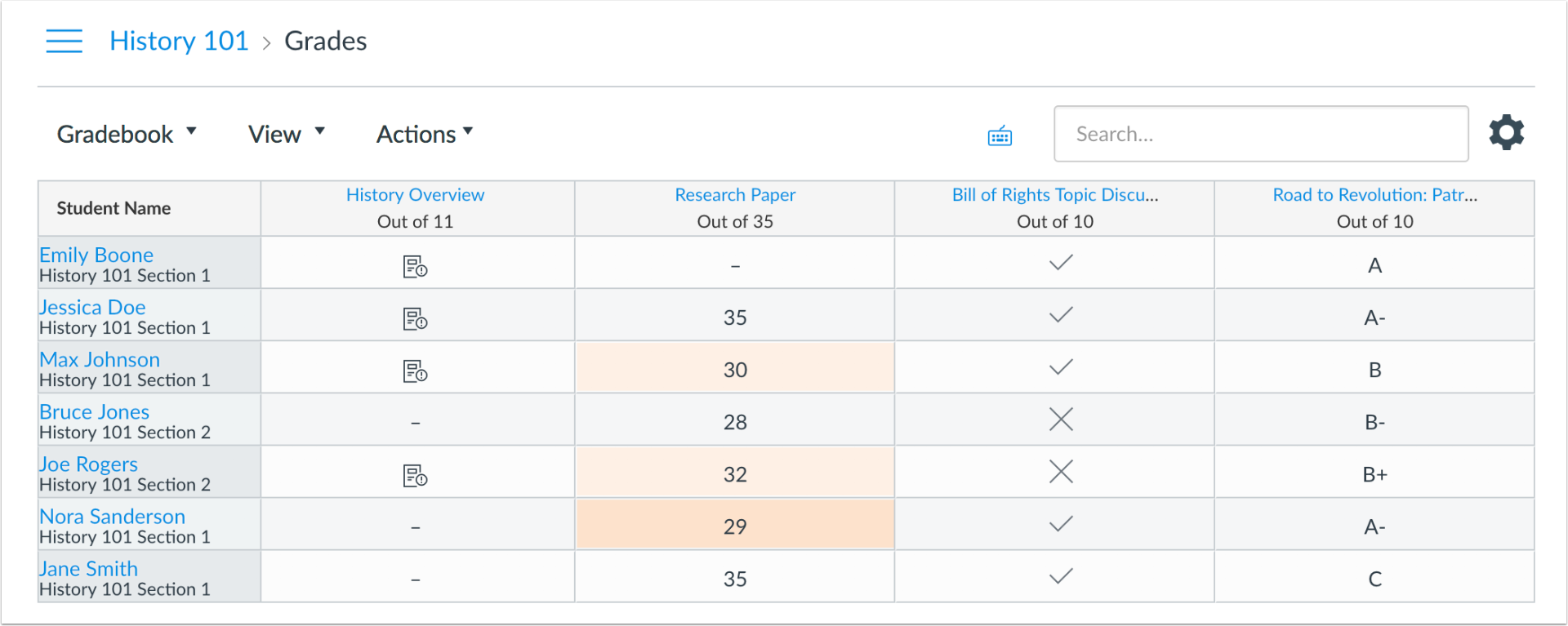
The New Gradebook includes an improved user experience with additional filtering and sorting options, late and missing policies, and assignment posting policies.
Change Benefit
This change brings an enhanced version of the Gradebook to all instructors.
Additional Details
For full details about the New Gradebook, please see the New Gradebook Resources list in the Canvas Community.
Postable Submission Comments
Location to Enable Feature | N/A |
Configuration Details | N/A |
Affected Canvas Areas | New Gradebook, SpeedGrader |
Beta/Test Environment Support | Yes |
Affects User Interface | Yes |
Affected User Roles | Instructors, Students |
Feature Enhancement Ideas | Existing New Gradebook feature ideas |
Specified Tag for Feature Ideas | gradebook_new |
Feature Video | |
Summary
For assignments with a manual posting policy, comments can be posted without requiring a grade.
Change Benefit
This change allows students to view feedback from instructors before they receive a grade for an assignment.
Affected User Roles & Behaviors
Instructors
In manual posting policy assignments, instructors can create comments in New Gradebook or SpeedGrader for a student submission and make them visible to students.
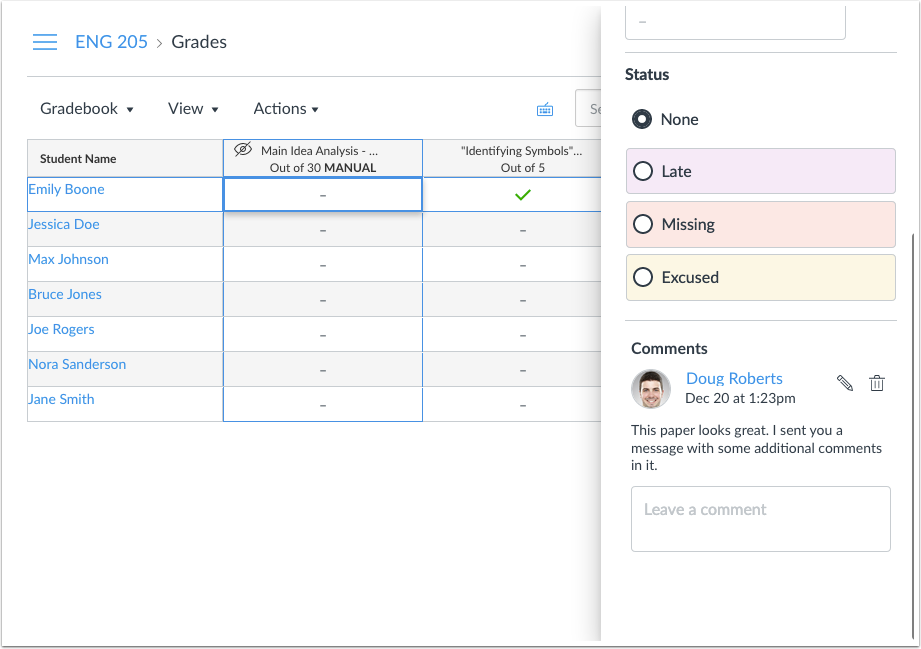
Once a comment is submitted, the Post Grades button can be used to post comments the same way as posting grades. The New Gradebook displays all submissions that will have grades and/or comments displayed to students, per the updated wording next to each posting option.
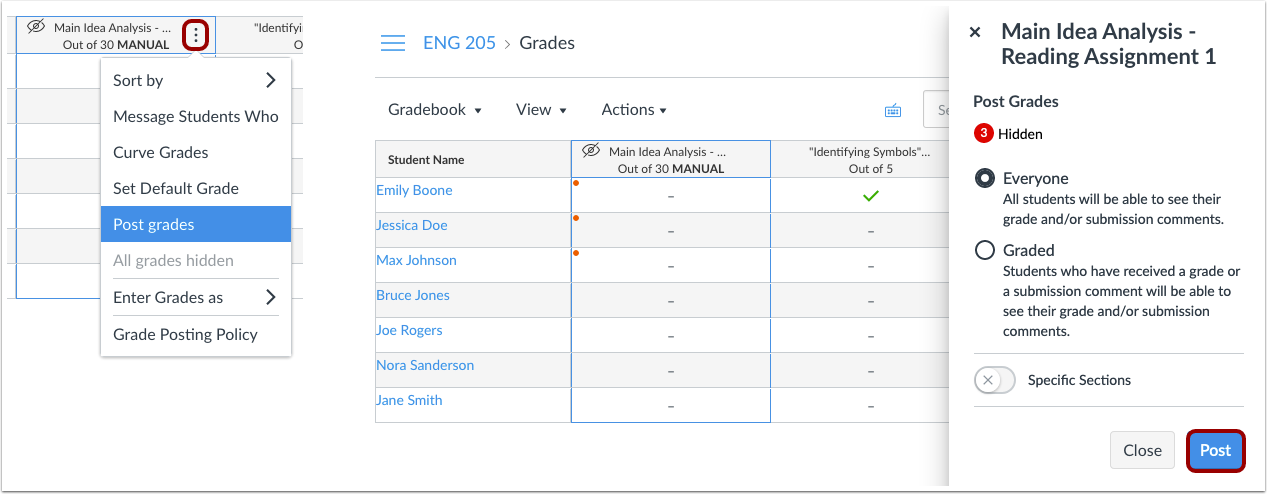
If the option to hide grades is selected for the assignment later on (for when the instructor is working on actual grading), comments will also be hidden until grades are reposted.
Note: For manual posting policy assignments, the hidden label displays at the top of the page to indicate the assignment is hidden when a grade is entered. However, when a comment is added in the Gradebook context tray and SpeedGrader, respectively, the page must be refreshed before the hidden label will display.
Students
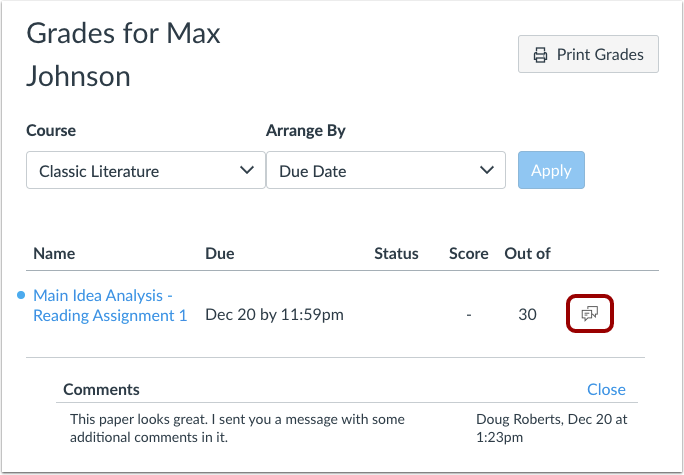
If a student’s submission has been posted by an instructor in the New Gradebook or SpeedGrader, the student can view the comment in the Grades page.
If the option to hide grades is selected for the assignment later on (for when the instructor is working on actual grading), comments will also be hidden until grades are reposted.
Sort Options
Summary
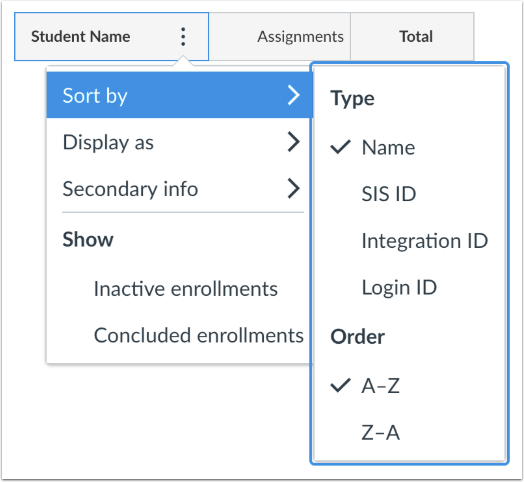
The Student Name column includes additional sorting options.
Change Benefit
This change allows users to sort the New Gradebook by student name, SIS ID, Integration ID, and Login ID in ascending or descending order.
Affected User Roles & Behaviors
Instructors
As part of sorting the Student Name column, instructors can select the Sort By option and not only sort by student name, but also by SIS ID, Integration ID, or Login ID. Each option can be ordered in ascending or descending order.
New Quizzes
Answer Shuffling





.png "333751_pa-pronouns1 (1).png")