Upcoming Canvas ChangesInternet Explorer 11: August 3On August 3, Internet Explorer 11 will no longer be supported as a Canvas browser. New Gradebook: January 18On 18 January 2020, the existing Canvas Gradebook will be replaced with the New Gradebook. For more information, please see Upcoming Canvas Changes.
In this Canvas release (June 1), the Compose Message window does not include an option to remove previously received messages. Additionally, the beta label has been removed from the Student Context Card feature option.
Feature Options
- For institutions using the New Gradebook, the Message Students Who window alphabetizes student names by last name.
External Tools (LTI)
- For institutions using the Quizzes.Next LTI, calculators can be enabled for an entire assessment, and Numeric questions support scientific notation.
Release notes also include API updates and fixed bugs.
Release notes describe upcoming Canvas functionality and are subject to change. |
Feature OptionsThe following feature options are addressed in this release: |
Release Notes Change Log
BACK TO TABLE OF CONTENTS
Conversations
Compose Field Message Removal
Location to Enable Feature | Conversations |
Configuration Details | N/A |
Affected Canvas Areas | Conversations |
Beta/Test Environment Support | Yes |
Permissions | Conversations - send messages to entire class Conversations - send to individual course members |
Related APIs | Conversations API |
Affects User Interface | Yes |
Affected User Roles | All Users |
Feature Enhancement Ideas | Existing Conferences feature ideas |
Specified Tag for Feature Ideas | Conversations |
Summary
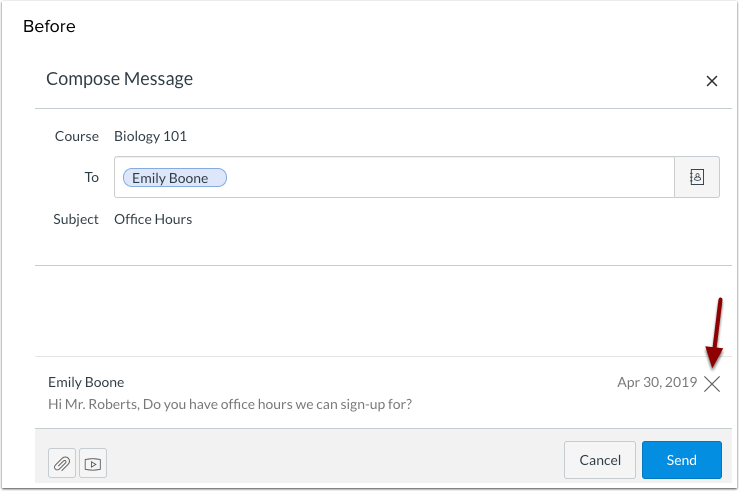
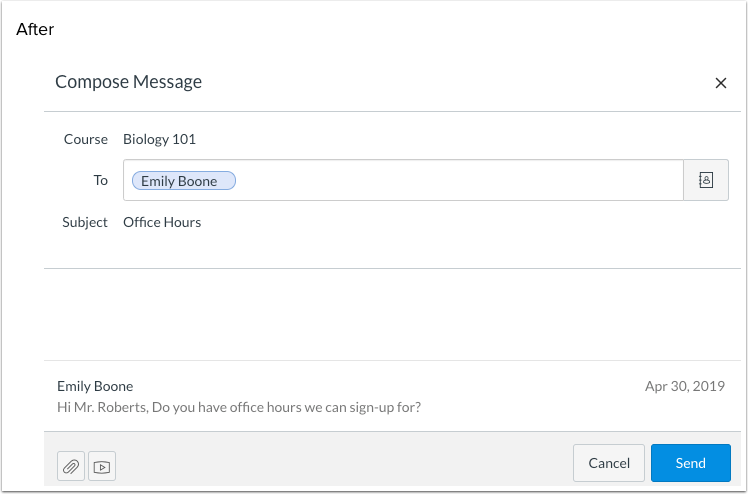
The Compose Message window does not include an option to remove previously received messages.
Change Benefit
This change improves accessibility within the Compose Message window.
Affected User Roles & Behaviors
All Users
In the Compose Message window, previously received messages in the thread display below the text field. The Remove option to each specific message has been removed.
Individual messages can still be deleted from a conversation in the Conversations window by opening the message, selecting the Settings menu, and clicking the Delete link.
New Gradebook
Message Students Who Alphabetical Sorting
Summary
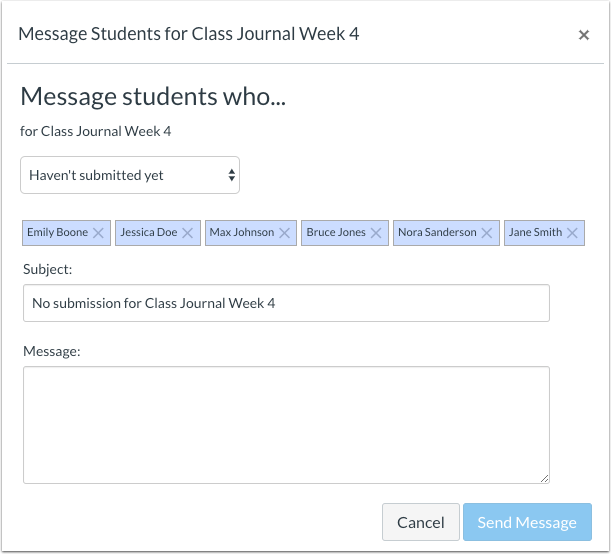
The Message Students Who window displays names in alphabetical order.
Change Benefit
This change allows instructors to find student names in the window more easily.
Affected User Roles & Behaviors
Instructors
When an instructor accesses an assignment column and clicks the Message Students Who option, any names that display in the window are displayed in alphabetical order (first name, last name). The list of names remained alphabetical when a different messaging criterion is selected. Student names can be removed manually from the list at any time.
Quizzes.Next
Assessment On-Screen Calculators
Location to Enable Feature | Assignments |
Configuration Details | Quizzes.Next LTI |
Affected Canvas Areas | Assignments |
Beta Environment Support | Yes (with exceptions—see LTI document) |
Affects User Interface | Yes |
Affected User Roles | Instructors, Students |
Feature Enhancement Ideas | Existing quizzes.next feature ideas |
Specified Tag for Feature Ideas | quizzes.next |
Summary
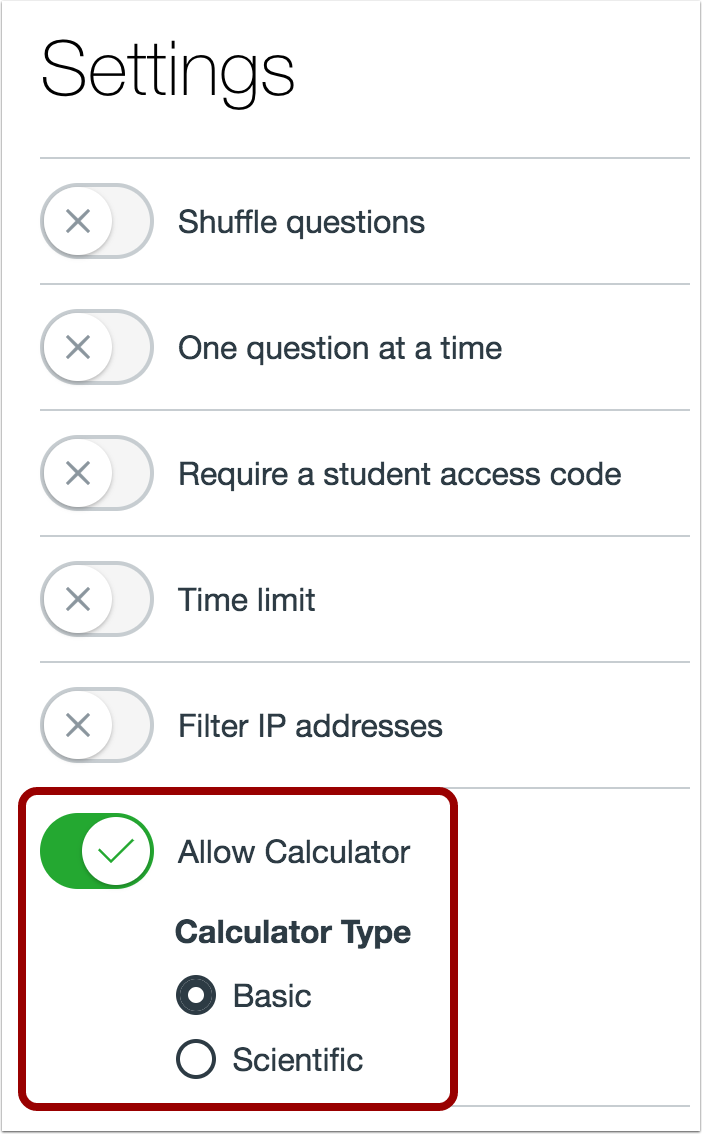
The Settings page includes an option for allowing calculators during the entire assessment and not just for individual questions.
Change Benefit
This change allows students to view a calculator throughout an assessment.
Affected User Roles & Behaviors
Instructors
In the Settings menu, instructors can choose to allow students to view a calculator with basic or scientific functions.
Students
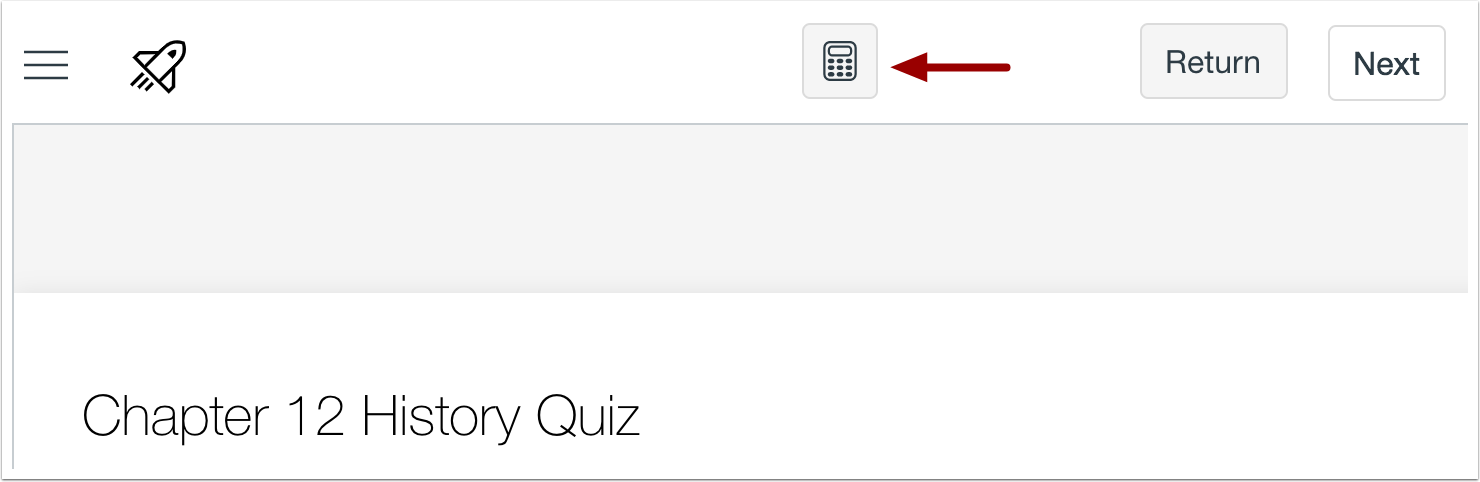
Students can open the calculator by clicking the Calculator icon. The calculator functions are the same as calculators enabled from the individual question.
Numeric Question Scientific Notation Responses
Location to Enable Feature | Assignments |
Configuration Details | Quizzes.Next LTI |
Affected Canvas Areas | Assignments |
Beta Environment Support | Yes (with exceptions—see LTI document) |
Affects User Interface | Yes |
Affected User Roles | Instructors, Students |
Feature Enhancement Ideas | Existing quizzes.next feature ideas |
Specified Tag for Feature Ideas | quizzes.next |
Summary
Numeric questions accept scientific notation answers for the Exact Response and Within a Range requirement options.
Change Benefit
This change allows instructors to create questions that require responses in scientific notation.
Affected User Roles & Behaviors
Instructors
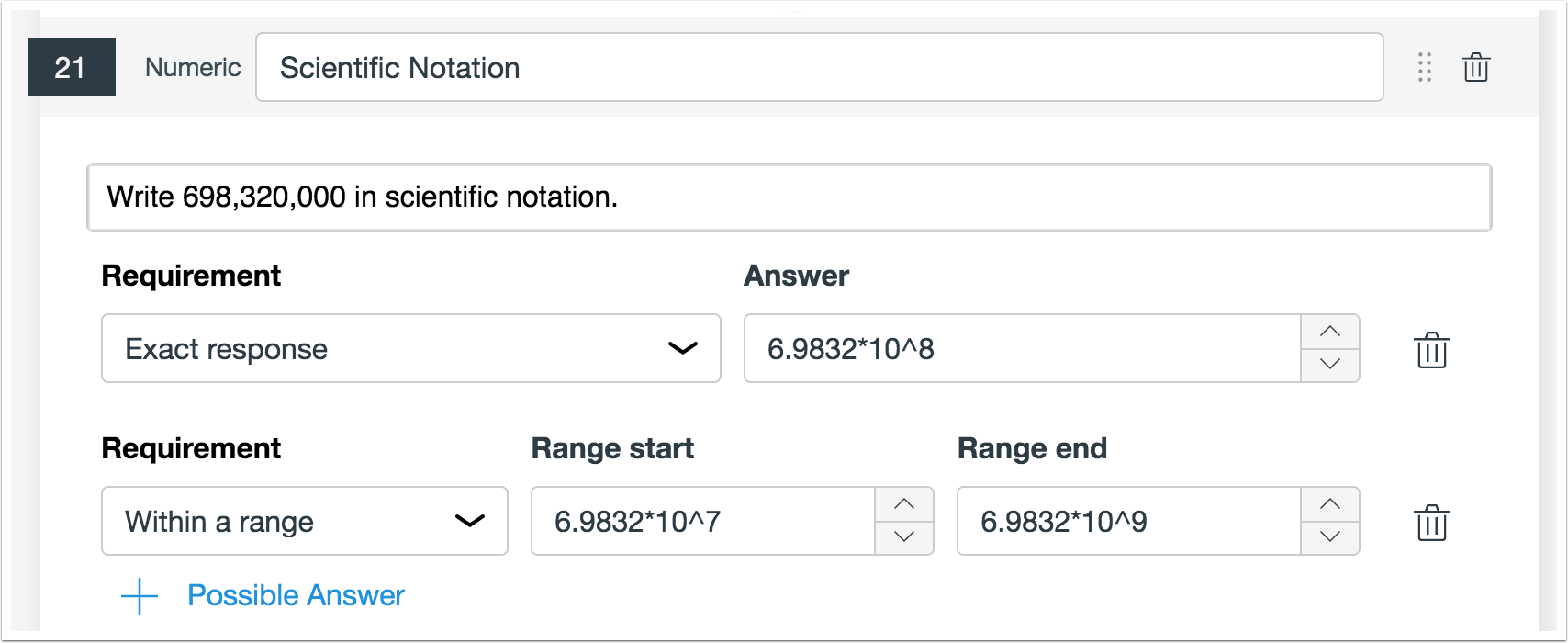
Instructors can create Numeric questions that require responses in scientific notification. For the Exact Response requirement, student answers must match the scientific notation input exactly. For the Within a Range requirement, student answers must fall within the scientific notation range inputs.
The accepted format for scientific notation answers is m*10^n, where m represents the coefficient (the number being multiplied), the asterisk represents the multiplication function, and ^n represents the exponent. For example, the answer 6.9832*10^8 would represent 6.9832 times 10 to the eighth power.
Scientific notation answers are not supported for Margin of Error or Precise Response options.
BACK TO TABLE OF CONTENTS
Account Settings
Student Context Card Beta Label Removal
Location to Enable Feature | Account Settings |
Configuration Details | N/A |
Affected Canvas Areas | Account Settings |
Beta/Test Environment Support | Yes |
Permissions | Account-level settings - manage Feature Options - enable / disable |
Affects User Interface | Yes |
Affected User Roles | Admins, Instructors |
Summary
The beta label has been removed from the Student Context Card feature option.
Change Benefit
This change indicates that this feature option is no longer in beta.
Affected User Roles & Behaviors
Admins
Admins can enable this feature option that has been changed from beta status to production-ready for their institution. No existing functionality has been affected.
Features without a beta status indicate the features are ready to be enabled in production; any additional enhancements will be added as part of regular Canvas releases.
BACK TO TABLE OF CONTENTS
API
API Change Log
Adjustments have been made to the following APIs as noted in the API Documentation change log:
- Files API
- Originality Report API
- Uploading Files
BACK TO TABLE OF CONTENTS
Accessibility
Announcements
Announcements that are unread are part of the title when read to screen readers.
Assignments
In the sidebar, the Submissions heading is labeled as an H2, and the Comments heading is labeled as an H3.
Discussions
The Discussions page includes H2 headings in their appropriate locations.
Discussions that are unread are part of the title when read to screen readers.
Calendar
Labels are included in the Edit Event window for screen readers.
Conversations
The Conversations page and all icons display a color contrast of 4.5:1 for high contrast profiles.
Files
The checkbox next to each file identifies the name of the selected file for screen readers.
Groups
The Groups heading is labeled as H1, and individual groups are labeled as H2.
The New Student Group window reads the Group name and Joining labels to screen readers.
Rich Content Editor
The toolbar keyboard shortcut can be enabled from anywhere in the Rich Content Editor.
<H2