In this production release (October 27), the Developer Keys Management and Scoping feature option has been enabled for all institutions, which allows admins to create and manage API tokens created for third-party tools.
For students, the List View Dashboard displays a summary for course events, and course links within the Grades menu direct to the Grades page instead of the home page. Additionally, in the Card View and Recent Activity Dashboard sidebars and the Course Home Page sidebar, the Coming Up section has been removed for students. In both the dashboards and sidebars, the Pages icon has been updated.
Feature Options
- For institutions using Anonymous Grading, student names do not display in the Gradebook History if an assignment was graded anonymously.
- For institutions using the New Gradebook, the search filter supports searching by SIS ID.
- For institutions using Moderated Grading, graders can access SpeedGrader in a read-only state after the maximum number of graders for a moderated assignment has been reached.
- For institutions using Student Context Cards, cards display initials for students without profile pictures.
External Tools (LTI)
- For institutions using the Google Apps and Microsoft Office 365 LTIs, students and instructors can view the status of assignment submission file uploads.
- For institutions using the Commons LTI, admins can add instructors as curators, customize search filters, and identify content as approved for the institution.
Upcoming Features (Beta Only)
Release notes describe upcoming Canvas functionality and are subject to change.
Feature Options
The following feature options are addressed in this release:
- Account: Student Context Card
- Course: Anonymous Grading, New Gradebook, Moderated Grading
Release Notes Change Log
BACK TO TABLE OF CONTENTS
Analytics
Analytics Beta LTI
Location to Enable Feature | Course Navigation |
Configuration Details | Analytics Beta LTI |
Affected Canvas Areas | Course Navigation - Analytics Beta Link |
Beta/Test Environment Support | Beta Environment |
Affects User Interface | Yes |
Affected User Roles | Admins, Instructors, Designers, TAs |
Summary
Analytics Beta is an LTI tool that provides improved analytics for tracking student data using an interactive chart or table. Analytics Beta will eventually replace current course and account analytics. However, Analytics Beta and the current course Analytics functionality can be used concurrently.
Change Benefit
This feature allows admin, instructor, TA, and designer roles to view improved analytics functionality and provide functional feedback for additional analytics development.
LTI Rollout Schedule
Analytics Beta LTI will be added to all production environments on Monday, October 29.
Admins who do not want this tool enabled for their institution’s production account can uninstall the LTI tool in the Account Settings Apps tab after the indicated rollout date.
Additional Details
For full details about Analytics Beta LTI, please see the Canvas Release: Analytics Beta (Course Grade) document.
Feature Idea Contributions
Canvas features are always welcome to feedback. Product teams may make adjustments at any time via the Canvas Feature Idea process.
BACK TO TABLE OF CONTENTS
Assignments
Google Drive and Microsoft Office Assignment Submission Status
Location to Enable Feature | Assignments |
Configuration Details | Microsoft Office LTI, Google Apps LTI |
Supported in Beta Environment | Yes |
Affected Canvas Areas | Assignments, SpeedGrader, Gradebook |
Affects User Interface | Yes |
Affected User Roles | Instructors, Students |
Summary
Students and instructors can view the status of Google Apps and Microsoft Office 365 assignment submission file uploads.
Change Benefit
This change informs students and instructors of assignment file upload status.
Affected User Roles & Behaviors
Students
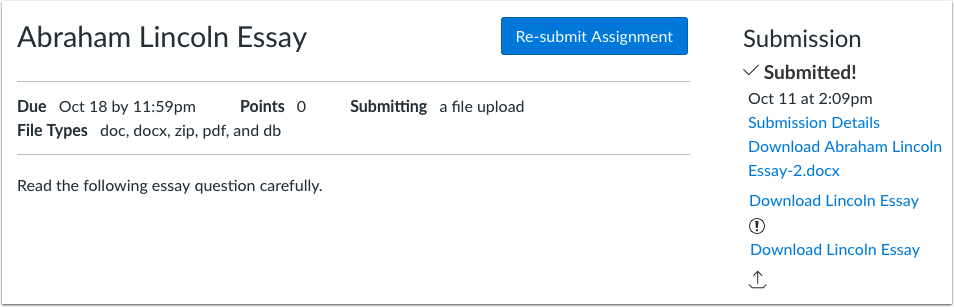
Students can view the status of a file upload from the assignment details page. Successful submissions display a link to download the document. Unsuccessful submissions display an Upload Failed icon. Submissions that are queued for upload display an Uploading icon.
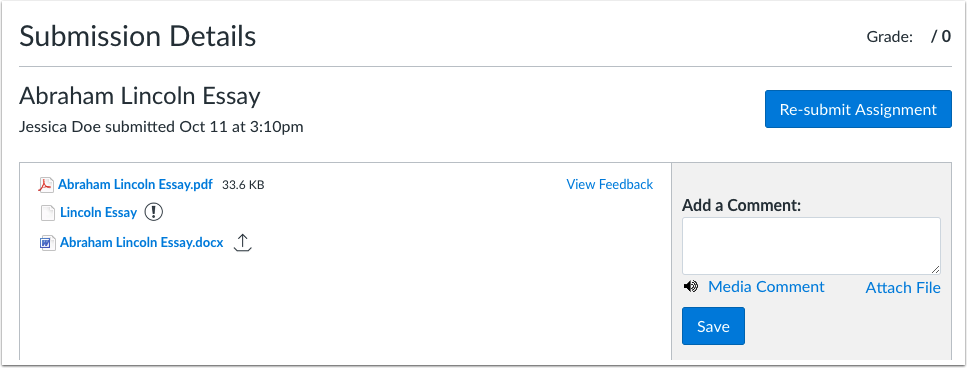
Students can also view the status of a file upload from the Submissions Details page. Successful submissions display a link to download the document. Unsuccessful submissions display an Upload Failed icon. Submissions that are queued for upload display an Uploading icon.
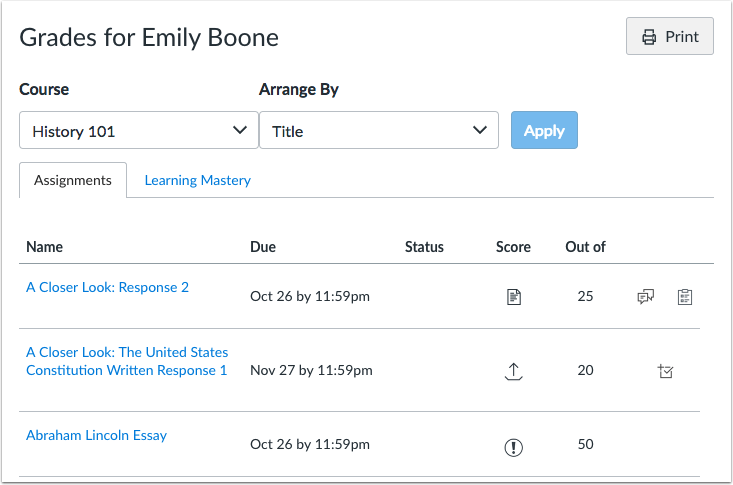
A student’s grades page also displays the status of an assignment submission. The score column displays a submission icon for successful upload, an Upload Failed icon for failed uploads, and an Uploading icon for queued submissions.
Instructors
Instructors can view the status of a student’s assignment submission in the Gradebook. The score column displays a submission icon for successful uploads, an Upload Failed icon for failed uploads, and an Uploading icon for queued submissions.
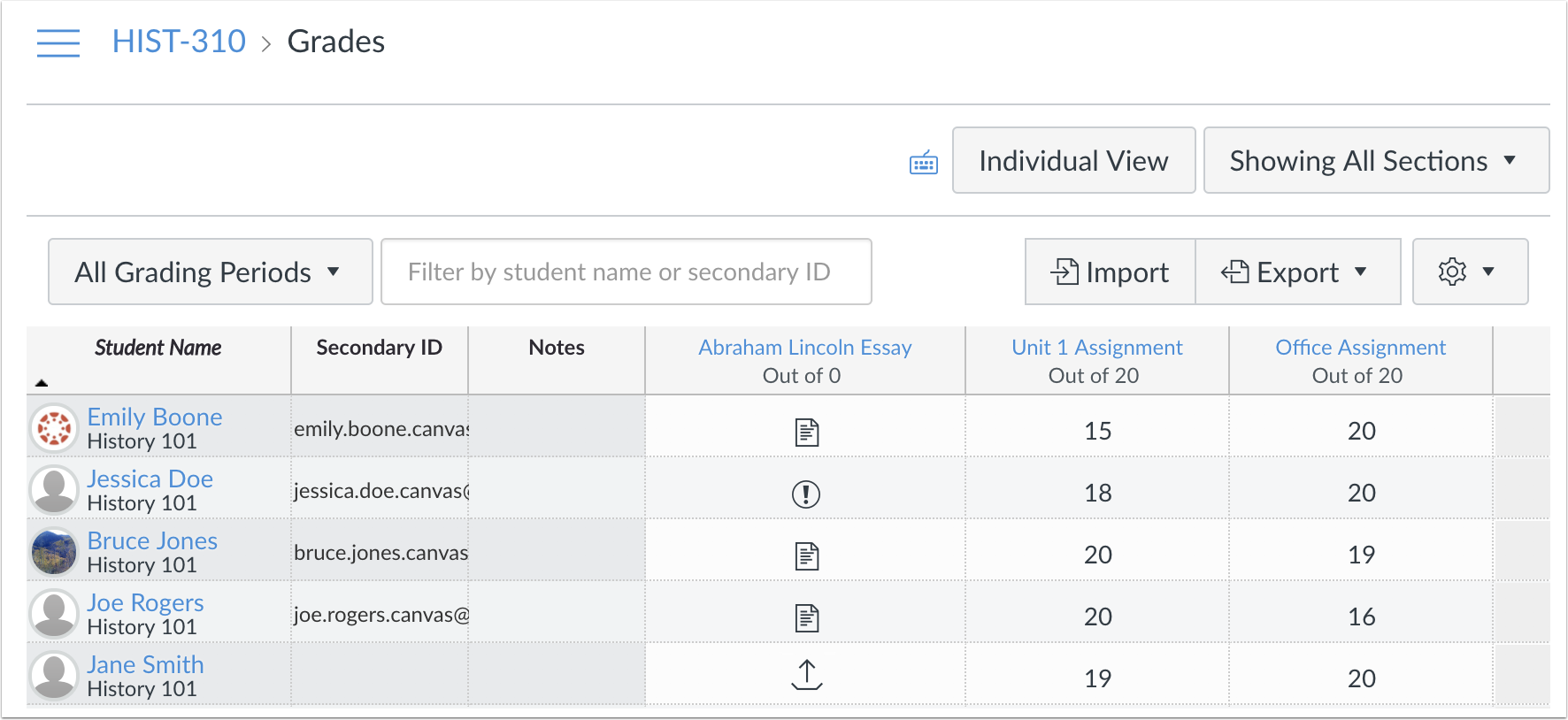
Upload Failed icons also display in Gradebook Comments for failed submission uploads.
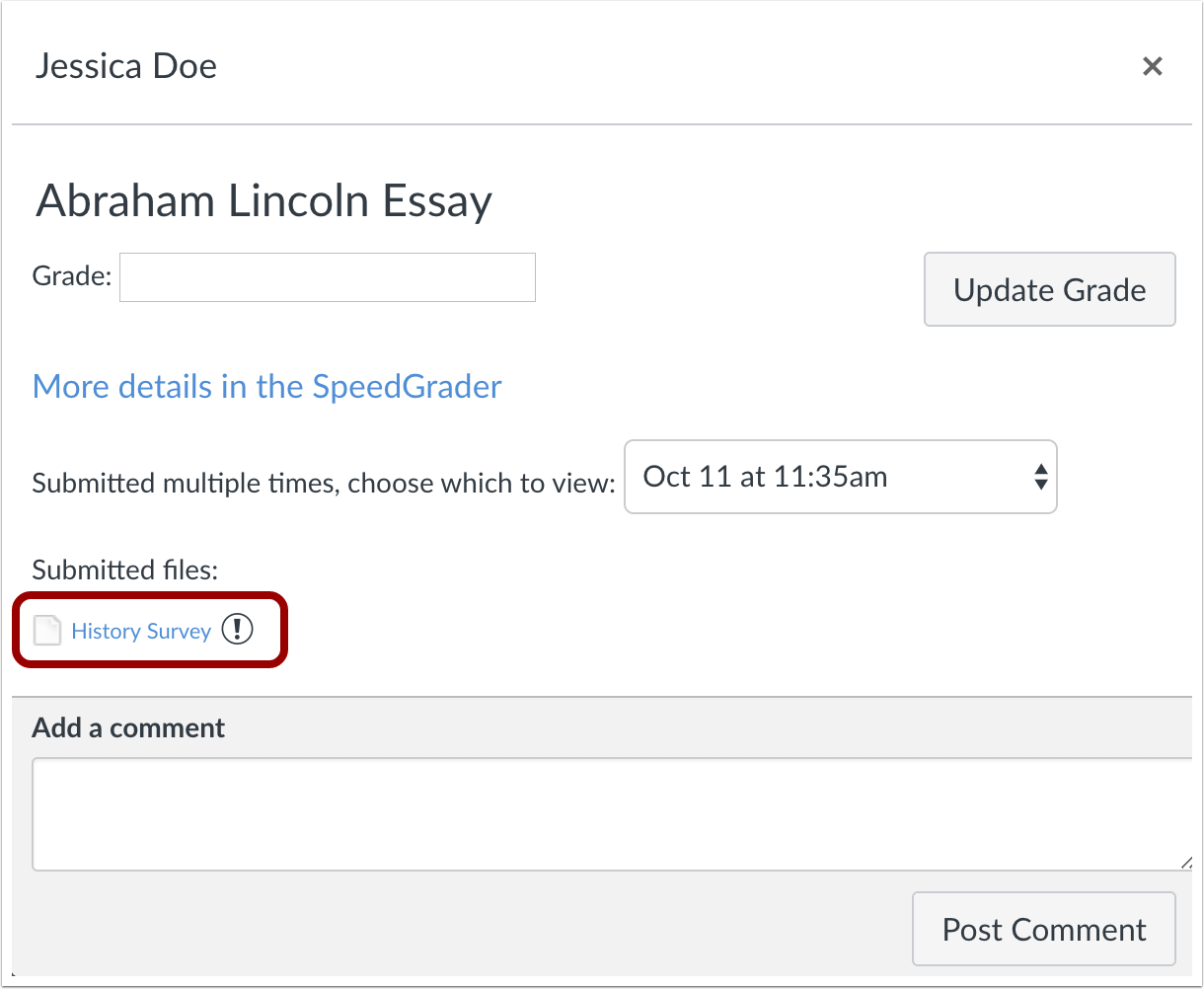
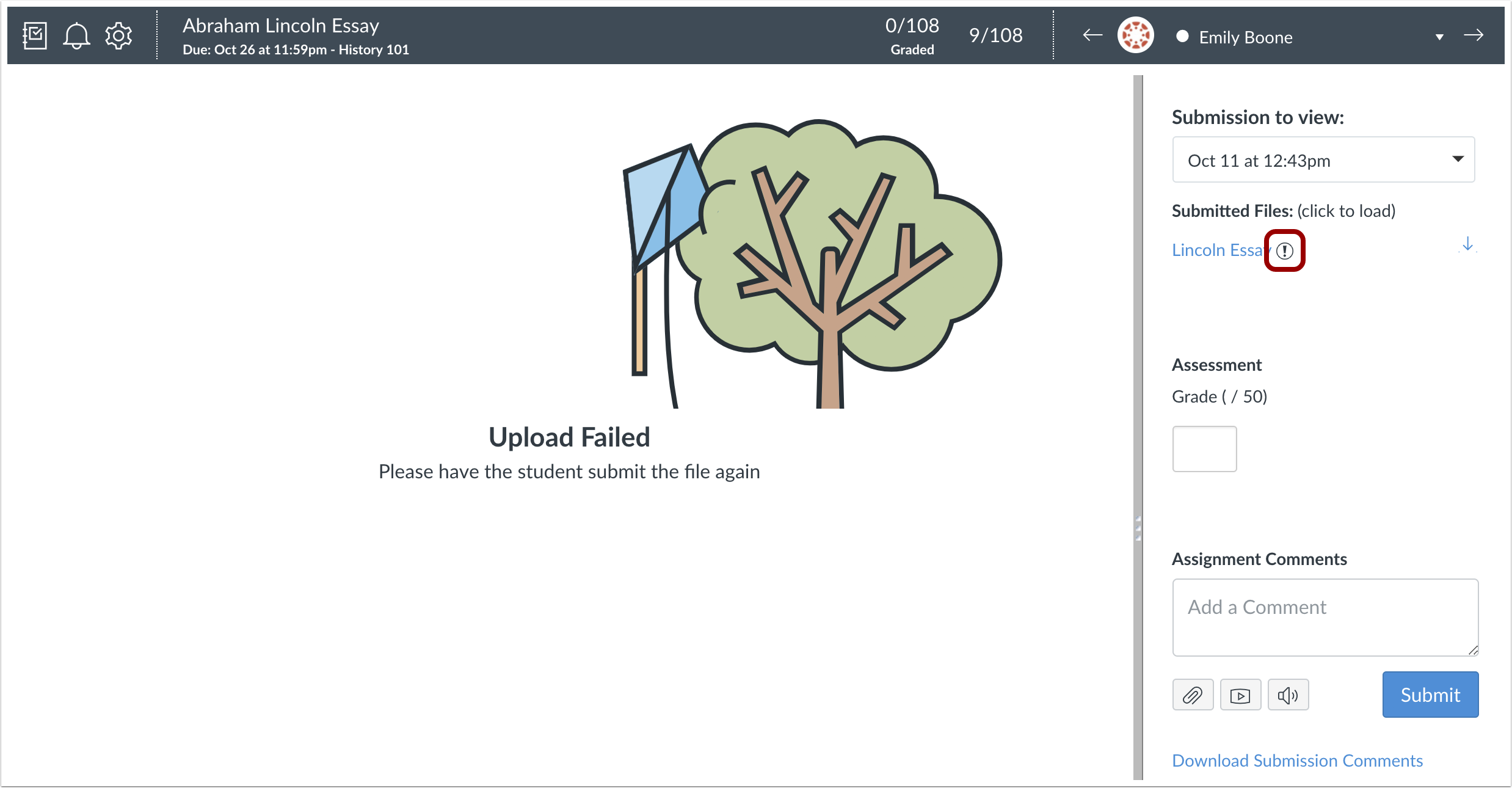
The DocViewer window displays an Upload Failed image for unsupported file types and failed submission uploads. Additionally, SpeedGrader displays an Upload Failed icon for failed submission uploads.
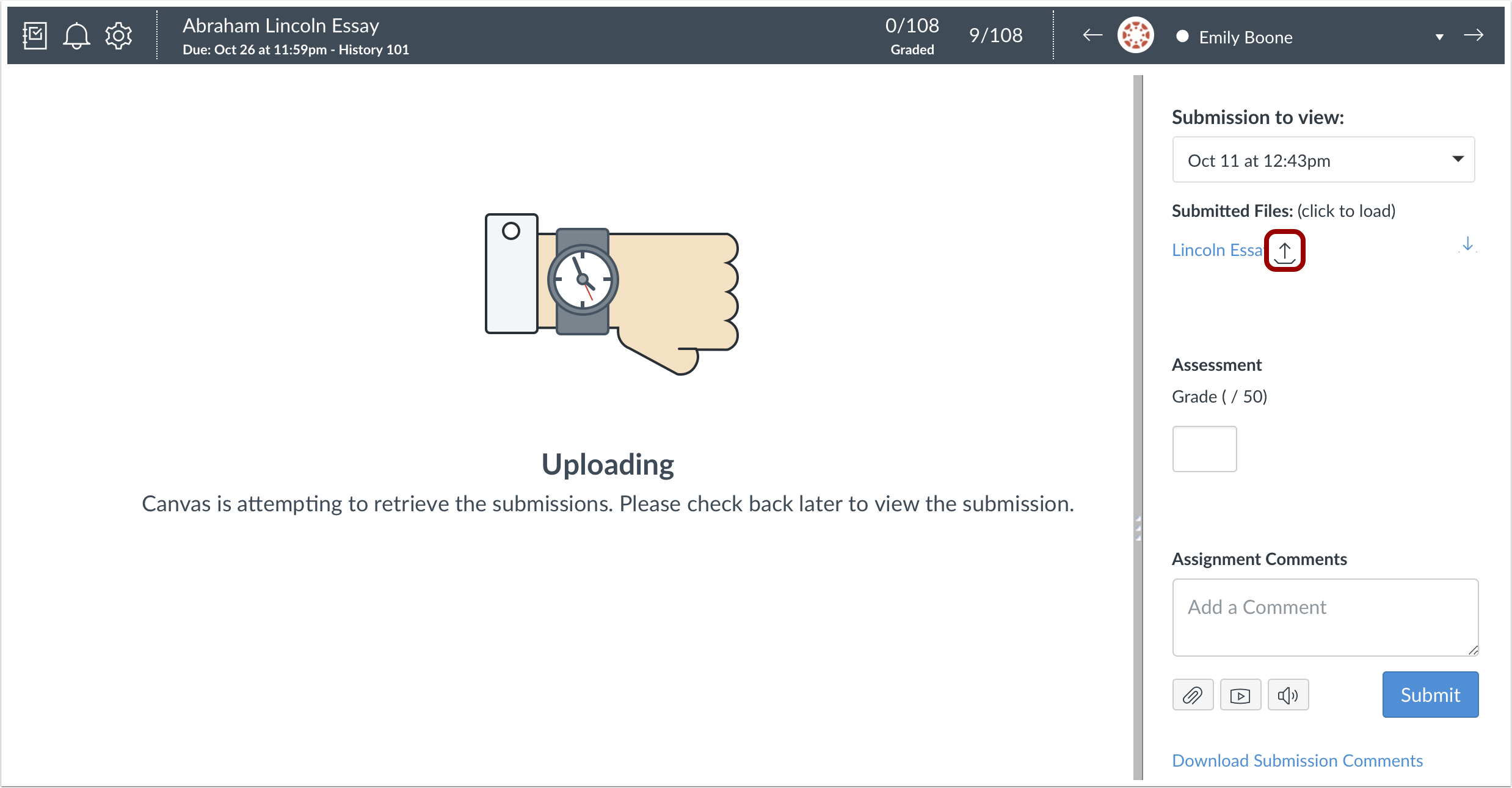
DocViewer displays an Uploading image for queued submissions, and SpeedGrader displays an Uploading icon next to assignment upload name links.
Feature Idea Contributions
Canvas features are always welcome to feedback. Product teams may make adjustments at any time via the Canvas Feature Idea process.
Commons
Approved Content
Location to Enable Feature | Commons LTI |
Configuration Details | Commons LTI |
Affected Canvas Areas | Commons LTI |
Beta/Test Environment Support | Functionality affects content in the beta environment only; New/updated features not available until production deploy |
Permissions | Course Content - add / edit / delete |
Affects User Interface | Yes |
Affected User Roles | Admins, Instructors |
Summary
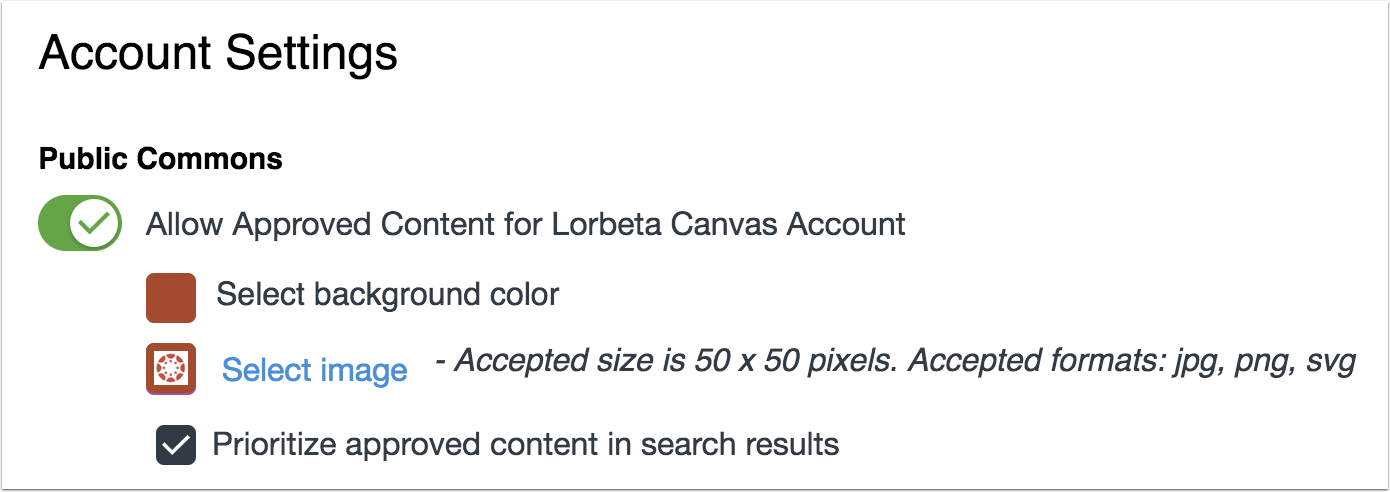
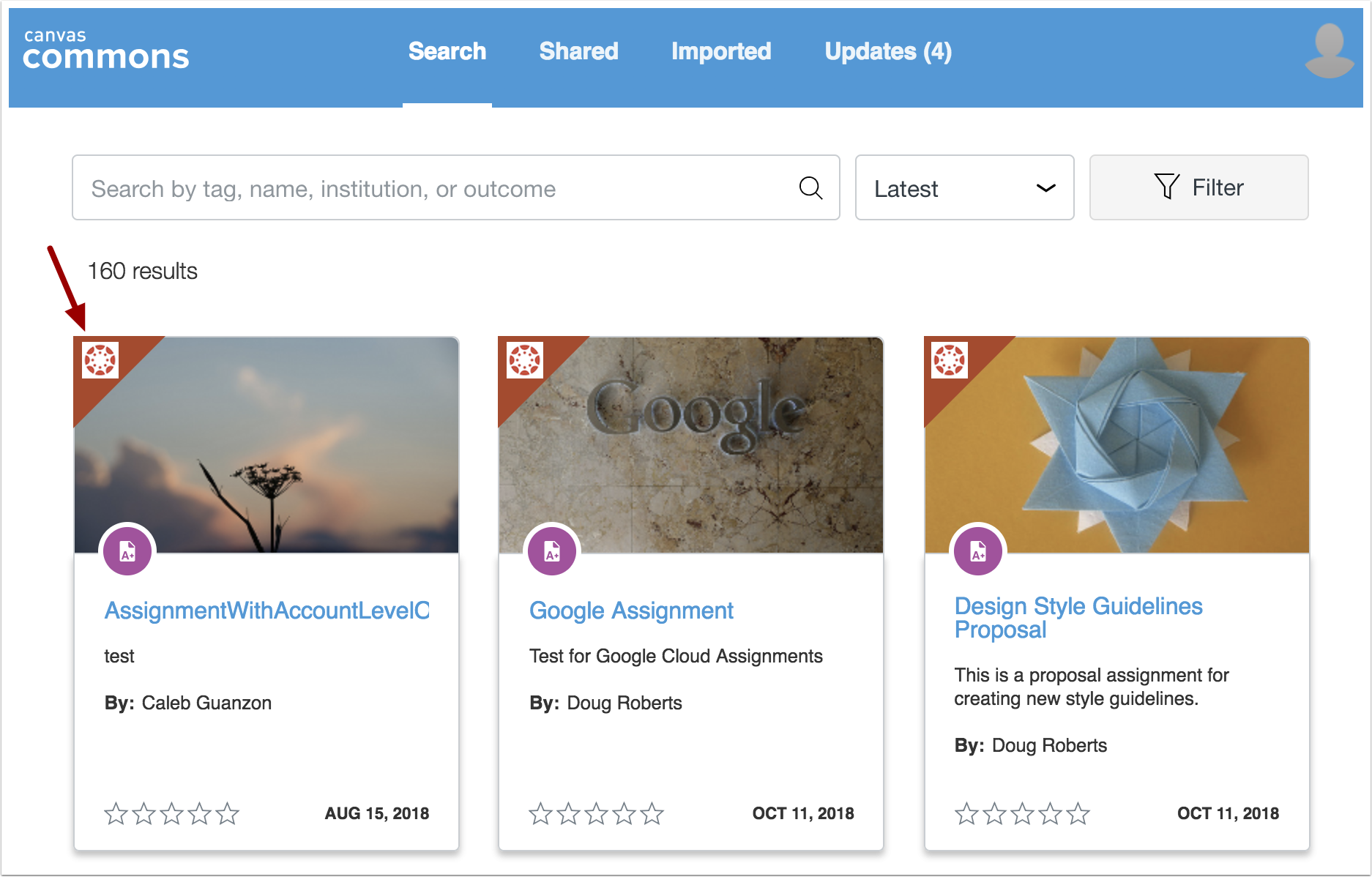
Content uploaded to Canvas can be approved by account admins or curators. Approved content is indicated by a banner and image, both of which can be customized by an administrator.
Change Benefit
This change allows admins to manage approved content and customize what users see in search results. Approved content is easily identifiable with custom branding.
Affected User Roles & Behaviors
Admins
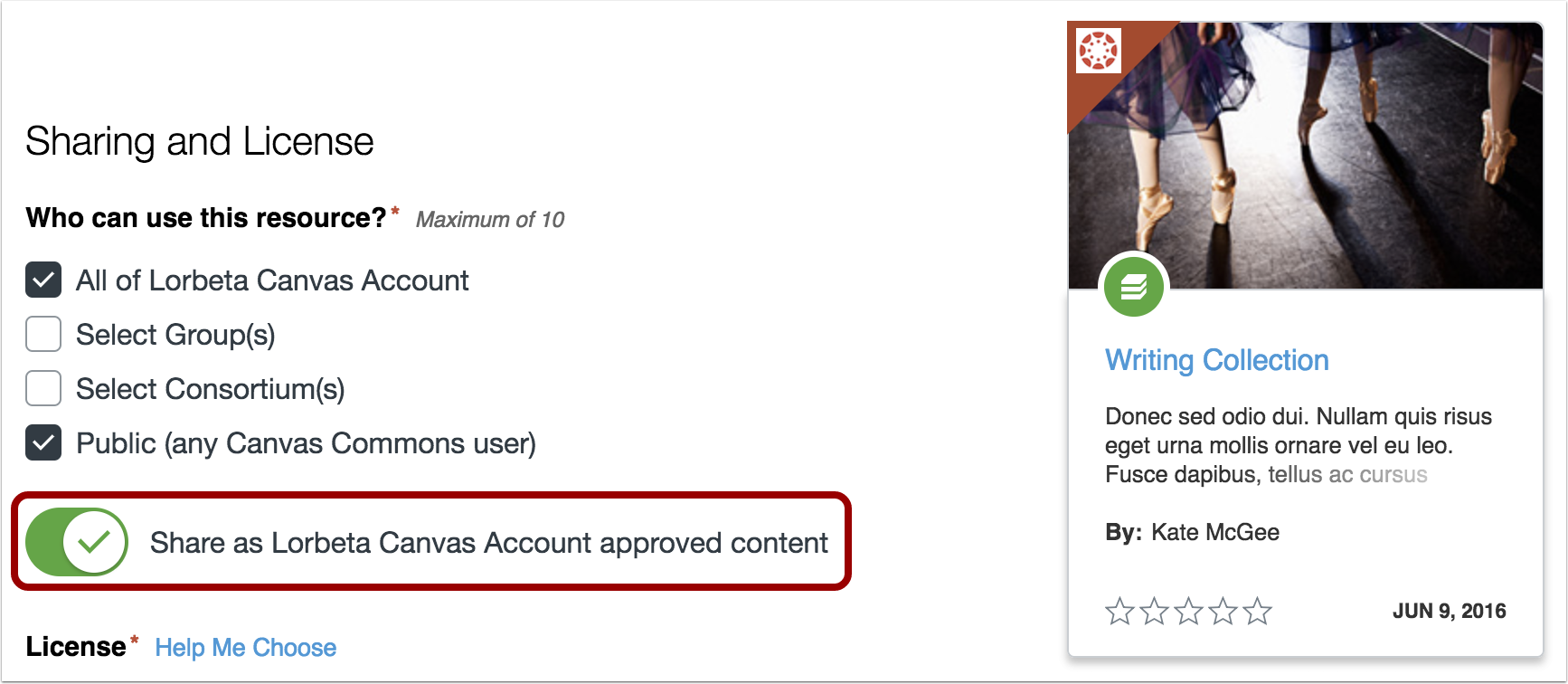
Admins can allow content to be displayed as approved for their institution. Content can be marked as approved when uploading new content or by editing the resource.
In Account Settings, admins can also customize image branding for approved content and choose to prioritize approved content in search results.
Instructors
Instructors can easily find and import content approved by their institution by looking for the assigned image in the content card.
Feature Idea Contributions
Canvas features are always welcome to feedback. Product teams may make adjustments at any time via the Canvas Feature Idea process.
Curator Permission
Location to Enable Feature | Commons LTI |
Configuration Details | Commons LTI |
Affected Canvas Areas | Commons LTI |
Beta/Test Environment Support | Functionality affects content in the beta environment only; New/updated features not available until production deploy |
Permissions | Course Content - add / edit / delete |
Affects User Interface | Yes |
Affected User Roles | Admins, Instructors |
Summary
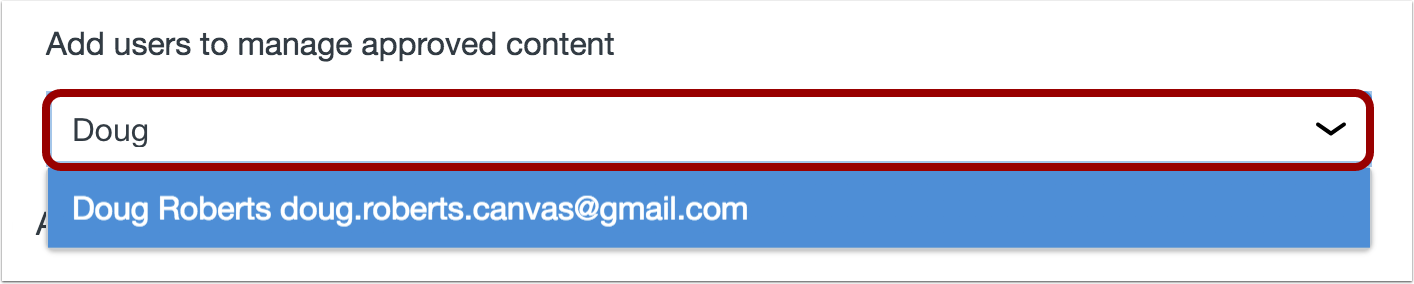
Admins can add users as content curators in Commons. Curators and admins can mark resources in Commons as approved.
Change Benefit
This change allows admins to add users as curators to assist in the content approval and management process.
Affected User Roles & Behaviors
Admins
Admins can add or remove users as curators in account settings. Both curators and admins can approve content and manage approved content.
Instructors
Instructors added to Commons as a curator can manage and upload approved resources.
Feature Idea Contributions
Canvas features are always welcome to feedback. Product teams may make adjustments at any time via the Canvas Feature Idea process.
Default Search Filters
Location to Enable Feature | Commons LTI |
Configuration Details | Commons LTI |
Affected Canvas Areas | Commons LTI |
Beta/Test Environment Support | Functionality affects content in the beta environment only; New/updated features not available until production deploy |
Permissions | Course Content - add / edit / delete |
Affects User Interface | Yes |
Affected User Roles | Admins, Instructors |
Summary
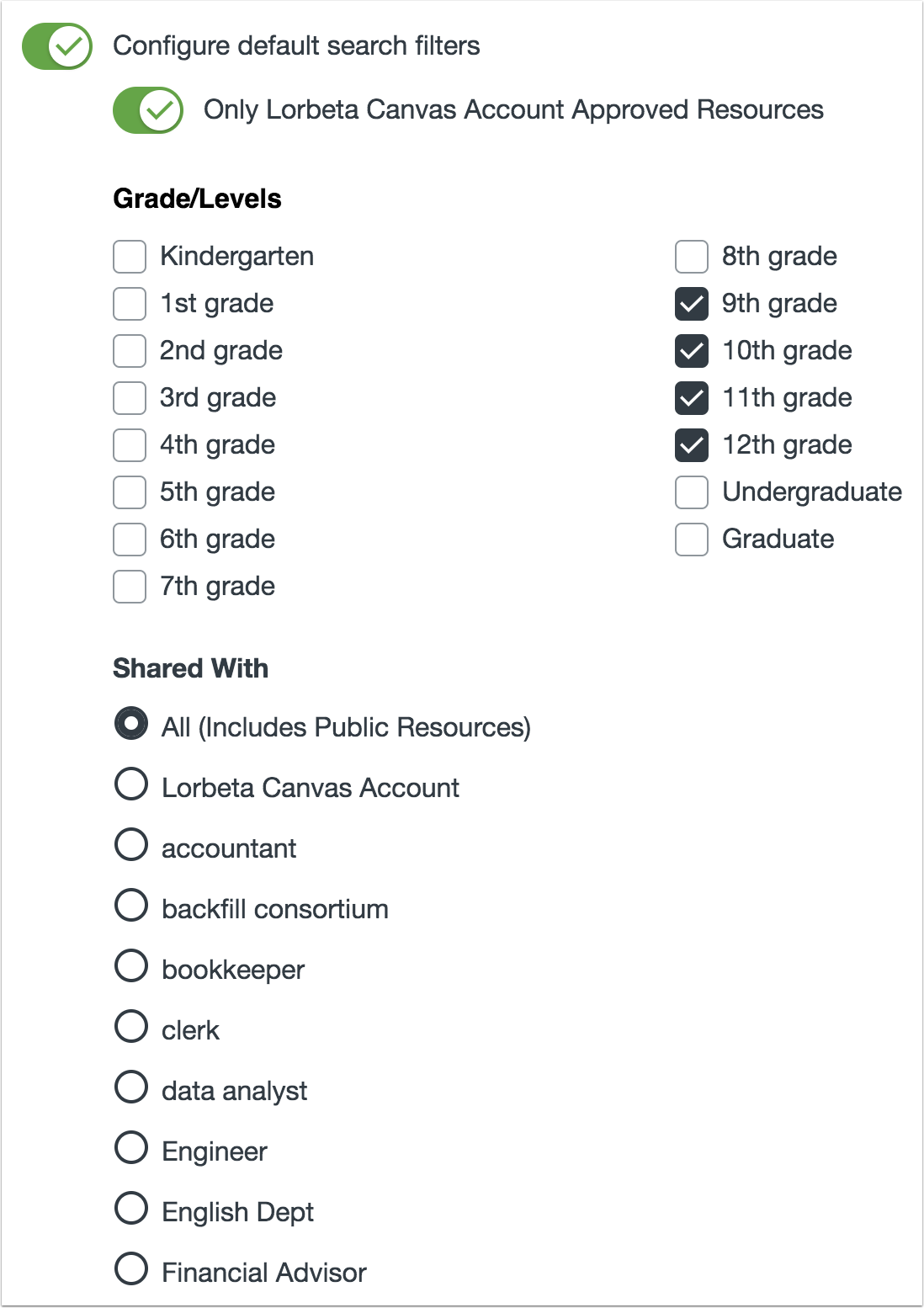
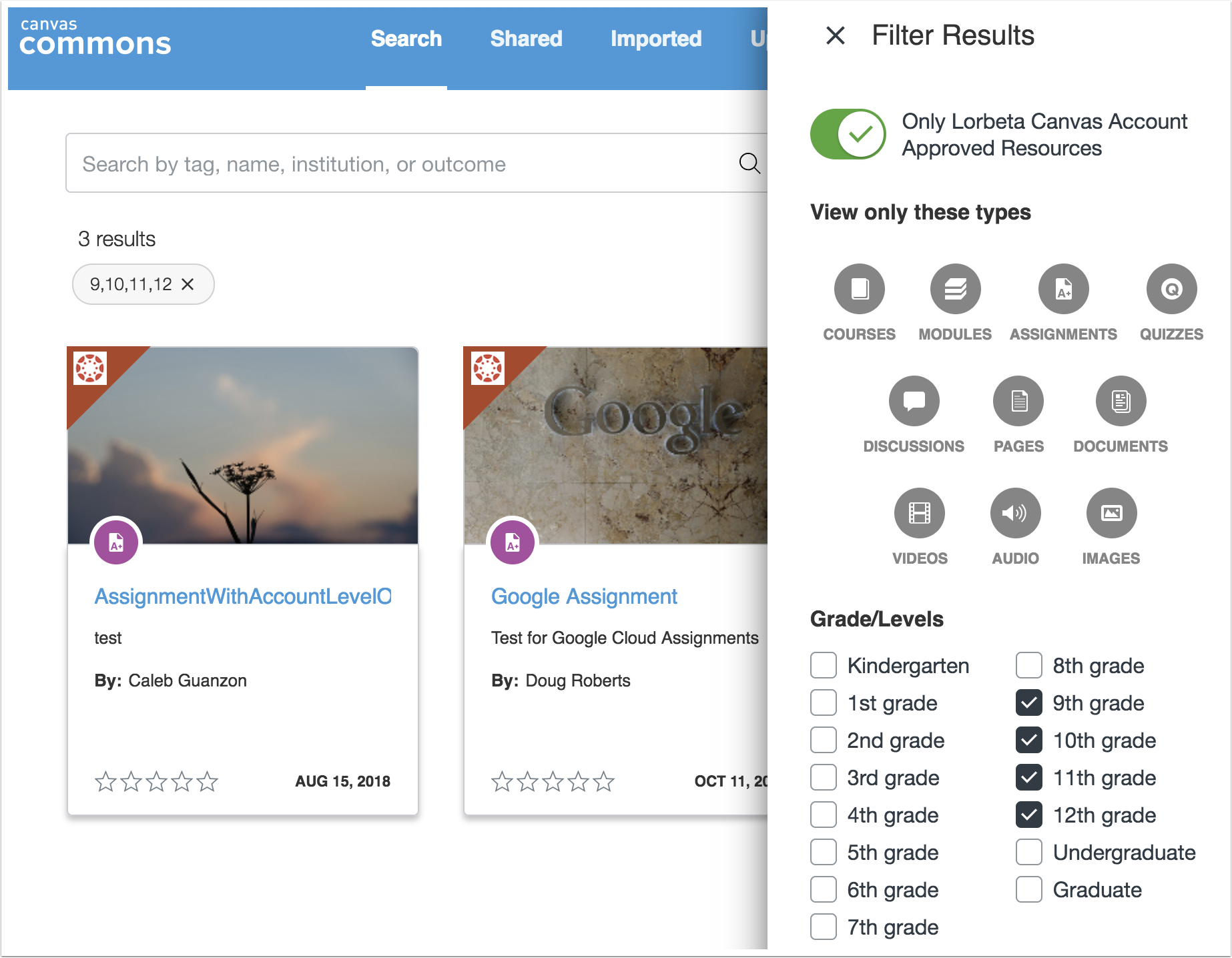
Admins can configure default search filters in Commons. Search settings include showing only approved content and filtering content based on grade/level or publicity settings.
Change Benefit
This change allows admins to manage approved resources and customize what users see in search results. When users search for content, the customized search filters make approved and relevant content easier to find.
Affected User Roles & Behaviors
Admins
Admins can configure search results to filter specific content. Search settings can be configured in account settings to show approved content first, filter by grade/level, and filter by the content publicity settings. Admins can also add custom branding for approved resources.
Instructors
Automatically filtered search results make it easier to find approved content or content from a specific grade/level or a specific institution, consortium, or group.
Feature Idea Contributions
Canvas features are always welcome to feedback. Product teams may make adjustments at any time via the Canvas Feature Idea process.
Dashboard
List View Dashboard Calendar Event View
Location to Enable Feature | N/A |
Configuration Details | N/A |
Affected Canvas Areas | List View Dashboard |
Affects User Interface | Yes |
Affected User Roles | Students |
Summary
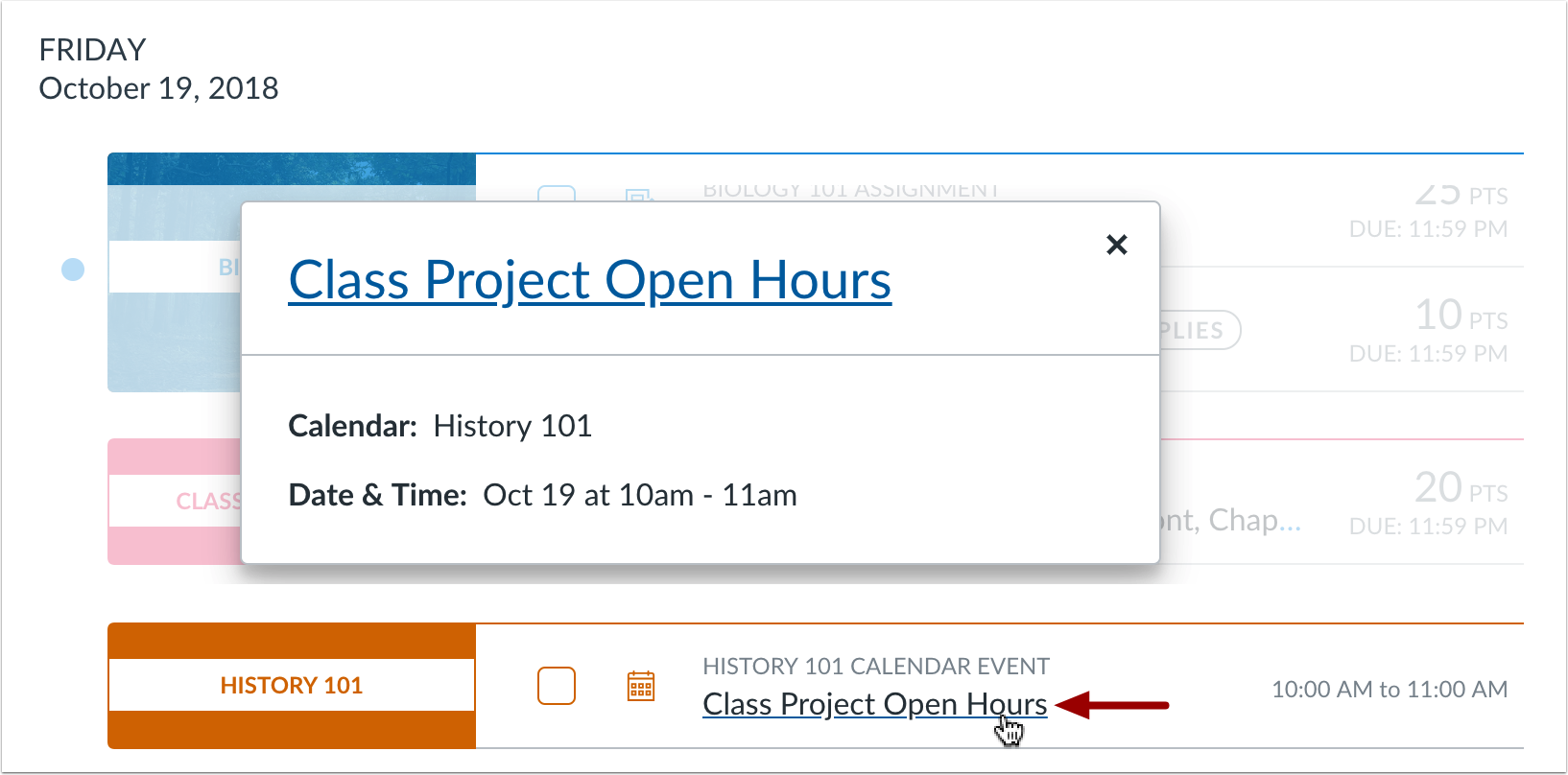
In the List View Dashboard, the link for an event displays a summary window that includes the event date, location, and event details.
Change Benefit
This change allows students to quickly view details for an event without having to view the event directly in the Calendar.
Affected User Roles & Behaviors
Students
When course events display as part of the List View Dashboard, students can click the event and view a summary window that includes the event’s date, location, and any details provided by the instructor. Students can still access the event in the Calendar by clicking the name of the event in the window.
Feature Idea Contributions
Canvas features are always welcome to feedback. Product teams may make adjustments at any time via the Canvas Feature Idea process.
List View Dashboard Grades Link Update
Location to Enable Feature | N/A |
Configuration Details | <TD style="padding: