The Canvas release process is currently in transition. The following features will be available in the production environment on August 14, as code changes were completed before the new process was implemented:Discussions: File Attachment DefaultGlobal Navigation: Account Menu LTI Navigation Links
In this Canvas release (August 17), the Conferences interface (BigBlueButton) supports breakout rooms and closed captioning. Additionally, Conferences is WCAG 2.0 AA Accessible, with some exceptions. In Discussions, the option for students to add file attachments is enabled by default. And in Global Navigation, LTI tools with user navigation placement display in the User Navigation Account Menu.
Feature Options
- For institutions using course card images, the Flickr image search has been replaced by Unsplash.
External Tools (LTI)
- For institutions using Commons, admins can display or hide featured content.
- For institutions using New Quizzes, the Build page supports previewing New Quizzes assessments. Additionally, the Item Banks page supports sharing item banks with other users.
Release notes describe upcoming Canvas functionality in the production environment and are subject to change. |
Feature OptionsThe following feature options are addressed in this release: - Course: Enable Dashboard Images for Course
|
Release Notes Change Log
BACK TO TABLE OF CONTENTS
Commons
Featured Content Management
This feature is used in conjunction with an external tool (LTI) in Canvas. Please view the content below for additional details. For more information about LTI tools, please see the Canvas Release Notes FAQ.
Location to Enable Feature | Commons LTI |
Configuration Details | Commons LTI |
Affected Canvas Areas | Commons LTI |
Beta/Test Environment Support | Functionality affects content in the beta environment only; New/updated features not available until production deploy |
Permissions | Course Content - add / edit / delete Discussions - view Assignments and Quizzes - add / edit / delete |
Affects User Interface | Yes |
Affected User Roles | Instructors, Administrators |
Feature Enhancement Ideas | Existing Commons feature ideas |
Specified Tag for Feature Ideas | Commons |
Summary
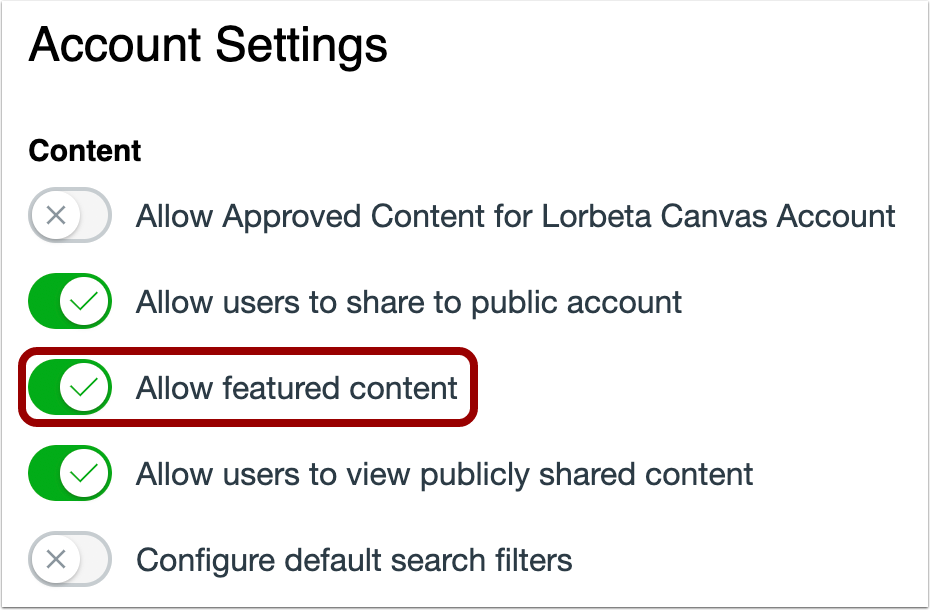
Admins can display or hide featured content in Commons.
Change Benefit
This feature allows admins to manage how featured content displays in Commons.
Affected User Roles & Behaviors
Administrators
Admins can manage featured content visibility in the Account Settings page in Commons. Featured content is enabled by default. When enabled, featured content displays at the top of Commons search results. When disabled, feature content will still display in search results, but will not be featured at the top of the Search page.
Conferences
The following features are managed by a third-party provider. To provide feedback, please see the Feature Enhancement Ideas section.
Location to Enable Feature | N/A |
Configuration Details | N/A |
Affected Canvas Areas | Conferences Interface |
Beta/Test Environment Support | No |
Affected User Roles | Moderators, Participants
|
Feature Enhancement Ideas | Blindside Networks Contact Page |
Breakout Rooms
Summary
Canvas Conferences supports breakout rooms as conference groups for all accounts. Previously this feature was only available to premium tiers.
Change Benefit
This feature allows instructors to place students into groups for team collaboration during a conference.
Affected User Roles & Behaviors
Moderators
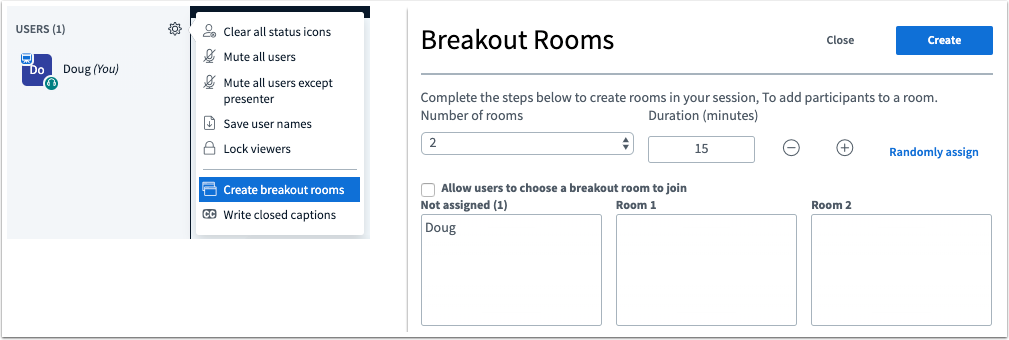
Moderators can create breakout rooms for students to collaborate during a conference. Breakout rooms can be created at any time during the conference. A minimum of two breakout rooms are required, and the moderator can create up to 8 rooms. Breakout rooms can either be assigned by the moderator manually or randomly, or attendees can choose which breakout room to join.
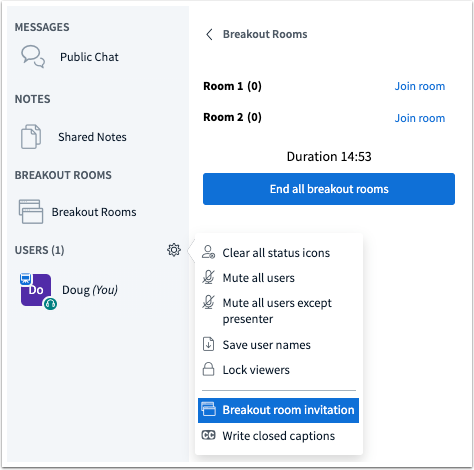
Once created, breakout rooms are displayed as their own tab for the moderator to manage and join breakout rooms. If breakout rooms are created before attendees join the conference, invitations can be sent by the moderator for attendees to join a breakout room. Once a participant has joined a breakout room, the participant cannot be assigned or join another breakout room.
Participants
When participants are invited to join a breakout room, a message displays inviting the user to join the breakout room. Breakout rooms are opened in a separate tab in the browser and display the remaining time for the breakout session at the top of the window. Once the breakout room time has concluded, the tab will close and return the participant to the main conference automatically.
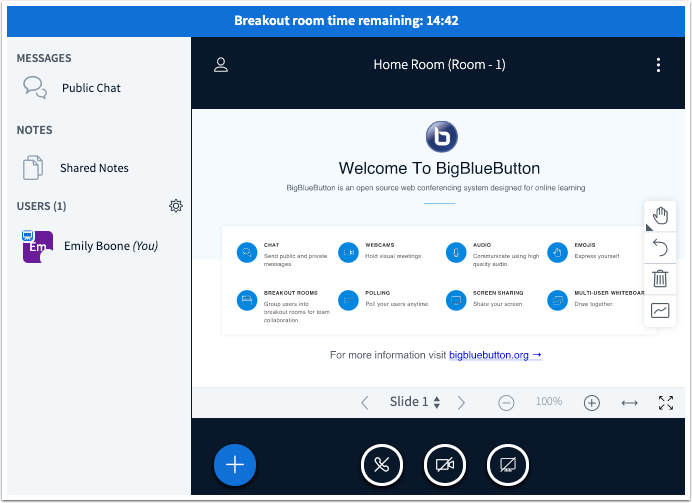
For additional information about breakout rooms, please see the BigBlueButton Moderator/Presenter Video.
Closed Captions
Summary
Canvas Conferences supports live closed captioning.
Change Benefit
This feature allows a stenographer join a conference as an observer and provide live captioning to attendees.
Affected User Roles & Behaviors
Moderators
Moderators can set up a page for closed captions to be written during the conference. When selected, the interface asks for the selected language.
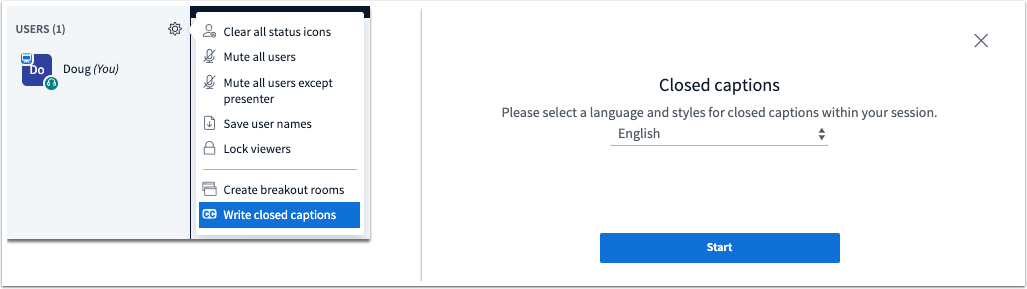
Once created, captions are created as their own tab for the user who will be managing captions. Captions can be typed into a window that displays captions to conference users who enable captioning in the interface. More than one language can be created for captioning if desired. Captions display as subtitles within recorded conferences.
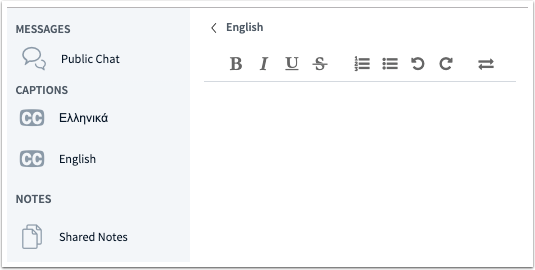
Participants
When closed captions are created for a conference, the Conferences interface displays a closed captioning (CC) button. Users can select their own caption preferences including text and background color, font, and text size.
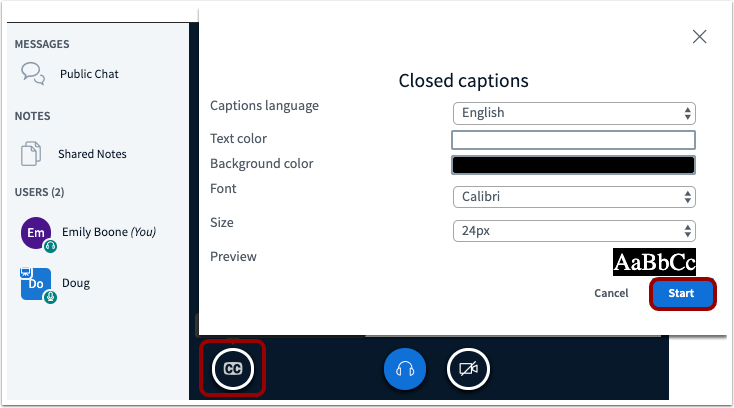
Typed captions by a moderator are included directly in the interface. Users can view and hide captions at any time.
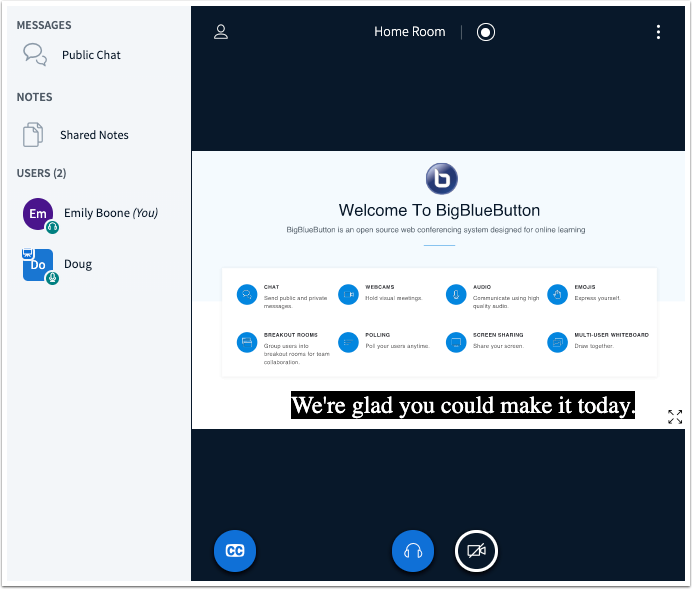
For additional information about closed captioning, please see the Closed Captioning Overview Video.
VPAT Support
Summary
Canvas Conferences (BigBlueButton) is WCAG 2.0 AA Accessible, with some exceptions. For additional information, please see the BigBlueButton Accessibility Page.
Change Benefit
This change verifies BigBlueButton strives to comply with government standards for accessibility for Canvas Conferences.
Course Settings
Unsplash Course Card Image Search
This feature is used in conjunction with an existing feature option in Canvas. Please view the content below for additional details. For more information about feature options, please see the Canvas Release Notes FAQ.
Summary
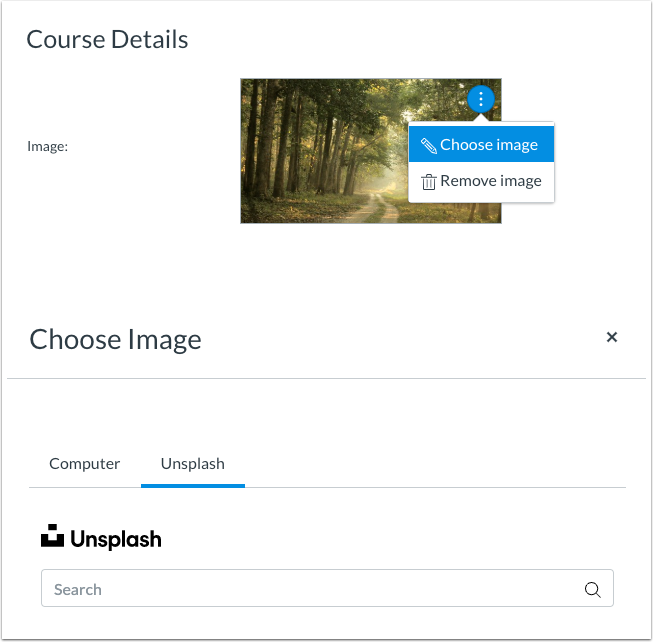
The Flickr image search has been replaced by Unsplash.
Change Benefit
This change replaces Flickr with Unsplash, which offers high-quality, safe images for use as course card images.
Affected User Roles & Behaviors
Instructors
When an instructor uses images for course cards, Unsplash image search replaces the existing Flickr search functionality. The Flickr logo has been removed from the interface. Existing images imported from Flickr will not be affected.
Discussions
File Attachment Default
Feature Production Availability | August 14 |
|---|
Location to Enable Feature | Discussions |
Configuration Details | N/A |
Affected Canvas Areas | Discussions |
Beta/Test Environment Support | Yes |
Permissions | Assignments and Quizzes - add / edit / delete Discussions - view Discussions - moderate Discussions - create Discussions - post |
Related APIs | Discussion Topics API |
Affects User Interface | Yes |
Affected User Roles | Instructors |
Feature Enhancement Ideas | Existing Discussions feature ideas |
Specified Tag for Feature Ideas | Discussions |
Summary
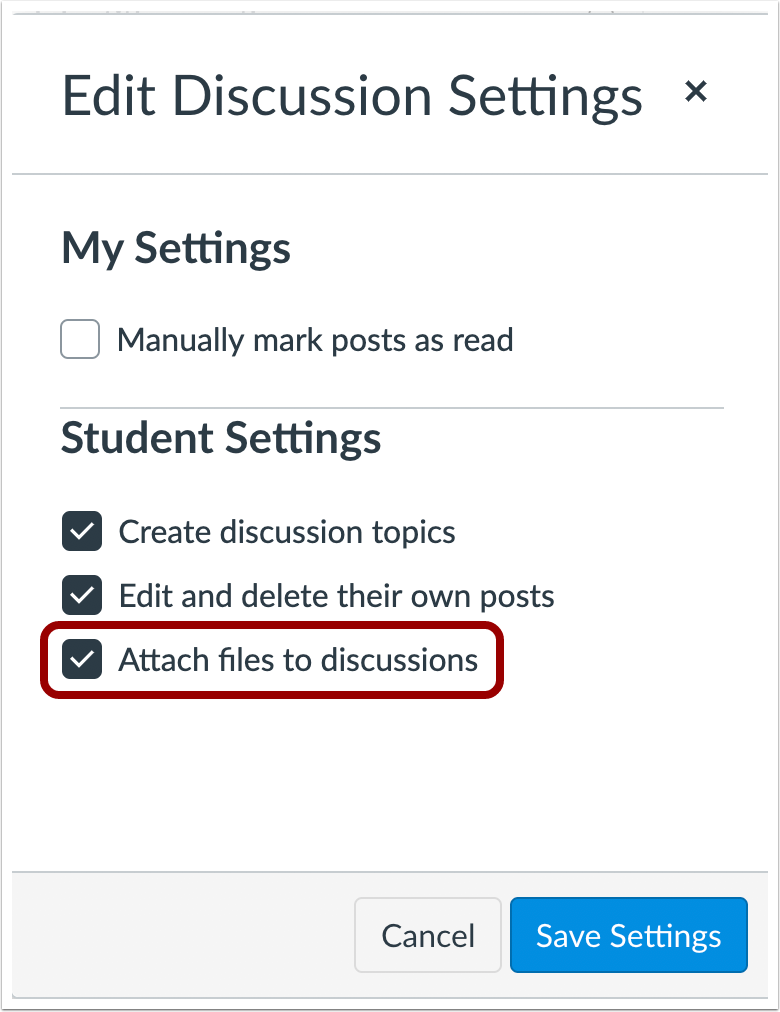
In Discussions, the option for students to add file attachments is enabled by default in new courses.
Change Benefit
This behavior aligns consistency with other Canvas features that allow attachments by default and resolves the common expectation by instructors that students can attach files to discussion posts.
Affected User Roles
Instructors
When instructors view the Discussions Settings in new courses, the option to Attach Files to Discussions is selected by default. If preferred, instructors can disable the option for students to add attachments in Course Settings or the Discussions Settings menu.
Global Navigation
Account Menu LTI Navigation Links
Summary
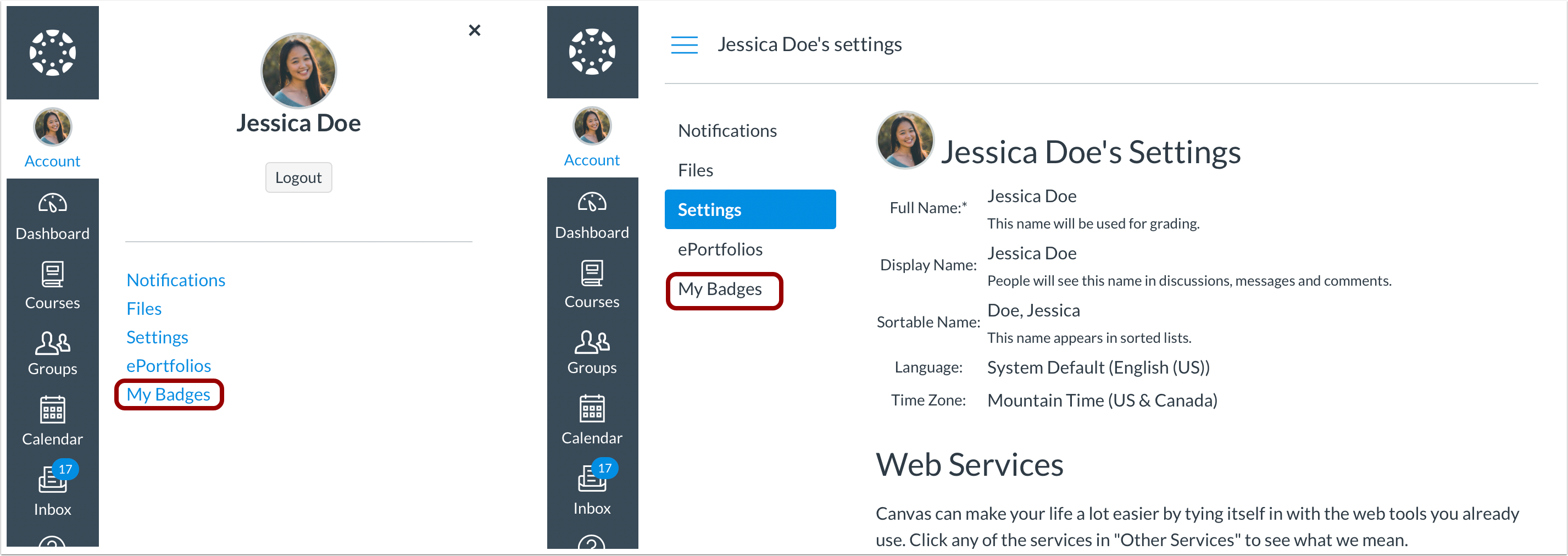
LTI tools with user navigation placement display in the User Navigation Account Menu.
Change Benefit
This behavior helps users access these LTI tools more quickly without having to open the User Settings page.
Affected User Roles
All Users
Any user with an account that included LTI tool navigation links in their User Settings page will also view the links in their User Navigation Account Menu.
New Quizzes
Quizzes.Next will be known as New Quizzes. Updates to documentation, Community resources, and the Canvas user interface will take place over the next few months.
<SPAN style="font-size: 11pt; color: #000000; background







.png)