As an instructor, you can request a grade sync from your Canvas gradebook to your PowerSchool gradebook. Before syncing your grades, verify that you have properly named your Canvas assignment groups for PowerSchool GPB. You must also set up assignments for SIS sync.
Notes:
- Submissions with Late status will be synced to the PowerSchool gradebook. If an assignment in Canvas is marked as Late and the late policy has deducted points from their Score, then the intended reduced Score will be posted to PowerSchool.
- Submissions with Missing or Excused status without a score will sync a 0 score to the PowerSchool gradebook.
Open Grades
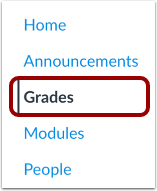
In Course Navigation, click the Grades link.
Open Sync to SIS
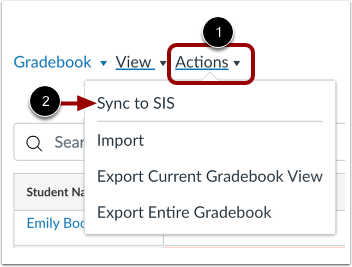
In the course Gradebook, click the Actions menu [1]. Then select the Sync to SIS option [2].
Review Grade Sync Request
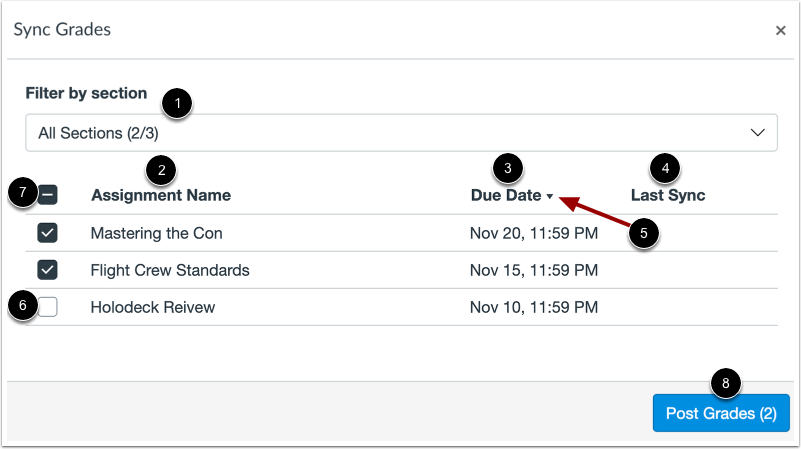
From the Sync Grades modal you can review and modify the assignments and grades included in your grade sync request.
By default, all course sections are selected for grade sync. To filter the grade sync by section, click the Filter by section drop-down menu [1], then select the sections you want to sync.
View a list of all assignments set up for SIS sync, including the assignment name [2], due date [3], and last sync date [4]. To sort the list by ascending or descending name or date order, click the header Sort icon [5].
By default, all assignments are selected for SIS sync. To deselect an assignment, click the assignment checkbox [6]. Alternatively, you can deselect all assignments by clicking the Assignment Name checkbox [7]. Deselected assignments are not included in the SIS sync.
To sync grades, click the Post Grades button [8].
View Grade Sync Progress
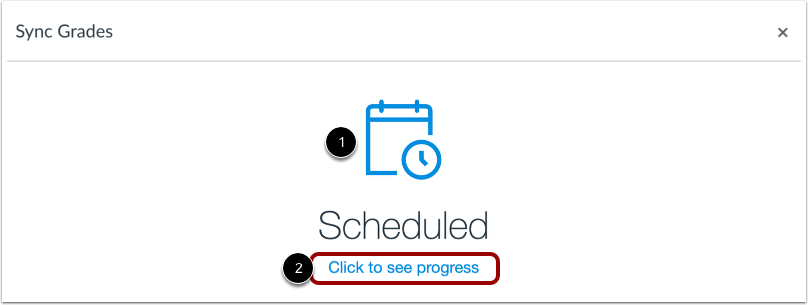
After posting grades, the Grade Sync modal displays a Scheduled notification [1]. To view grade sync progress in your course, click the Click to see progress link [2].