If your institution has configured grade passback from Canvas to your SIS, you can view grade sync history in the SIS Integration page. When an account-level grade sync runs, any course included in the grade sync is added as an individual line item in the grade sync history list. This allows you to view and manage grade sync details without having to locate the impacted courses on your own.
The Grade Sync list displays all completed, failed, and in-progress grade sync jobs, including scheduled syncs and syncs run by instructors. If a grade sync imports with errors, you can view details to identify the error. You can also download the grade sync history list as a CSV file.
Open Account
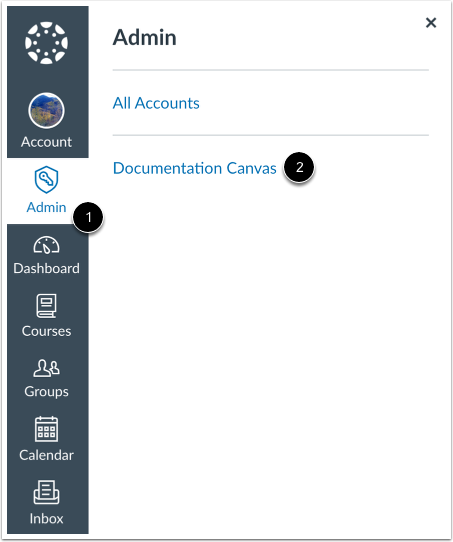
In Global Navigation, click the Admin link [1], then click the name of the account [2].
Open SIS Integration
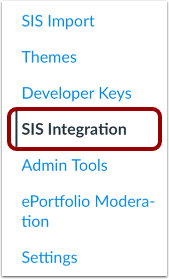
In the Account Navigation menu, click the SIS Integration link.
Open Grade Sync
In the SIS Integration page, click the Grade Sync tab.
View Grade Sync
You can view your institution's grade sync schedule(s) in the Schedulessection [1].
You can also view recent grade sync history in the Account-Level Grade Sync section [2].
View Account-Level Grade Sync History
The Account-Level Grade Sync section displays a paginated list of recent batch sync records [1].
To view additional grade sync records, use the page navigation buttons [2].
To update the list with the most recent batch data, click the Refresh button [3].
Note: To view individual course-level syncs or filter sync records by status, click the Course Level button.
View Sync History List
The Account-Level Grade Sync list displays information for each batch sync run:
- Status[1]: displays the overall outcome of the batch grade sync (such as Completed or Failed).
- Course Grade Sync Count[2]: displays the number of individual course syncs included in the batch. If linked course syncs exist, click the number link to view granular course-level details.
- Created[3]: the date and timestamp when the batch sync was initiated.
- Updated [4]: the date and timestamp when the batch sync completed.
- Actions[5]: displays available action options for the sync batch record.