If your institution has configured Canvas-SIS grade passback, you can view your grade sync schedules in the SIS Integration page. Any course grading updates made in Canvas within the defined interval are reflected in your SIS gradebook after a completed sync. Canvas Course grading updates can include new assignments, adding assignment scores, posting grades, and changing assignment grades. You can also pause grade sync schedules.
Grade passback schedules are configured during Canvas SIS integration implementation. To make changes to your sync schedules, or to add scheduled syncs, contact the Instructure SIS Support Team.
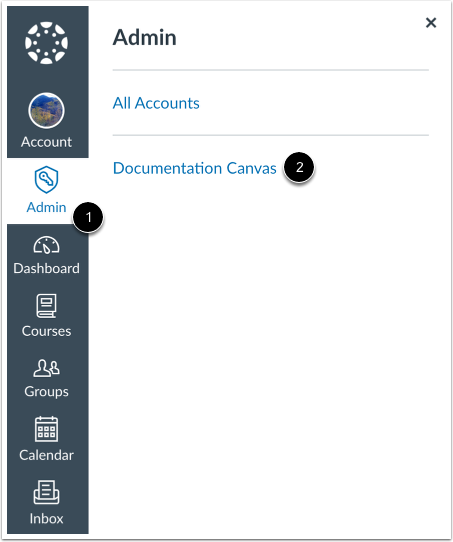
Open Account
In Global Navigation, click the Admin link [1], then click the name of the account [2].
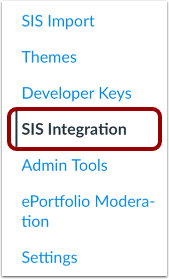
Open SIS Integration
In the Account Navigation menu, click the SIS Integration link.
Open Grade Sync
In the SIS Integration page, click the Grade Sync tab.
View Grade Sync
You can view your institution's Grade Sync automation schedule(s) in the Schedulessection [1].
You can also view recent Grade Sync history and Grade Sync details in the Account-Level Grade Syncsection [2].
View Schedules List
The Schedules list displays information about each sync schedule.
- Day of the Week[1]: the day(s) of the week the grade sync is scheduled to run.
- Hour of Day[2]: the scheduled hour of day your grade sync runs.
- Next run[3]: the approximate time remaining until the next scheduled grade sync.
- Status[4]: displays whether the schedule is Enabled or Suspended.
- Posted By[5]: the associated Canvas admin or schedule entity assigned to initiate the sync.
- Actions[6]: management options to pause or manually trigger the scheduled sync.
Run Schedule Sync
As an admin, you can manually run a scheduled sync at any time.
To manually run a sync schedule, locate the schedule and click the Run schedule now button [1].
When you manually run a scheduled sync, your name displays in the Grade Sync history log [2].
Note: If you manually run a sync, avoid sync issues and confirm that only one sync job is running at a time.
Pause Schedule
You can also pause Grade sync schedules to prevent subsequent syncs.
To pause a sync schedule, locate the schedule, and click the Pause schedule button.
After pausing a sync, please contact the Instructure SIS Support Team to resolve any sync issues.
Resume Schedule
To resume a paused sync and allow the next automated sync, locate the paused scheduled sync in the list. Canvas displays the date and time when the sync was paused [1]. To resume the schedule, click the Resume schedule button [2].