Adding LTI SSO app
After your LMS administrator sets up the Portfolium SSO application, You will then have access to create new assignments.
- Logged in, go to a course
- Ensure you are in edit mode
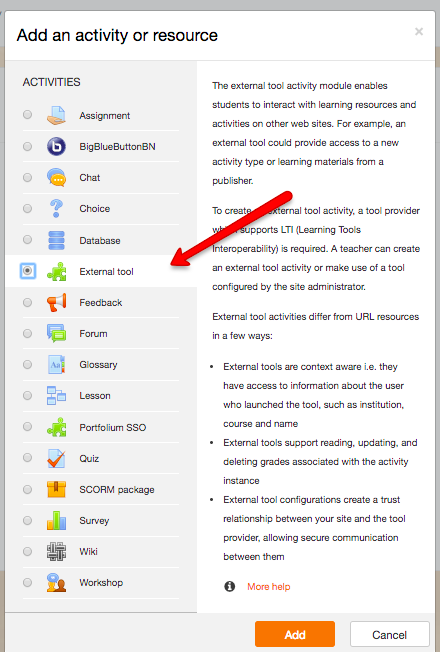
- Add an activity or resource
Adding Assignments
On the “add an activity or resource” screen, select “External tool” and click on the “Add” button.
The form loads, fill out the following settings
- Activity name -Portfolium SSO
- Preconfigured tool: Select “Portfolium SSO”
Click on the “Save and Display” button
This is the view in the Course list:
Click on the Portfolium SSO link: