As a Canvas account admin, you can access admin settings in Commons to manage public sharing and importing options for your account, view and manage groups and consortiums, manage resources shared by users at your institution, and view resource statistics.
Notes:
- Users with the default Canvas account admin user role automatically have account admin access in Commons.
- Your institution can create custom Canvas account admin roles with the "Admins - add/remove" permission. These admin users also have account admin access in Commons.
- Users with non-admin roles (instructors, designers, etc.) do not have access to Admin Settings. However, you can grant limited Admin Settings access to group leaders or content curators.
00:07: How do I view admin settings in Commons?
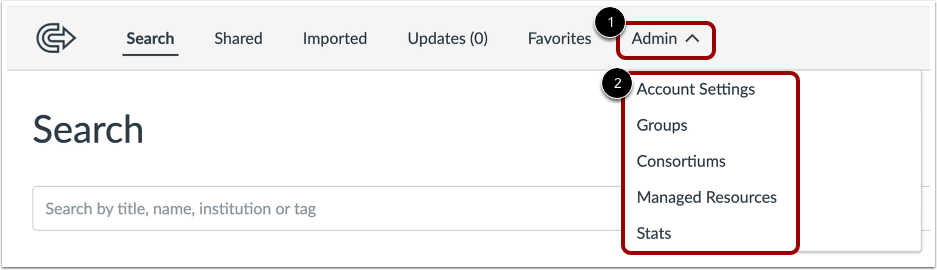
00:10: To access Commons account settings, click the admin, drop-down menu.
00:15: Then select a setting option.
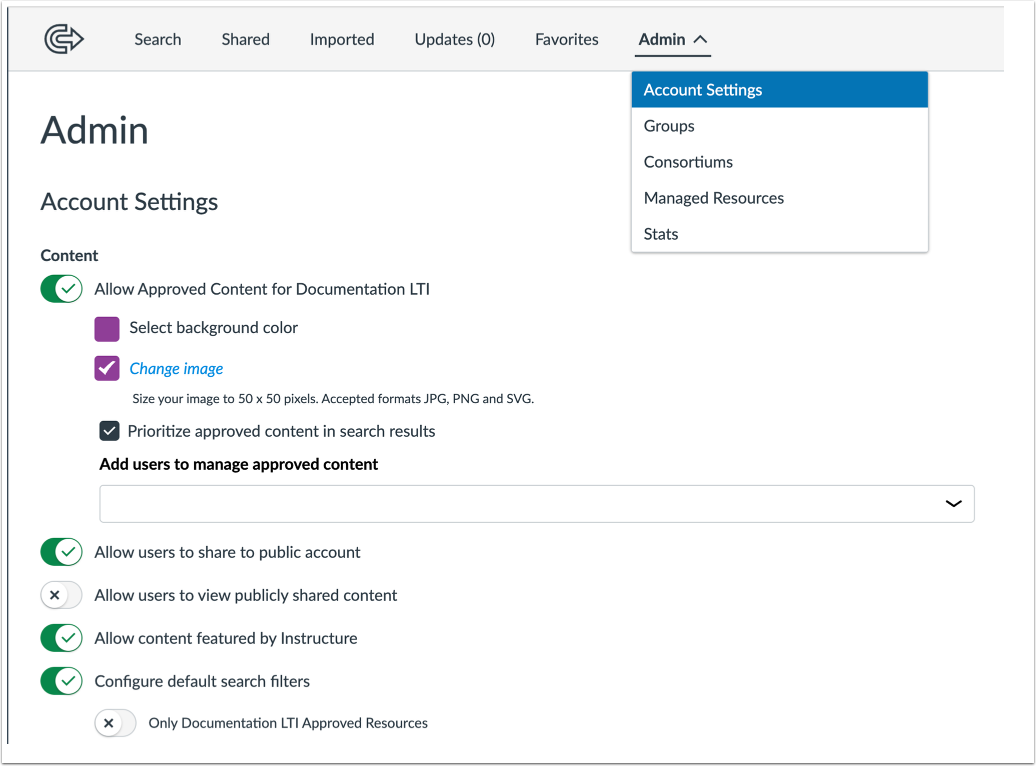
00:18: In the account settings, tab.
00:20: You can allow approved content settings.
00:23: Allow featured content.
00:25: And configure default search filters.
00:39: Manage sharing settings.
00:41: In the account settings tab, you can allow approved, content, settings manage,
00:45: sharing settings, allow featured, content, and configure, default search
00:49: filters. You can also enable or disable standards and
00:53: outcomes by default standards and outcomes settings are enabled.
00:58: You can edit your account settings at any time.
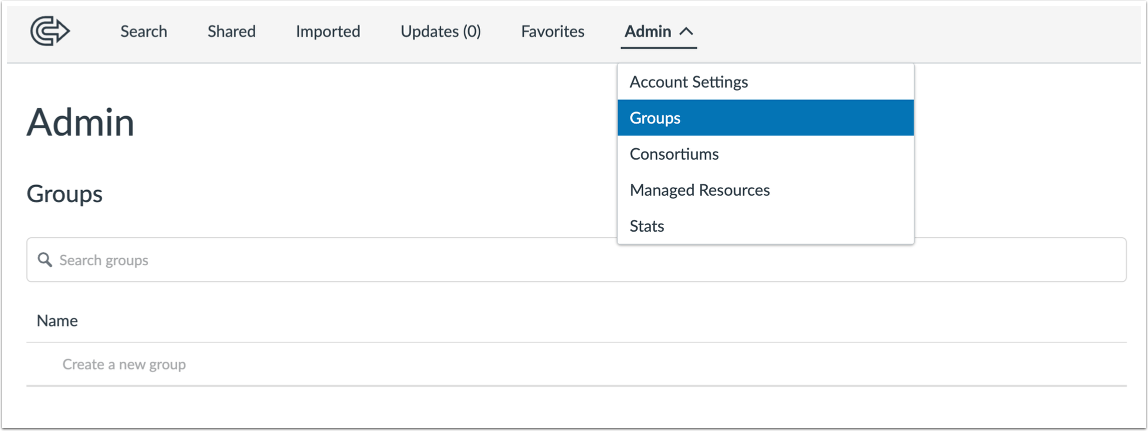
01:02: In the groups page, you can create and manage groups with which you share resources.
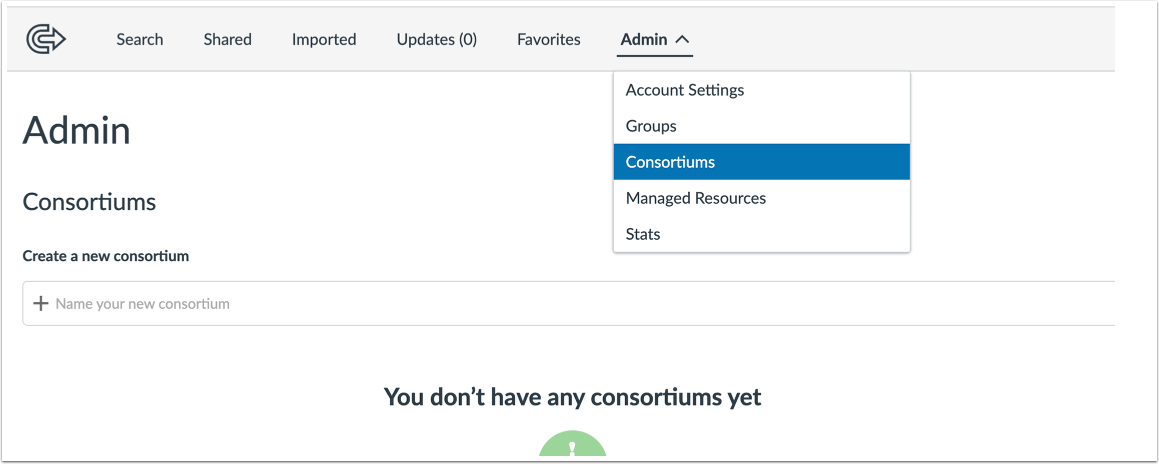
01:08: In the consortium's page. You can create and manage consortiums with which
01:12: you share resources.
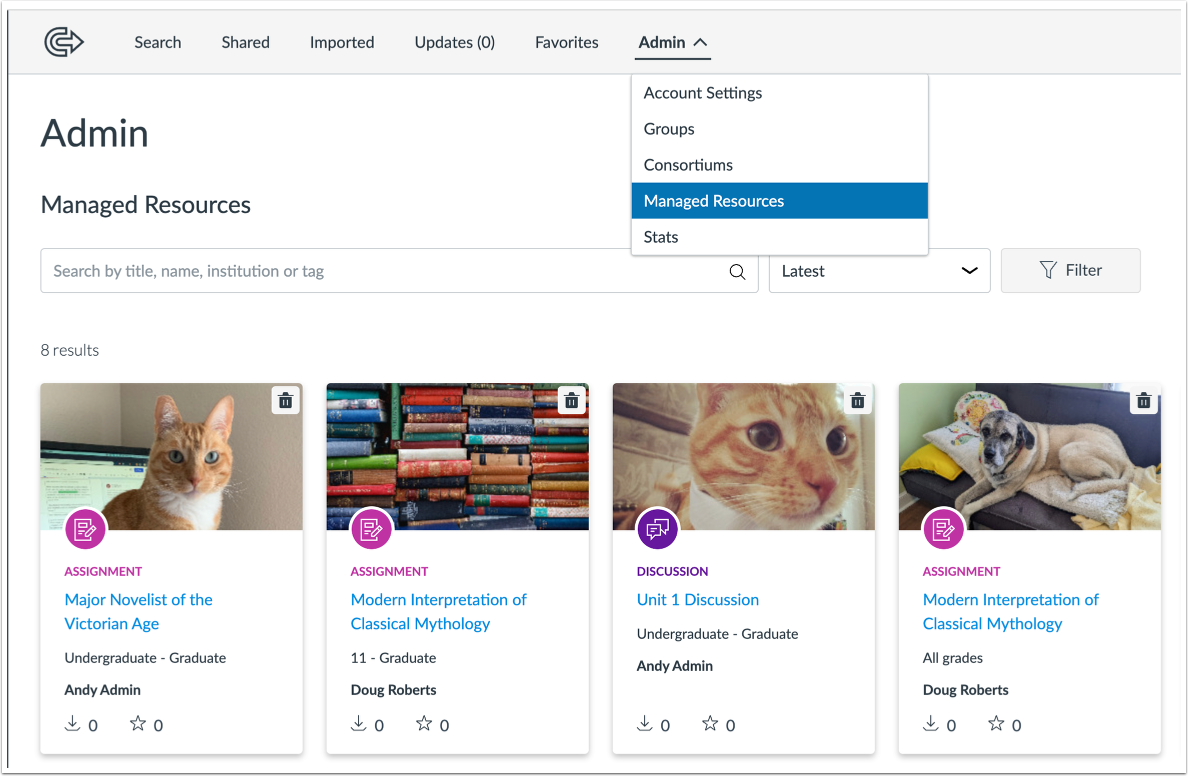
01:14: In the managed resources page.
01:17: You can search View and remove resources shared by your institution that
01:21: are not private to the author or Sharer.
01:23: You can also edit resource metadata such as details, content
01:28: licensing, share option. However you cannot edit or update
01:32: resource content.
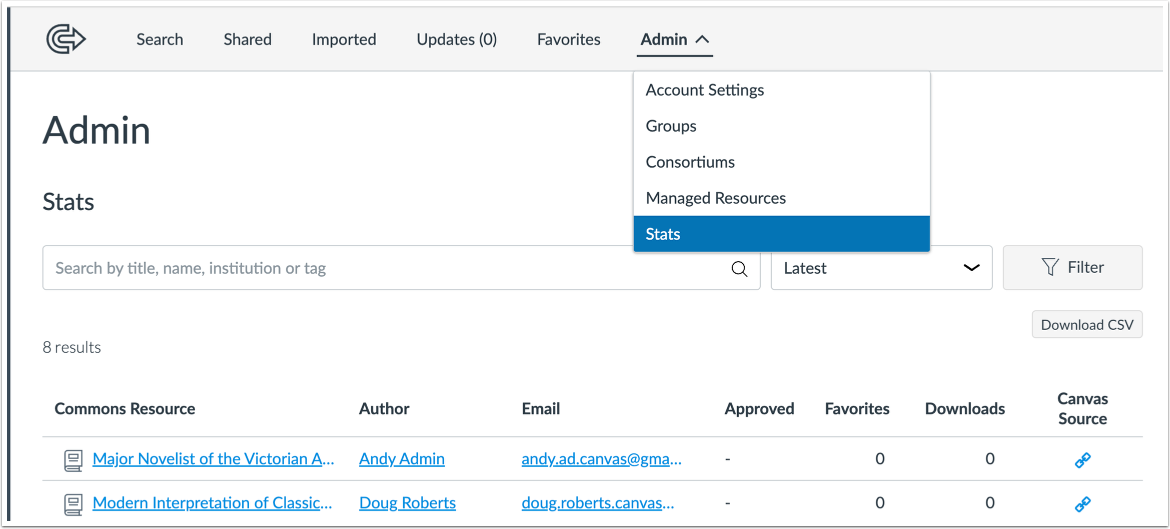
01:35: In the stats page, you can view resource statistics for Content, shared by
01:39: users at your Institution.
01:42: You can search for and filter resources.
01:45: You can also view resource name author, email address approved,
01:49: content, status number of times, favorited number of times downloaded
01:53: and a link to the canvas source file.
01:57: This guide covered how to view admin settings in Commons.
Open Admin Settings
To access Commons Account Settings, click the Admin drop-down menu [1]. Then, select a setting option[2].
View Account Settings
In the Account Settings tab, you can allow approved content settings, manage sharing settings, allow featured content, and configure default search filters.
You can also enable or disable standards and outcomes. By default, Standards & Outcomes settings are enabled.
You can edit your account settings at any time.
View Groups
In the Groups page, you can create and manage groups with which you share resources.
View Consortiums
In the Consortiums page, you can create and manage consortiums with which you share resources.
View Managed Resources
In the Managed Resources page, you can search, view, and remove resources shared by your institution that are not private to the author/sharer. You can also edit resource metadata (details, content licensing, share option); however, you cannot edit or update resource content.
View Statistics
In the Stats page, you can view resource statistics for content shared by users at your institution. You can search for and filter resources. You can also view resource name, author, email address, approved content status, number of times favorited, number of times downloaded, and a link to the Canvas source file.