Release notes outline upcoming customer-impacting changes that are expected to display in beta and/or production environments. Please note that features considered for future development are not included in the notes.
Unless otherwise stated, all features in this release are available in the Beta environment on 2026-01-26 and the Production environment on 2026-02-09.
Updated Features
Badges
Automatic Badge Awarding in LTI
Affected Users: Admins, Issuers
Location to Enable Feature | N/A |
|---|
Permissions | Admin, Issuer |
Affects User Interface | Yes |
Affected Areas | Parchment Digital Badges LTI Setup and Requirements pages |
Summary
Parchment Digital Badges improves automatic badge awarding by aligning badge criteria with the grading rules defined in Canvas.
Automatic Trigger Type Alignment for Assignments
- When a Canvas assignment is selected as a badge requirement, Parchment Digital Badges automatically sets the trigger type based on the assignment’s grading method (Points, Percentage, Complete/Incomplete, or Letter Grade). If grading settings in Canvas change later, issuers are prompted to review and sync the badge criteria.
Automatic sync prompts when grading changes
- If Canvas grading settings change after badge rules are configured, Parchment Digital Badges detects the mismatch and displays a Sync Needed prompt. Issuers can update triggers and thresholds without deleting or recreating the badge.
- Sync prompts display only for requirements tied to the Canvas assignments that changed, preventing unintended updates.
- Requirements created before this release may surface sync prompts if their trigger type no longer matches current Canvas grading settings.
Letter Grade–based badge awarding
Badges can be awarded using Letter Grade criteria for both assignment-based and course-based awarding.
- For assignments, issuers select a Letter Grade threshold from the Canvas grading scheme.
- For courses, Letter Grade is available as an awarding option.
- This is manual and does not participate in assignment trigger mapping or sync behavior.
- In Course Settings, the Enable course grading scheme option must be enabled.
Additional Details
- There is no bulk sync option. Each requirement must be reviewed individually to prevent incorrect threshold carryover after grading changes.
- Course copy and blueprint distribution may surface sync prompts if grading rules differ between source and destination courses.
- Module-based awarding is unaffected by these enhancements, since module completion does not use grading schemes.
- Learners do not need to take any action. Badges award automatically when grading criteria are met.
- If no sync is performed and issuers ignore the prompts:
- Awarding continues using the previous settings
- Canvas and badge outcomes may become out of alignment
- Some badging scenarios may stop awarding (for example, if the threshold exceeds the new maximum points)
- Letter Grade or GPA changes may lead to unexpected awarding results
- Learners do not need to take any action. Badges award automatically when grading criteria are met.
Change Benefit
For issuers and instructors, this update improves the accuracy of automatic badge awarding by ensuring it reflects how work is graded in Canvas. It reduces setup effort and configuration errors, adds support for Letter Grade and GPA-based grading, and provides clear prompts when grading changes require review. Together, these improvements increase confidence in automatic badge awarding.
For institutions, this update increases the reliability of badge awarding for credit-bearing and standards-aligned programs. It reduces the need for manual badge interventions and strengthens alignment between Canvas learning outcomes and officially issued badges.
Feature Workflow

In the Parchment Badges LTI within a Canvas course, when adding or editing a badge requirement, select an assignment from the course [1]. The trigger type is automatically set and locked based on the assignment’s grading method [2]. If needed, adjust the threshold [3], then click the Save Changes button [4].
Notes:
- The badge is awarded automatically when a student’s Canvas grade meets the configured threshold.
- If grading settings change later in Canvas, the badge requirement may no longer align with the assignment.
- Changes that can cause misalignment include:
- How the grade is displayed (Points, Percentage, Letter Grade, or GPA)
- Letter Grade or GPA grading scheme thresholds
- The assignment’s maximum points value
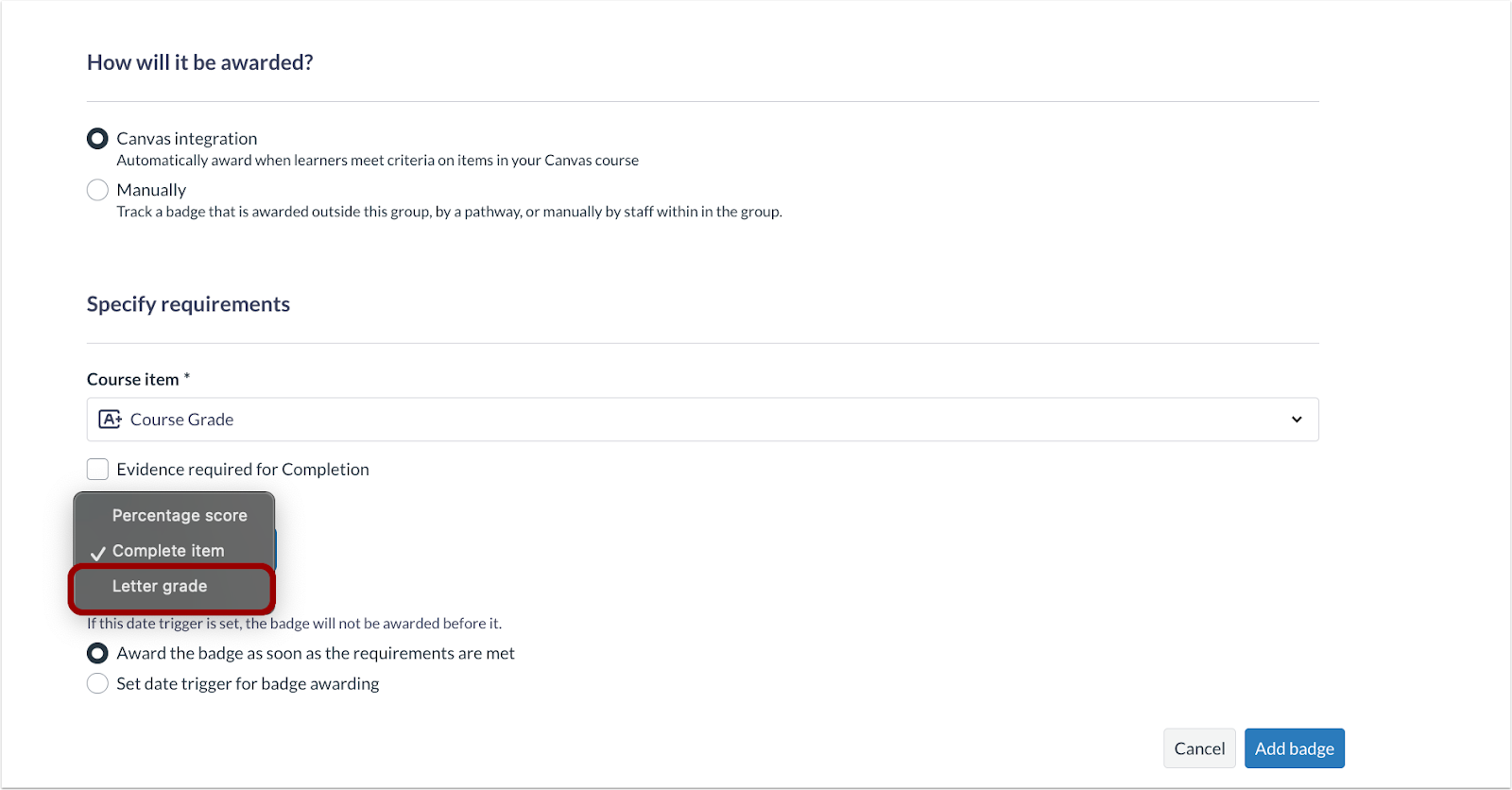
To create or update course-based awarding using letter grades, select Letter Grade as the trigger type.
Notes:
- In Course Settings, the Enable course grading scheme option must be enabled.
- The badge awards automatically when the course final grade meets the selected threshold.

When the assignment and badge requirement are no longer aligned, a banner in the Parchment Badges LTI notifies the issuer that a mismatch exists and a sync is required.
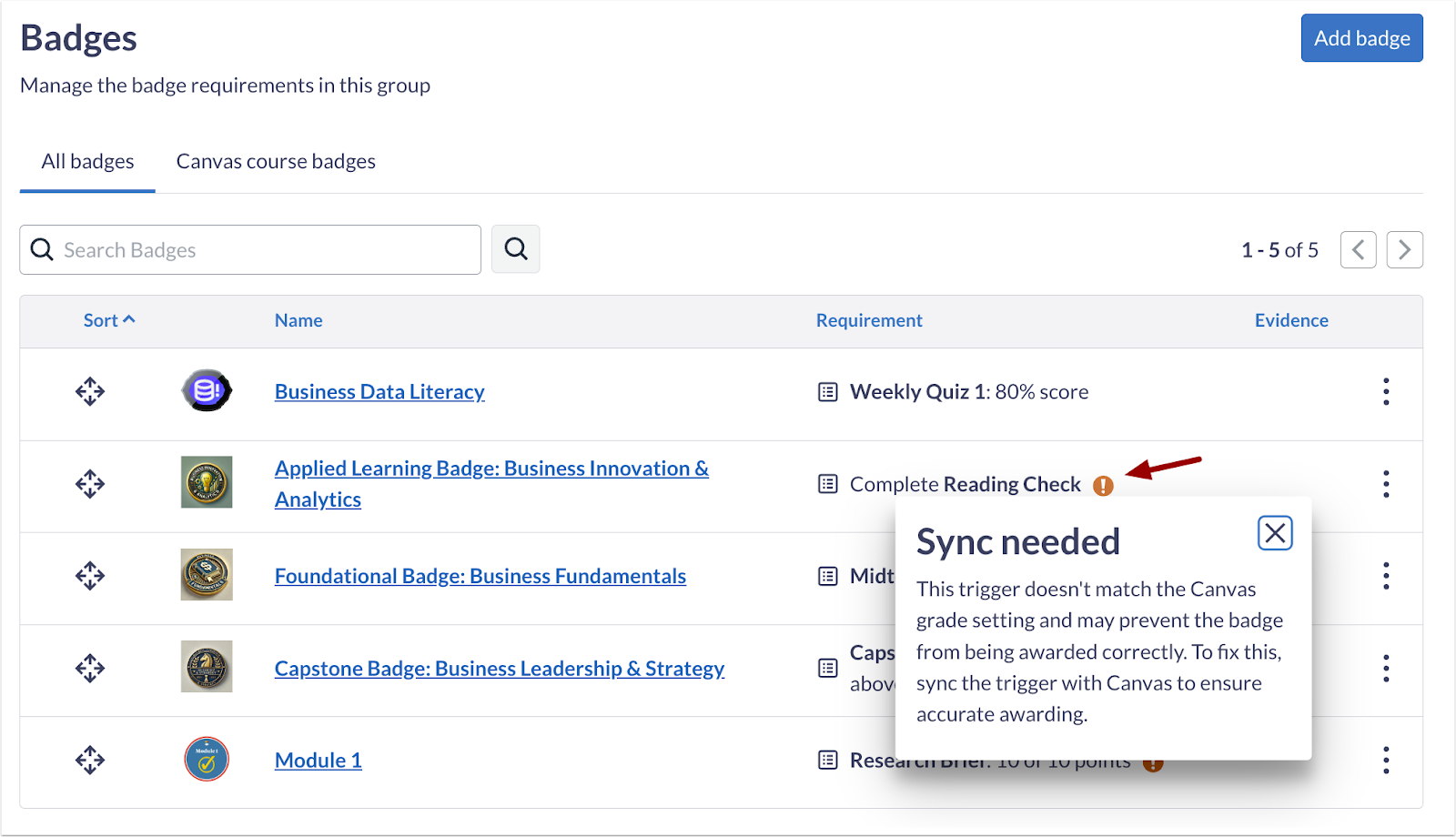
An icon in the All Badges table also indicates when a badge requirement is mismatched and requires syncing.

An icon displays in the Canvas course badges table to show the badge requirement is mismatched and requires a sync [1].
In some cases, the threshold field will display a warning indicator when Canvas grading settings change [2]. Issuers can sync with Canvas grading to refresh the rule. After syncing:
- The trigger type updates automatically if needed
- Threshold values and options refresh
- Issuers may need to adjust the threshold if the previous value is no longer valid