Open Grades
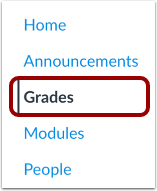
In Course Navigation, click the Grades link.
Open Sync to SIS
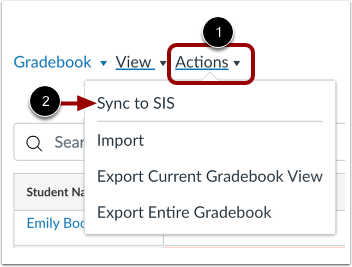
In the course Gradebook, click the Actions menu [1]. Then select the Sync to SIS option [2].
Review Grade Sync Request
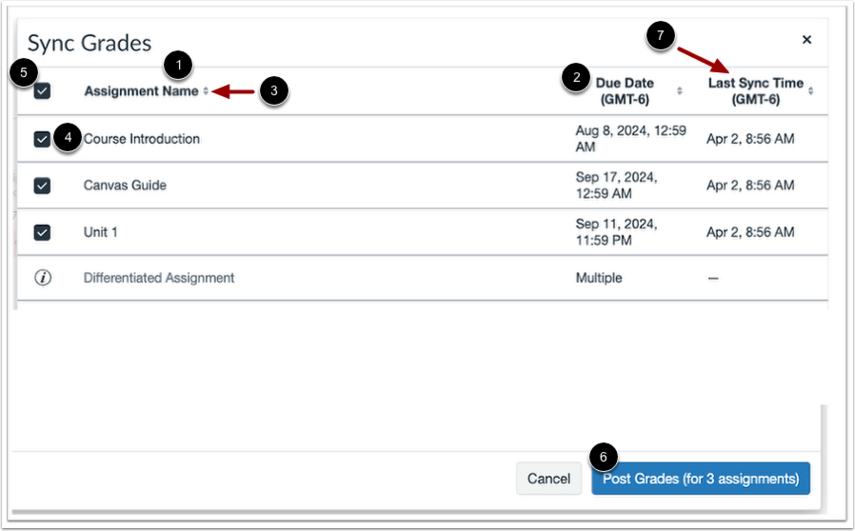
From the Sync Grades modal, you can review and modify the assignments and grades included in your grade sync request.
View a list of all assignments set up for SIS sync, ncluding the assignment name [1] and due date [2]. To sort the list by ascending or descending name or date order, click the header Sort icon [3].
By default, all assignments are selected for SIS sync. To deselect an assignment, click the assignment checkbox [4]. Alternatively, you can deselect all assignments by clicking the Assignment Name checkbox [5]. Deselected assignments are not included in the SIS sync.
To sync grades, click the Post Grades button [6].
Note: Grade sync exchanges process only updated grade results. Assignments with no changes since the last sync are marked as successful, but no grade data is sent. The Last Sync Time [7] column displays for each assignment in the sync modal.
View Grade Sync Progress
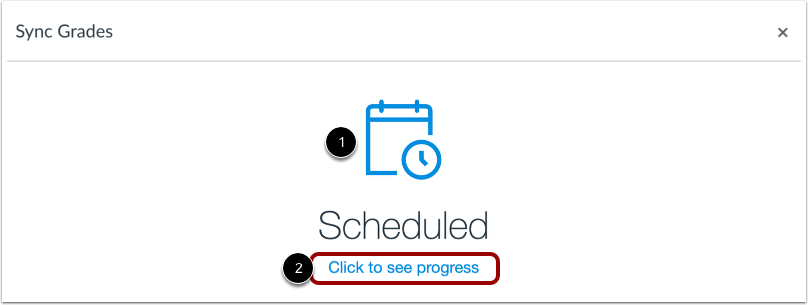
After posting grades, the Grade Sync modal displays a Scheduled notification [1]. To view grade sync progress in your course, click the Click to see progress link [2].