An LTI link in Schoology can be set up at either the course level or the institution level. We recommend the institution level if given a choice, as it ensures consistency, centralized troubleshooting, and ease of addition in subsequent terms.
To add an institution level, you must have an Enterprise Schoology subscription and hold a role that allows you to install LTI Integrations in the System Settings.
Institution Level Setup - Installation Instructions
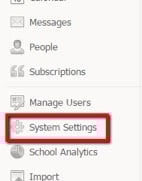
From the Home screen, from the left-hand menu, click System Settings.
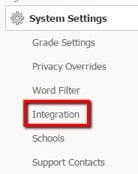
From the same left-hand menu, click Integration.
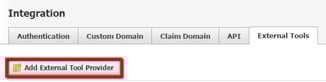
From the Integration page's top menu bar, click the External Tools tab.
Click the Add External Tool Provider button.
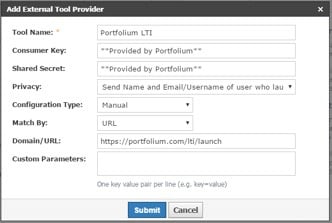
Fill in the tool information:
- Tool Name: A name that clearly identifies Portfolium. Suggested: Portfolium LTI
- Consumer Key: Provided by Portfolium
- Shared Secret: Provided by Portfolium (check for leading or trailing spaces)
- Privacy: Leave as default (Send Name and Email/Username of user who launches the tool)
- Configuration Type: Manual
- Match By: URL
- Domain/URL:
https://portfolium.com/lti/launch - Custom Parameters: None
Click the Submit button at the bottom. To edit any of the settings later, click the tool name in the list.
Institution Level Setup - Adding as a Materials Item
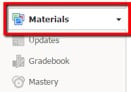
Navigate to the course and confirm you are in the Materials section.
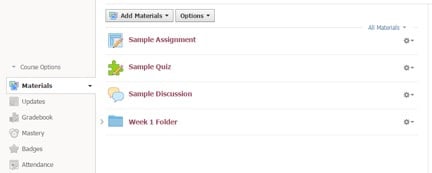
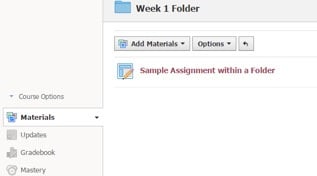
Navigate to the folder where you want to add the link or remain on the main page.
- Option 1 - Within a Folder
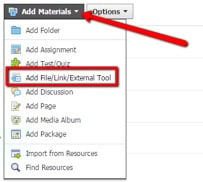
Click Add Materials > Add File/Link/External Tool.
In the pop-up, click the External Tool tab.
Select Portfolium LTI (or the name used during setup) from the Tool Provider drop-down menu.
Add a Title that clearly identifies the tool (e.g., Portfolium).
Click Submit.
The link appears in the folder or main materials feed. Click the link to launch Portfolium.
Note: If Portfolium doesn't load or you receive an error, contact your Portfolium representative.
Institution Level Setup - Adding as an App
This requires System Administrator or similar permissions.
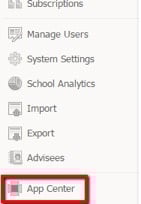
From the Schoology home screen, click App Center (bottom left).
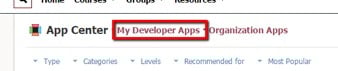
From the top menu, click My Developer Apps.
Click Add App.
Complete the form:
- Type of App: LTI App
- Launch App in Schoology: Checked (recommended)
- App Name: Portfolium
- Description: Brief explanation of Portfolium
- Category: Other
- Level: None
- Recommended For: Leave unchecked
- Available for: Only people in my school
- Can be installed for: Courses (select all items in Courses submenu)
- Privacy: Send Name and Email/Username
- Configuration Type: Manual
- Domain/URL:
https://portfolium.com/lti/launch - Custom Parameters: Leave blank
- Make app available to System Administrators only: Unchecked
- This app uses Cookies: Unchecked
- Allow System Administrators to configure settings: Checked
- Require configuration: Checked
- Starting Price: Leave blank
- App Logo: Optional
- Feature Graphic: Leave blank
- This application meets the Schoology Terms of Use: Checked
Click Submit.
Refresh the Developer Apps page if the app doesn’t appear immediately.
Click Install LTI App next to Portfolium.
Click Add to Organization.
In the Organization Apps section, click Configure next to Portfolium.
Enter the Consumer Key and Shared Secret from Portfolium. Leave Custom Parameters blank.
Click Save Settings.
At the top, select All Schools or choose a specific school.
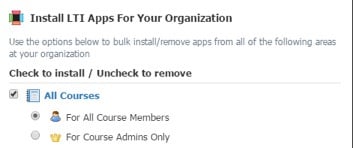
Click Manage Installs for Portfolium.
Check All Courses and For All Course Members.
Click Submit.
Enter any course to confirm that Portfolium appears in the left-hand navigation menu.
Note: At this time, it is not possible to reorder the left-hand menu list.