You can link your Canvas account to additional student accounts from the Canvas Parent app. To link your account, you will need a student pairing code provided by your student, their instructor, or an admin from your student's institution.
This lesson displays how to link to a student from the Student Selector and from the User Menu.
For more information, view the guide on pairing codes.
Link from Student Selector
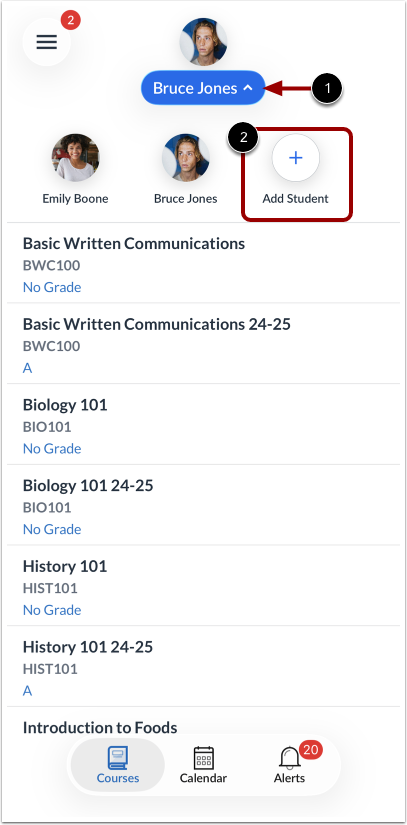
To link a student from the Student Selector, tap the StudentSelector [1]. Then tap the Add Student icon [2].
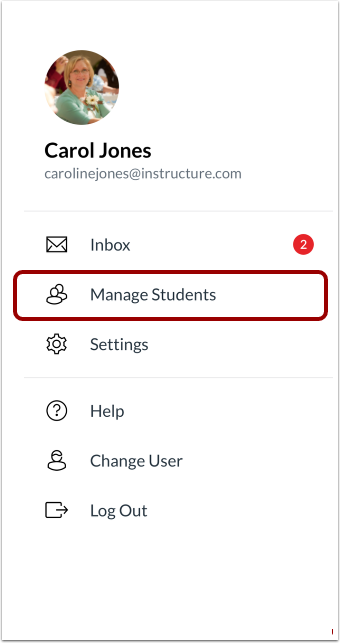
To link a student from the User Menu, tap the Menu icon.
Manage Students
Tap the Manage Students link.
Add Student
To link a student to your account, tap the Add Student link.
Select Pairing Option
You can select a pairing option by tapping either the QR code [1] or Pairing Code [2].
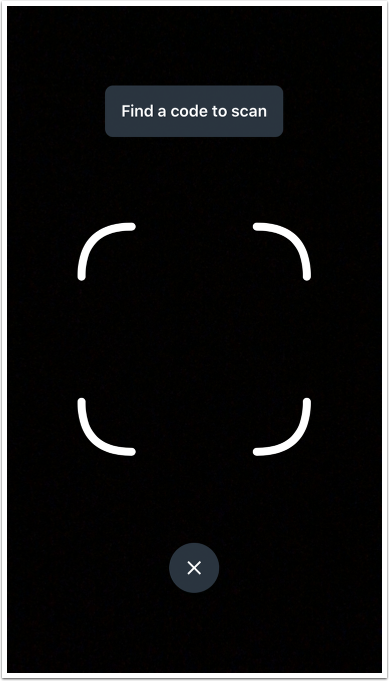
Scan QR Code
Scan the pairing QR code generated by your student in the Canvas Student app.
Enter Pairing Code
Enter the student pairing code into the Pairing Code field [1]. Then tap the Add button [2].
View Managed Students
View a list of your managed students on the Manage Students page [1]. To manage a student, tap a student's name [2].