Release notes outline upcoming customer-impacting changes that are expected to be displayed in production environments. Please note that features considered for future development are not included in the notes.
Unless otherwise stated, all features in this release are available in the Production environment as of 2026-07-01.
New Features
Integrations & Course Management
Linking Curriculum Maps to Canvas Blueprints
Affected User Roles | District Administrators, Curriculum Creators, Instructional Designers |
Affects User Interface | Yes |
Affected Areas | Curriculum Maps, Mastery Trackers, Canvas Course Integration |
Summary
To streamline the deployment of district-wide core curricula, Mastery Connect offers a direct integration between Mastery Connect Curriculum Maps and Canvas Blueprint Courses.
Curriculum authors can link a Mastery Connect Curriculum Map directly to a Canvas Blueprint course. When assessments are added or modified within the Curriculum Map, those changes automatically populate the Canvas Blueprint course as assignments. Furthermore, when Canvas child courses sync with the Blueprint, matching Mastery Trackers are automatically provisioned in Mastery Connect for those child courses.
Notes:
- A Curriculum Map can only be linked to one Canvas Blueprint course at a time.
- Once a Blueprint course is linked, it will be hidden from the available selection list until unlinked.
Change Benefit
- Curriculum-to-Classroom Automation: Automates the creation of Canvas assignments and corresponding Mastery Trackers from a centralized Curriculum Map, eliminating manual setup for individual teachers.
- District-Wide Consistency: Ensures standard-aligned assessment consistency across hundreds of course sections simultaneously.
Feature Workflow
Linking a Curriculum Map to a Blueprint

Ensure the destination course in Canvas has Enable course as a Blueprint Course toggled on within its course settings.

In Mastery Connect, navigate to the Maps tab [1] and select the Curriculum Map [2].
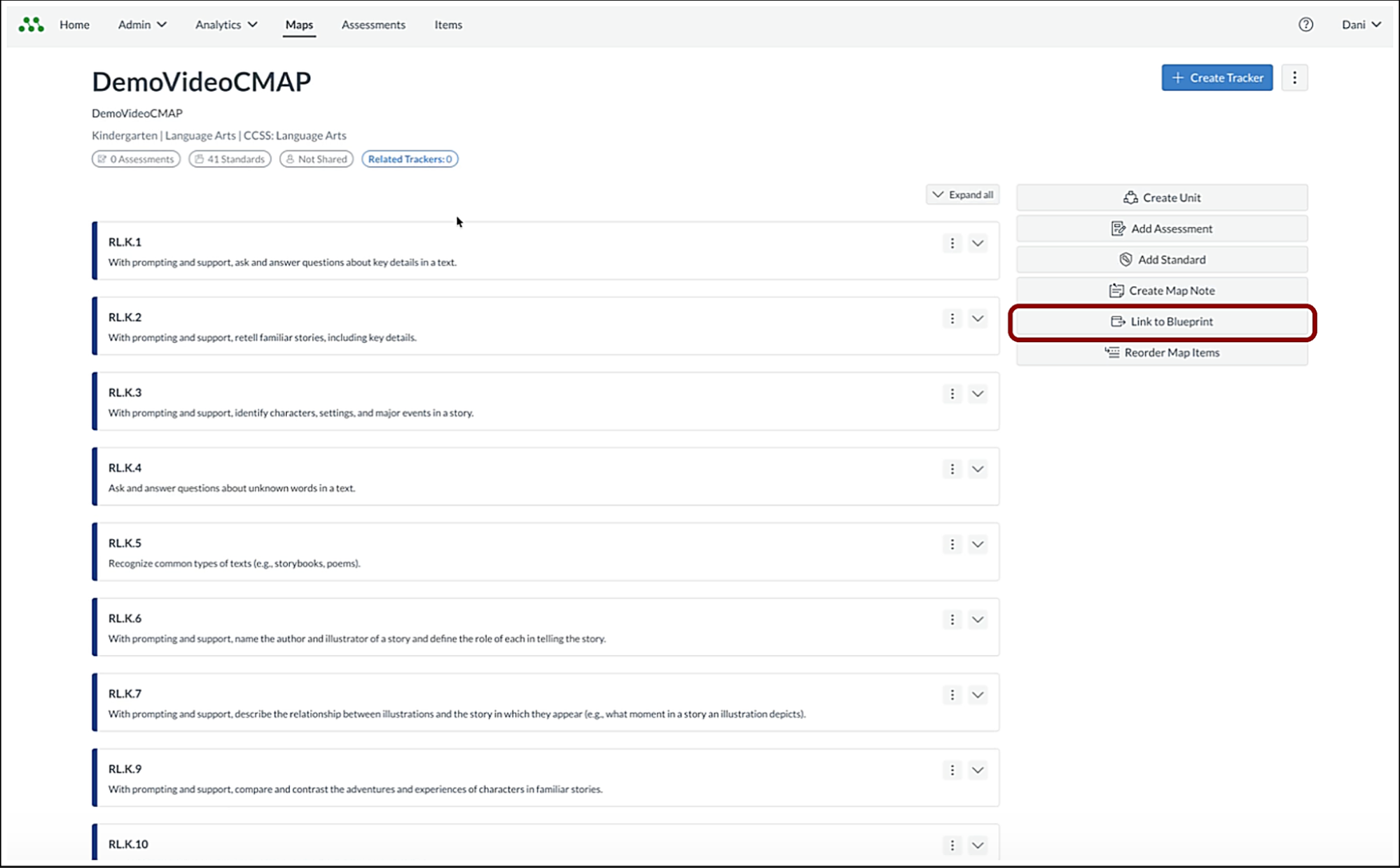
Click the Link to Blueprint button in the action menu.

Select your Canvas Blueprint course from the modal list [1] and click the Link Blueprint button [2].
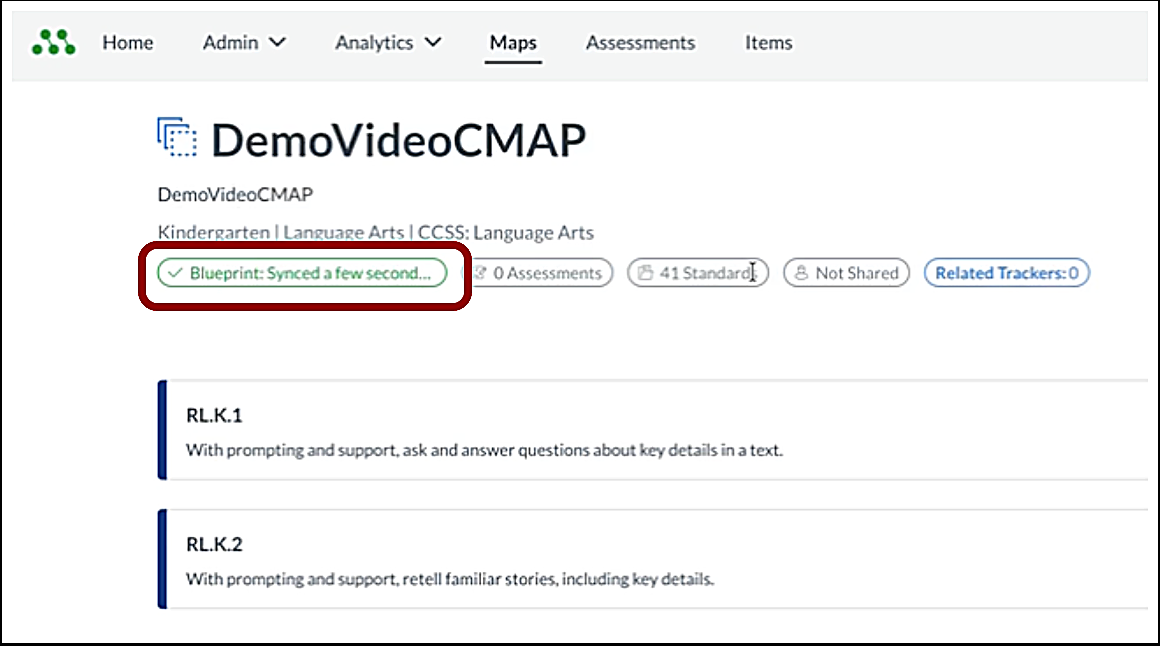
A status pill displays Blueprint Syncing... until the initial connection is established.
Note(s):
Automated Assessment & Tracker Creation
- Adding an assessment to a linked Curriculum Map automatically pushes it to the Canvas Blueprint course as a locked assignment line item.
- When Canvas child courses are associated with the Blueprint course and a Canvas sync is run, Mastery Connect automatically generates a corresponding Mastery Tracker for each child course, pre-loaded with the map's structural standards.
Managing Updates & Re-Syncs
- If an existing assessment inside the Curriculum Map is modified (such as editing the assignment title), the map will display a Blueprint changes not synced warning label.

To push map updates down to Canvas, click the Actions icon [1] and then click the Re-Sync to Blueprint link [2]. Once updated at the Blueprint level, utilize the Canvas Blueprint sidebar to push those changes down to the associated classroom child courses.
If a curriculum trajectory changes, click the Unlink from Blueprint link [3] from the action menu. A confirmation warning displays indicating that Canvas assessments will remain in Canvas, but the automated sync connection between the systems is severed.
Security & Authentication
Multi-Factor Authentication (Two-Step Verification)
Affected User Roles | District Administrators, School Administrators (Principals) |
Affects User Interface | Yes |
Affected Areas | Login Flow, Account Settings |
Summary
Multi-factor authentication (MFA) is required for all administrative accounts in Mastery Connect.
For Mastery Connect admin users, the MFA requirement depends on how your institution handles authentication:
- Mastery Connect authentication: District and School Administrators must set up MFA. Setup uses a time-based one-time password (TOTP) generated by a standard mobile authenticator app (Google Authenticator, Authy, 1Password, or Okta Mobile).
- Third-party SSO or identity provider (Okta): Internal Site Administrators who use Okta SSO continue to manage MFA through Okta and won’t be double-gated by the Mastery Connect MFA requirement.
Note: This change does not impact teachers, students, or other non-admin Mastery Connect users.
Change Benefit
- Security protection for admin accounts: Requiring MFA for admin logins ensures a stolen password alone can’t be used to access an account with elevated permissions.
- Protection during setup: Requiring password verification during configuration protects accounts from session hijacking and cross-site scripting (XSS) attempts.
Feature Workflow

In the user menu [1], click the Settings option [2].

Click the Two-Step Verification menu item.

Scan the displayed QR code [1] with the preferred mobile authenticator app (or enter the text key manually). Confirm identity by entering the current Account Password [2] (a security measure to prevent unauthorized setup via XSS). Enter the 6-digit code generated by the app [3], then click the Verify and Enable button [4].
Additional Notes:
- Upon successful setup, a list of single-use backup codes is generated. Users must save these codes securely to maintain account access in the event their primary authenticator device is lost or unavailable.
- Once enabled, logging into Mastery Connect presents an MFA challenge screen.
- Users logging in from a secure, trusted device can check Remember this device for 30 days to bypass the 6-digit code entry requirement for the next month.
- During an active login challenge, the top navigation bar is fully non-functional, ensuring users cannot bypass the security checkpoint.
- If necessary, users who have successfully verified their session can navigate back to their account settings to turn off two-step verification.
Updated Features
Modernization & Accessibility
Modernized User Interface
Affected User Roles | All Educator Roles |
|---|
Affected User Roles | All Educator Roles |
Affects User Interface | Yes |
Affected Areas | Assessments Page, Curriculum Maps, Mastery Trackers |
Summary
Three high-traffic areas in Mastery Connect are rebuilt: Curriculum Maps, the Assessments page, and Mastery Trackers. The update meets WCAG 2.1 AA compliance and includes:
- Full Keyboard Navigation: Move through the rebuilt areas using only a keyboard.
- Improved Screen Reader Support: Better compatibility with assistive technologies.
- Responsive Layouts: Interfaces adapt to different screen sizes for use across devices.
Change Benefit
- District Compliance: Meets WCAG 2.1 AA standards across three of the most-used areas of the platform.
- Improved Accessibility: Educators and administrators can use the platform regardless of input method or assistive technology.
- Faster Daily Workflows: Responsive layouts adjust to different screen sizes, making routine tasks quicker.
Feature Workflow

Educators need to click into the Assessments tab [1], Maps tab [2], or into any of their Trackers [3] in order to see the changes immediately.

To switch between the legacy view and the new view click the Legacy View button [1] and the New View button [2] to explore the modernized interface.
Related Resources
For more details on these updates, please refer to the feature overview.