Release notes outline upcoming customer-impacting changes that are expected to display in beta and/or production environments. Please note that features considered for future development are not included in the notes.
Unless otherwise stated, all features in this release are available in the Production environment on 2026-04-23.
New Features
Interface and Accessibility
User Interface Update
Affects User Interface | Yes |
Affected Areas | Profile Menu - Administrators only |
Summary
LearnPlatform Org Administrators can preview the updated, accessible interface for LearnPlatform prior to activating the change for the entire organization.
Change Benefit
Enhanced Change Management: Admins can preview the new look and feel to prepare any materials and change management documents, ensuring a smooth transition before enabling the update for their organization.
Feature Workflow
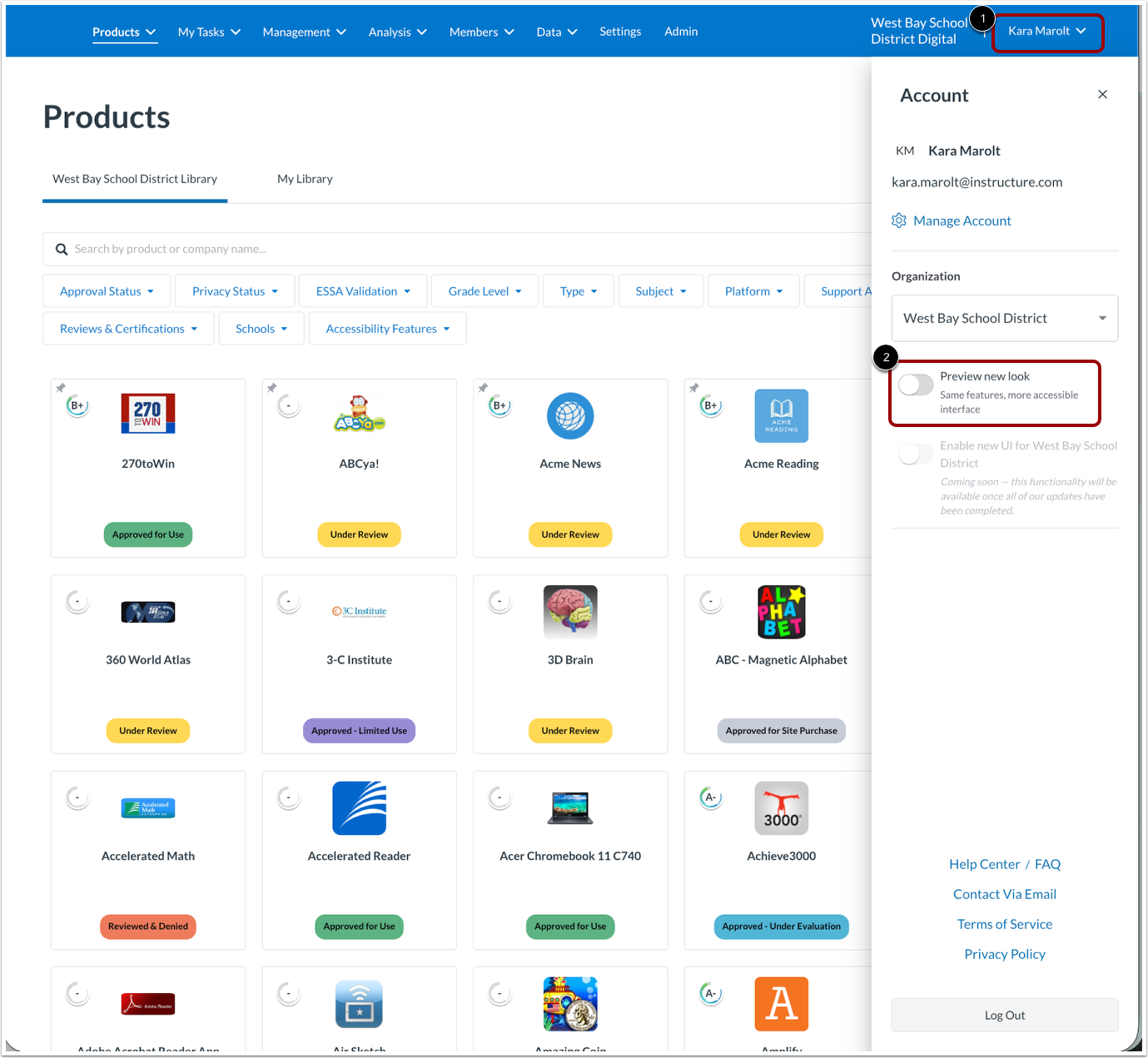
Open the profile menu [1]. To enable the accessible interface, click the Preview new look toggle [2].
Note: This only makes the visual change for this user, not for others.
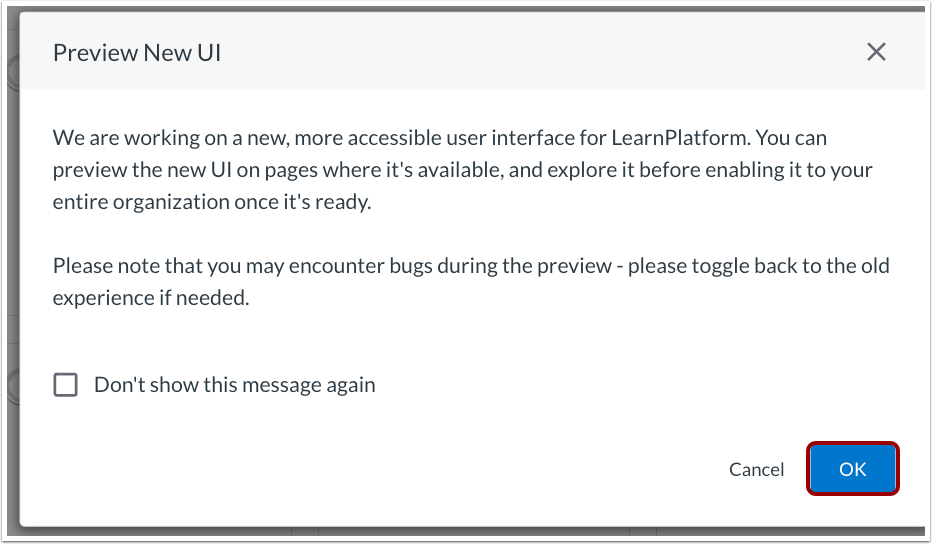
A Preview New UI modal displays. Click the OK button to continue.
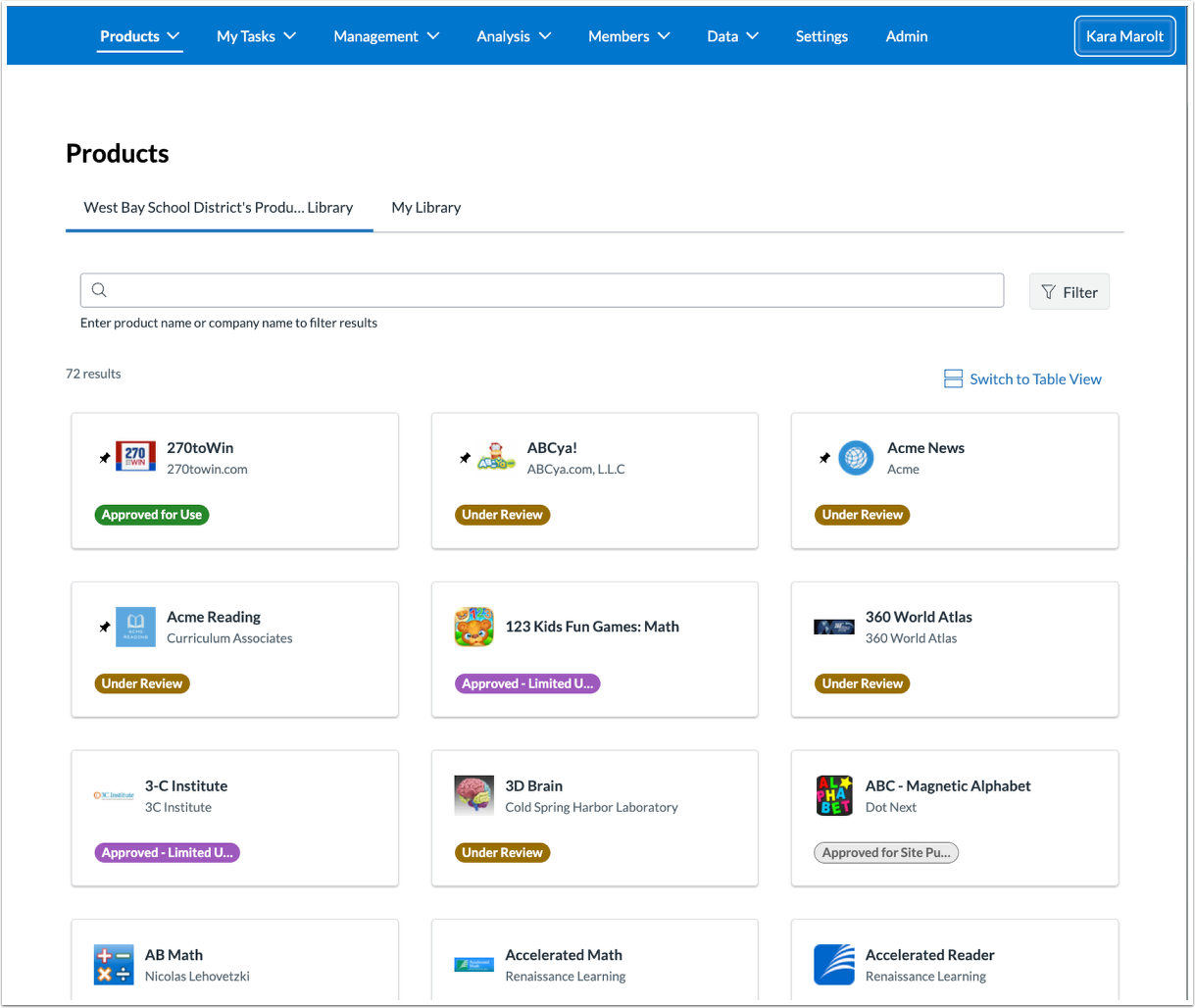
The org library page displays with the updated page design.
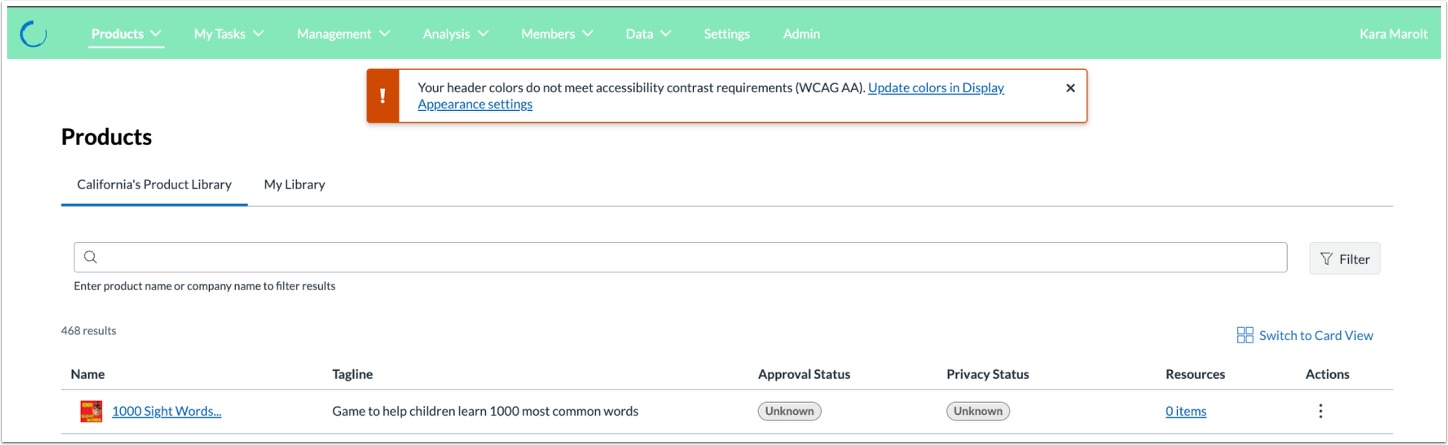
After the first time enabling the toggle preview, admins may receive a notification that their header colors are not accessible. If receiving this notification (currently only displays once), adjust colors in Settings>Display appearance.
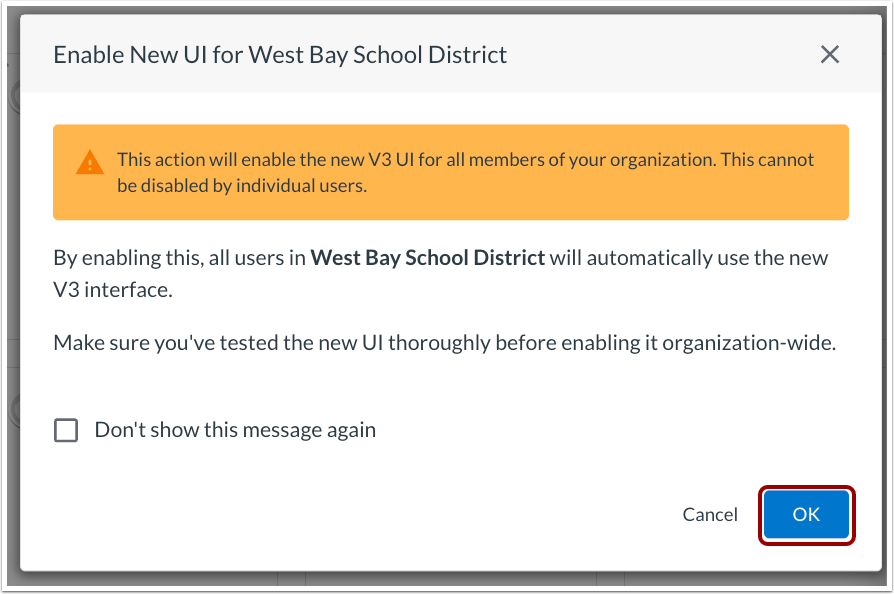
To enable the updated interface for the full organization, click the OK button. This enables it for the full account, and users are no longer able to access the old pages unless the Preview new look toggle is disabled.
Feature Video:
Management
Product Audit History Tab [Added on 2026-04-24]
Feature Availability | Production availability Apr 23, 2026, must be opted-in to new version |
|---|
Feature Availability | Production availability Apr 23, 2026, must be opted-in to new version |
Affects User Interface | Yes |
Affected Areas | Management>Products - Administrators only |
Summary
When the Preview new look toggle is enabled, LearnPlatform Organization Administrators and Product Management Admins have access to a History tab when managing products. This tab provides a secure record of changes made by administrators, including status updates and added or removed tags and resources. It also allows comments to be added for internal collaboration.
Organization audits track changes to:
- Statuses
- Comments
- Launch URL
- Logo
- Custom name
- Cost
- Contract end date
- Active or Archived state
- Tags added or removed
- Resources created or removed
- Workflows started or completed
- Workflow automations
- Requests started
LearnCommunity audits track changes to:
- Name
- Tagline
- Description
- Link
- Terms of Service URL
- Privacy Policy URL
- Accessibility URL
- Retired date
- Tags added or removed
- Images added
- LTI and API integrations added or removed
- Additional links added or removed
- Domain changes
Change Benefit
- Improved visibility and compliance tracking: Provides a transparent history of product updates, helping maintain a secure edtech ecosystem by tracking critical changes for compliance. The History tab also includes updates to core library data, such as usage tracking domains and Accessibility Links added by a Partner.
Feature Workflow

Navigate to any product to view details. Then, click the History tab.
Note: This tab may be blank, as changes are recorded going forward from this feature release.
Updated Features
Management
Provider Applications Tabbed Layout [Added on 2026-04-24]
Affects User Interface | Yes |
Affected Areas | Provider Applications |
Summary
When the Preview new look toggle is enabled, the Provider Applications page uses tabs to organize pages instead of a stepper. Some options are relocated and updated.
Change Benefit
Improved organization for administrators: Information is structured using tabs in Provider Applications, making it easier to navigate and find relevant settings.
Feature Workflow

When creating a new application, the Direct Communication setting [1] is moved to the General Information tab. This setting was previously a toggle on the Invitees tab labeled Enable communication from providers.
Application Privacy (Public or Private) [2] and Application Type (Company or Tool) [3] are also moved to the General Information tab instead of the Invitees tab.

Applicants can be invited on any tab via a button.

The Invite Applicants page is changed to a modal.
Note: Be sure to save the application after adding invitations.
Organization Library
Action Buttons Moved to Product Overview Page
Affects User Interface | Yes |
Affected Areas | Organization Library |
Summary
In the Organization Library, educators can access the Request, Compare or Grade actions from the Product Overview page when the Preview New Look toggle is enabled. These actions were previously located on the Product Tile/Card.
Change Benefit
- Informed Decision Making: Educators and requestors can view detailed product information before taking action, ensuring they select the most appropriate tools for their needs.
- Workflow Efficiency: Maintains existing workflows by keeping actions accessible in the list view while offering a more contextual experience on the Product Overview page.
Feature Workflow
In the Organization Library, selecting a product card opens the Product Overview, where the request, compare, grade, and launch (if enabled) actions are available.
If the request button is not visible, the organization administrator has hidden it for products with that status. There is no change to functionality.
Filters - New Filter Menu
Affects User Interface | Yes |
Affected Areas | Org Library, Management Table, Workflows, etc (most pages with filters) |
Summary
Filters are available in a filter tray accessed from a Filter button when the Preview New Look toggle is enabled.
Change Benefit
- Simplified Navigation: Improves the experience for keyboard users by consolidating actions into a single tray, reducing the number of interactive elements to navigate on the main page.
- Enhanced Workspace Clarity: Minimizes page clutter by tucking filter menus into a tray, allowing users to focus on primary content while maintaining easy access to search tools.
Feature Workflow
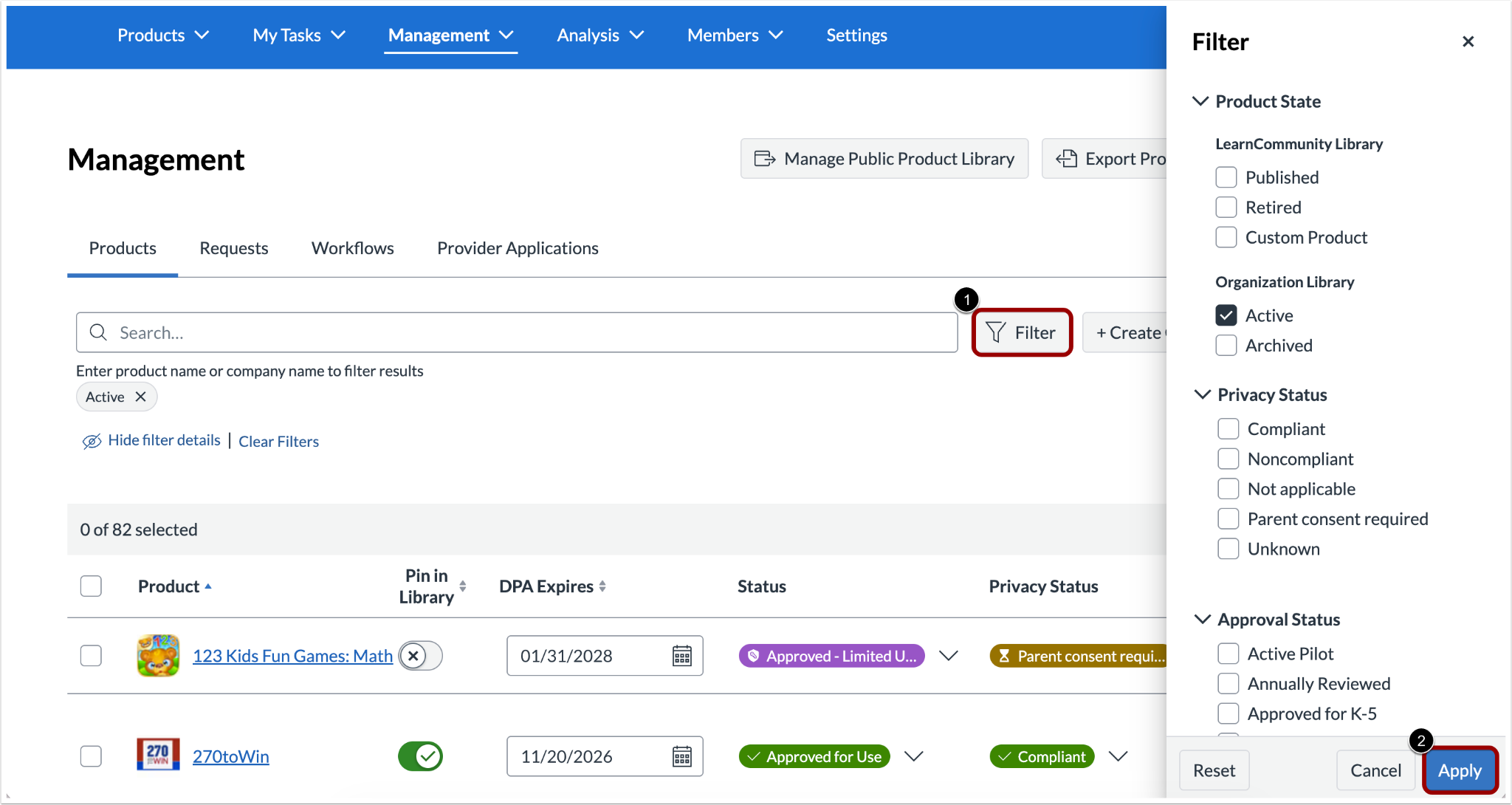
To access filters, click the Filter button [1] and select the desired filters. Then click the Apply button [2].
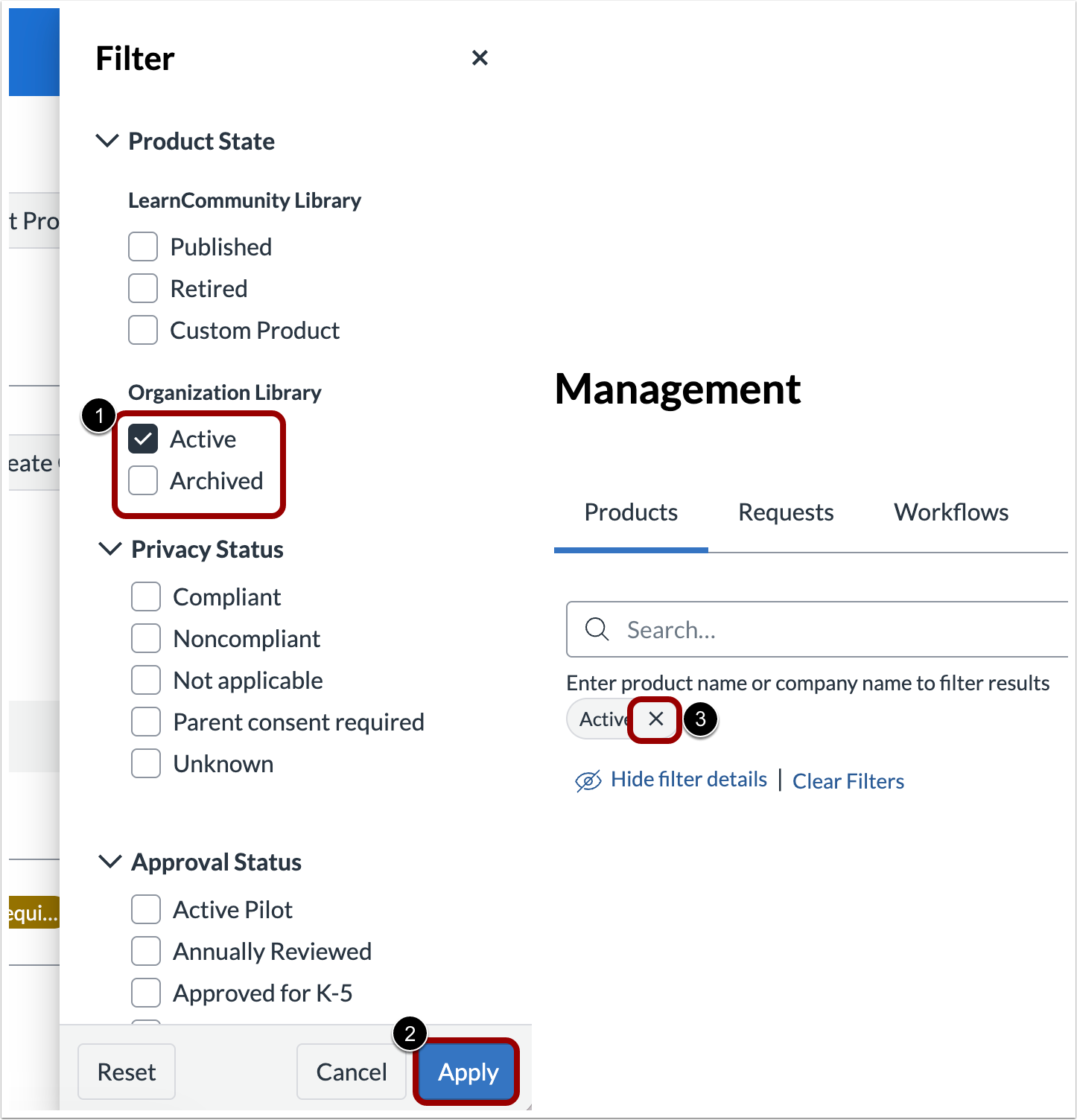
To remove filters, deselect items in the Filter tray [1] then click the Apply button [2], or click the Close (X) icon [3] on an applied filter pill.
Feature Video:
Accessible Status Colors
Affects User Interface | Yes |
Affected Areas | Org Library, Management Table, throughout product |
Summary
The status colors throughout LearnPlatform are updated and mapped to ensure full color contrast compliance with WCAG 2.2AA standards when the Preview New Look toggle is enabled.
Note: This update is visual only and does not change existing workflows or platform logic.
Change Benefit
- Improved Accessibility Compliance: Ensures the platform meets WCAG 2.2AA Color Contrast requirements, providing a more inclusive and readable experience for users with visual impairments.
- Enhance Visual Clarity: The new colors provide higher contrast and better distinction across the interface.
Change Log
Date | Description |
|---|
2026-04-24 | Updated - Added Management: Product Audit History Tab
- Added Management: Provider Applications Tabbed Layout
|