As we shared in October, the Portfolio tool will be generally available in Canvas this month! We understand that some institutions may want to opt out ahead of the GA release to avoid having the feature be on by default. To support this, we’ve prepared a self-serve option that allows your team to maintain full control over when and how the tool appears to your users.
Table of Contents
- Self-Serve Opt-Out: Step-by-Step (not available anymore; the tool is fully released)
- Enable the Portfolio LTI
Self-Serve Opt-Out: Step-by-Step
Institutions that do not wish to install the Portfolio tool during Saturday’s global release can opt out by disabling the Developer Key. Accounts with the key disabled will be excluded from the release, and the app will not appear for their users.
Steps to Opt Out:
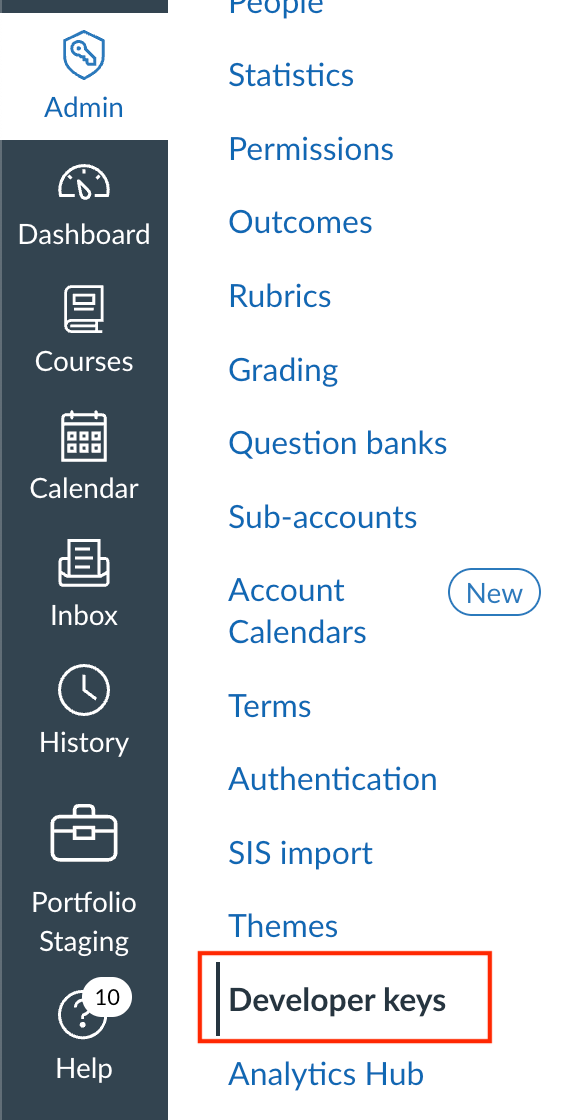
- In Canvas, go to Admin > Developer Keys.
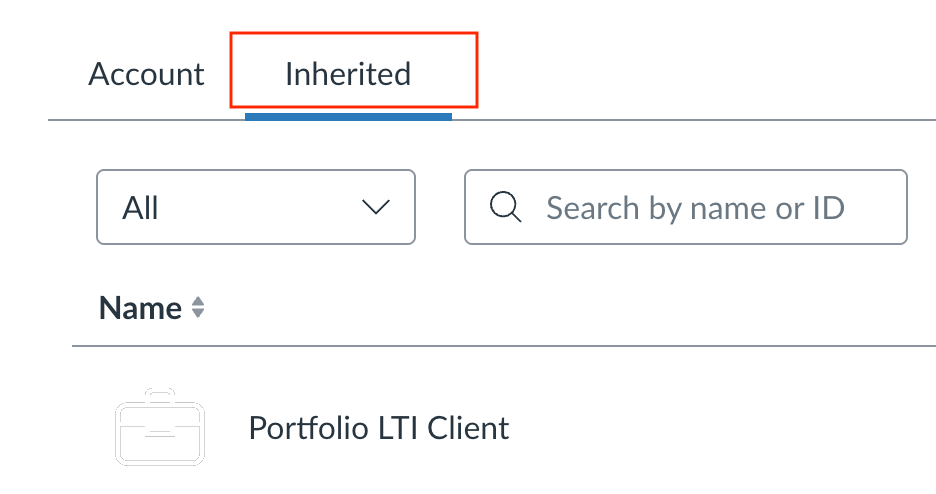
- After clicking Developer Keys, navigate to the Inherited Keys tab.
- Locate the “Portfolio LTI Client” key with the ID 170000000001986.
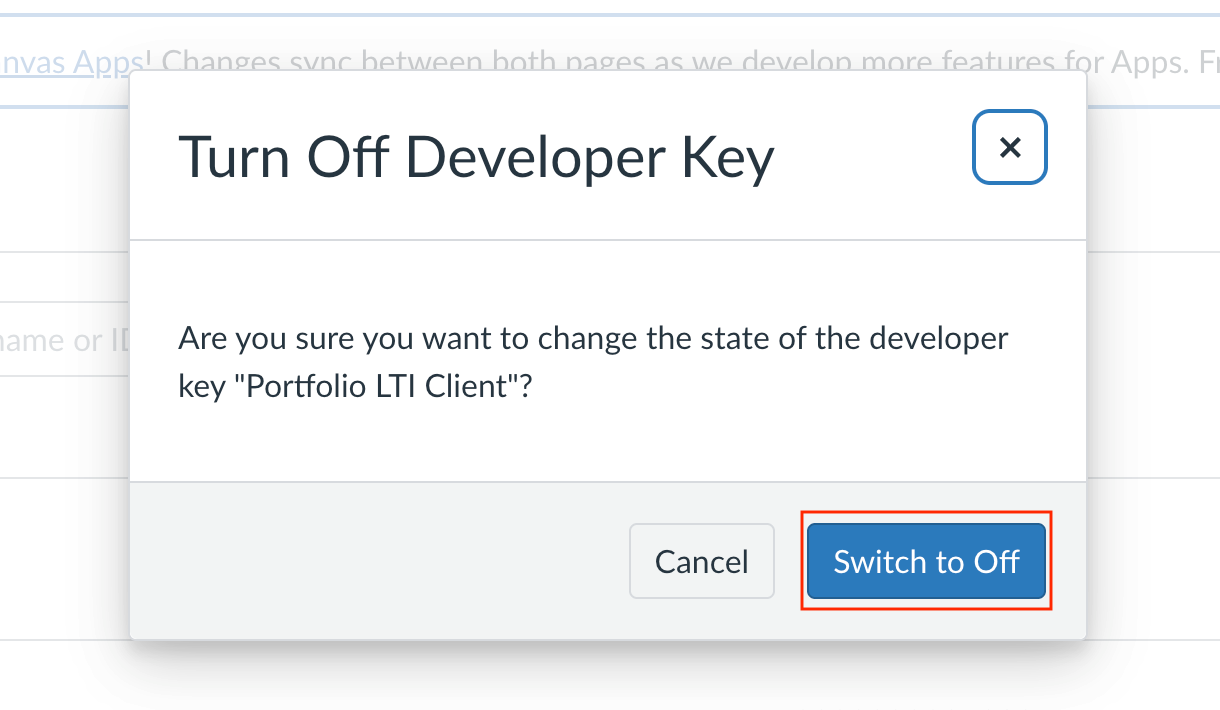
- Toggle the key OFF to disable it.
Once disabled, your institution will be considered opted out, and the Portfolio app will not be deployed for your users during the Saturday, November 15 release.
After Saturday, the key will remain turned off, and the app will not appear in your settings.
If you decide to enable the tool later, you can simply turn the key back on and then register the app by following the steps below.
After GA Release
Even after the global release, institutions can still disable the app or change its placements at any time by navigating to Settings > Apps > View App Configurations, clicking the gear icon for the Portfolio LTI, and selecting Placements to adjust where the tool appears.
For EAP and Feature Preview Users: GA Release Installation Duplication and How to Prevent it
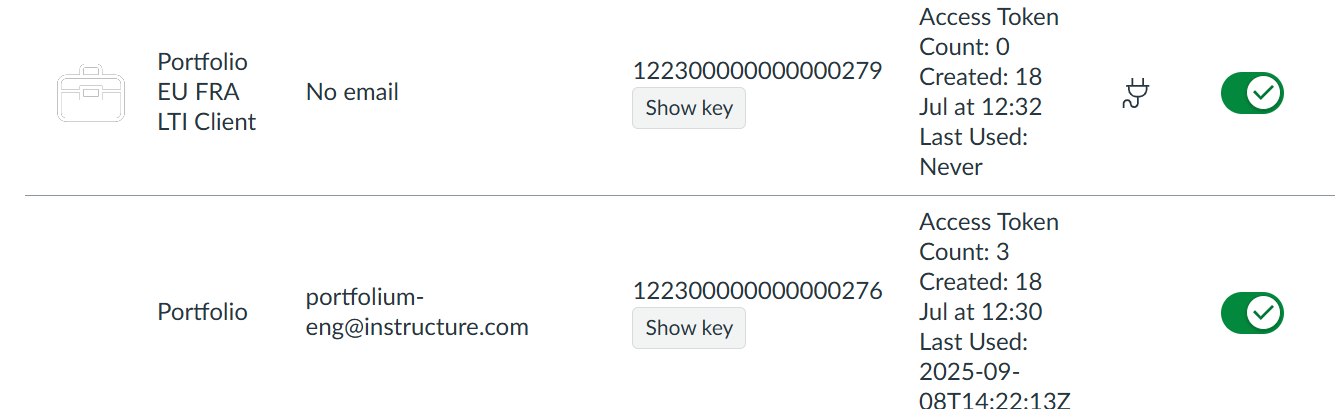
Institutions that already have the Portfolio tool installed due to EAP or Feature Preview participation will see a duplicated installation in their environment under “Developer keys” called “Portfolio LTI Client”.
- This duplication protects existing setups so the GA release does not override any current configurations.
- Institutions can prevent duplication and disable this new LTI Client in advance using the self-serve steps above to opt out before Saturday, or manage opt-out by disabling the app placements after GA if preferred.
If you decide to enable the tool later, you can simply turn the key back on and then register the app by following the steps below.
Enable the Portfolio LTI
Before configuring anything manually, first verify whether the Portfolio LTI is already installed for your institution.
Step 1 - Check if the app is already enabled
- Navigate to Settings → Apps → View App Configurations
- Look for Portfolio LTI Client
- Click the gear icon → Placements
- Confirm User Navigation (or your desired placement) is enabled

If the app is listed and the placement is enabled, you’re all set — no additional setup is required.
The Portfolio tool can be found as "Portfolio" under the “Account” menu.

Step 2 - If the app is not listed
If you don’t see the app:
- Go to Developer Keys → Inherited Developer Keys
- Search for Portfolio LTI Client
- Locate the key with the ID 170000000001986
- Turn the key On (green)

Once enabled, the app should be automatically created in your App Configurations.
Return to:Settings → Apps → View App Configurations and confirm the app now appears.
Step 3 — If the app still does not appear (manual registration)
If the app does not populate automatically, you can add it manually:
- Navigate to Settings → Apps → View App Configurations
- Click + App
- Select Configuration Type: By Client ID
- Enter the Client ID:170000000001986
- Click Submit, then Install

Optional — Adjust placements
To change where the tool appears in Canvas:
- Navigate to Settings → Apps → View App Configurations
- Look for Portfolio LTI Client
- Click the gear icon next to Portfolio LTI Client
- Select Placements
- Enable or adjust locations as needed (User Navigation is enabled by default)
Note: The Course Navigation placement does not limit Portfolio to a single course. Even if selected, the Portfolio LTI will still return data for all courses within the account or subaccount where it has been set up.
We appreciate your support and partnership as we continue to enhance the Portfolio experience.