Content release notes outline the new and updated Out-of-the-Box (OOTB) Impact Content that is displayed inside your Impact Dashboard. This includes OOTB Campaigns, Monitors, Monitor Categories/Reporting Templates, Contexts, and Support Center.
Unless otherwise stated, all content in this release is available in the Production environment on 2025-11-11.
Impact helps institutions improve technology adoption and evaluate the impact of educational technology, while helping faculty and students seamlessly navigate new platforms.
Learn more about Impact by Instructure.
Campaigns
Walkthrough: View the Certificate of Completion for a Catalog Course or Program
This walkthrough guides users through the process of locating and downloading the certificate of completion for a Catalog course or program.
Walkthrough: Use Ignite AI translation in Discussions and Announcements
This walkthrough guides users on how to translate content in Discussions and Announcements using Ignite AI.
Note: For this Walkthrough to be available to end users, IgniteAI Translations for Discussions & Announcements feature option should be enabled at the course level.
Walkthrough: How to use IgniteAI Insights for Discussions
This walkthrough guides instructors on how to use IgniteAI Insights for Discussions.
Note: For this Walkthrough to be available to end users, IgniteAI Insights for Discussions feature preview should be enabled at the course level.
Canvas Release of November 15th, 2025
Launching the Canvas release campaign provides users with updates and new features in Canvas.
Monitors
Ignite AI
To access Ignite AI content, the Tool Category Ignite AI should be set to visible

Tool Category: Ignite AI
The following Ignite AI monitors are available:
- Discussion insights page
- Discussion insights page: Generate insights button
- Discussion insights page: search field
- Discussion insights page: See reply button
- Discussion insights page: See in SpeedGrader button
- Discussion insights page: See reply in context button
- Discussion insights page: Review evaluation pop-up: See reply in context button
- Individual assignment page: Generate criteria button
- Individual assignment page: Regenerate criteria pop-up: Regenerate button
- Individual assignment page: Regenerate criteria pop-up: Additional prompt information field
- Individual assignment page: Grade level menu
- Individual assignment page: Number of criteria menu
- Individual assignment page: Number of ratings menu
- Individual assignment page: Points per criterion field
- Individual assignment page: Standard/Outcome information field
- Individual assignment page: Additional prompt information
- Inbox page: Language menu
- Individual discussion topic page: Enable translation button
- Individual discussion topic page: Language menu
- Individual discussion topic page: Translate button
- Individual discussion topic page: Reset button
Monitor Categories/Reporting Templates
Ignite AI
Ignite AI Monitor Categories are added to the following categories:
Instructor
> Discussions
>> Ignite AI
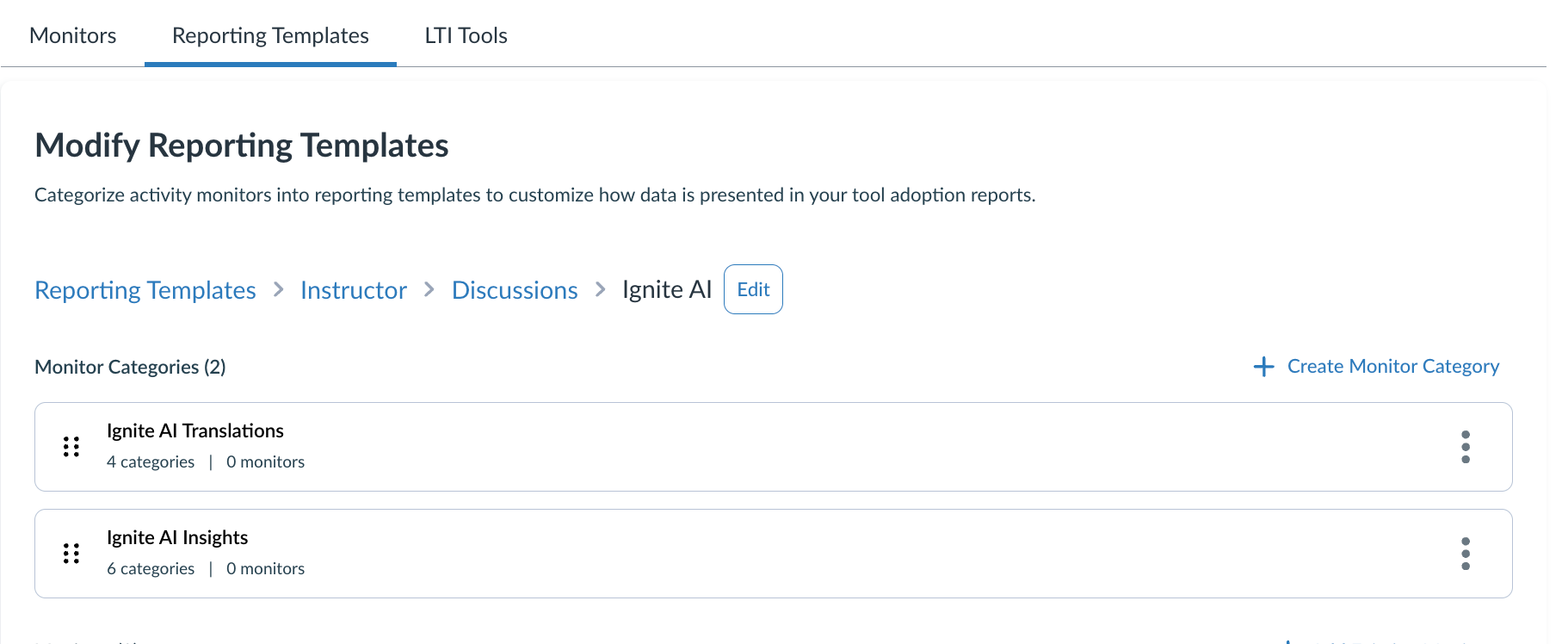
Monitor Categories: Ignite AI
Instructor
> Grades
>> Rubrics
>>> IgniteAI Rubric Generator
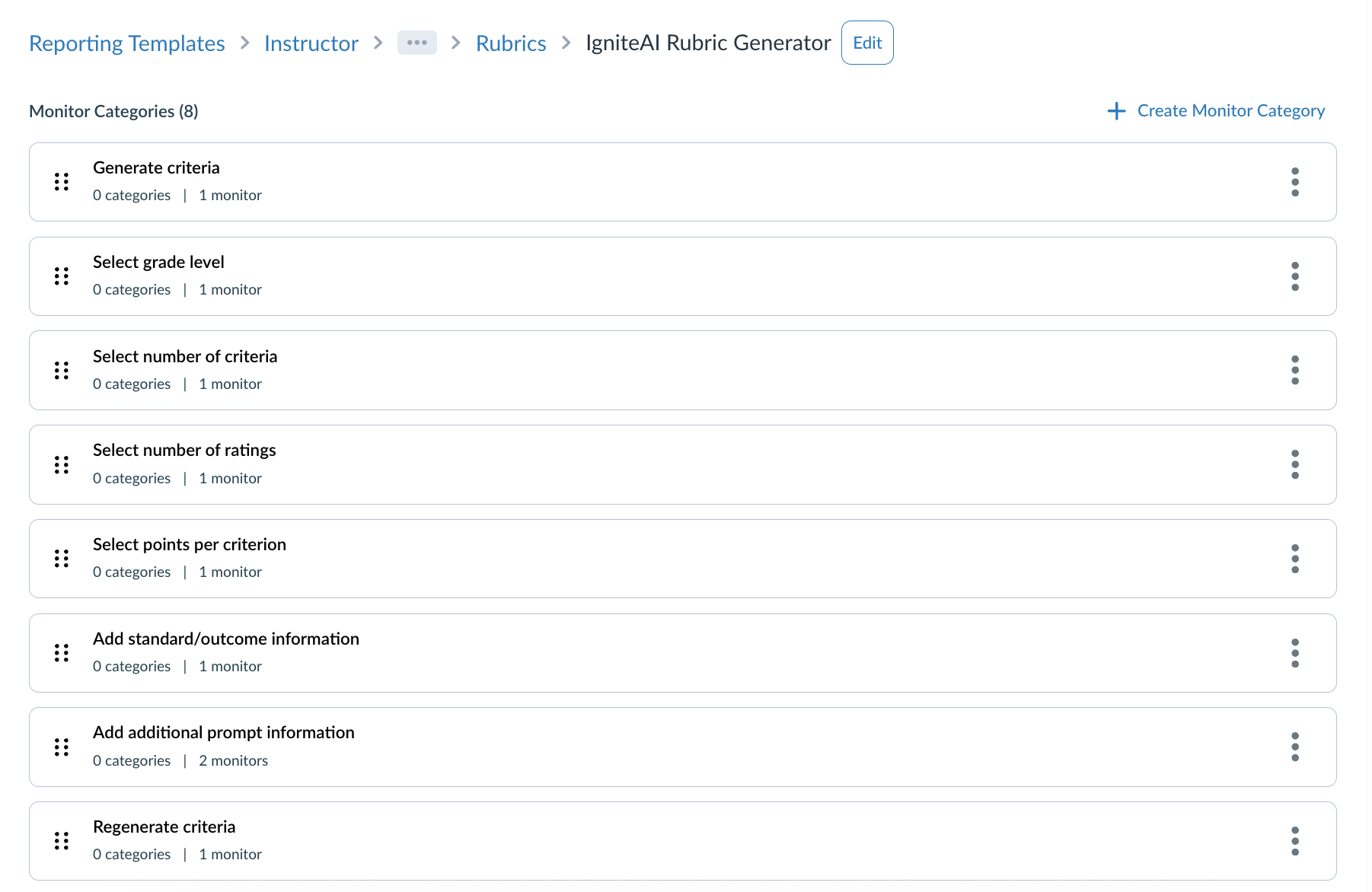
Monitor Categories: IgniteAI Rubric Generator
Instructor
> Communication
>> Conversations
>>> Select Ignite AI translation language
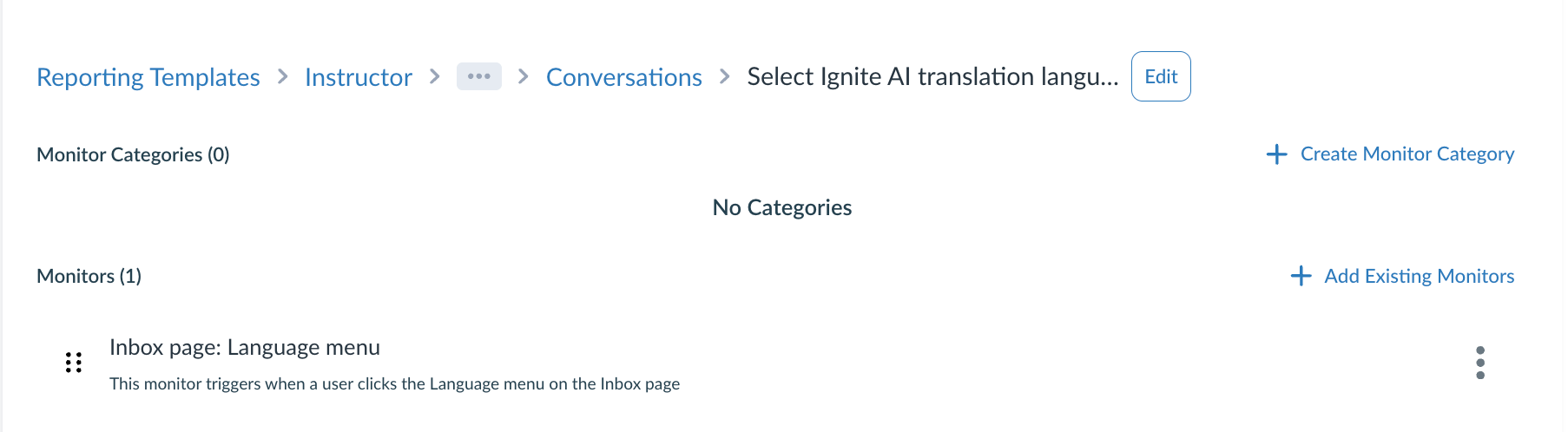
Monitor Categories: Select Ignite AI Translation Language
Student
> Discussions
>> Ignite AI Translations
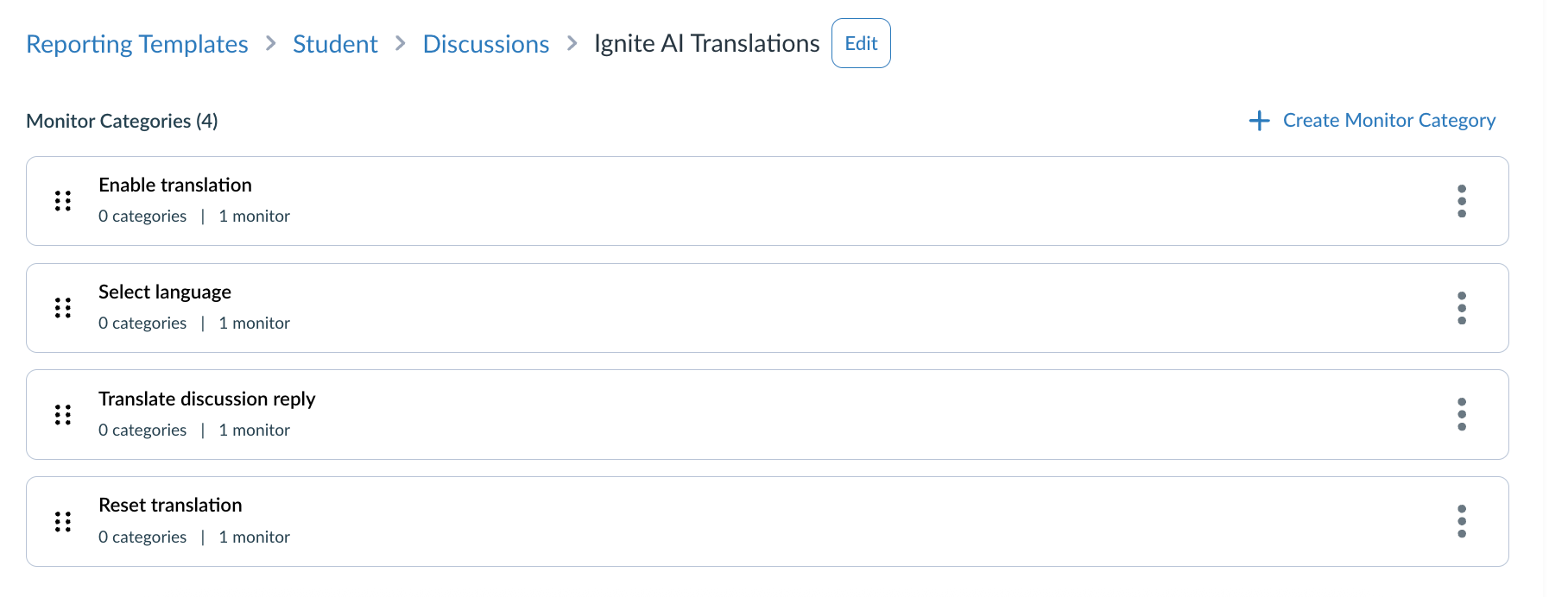
Monitor Categories: Ignite AI Translations
Contexts
Discussions
The following new contexts are added for Discussions:
- Individual discussion topic page: Go to insights button
- Discussion insights page