Upcoming Canvas Badges/Credentials Changes
2025-12-31
- End of Life: Free Issuer capabilities and Issuer page are removed.
For more information, please see Instructure Enforcements, Deprecations, and Breaking Changes.
Release notes outline upcoming customer-impacting changes that are expected to display in beta and/or production environments. Please note that features considered for future development are not included in the notes.
Unless otherwise stated, all features in this release are available in the Beta environment on 2025-10-06 and the Production environment on 2025-10-20.
Subscribe to the Canvas Badges/Credentials release notes to be notified of updates.
New Features
Pathways
Canvas Course Requirement in Pathways
Admin Issuer
Location to Enable Feature | Organization Settings |
|---|
Feature to Enable | Allow Issuers To See Canvas Instances and Accounts of the Organization |
Permissions | - Organization Admin: Manage org settings and Canvas instance/account availability
- Issuer Admin/Editor: Edit Pathways and add requirements
|
Affects User Interface | Yes |
Affected Areas | Organization Settings, Pathways Editor |
Related Ideas | None |
Summary
When the Allow Issuers To See Canvas Instances and Accounts of the Organization setting is enabled, Pathway designers can use actual Canvas course progress as a requirement in pathway steps. Instead of creating filler badges and manually tracking progress, issuers can select a course and set a completion threshold or percentage. Learner progress syncs automatically from the Canvas gradebook, providing verified academic evidence directly in the badge experience.
Notes:
- This feature supports verified Canvas course data only and does not change Canvas permissions, access rules, or grading policies. All visibility is controlled by existing Canvas LMS roles and permissions.
- The instance-account selection flow is adaptive, showing users only what is available for their organization, and the system remembers previously used selections for convenience.
- This is Phase 1 of the rollout and currently supports only course-level requirements. Future phases will introduce assignment-level and module-level requirements, with timelines shared when available.
- This feature works alongside Manual Experiences, which remain useful for capturing non-LMS or offline learning evidence.
Change Benefit
This update allows Institutions to link badges directly to verified Canvas coursework, with learner progress syncing automatically from the LMS. This eliminates the need for filler badges, aligns course thresholds with official grades, and provides stronger evidence for employers and faculty. Admins can control which Canvas accounts are accessible, ensuring appropriate and secure access.
Feature Workflow

Content Setting Allow Issuers to See Canvas Instances and Accounts of the Organization
To allow issuers to view Canvas instances and accounts, enable the Allow Issuers to See Canvas Instances and Accounts of the Organization option in Organization Settings, Content Settings.
Note: Before any Canvas instances or accounts display in Organization Settings, there must be at least one active Canvas Credentials LTI connection in a Canvas environment. This step is especially important in beta environments, where LTI data does not sync automatically. If it is skipped, the course requirement picker will remain empty, even when all other configurations are correct.
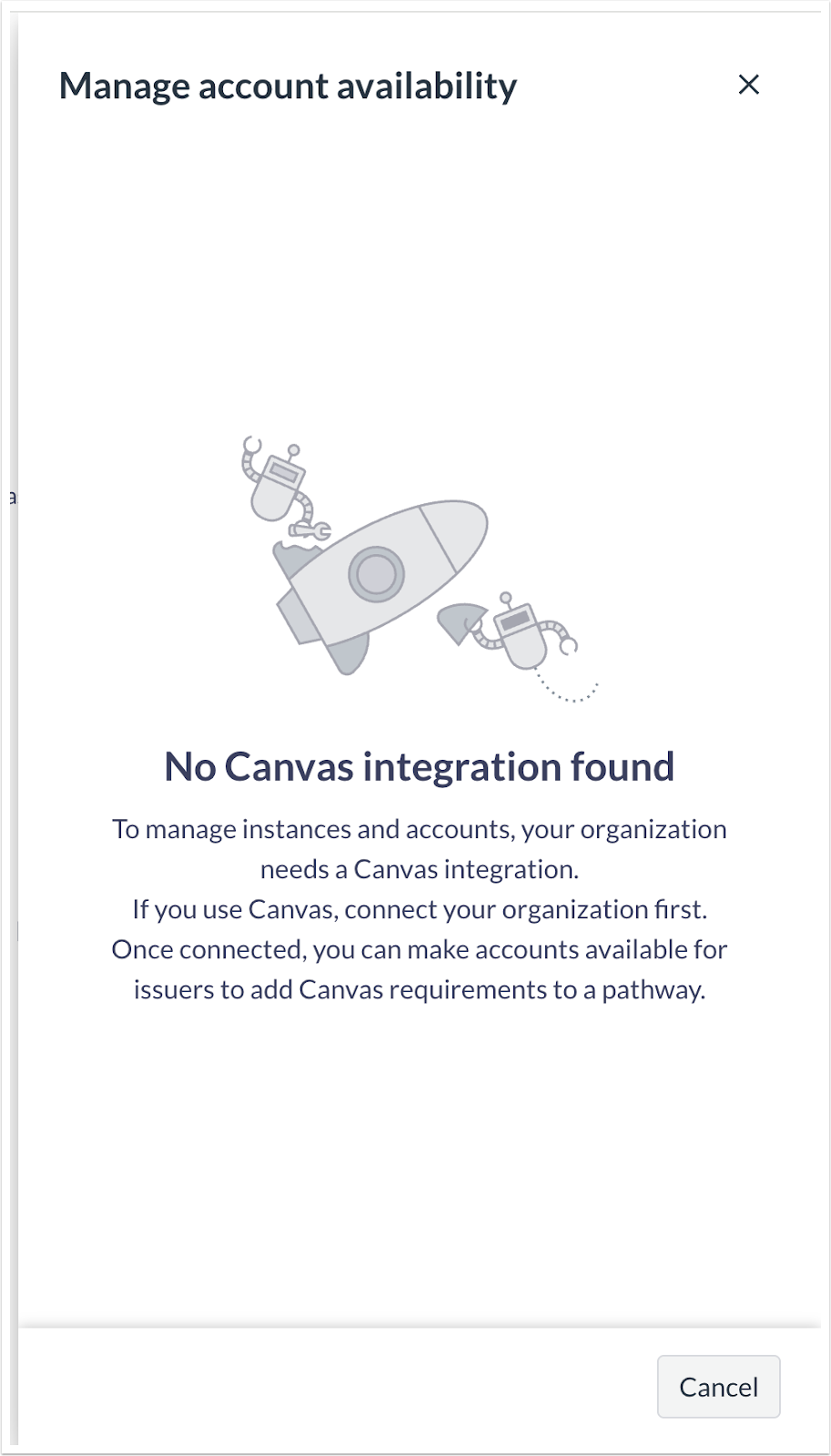
Manage Account Availability Modal without Connected Instances
If there are no Canvas instances connected, an empty state with guidance on how to integrate an instance displays.
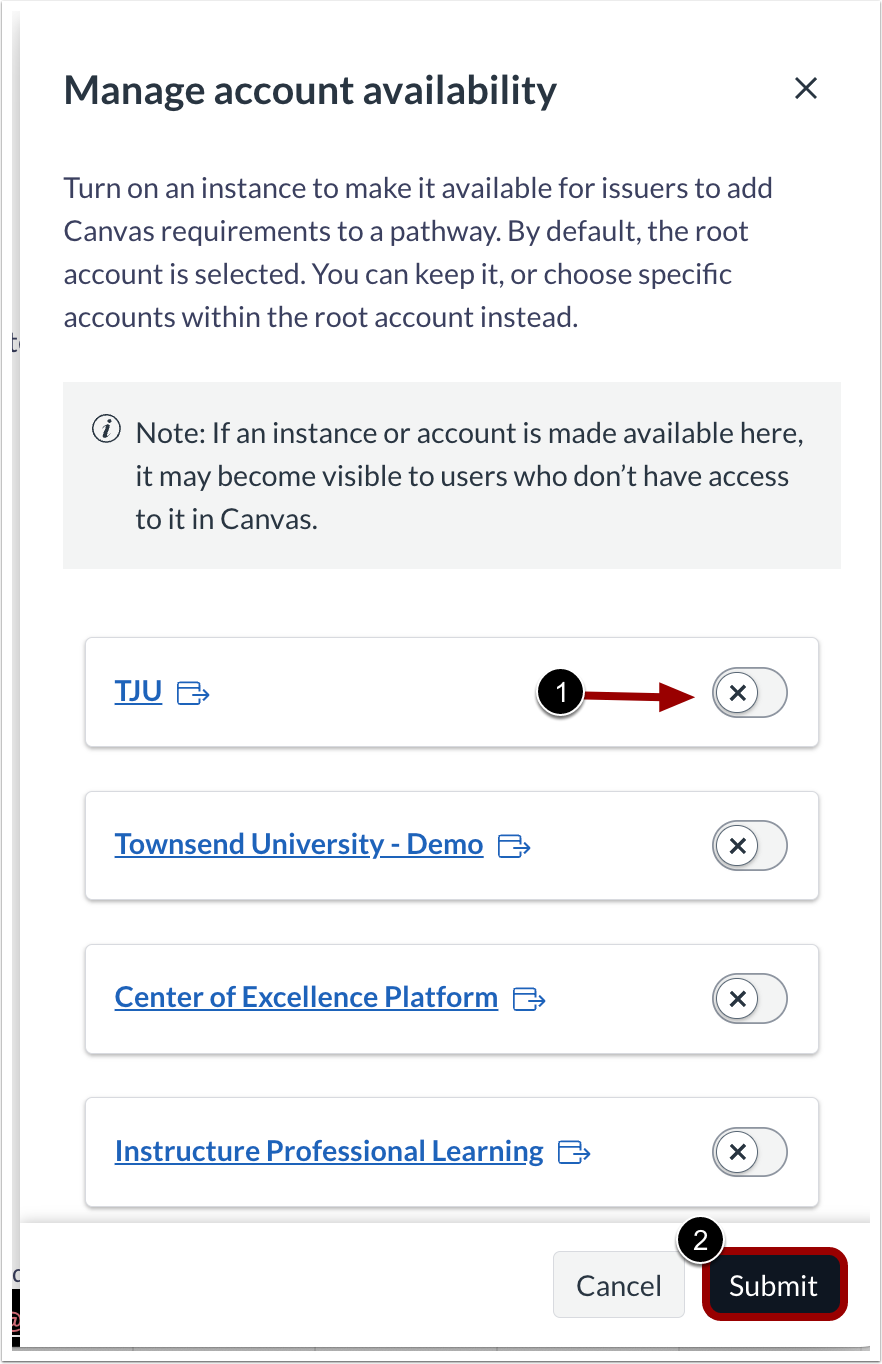
Manage Account Availability Instance Toggles
When instances are connected, click the instance toggle to turn on an instance [1] and make the instance available for issuers to add Canvas requirements to a pathway. By default, the root account is selected. Access can optionally be restricted to specific accounts within that instance. Then, click the Submit button [2].
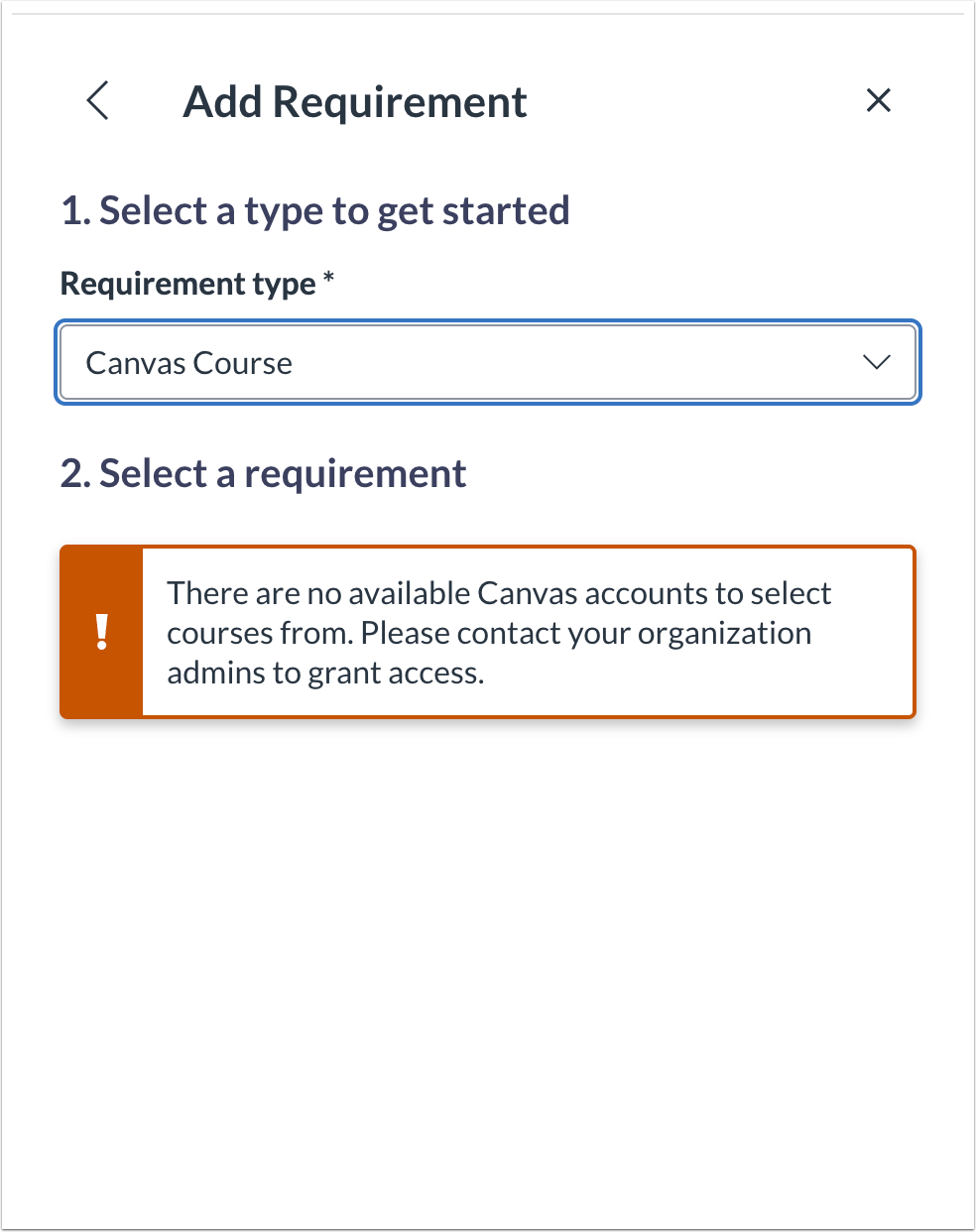
Add Requirement Modal
If the organization setting is disabled, a message displays for issuers to contact their organization admin to grant access.
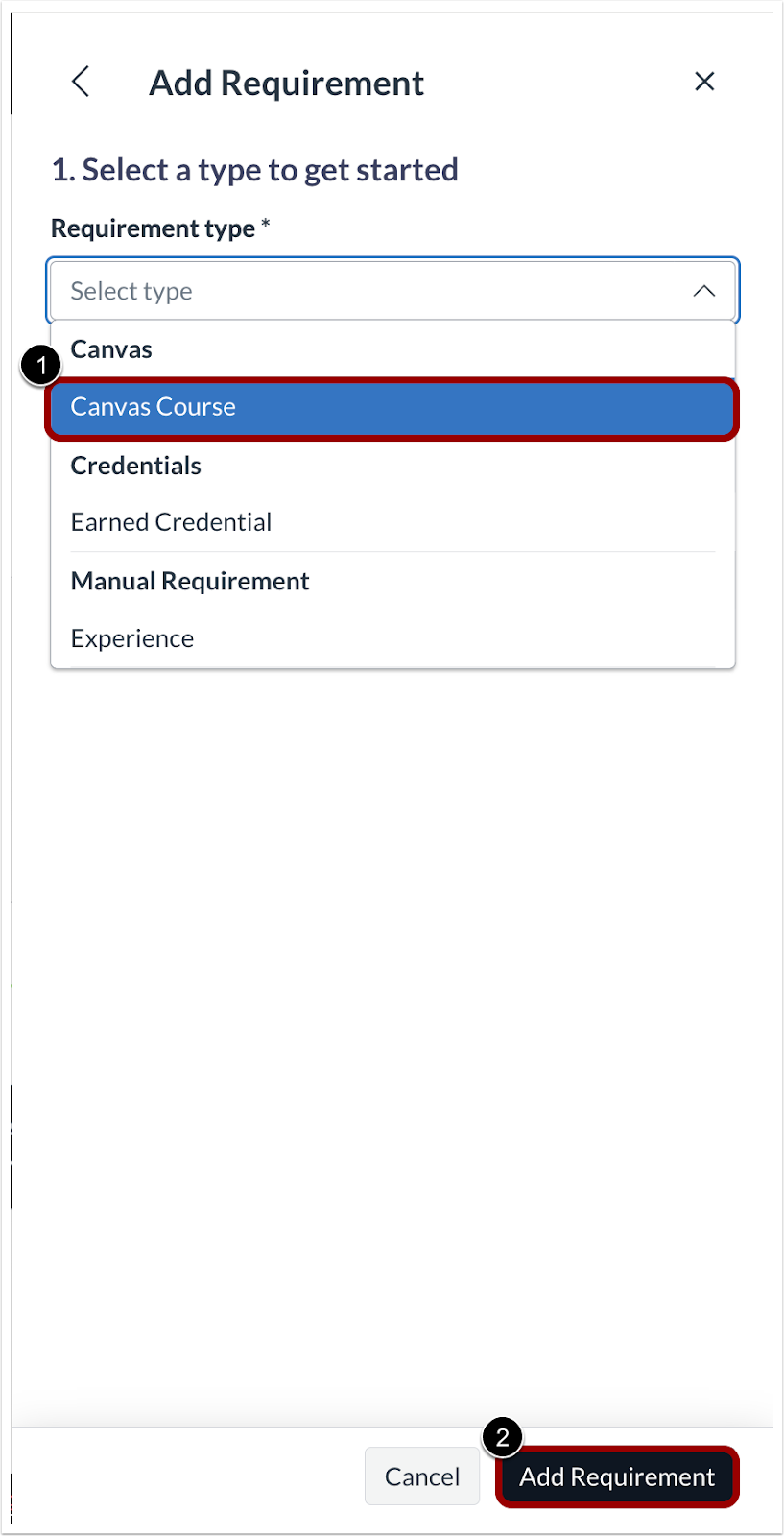
Add Requirement Modal Requirement Type Field
When adding a requirement to a pathway step as an issuer, click the Canvas Course option in the Requirement type field [1].Then, click the Add Requirement button [2].
Note: When opening the course selection modal, issuers see different views depending on the number of available instances and accounts:
- Multiple instances: The issuer selects an instance first, then an account.
- One instance, multiple accounts: The issuer is prompted to select an account only.
- One account across the organization: Courses are displayed immediately, with no selection needed.
The system remembers each issuer’s last used instance and account, so selections only need to be made once unless switching to a different instance or account. This reduces repetitive steps and speeds up the overall experience.
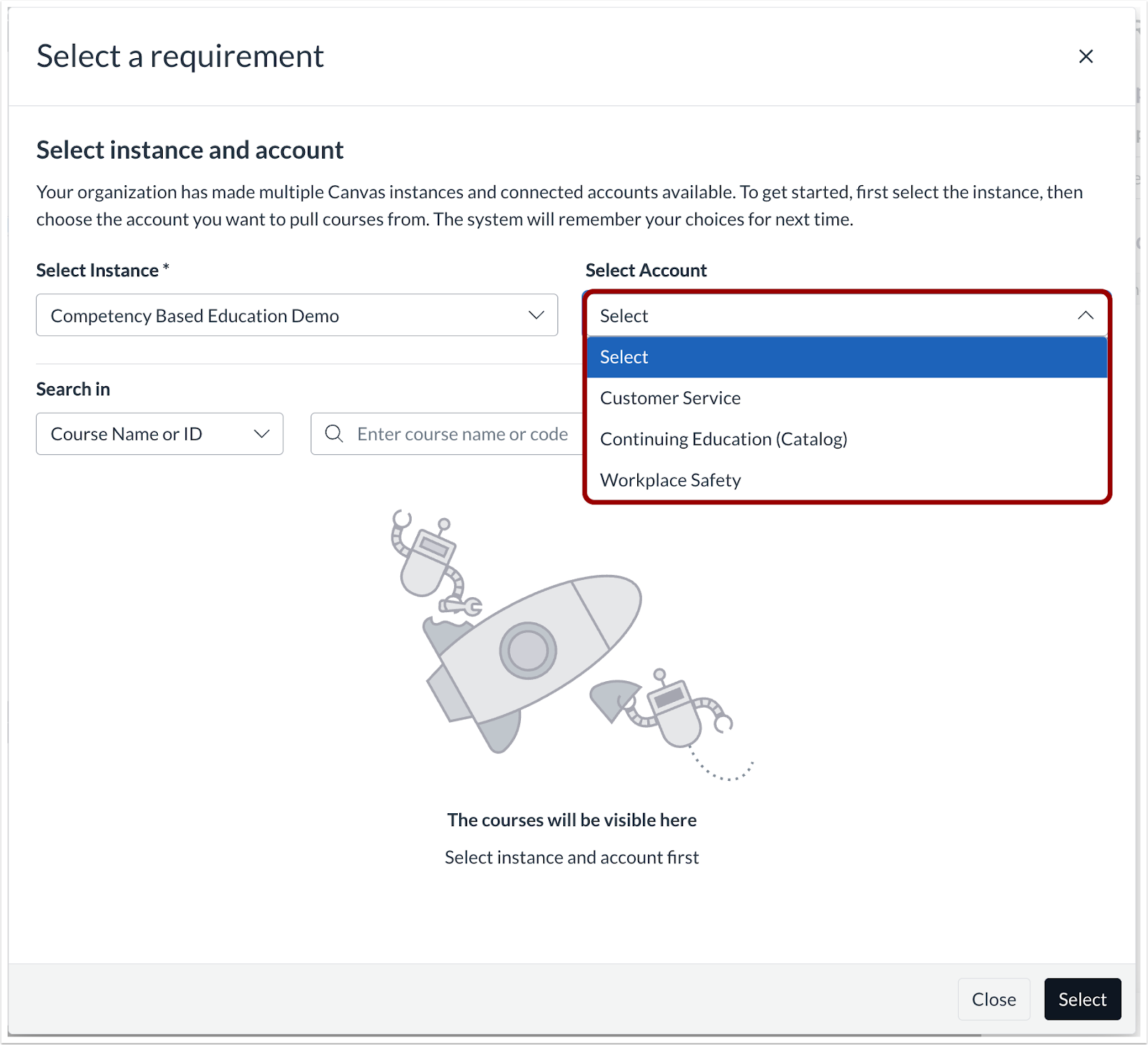
Select a Requirement Modal Select Account Field
Depending on configuration, select an instance and/or account.
Note: This step is only required the first time, or when switching.
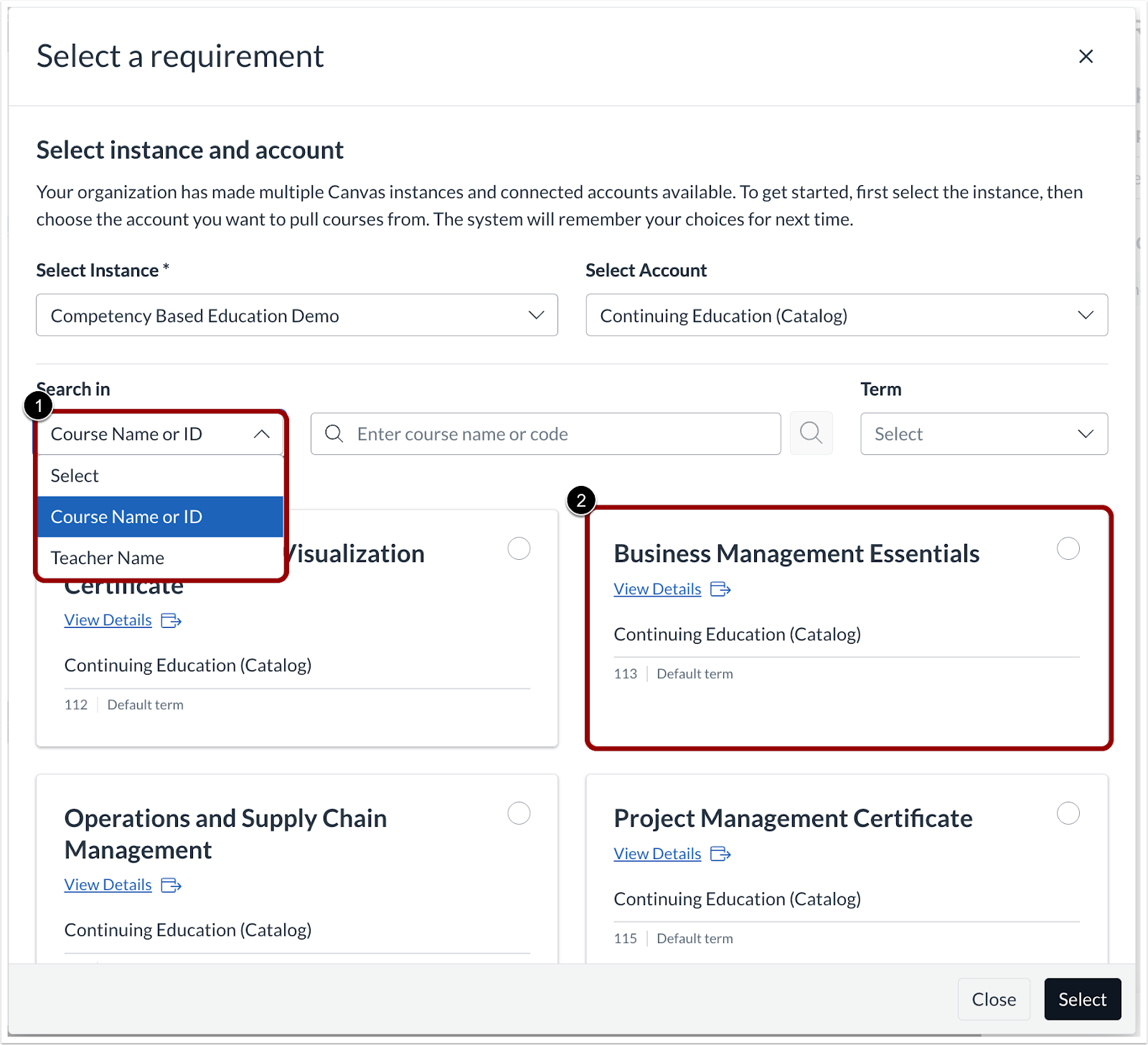
Select a Requirement Search In field and Courses
To select a requirement, use the Search In field to filter by Course Name, Teacher, or Term [1]. Issuers can also browse available courses [2], each displaying its name, sub-account, term, and a View Details link that opens the course in Canvas.
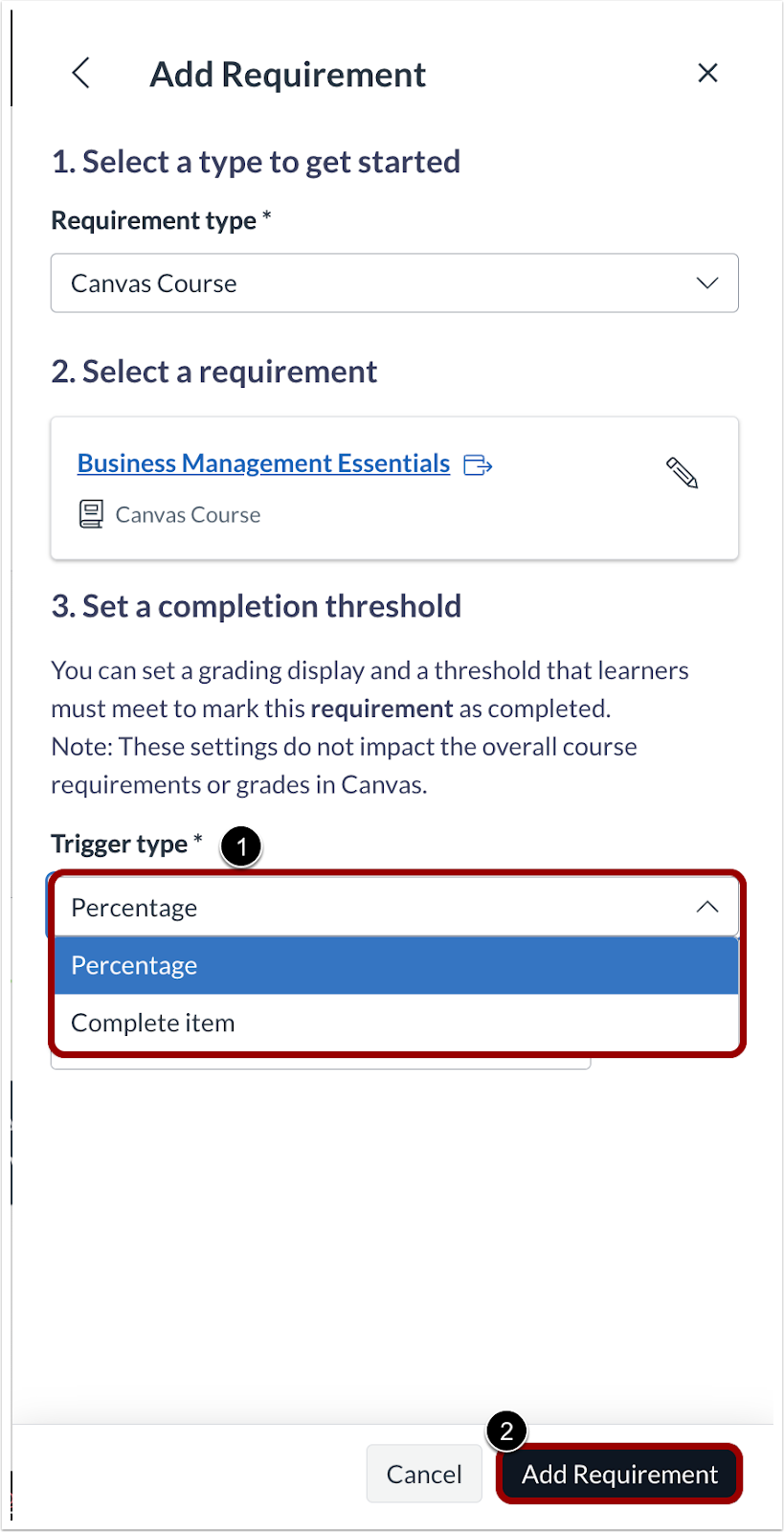
Add Requirement Trigger Type Field
Once a course is selected, select Percentage or Complete Item as the Trigger Type [1]. Then, click the Add Requirement button [2].
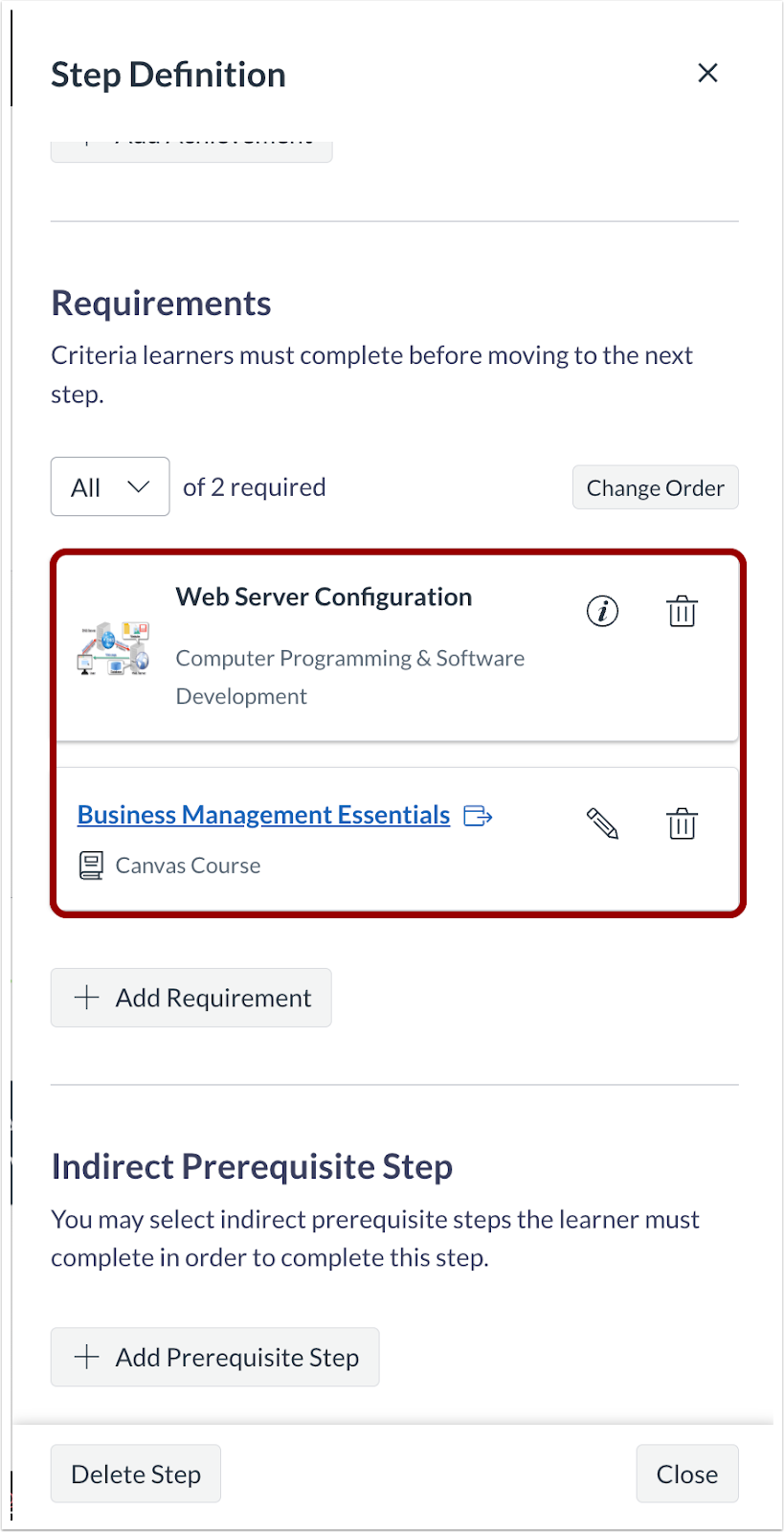
Requirements Display
Then, requirements display.
Back to Table of Contents
Updated Features
Pathways
Enhanced View Controls for Complex Pathways
All Users
Location to Enable Feature | None |
|---|
Permissions | Inherent to user role |
Affects User Interface | Yes |
Affected Areas | Pathway Editor, Pathway Progress |
Related Ideas | None |
Summary
View controls in the Pathways editor and Pathway Progress now make large pathways easier to scan. Options include Default view (center-focused), Fit to width, and Fit to width and height, accessible under the Filter icon.
Change Benefit
This update allows users to see the full structure at a glance, reduce panning and zooming fatigue, and review complex flows more efficiently, enhancing authoring speed and governance reviews.
Feature Workflow
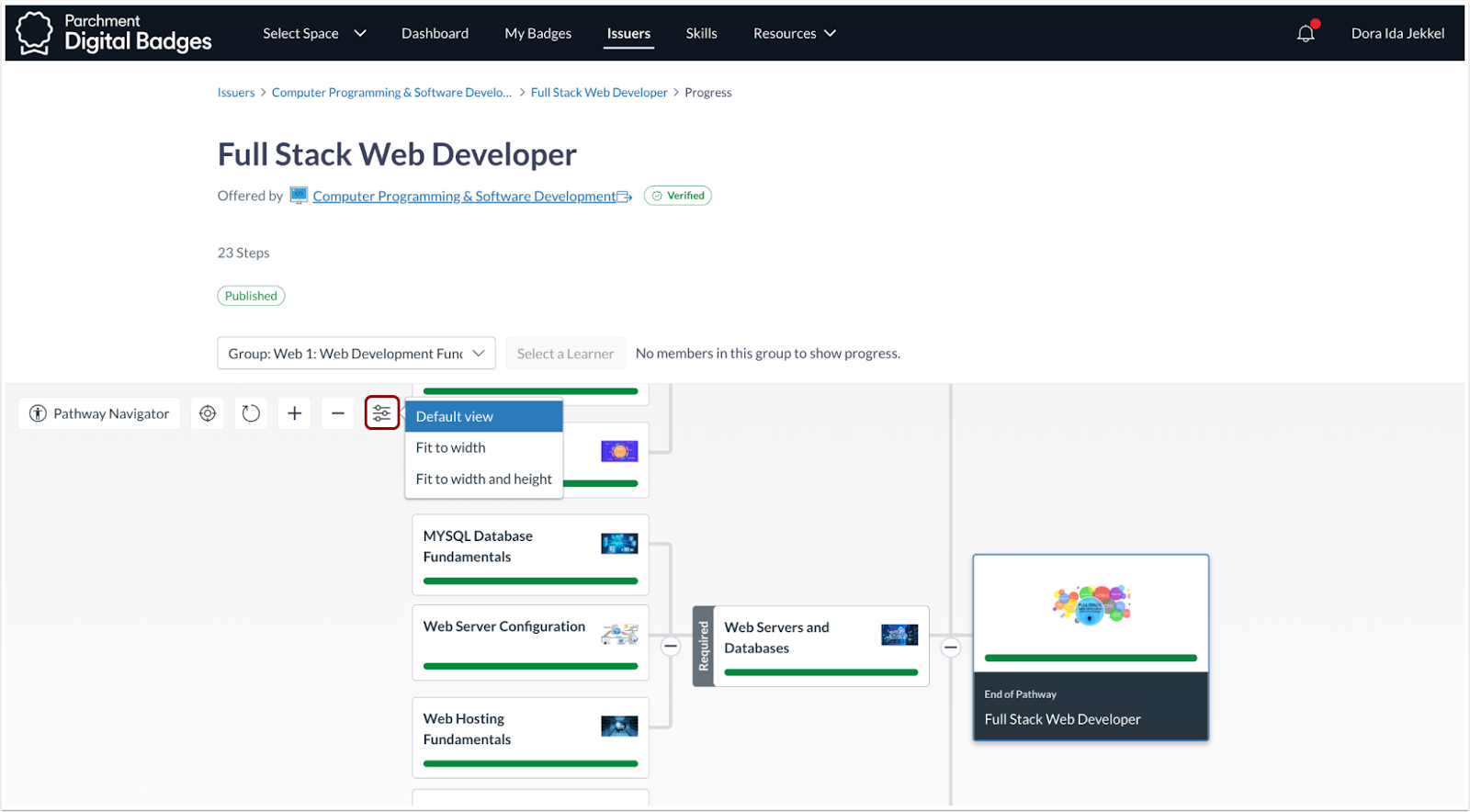
Pathway Filter Icon
In the Pathway editor or Pathway progress, click the Filter icon.
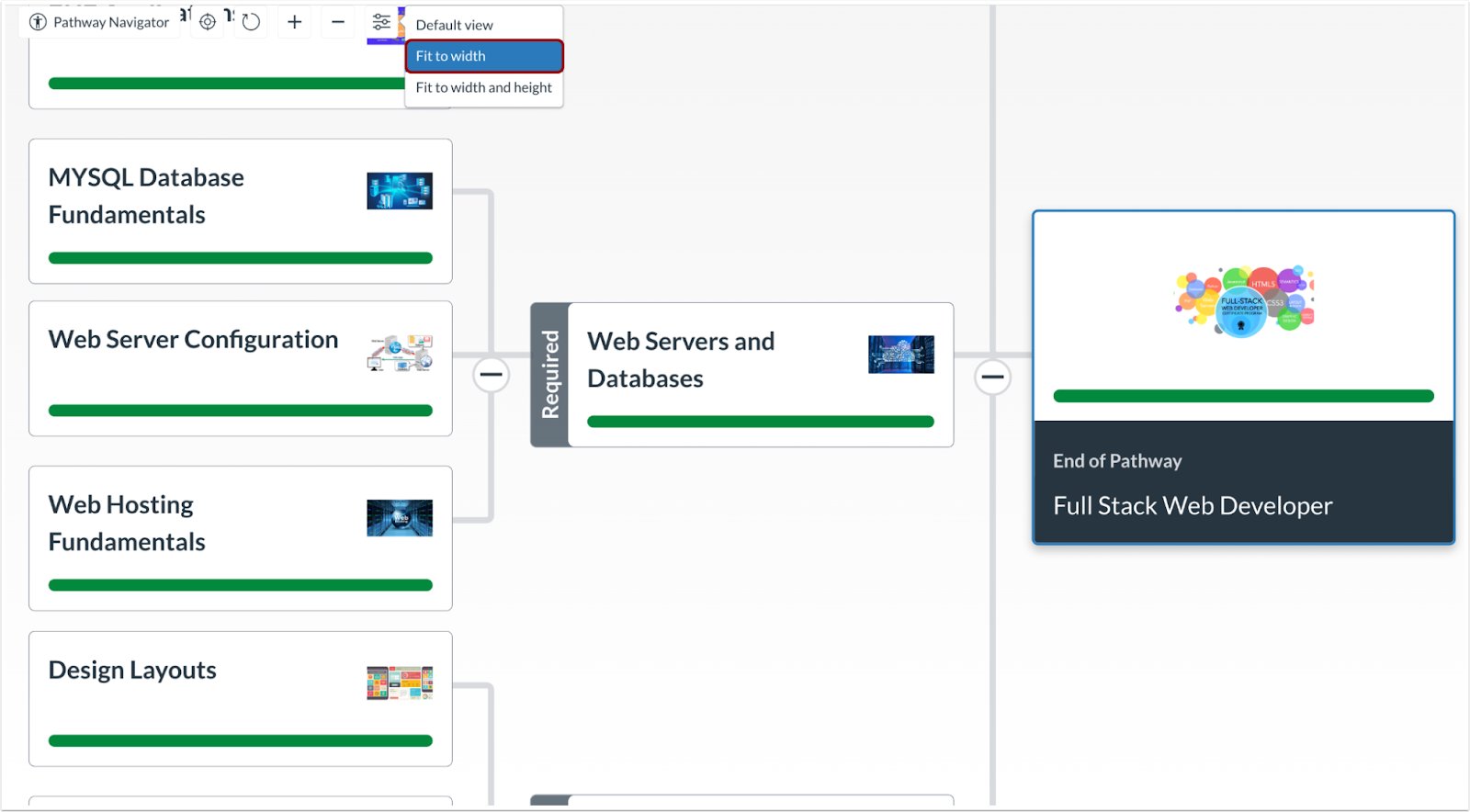
Filter Fit to Width Option
Issuers can choose the Fit to width option which scales the content horizontally to fill the available width of the screen.
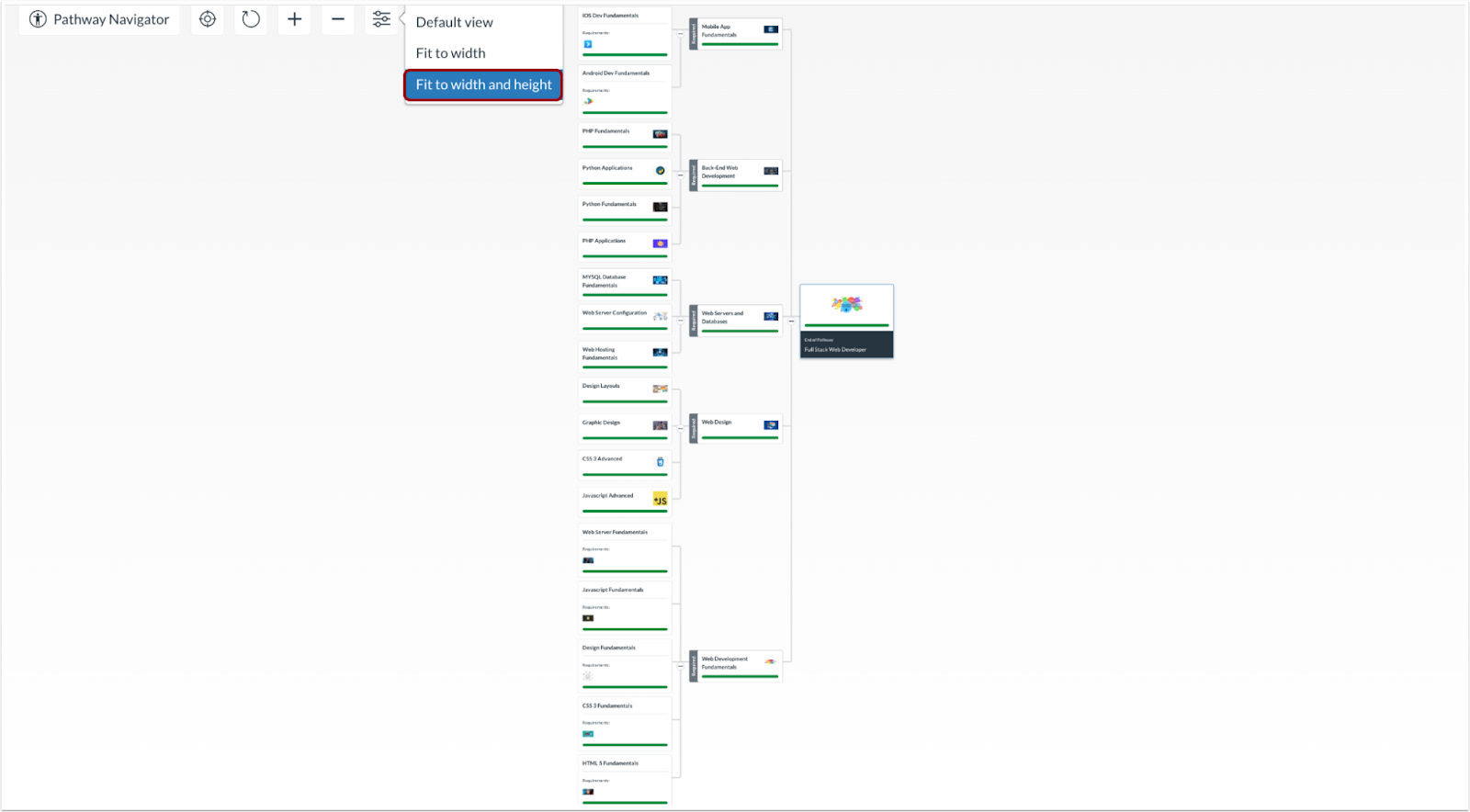
Filter Fit to Width and Height Option
Additionally, the Fit to width and height option scales content to fit entirely within the visible area of the screen, both horizontally and vertically.
Note:
When a Canvas course is added as a requirement in a Pathway and does not yet have a linked Credentials group, the system will create one automatically.
If that Canvas course is later copied in Canvas, such as through a course copy or blueprint workflow, the associated Credentials group in Parchment Digital Badges will also be copied. The new group will link to the copied course and automatically subscribe to the original Pathway as part of the copy process.
This ensures that blueprint courses and copied versions remain consistent, with all linked groups and Pathway connections intact, without any manual setup.
Additional Details
This view is for display only and does not modify steps, requirements, or learner progress. It works for both simple and very large pathways.
Back to Table of Contents