Release notes outline upcoming customer-impacting changes that are expected to display in beta and/or production environments. Please note that features considered for future development are not included in the notes.
Unless otherwise stated, all features in this release are available in the Beta environment on 2025-08-25 and the Production environment on 2025-09-08.
Subscribe to the Canvas Badges/Credentials release notes to be notified of updates.
New Features
Navigation
Skills Menu
All Users
Summary
In the Canvas Credentials Navigation, a Skills tab is added.
- The page includes two tabs: Organizational Skills and Default Taxonomy Skills.
- The Organizational Skills tab displays skills aligned to at least one badge in the organization, along with source tags and usage counts.
- The Default Taxonomy Skills provides the default taxonomy for discovery, regardless of local usage.
- Users can search, sort, and filter within each tab and open the existing Skill Tray for details.
- Organization Admins can publish Organizational Skills to the organization’s public page, making them searchable by external visitors.
Change Benefit
This update introduces benefits for multiple audiences. Admins and Issuers can design badges using a shared vocabulary, reuse existing skills, and reference usage data to reduce duplication and support consistent governance. Learners encounter more consistent skill language across badges, providing a clearer understanding of what each badge represents. Employers and Partners can search an organization’s skills catalog when Organizational Skills are published publicly, making it easier to review skill focus areas and connect badges to hiring needs.
Feature Workflow
Skills Page
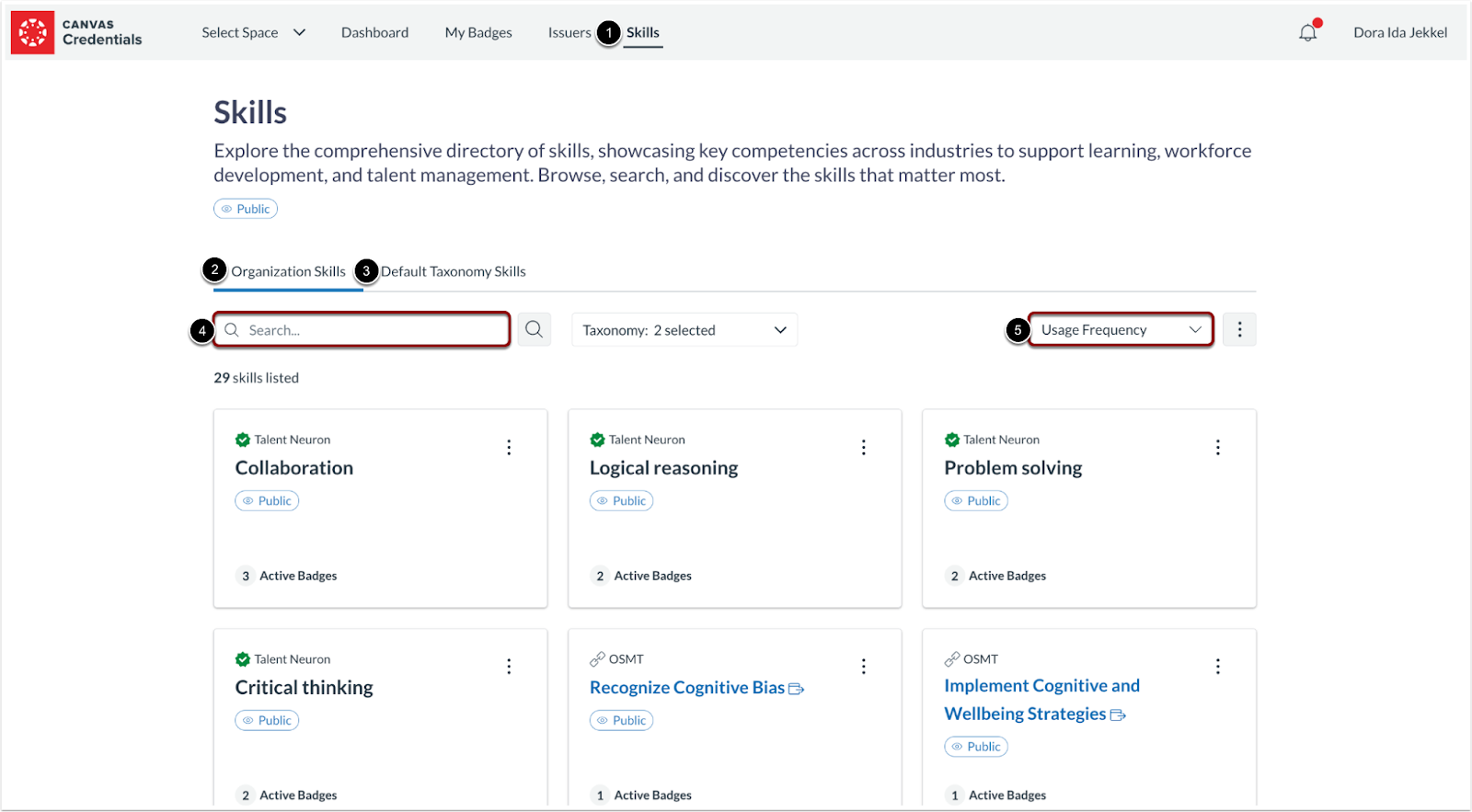
In the Canvas Credentials Navigation, click the Skills tab [1]. To view skills aligned with badges, click the Organization Skills tab [2]. To view TalentNeuron Skills, click the Default Taxonomy Skills tab [3]. In the search field [4], admins and issuers can enter a name or keyword to locate specific skills. To sort Organizational and TalentNeuron skills, click the Filter drop-down menu [5].
Notes:
- Organizational Skills displays only skills aligned with at least one badge in the organization, sorted by recent badge use by default.
- TalentNeuron Skills lists the full default taxonomy regardless of local usage.
- Each skill card displays the skill name, the first lines of its description, the source tag (TalentNeuron, Flexible, or OSMT), and the usage count.
Sort Options
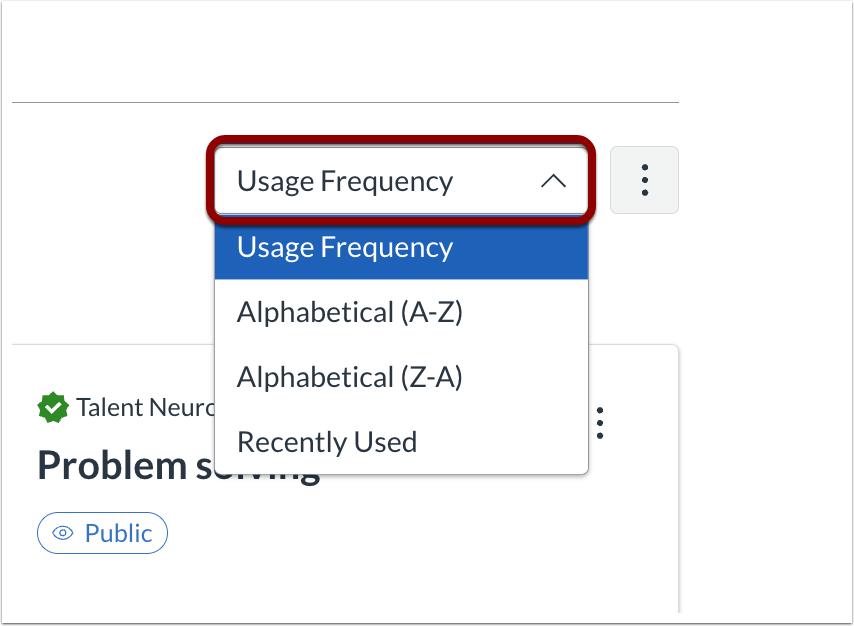
Organizational Skills can be sorted by recent badge use, alphabetical order, or usage frequency, while TalentNeuron Skills can be sorted alphabetically.
Taxonomy Filter
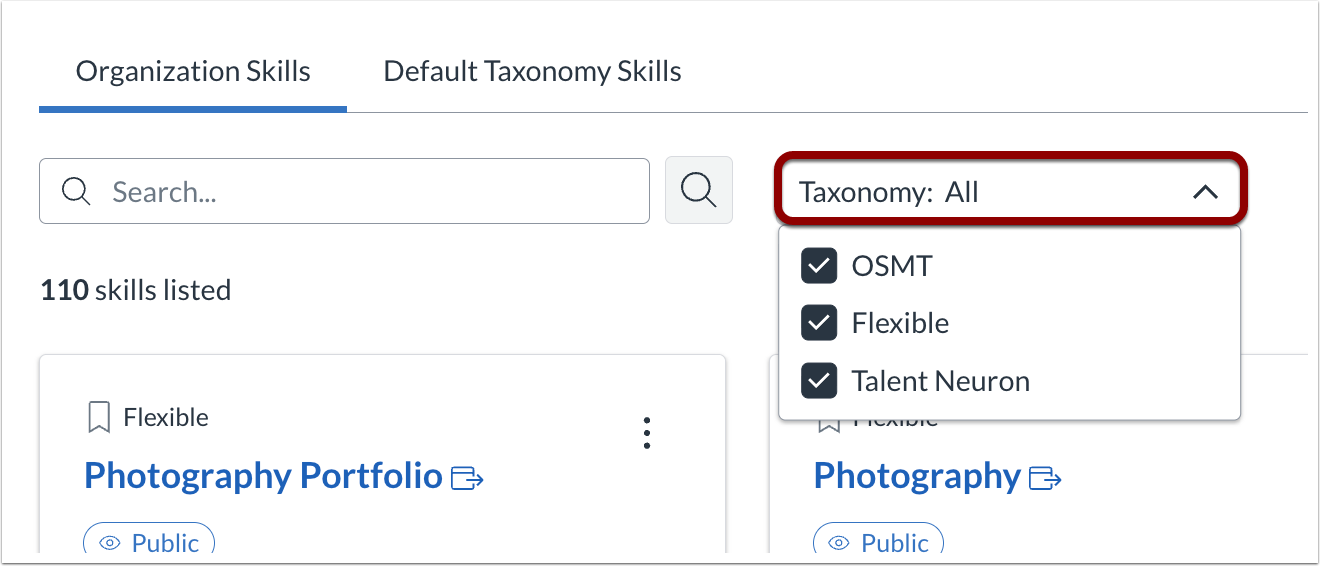
To filter Organizational Skills by taxonomy, click the Taxonomy filter drop-down menu.
Note: Grouping logic for flexible skills: entries with the same alignment code are grouped as a single card and use the most recently used name. Entries with no alignment code appear separately.
Hierarchy Filter
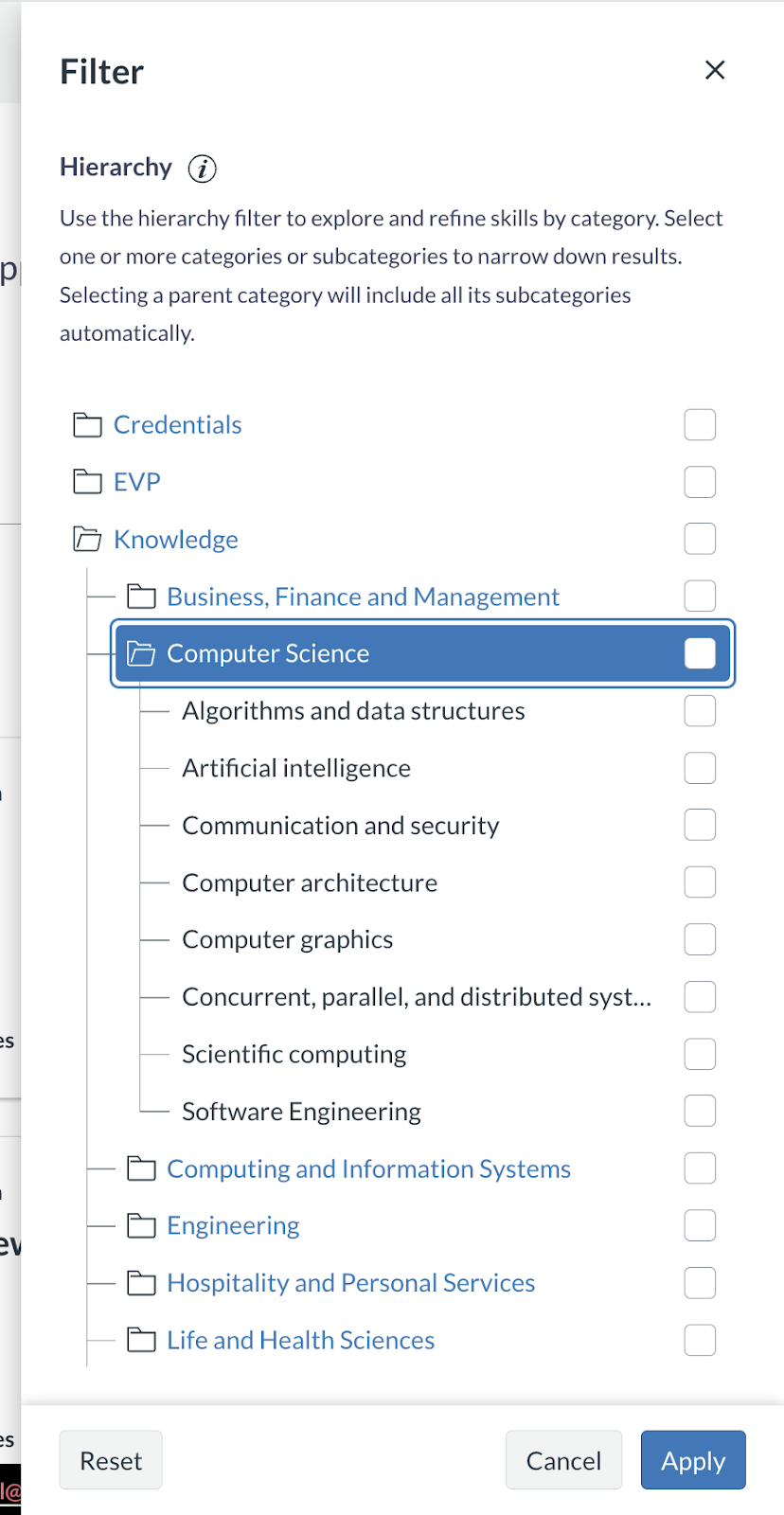
Admins and issuers can filter TalentNeuron Skills by hierarchy to view how skills are organized within the taxonomy, from broader categories down to more specific skills.
Skill Tray
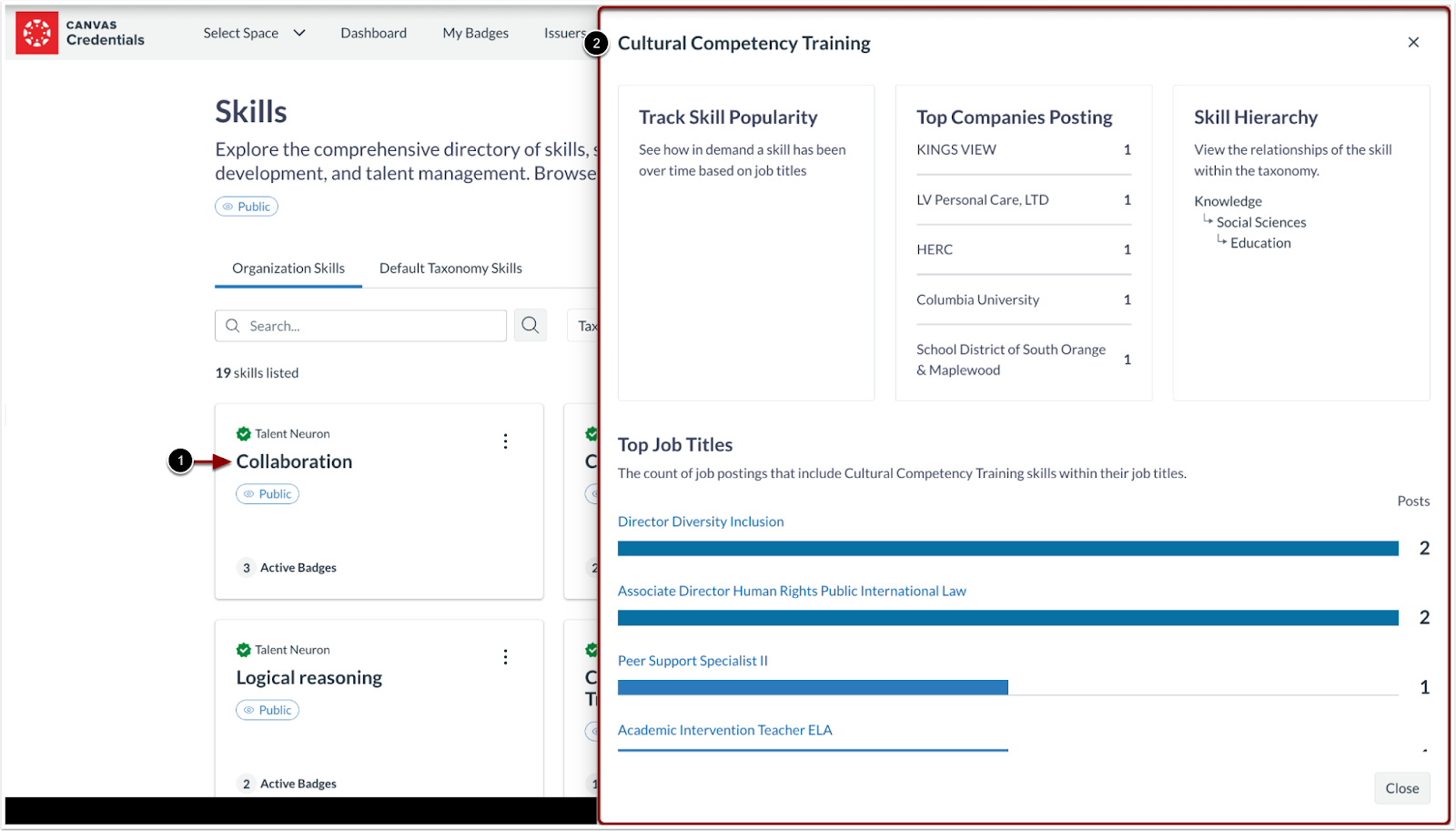
Click a Talent Neuron skill card [1] to open the Skill Tray for metadata and usage [2].
Note: Flexible skills use a grouping logic in which entries that share the same alignment code are combined into a single card and display the most recently used name. Entries that do not have an alignment code appear as separate cards.
Skill Visibility
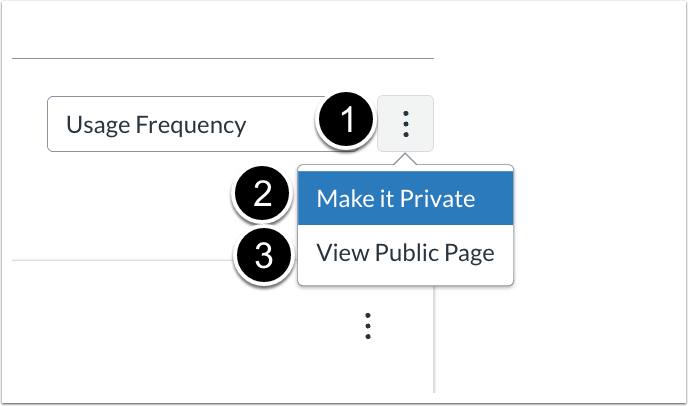
To change skill visibility, click the Options icon [1]. To hide the skills from the public page, click the Make it Private link [2]. To view Organizational Skills on the organization’s public page, click the View Public Page link [2].
User View of Skills Page
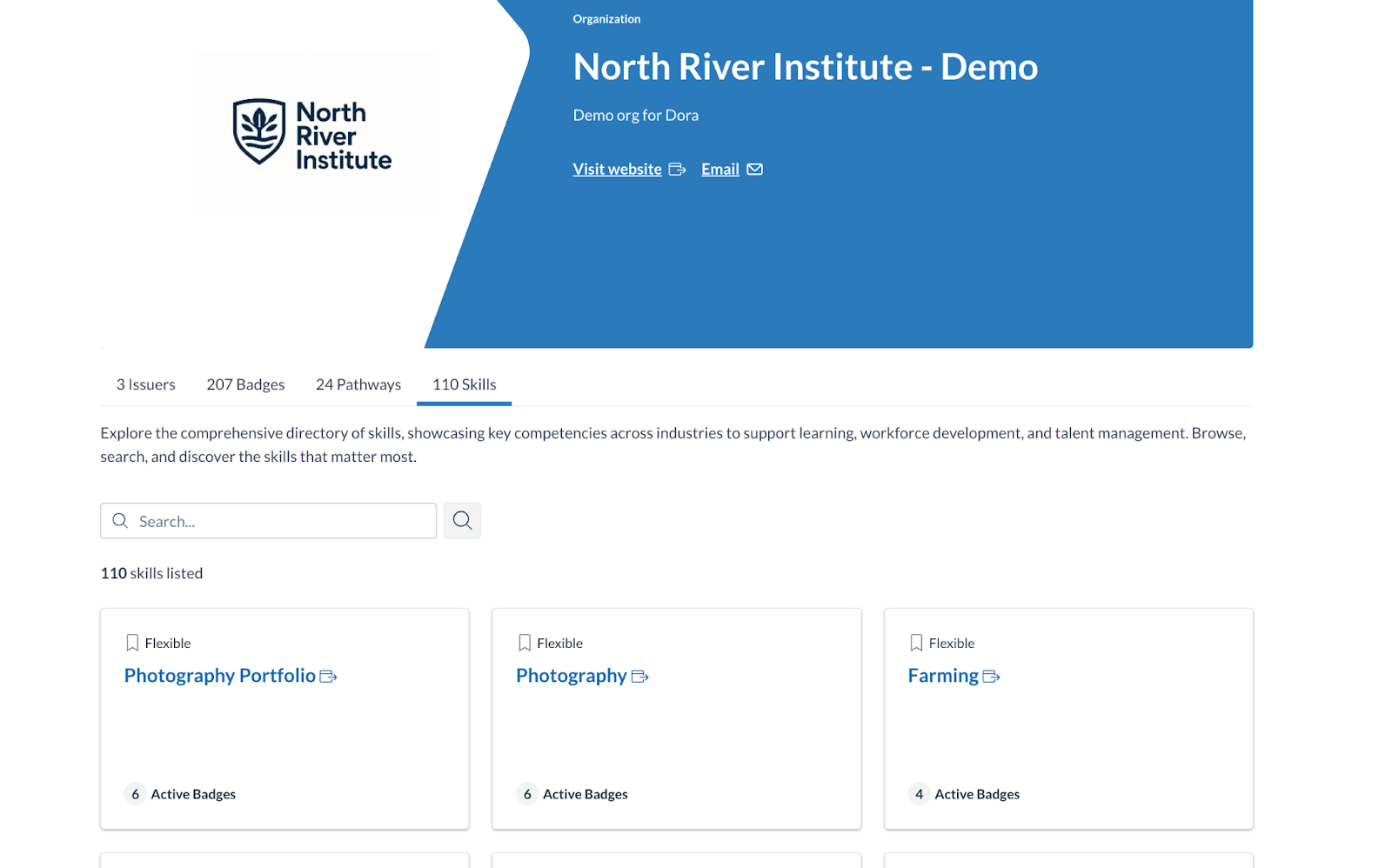
Users can view, search, sort and filter organizational skills. Additionally, skill tray details are available as permitted.
Note: When an organization skill is public, visitors can search and browse public organization skills.
Additional Details
- The Skill Tray interface and badge creation workflows remain unchanged.
- The features in this update are part of Phase 1, with additional features planned for future phases.
Back to Table of Contents