Release notes outline upcoming customer-impacting changes that are expected to display in beta and/or production environments. Please note that features considered for future development are not included in the notes.
Unless otherwise stated, all features in this release are available in the Beta environment on 2025-08-18 and the Production environment on 2025-09-01.
Subscribe to the Canvas Badges/Credentials release notes to be notified of updates.
Updated Features
Developer Keys
Dynamic Registration for LTI 1.3
Admin
Location to Enable Feature | None |
|---|
Permissions | Admin |
Affects User Interface | Yes |
Affected Areas | Canvas LMS External App configuration
Canvas Credentials admin setup |
Related Ideas | None |
Summary
Canvas Credentials supports LTI 1.3 Dynamic Registration with Canvas LMS. Admins can start registration using a single URL, allowing Canvas to automatically fetch and apply the configuration.
🌐 Beta Registration Links
🇺🇸 USA: https://beta.badgr.dev/lti/dynamic-registration/canvas
🇦🇺 Australia: https://beta-au.badgr.dev/lti/dynamic-registration/canvas
🇨🇦 Canada: https://beta-ca.badgr.dev/lti/dynamic-registration/canvas
🇪🇺 Europe: https://beta-eu.badgr.dev/lti/dynamic-registration/canvas
🇸🇬 Singapore: https://beta-sg.badgr.dev/lti/dynamic-registration/canvas
🌍 Production Registration Links
🇺🇸 USA: https://badgr.com/lti/dynamic-registration/canvas
🇦🇺 Australia: https://au.badgr.com/lti/dynamic-registration/canvas
🇨🇦 Canada: https://ca.badgr.com/lti/dynamic-registration/canvas
🇪🇺 Europe: https://eu.badgr.com/lti/dynamic-registration/canvas
🇸🇬 Singapore: https://sg.badgr.com/lti/dynamic-registration/canvas
Change Benefit
This update makes registration faster and more reliable by automating configuration to reduce errors. Admins can customize the tool name and placement visibility, and the integration follows 1EdTech standards for cross-LMS compatibility.
Feature Workflow
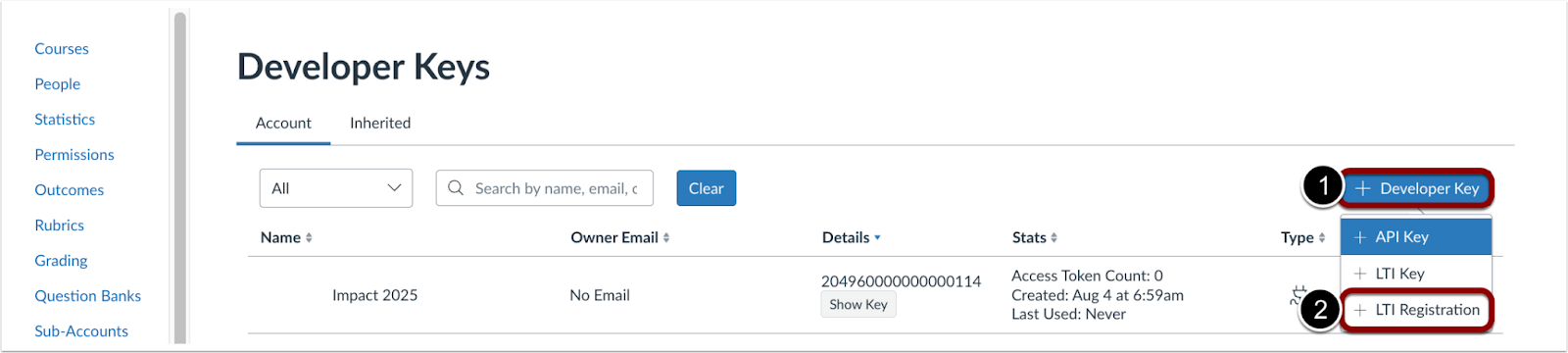
Admin Developer Keys Page
As an admin, in the Developer Keys page, click the Add Developer Key button [1], then select the Add LTI Registration link [2].
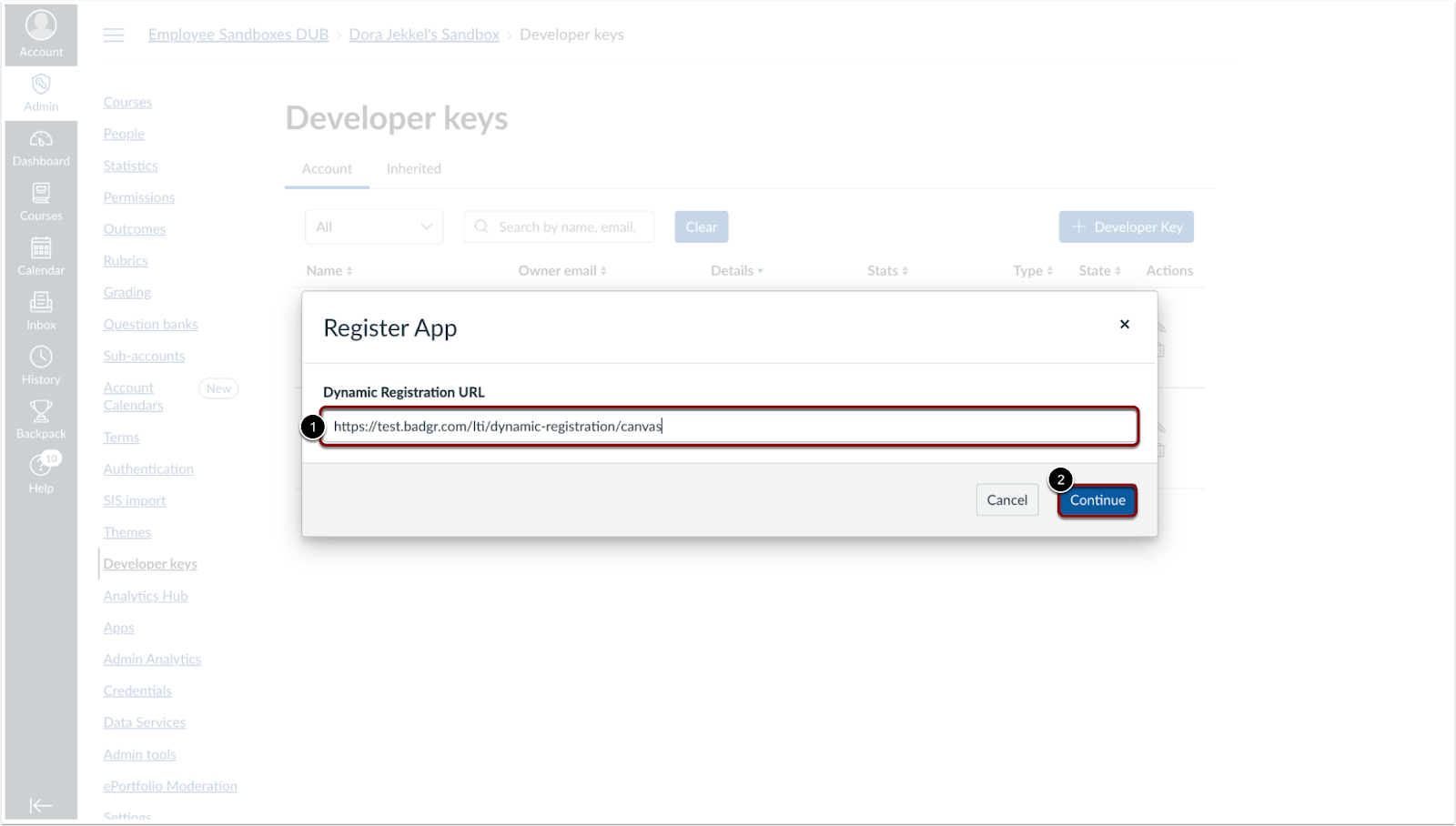
Register App Modal
In the Canvas LMS developer keys Register App modal, paste the institution environment URL [1]. Then, click the Continue button [2].
Note: These URLs cannot be opened directly in a browser. They must be pasted into Canvas in the Dynamic Registration URL field. Opening them directly will not initiate registration.
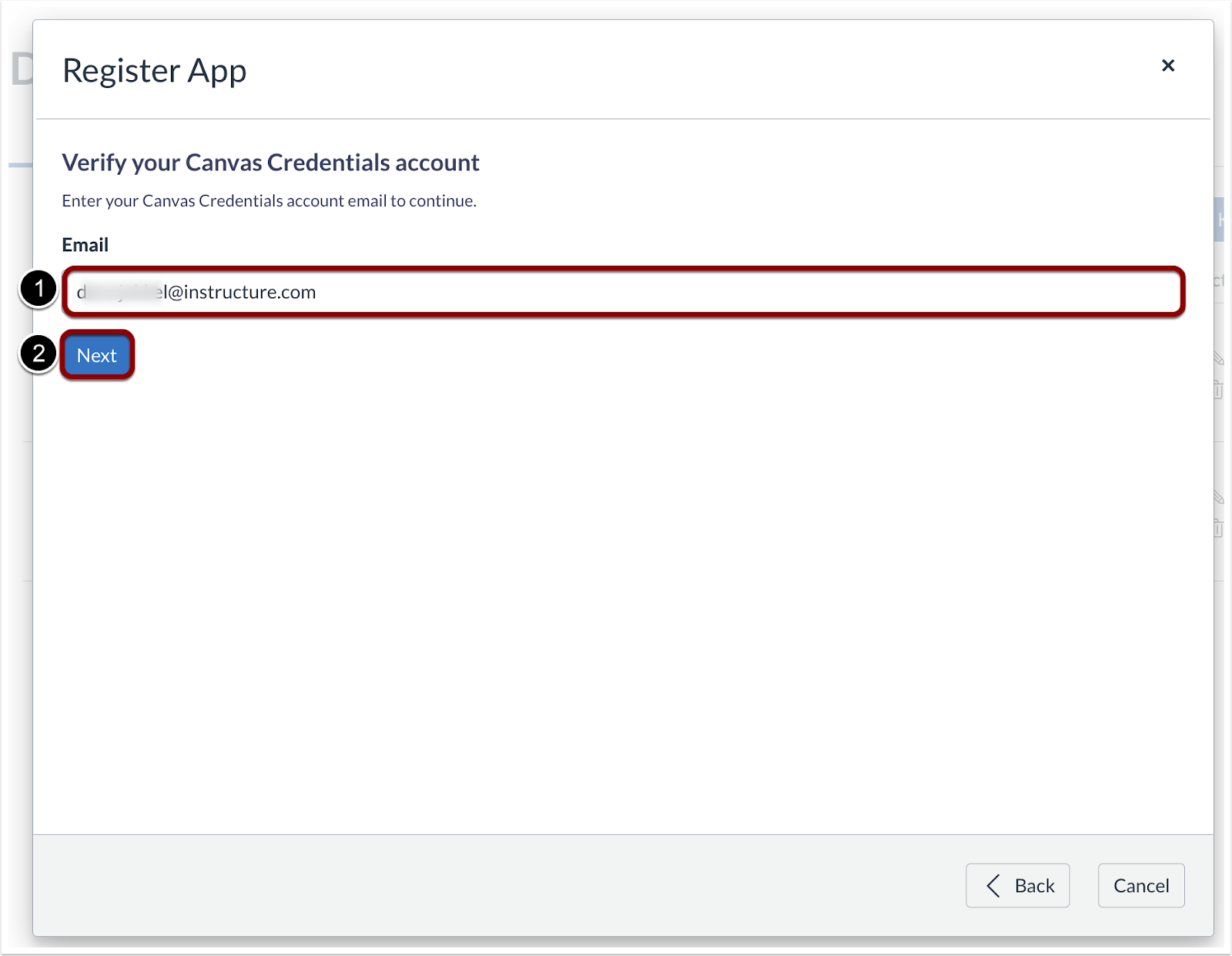
Register App Modal Verify Canvas Credentials
Verify a Canvas Credentials account by entering the Canvas Credentials email address [1]. Then click the Next button [2] to enter the verification code.
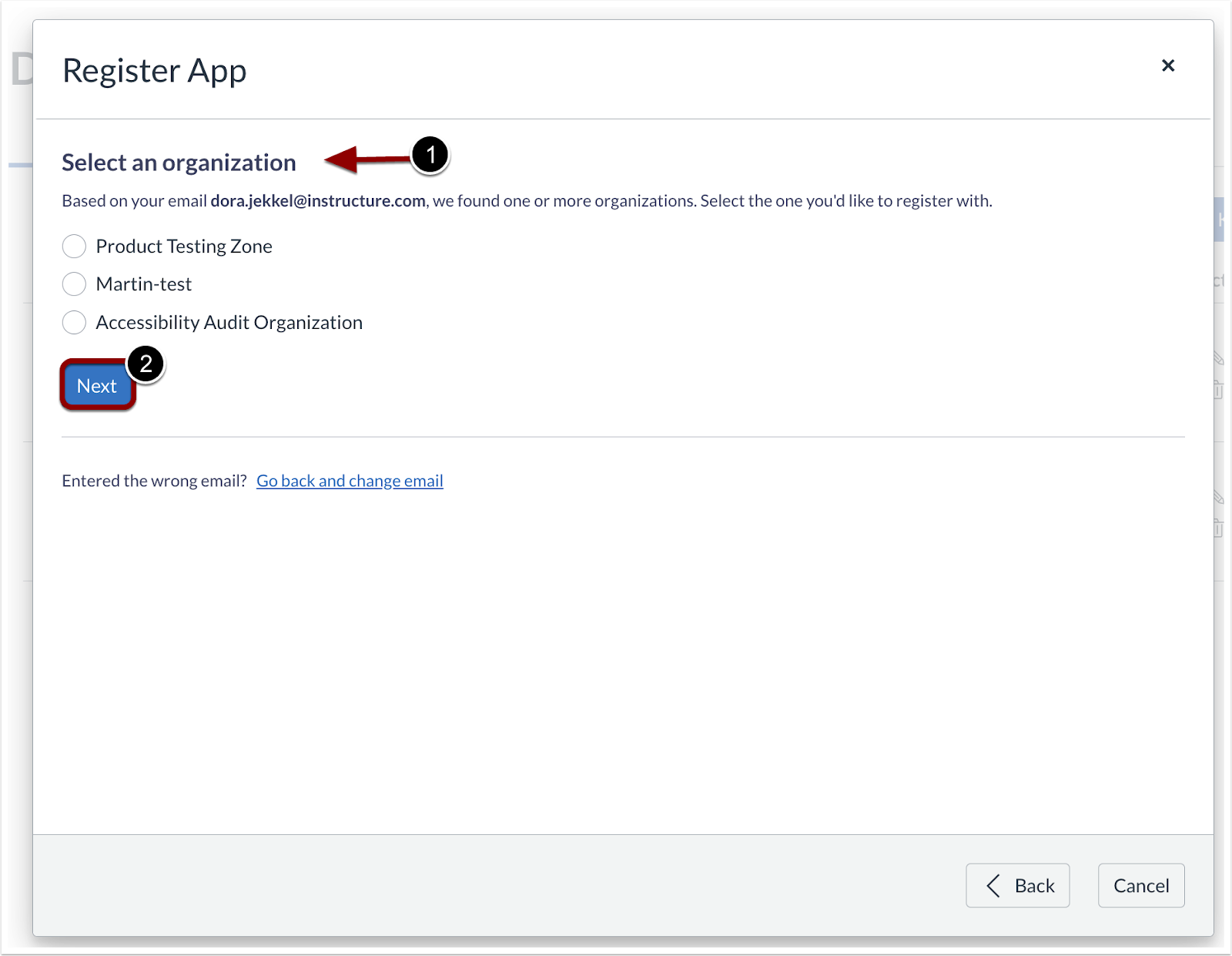
Register App Modal Select Organization
Select an Organization [1]. Then click the Next button [2].
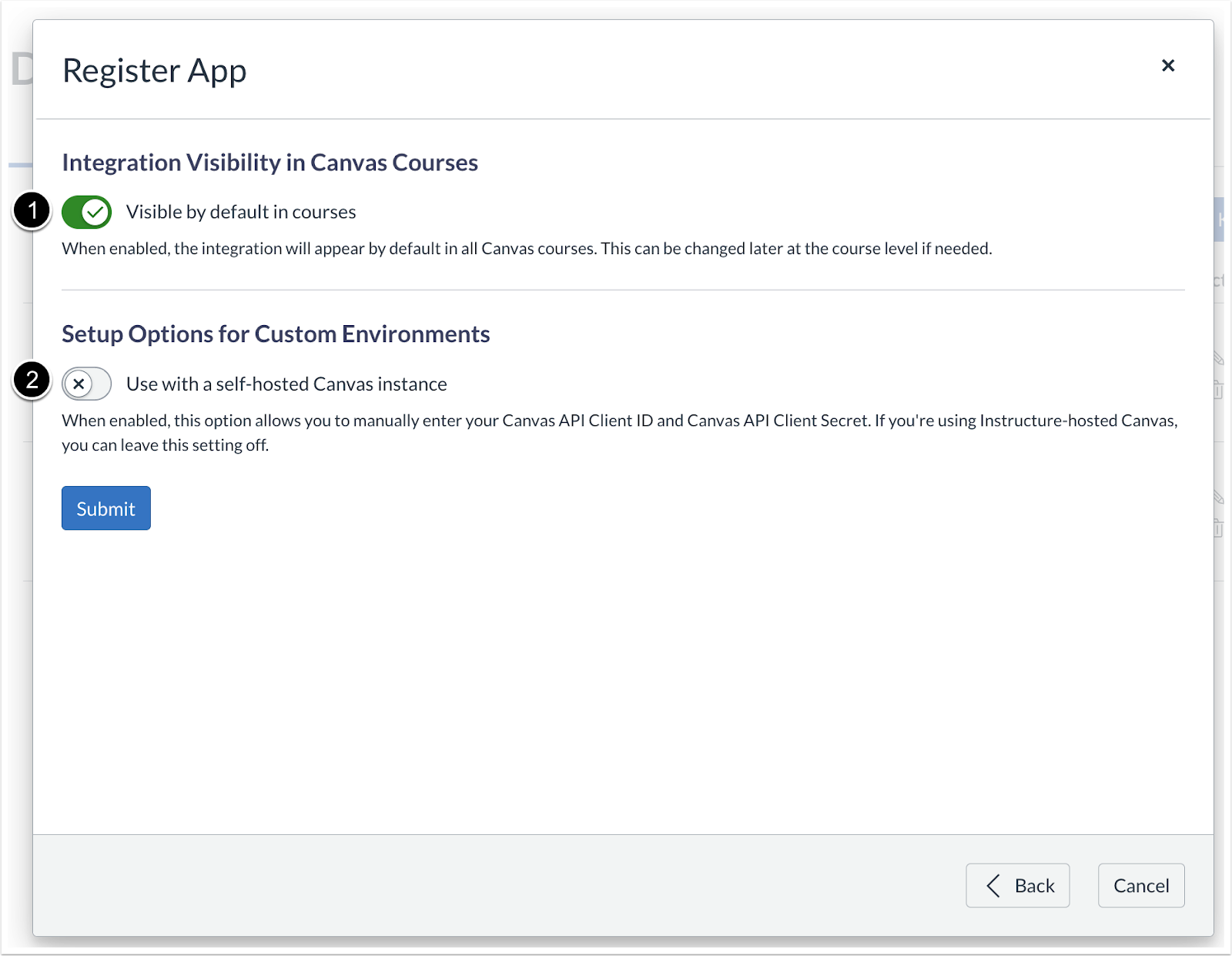
Register App Modal Integration
Review and set the Integration Visibility in Canvas Courses [1]. Optionally enable the Use with a self-hosted Canvas Instance toggle [2], and enter the Canvas API Client ID and Secret if applicable.
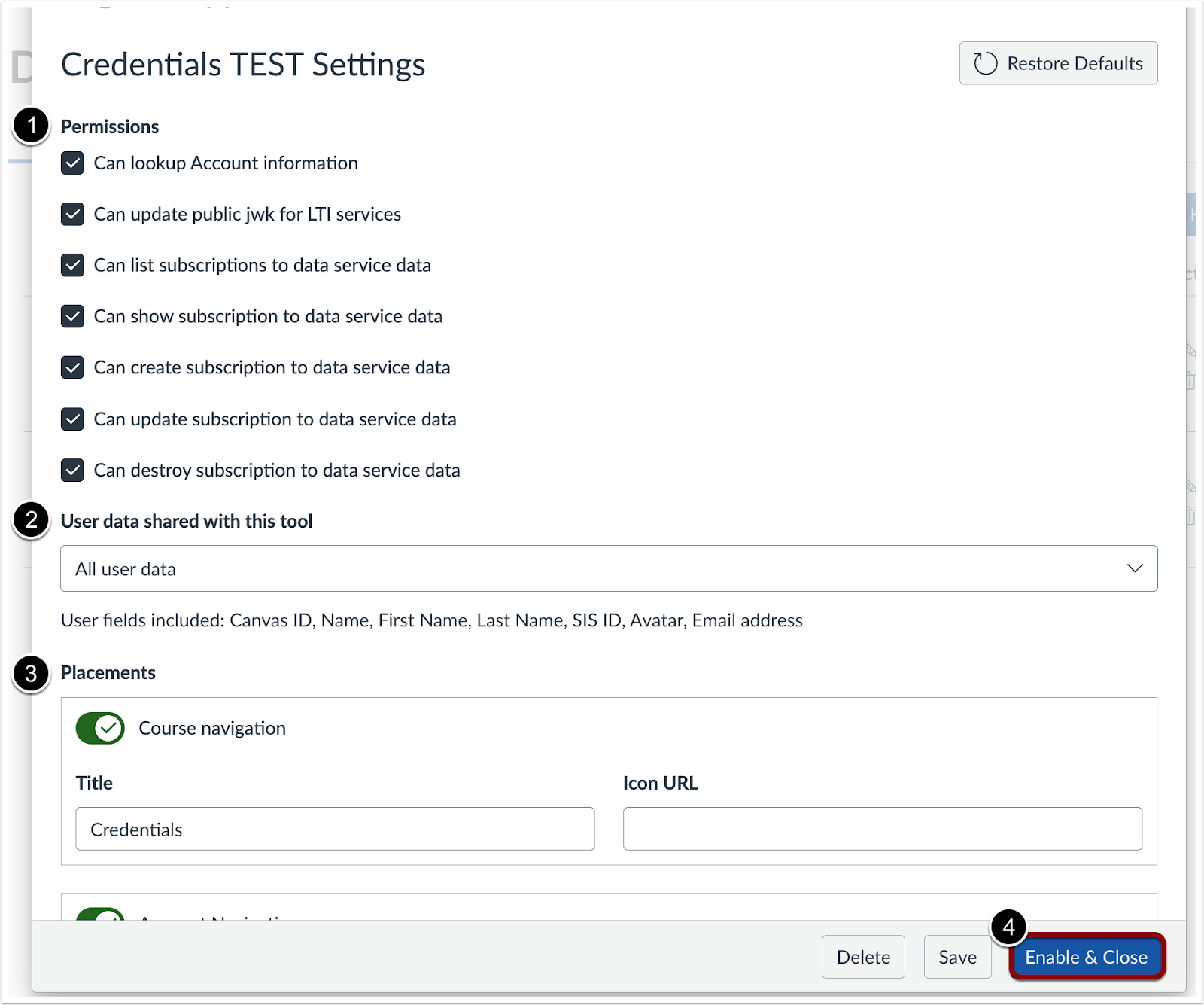
Credentials Settings Modal
In the Canvas Credentials Settings modal, review Permissions [1], User Data Sharing [2], and Placements [3], and adjust if needed. Click the Enable and Close button [4] to complete registration. Once registered, the tool is ready to use.
Additional Details
Dynamic Registration for Canvas Credentials uses region-specific URLs to automatically configure the LTI tool in Canvas LMS. These URLs direct Canvas to the correct environment and configuration file, eliminating the need to manually enter JSON or API keys.
Key points:
- The URLs cannot be opened directly in a browser.
- Use the Beta link for testing starting August 18, 2025, or the Production link starting September 1, 2025.
- Ensure the URL matches the institution’s data residency region for compliance and optimal performance.
Back to Table of Contents