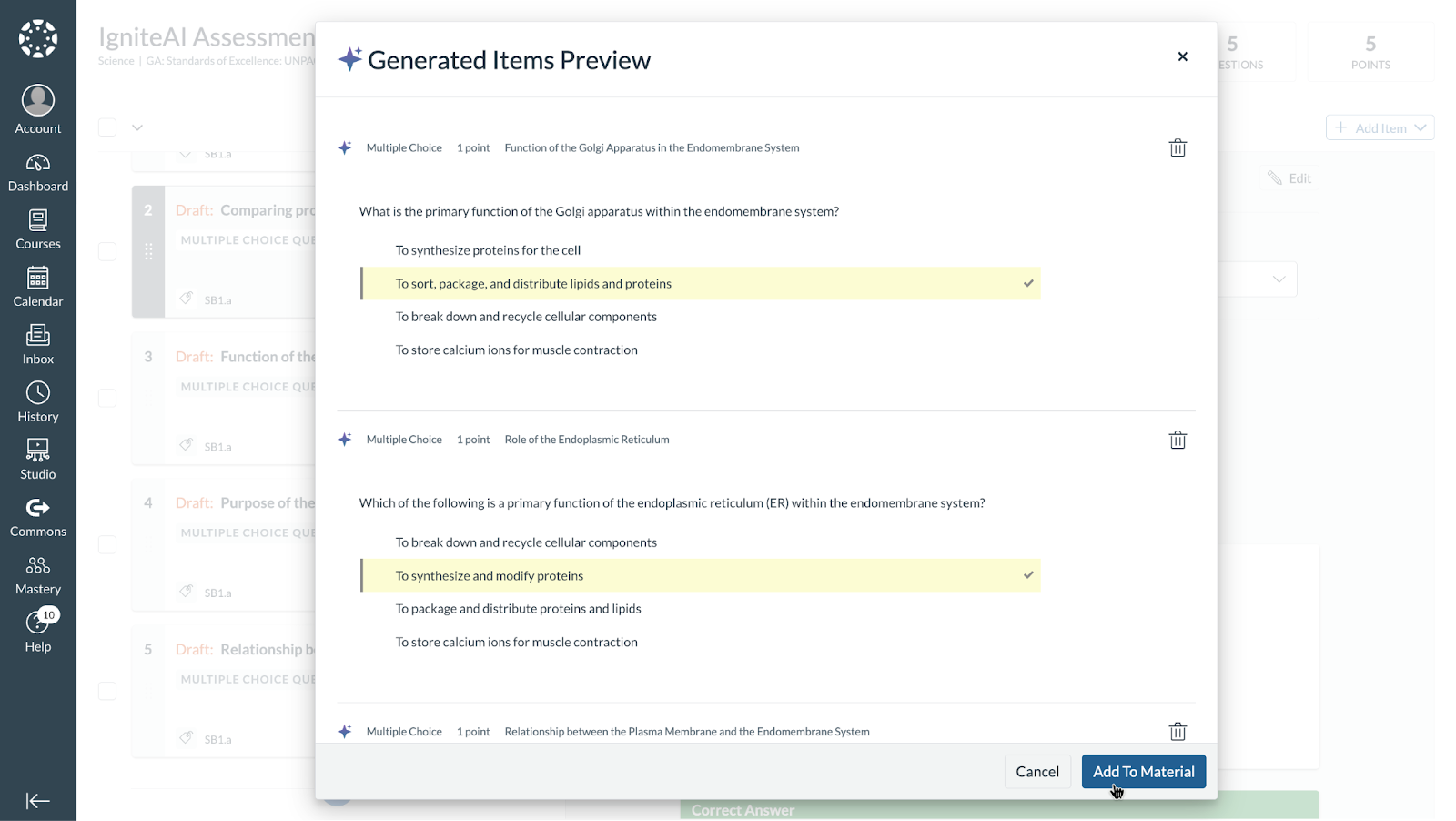
Here are step-by-step instructions for educators on how to use the IgniteAI Item Authoring Assistance feature in Mastery Connect:
Step 1: Create an Assessment
- Begin by creating a new assessment in Mastery Connect.
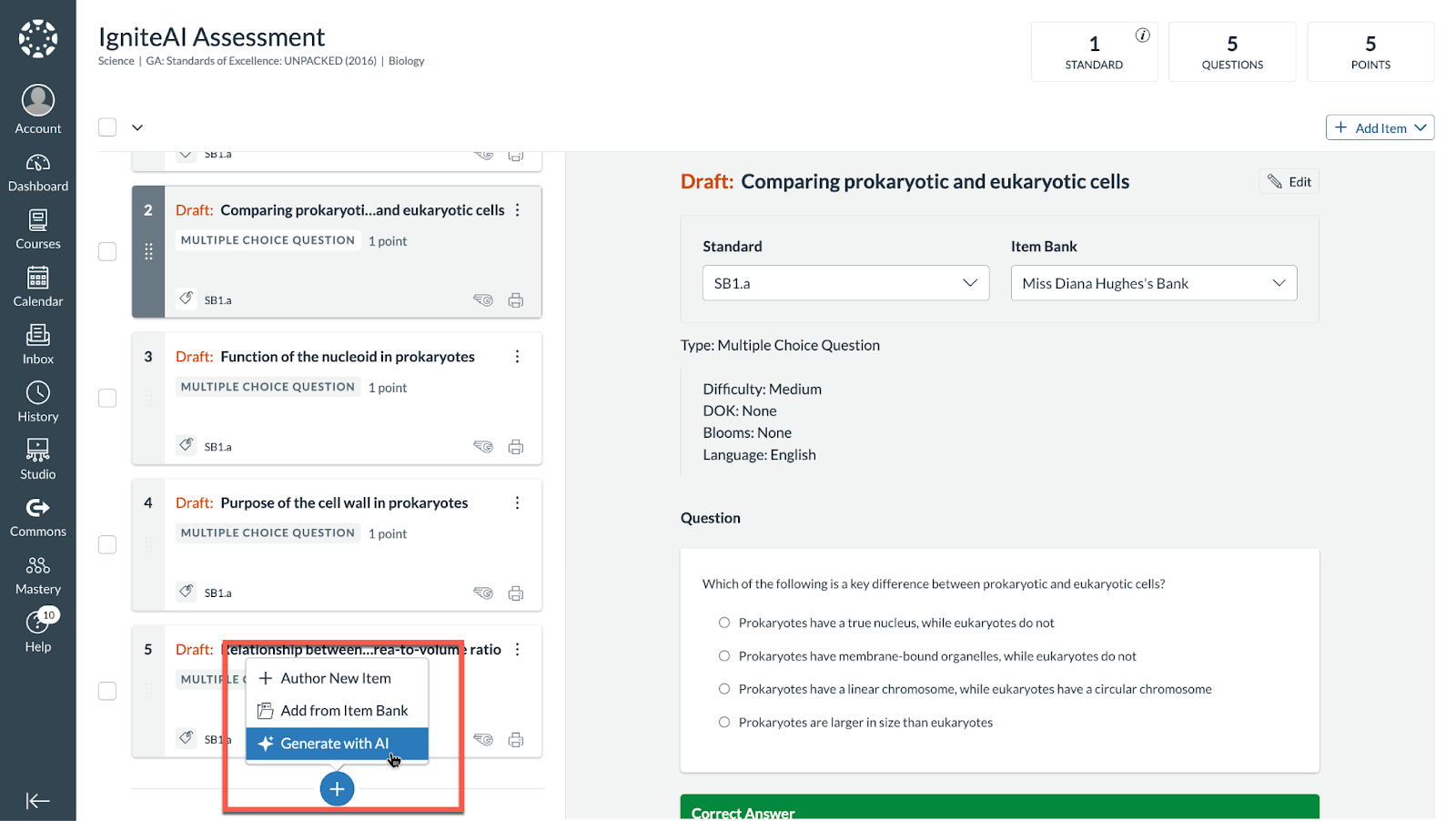
- Use the typical workflows to add an item to the assessment.
- Click on the "plus" button to add an item.
- In the dropdown menu, select the "generate with AI" option.
Step 2: Provide Source Material
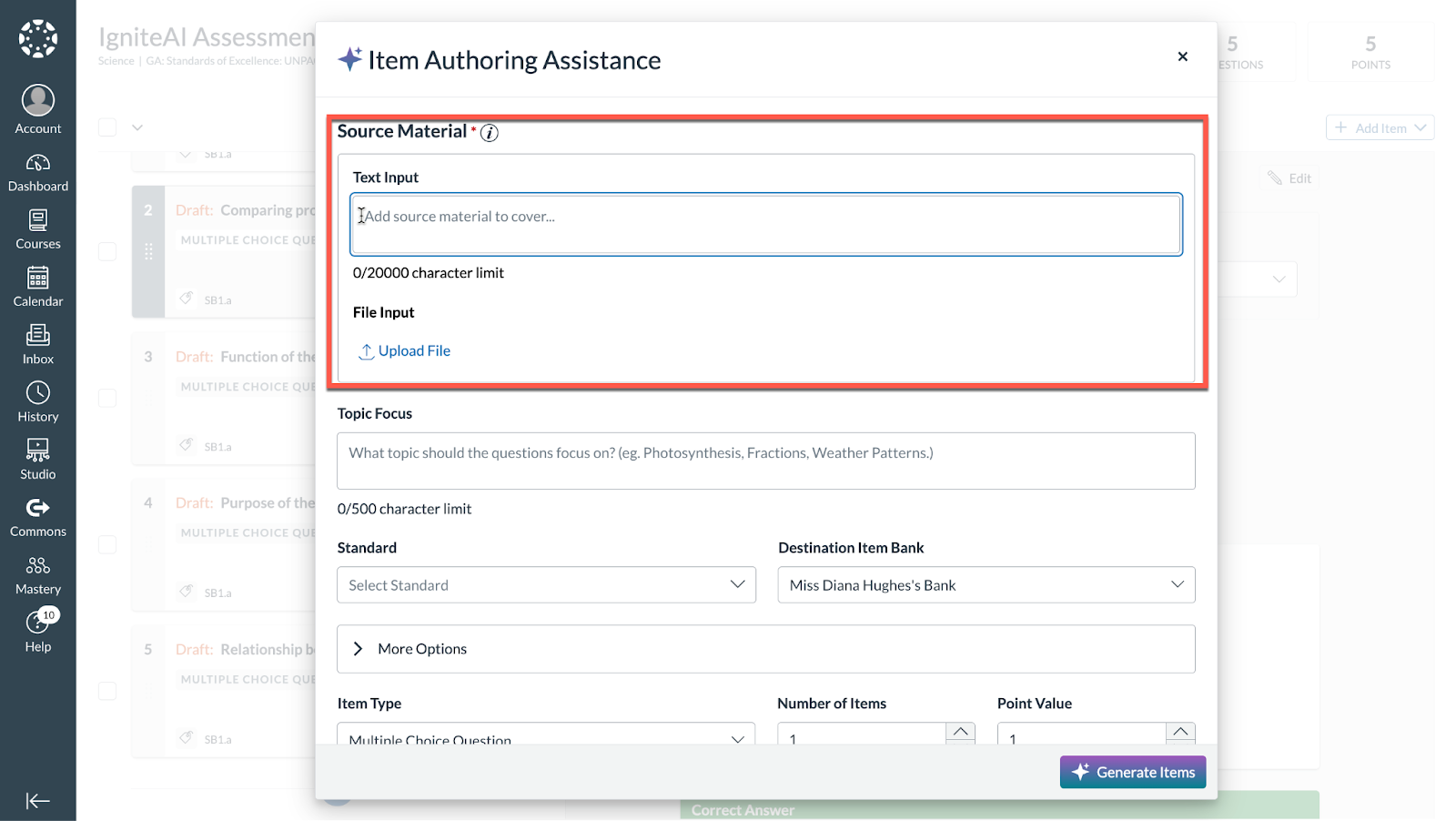
- You can add source material by pasting text-based content into the tool.
- You also have the option to upload files such as a PDF or a Word document.
Step 3: Define Question Parameters
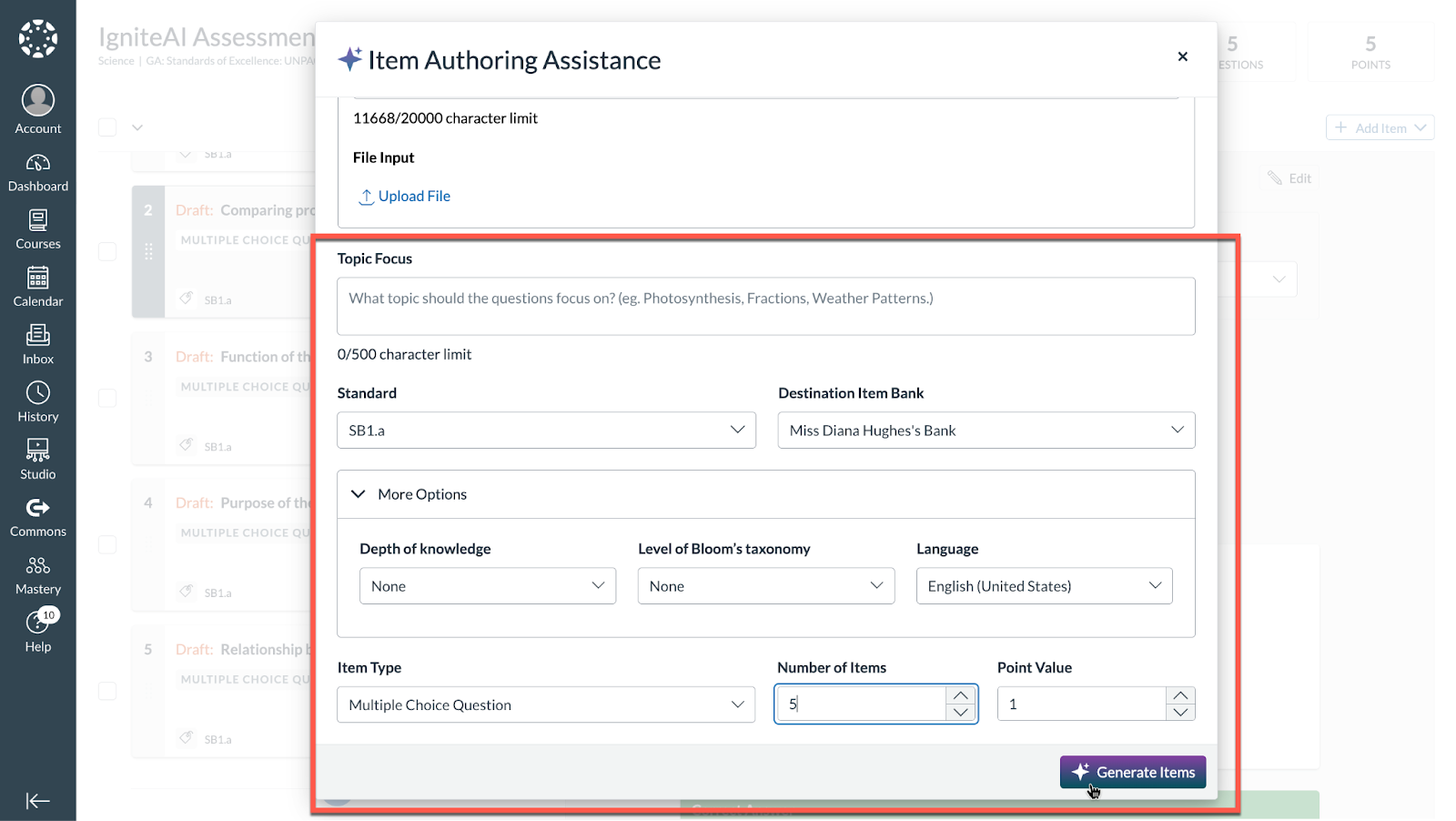
- Specify the topic you want the questions to focus on, for example.
- Select a standard to align with, such as "SB one involving cell structures".
- Choose the item bank where the new questions will be stored.
- At the moment, the only available question type is multiple choice.
- Specify the number of items you want to generate and assign a point value to them.
Step 4: Generate and Review Items
- Click "Generate Items".
- The IgniteAI tool will create the items using the source content you provided.
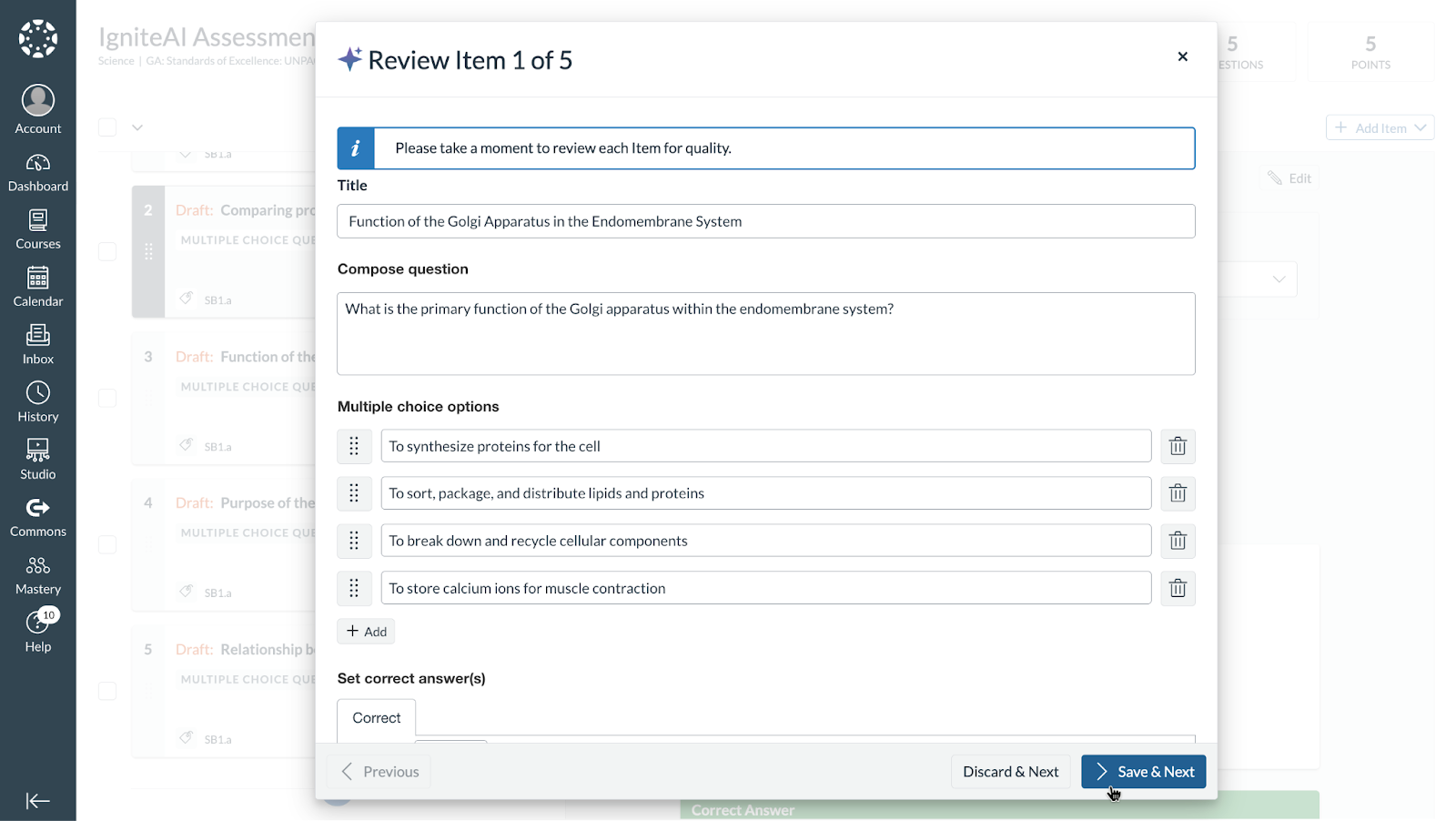
- Once the questions have been generated, you can review them.
- You have the opportunity to review and edit each question one by one.
Step 5: Add Items to the Assessment
- After reviewing all the questions, click to add them to the assessment.
- All the generated questions will now be part of your assessment.