Release notes outline upcoming customer-impacting changes that are expected to be displayed in production environments. Please note that features considered for future development are not included in the notes.
Unless otherwise stated, all features in this release are available in the Production environment as of 2025-07-11.
Trackers
Creation Flow
Affected User Roles | All Educator roles |
|---|
Affects User Interface | Yes |
Affected Areas | Curriculum Maps, Trackers |
Summary
When teachers have no active trackers, they will receive a new tracker creation flow, which allows rapid tracker creation.
Notes:
- This feature requires District Standards to be assigned. If a district does not have this feature configured, then teachers will receive the regular tracker creation flow.
- If trackers already exist, the regular tracker creation flow can be used to create trackers one at a time.
- This tracker creation flow does not apply to Canvas-linked trackers.
Change Benefit
This update simplifies the tracker creation experience, and reduces the work required to set up trackers at the beginning of the year.
Feature Workflow
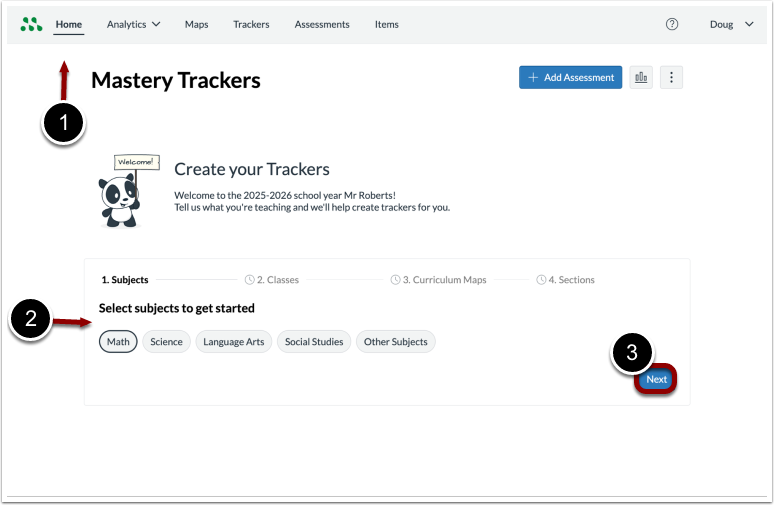
Mastery Tracker Home Page
If the district has this feature enabled, the tracker creation flow will automatically launch for teachers without existing trackers.
Click the Home tab [1], then select one or more subjects [2]. To continue, click the Next button [3].
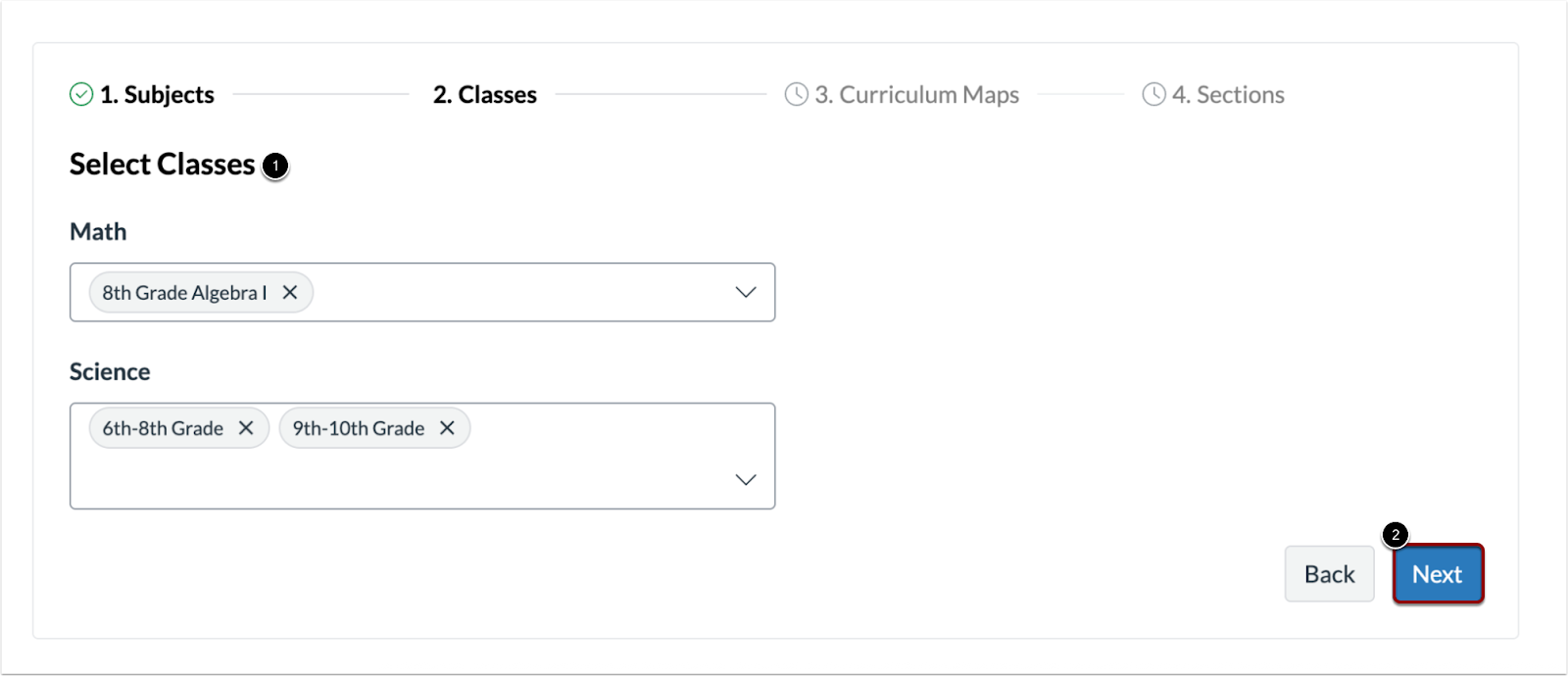
Select Courses
Select all classes being taught, then click the Next button [2]
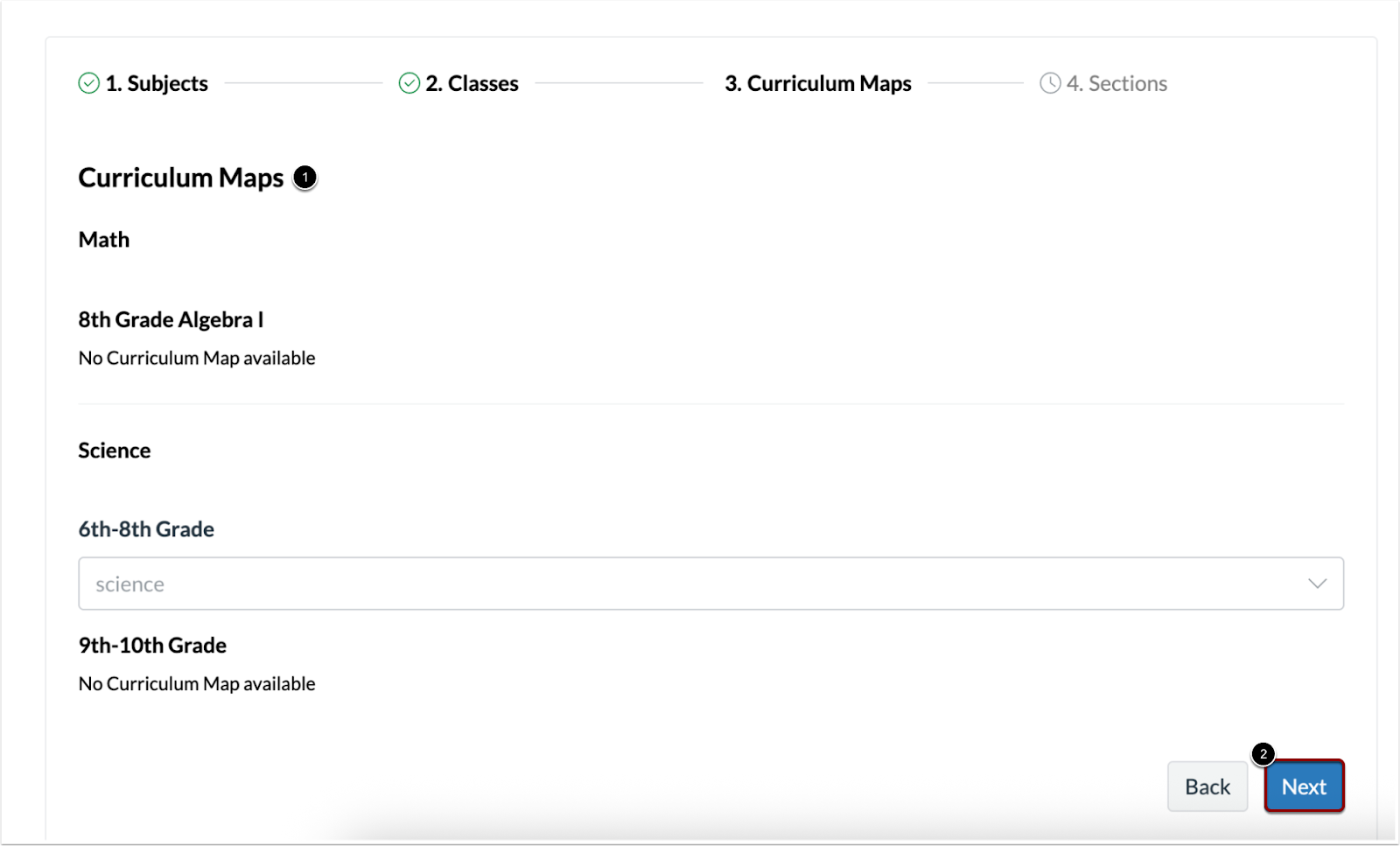
Curriculum Maps
Select any available Curriculum Maps [1]. Only maps assigned to the core by the district will display. If no maps are available, click the Next button [3].
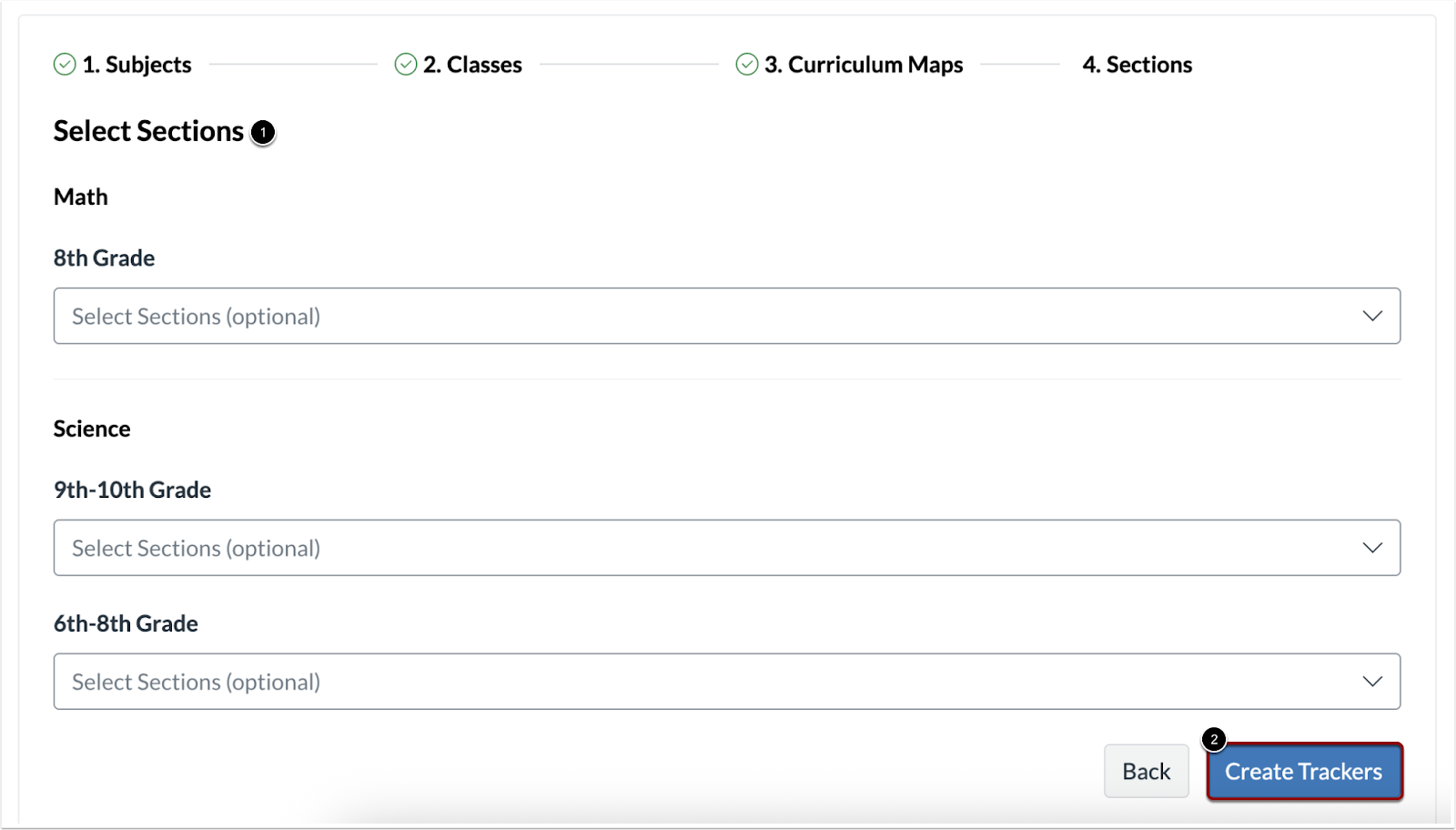
Select Sections
Teachers can optionally select sections [1]. If no sections are available, students can be added after tracker creation. Then, click the Create Trackers button [2].
Overview
Dashboard Standards Chart
Affected User Roles | All Educator roles |
|---|
Affects User Interface | Yes |
Affected Areas | Curriculum Maps, Trackers |
Summary
An updated Standards chart is available on the District, School, and Teacher Overview Dashboards. This chart displays the current formative results for each assessed standard, showing data for the most recent 500 standards and their results.
Change Benefit
This update provides educators with increased insight into the student performance on specific standards.
Feature Workflow
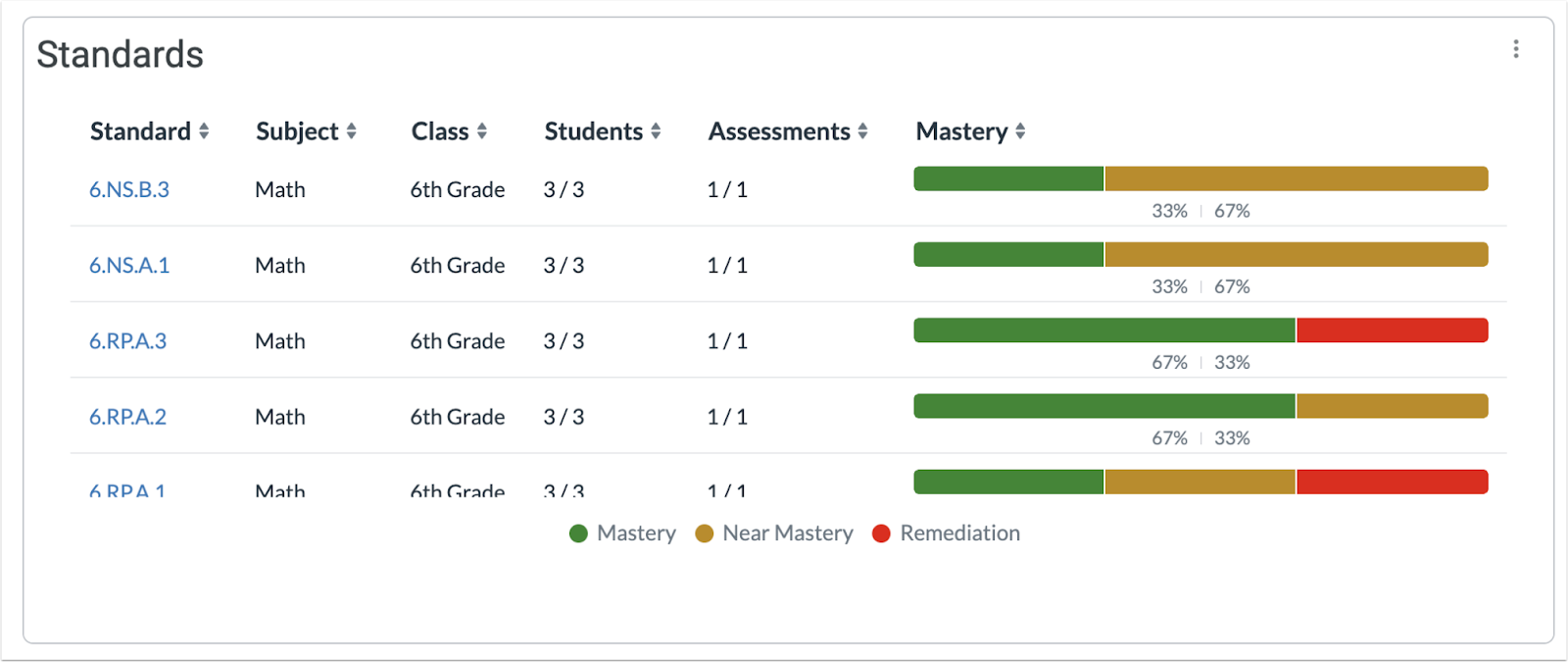
Dashboard Overview Standards Chart
The Standards chart is available in the Overview Dashboard. Filters from the filters tray can be applied to customize the Standards chart display.
Note: Educators can download the results for up to 5000 rows.
Trackers
Home Page and Tracker Index
Affected User Roles | Teachers |
|---|
Affects User Interface | Yes |
Affected Areas | Home Page and Tracker index |
Summary
The Home Page has been redesigned to replace the Tracker Index. Users can complete key tasks such as creating trackers and assessments or viewing reports directly from the interface.
Tracker information is displayed in a card format, showing relevant metadata and quick access to actions like viewing, editing, archiving, and managing assessments. Each tracker card also includes:
- District Benchmark Section: Displays up to two benchmarks per tracker, allowing teachers to deliver, grade, or view reports based on the benchmark's current state.
- Students to Support Section: Highlights up to three students based on formative mastery or benchmark proficiency, with sorting options by type and average score. Teachers can click Show All to view a complete list in a detailed modal.
Change Benefit
This update provides an accessible tracker index experience, and reduces the steps teachers need to take to access the most common features and areas.
Feature Workflow
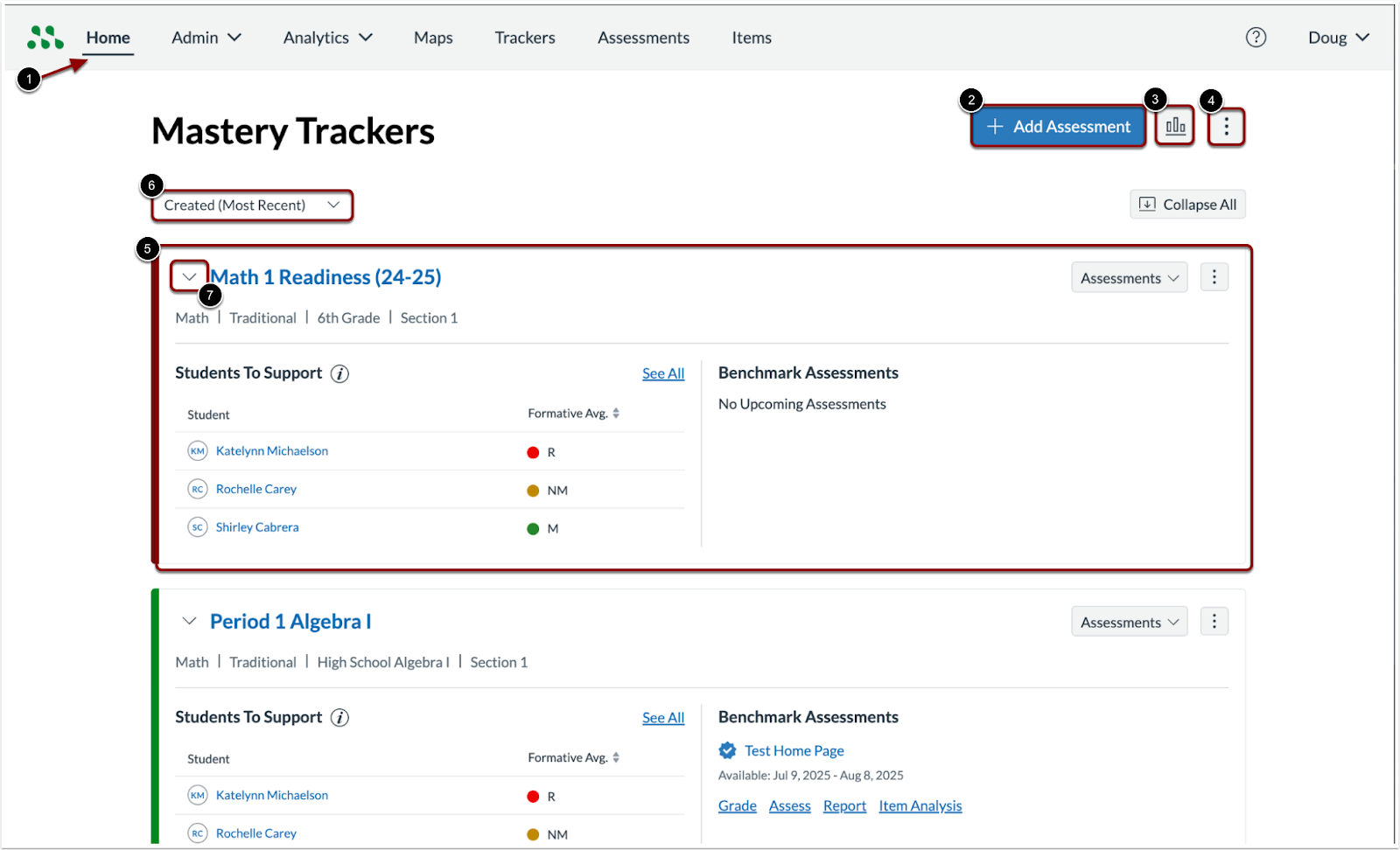
Mastery Trackers Home Page
To view the Home Page, click the Home tab. To create an assessment, click the Add Assessment button [2]. To view the Overview Dashboard, click the Reports button [3]. To create a tracker, click the Options menu [4] and select the Create Tracker option. Trackers are displayed as tracker cards [5] and can be sorted by name or creation date using the drop-down menu [6]. Additionally, cards can be collapsed or expanded using the arrow icon [7], with up to 5 shown per page.
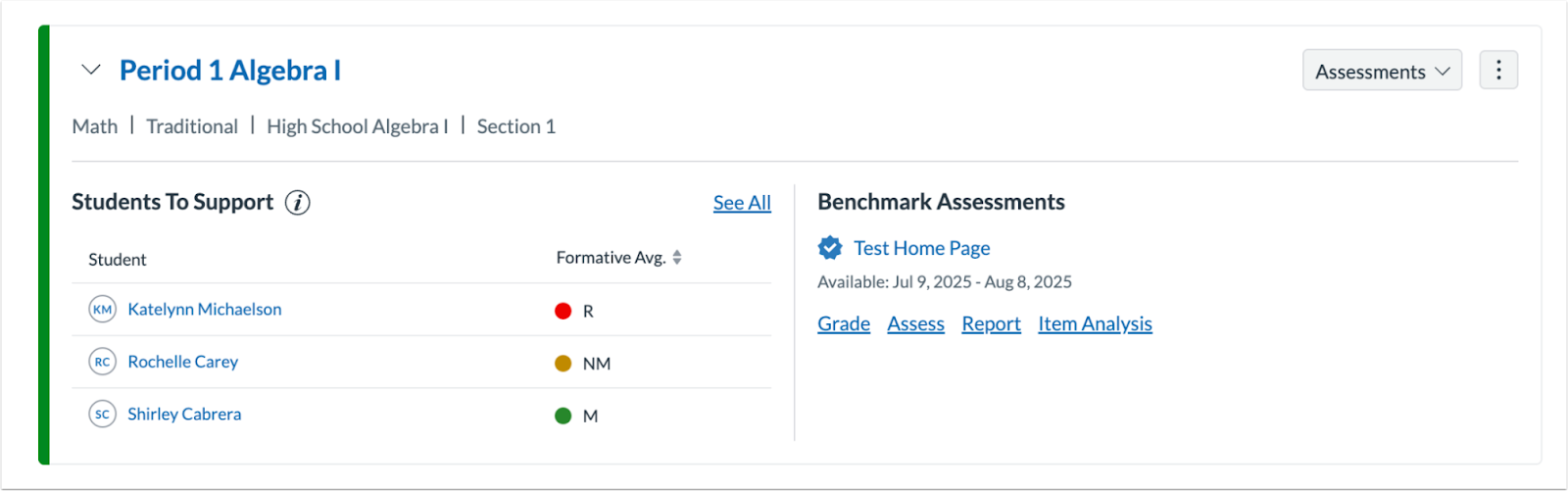
Tracker Card
A tracker card provides tracker details and allows access to the tracker, creation of assessments, and viewing of the tracker’s assessment list.

Tracker Card Options Button
To edit or archive the tracker, Click the Options button.
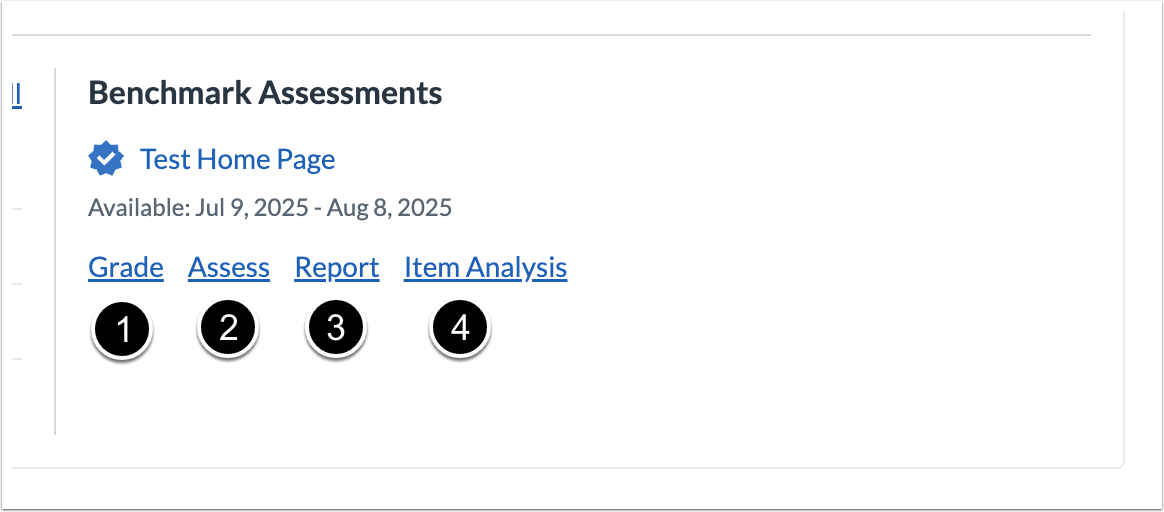
Benchmark Assessment
In the Tracker Card Benchmark section, benchmarks visible to the tracker are displayed. Depending on the state, options to Grade [1], Assess [2], view results in a Report [3], or view Item Analysis [4] are available. Up to two benchmarks display at a time.
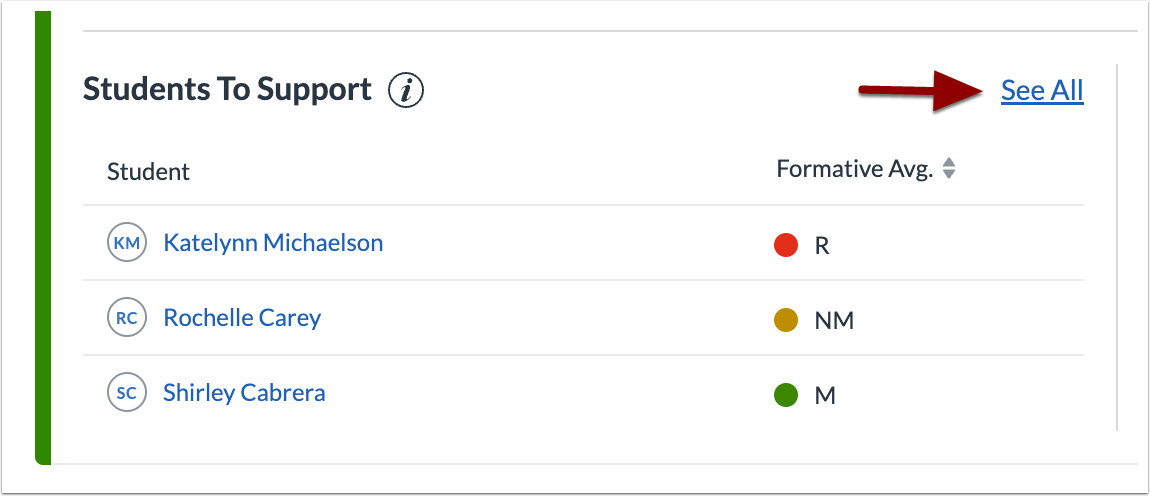
Students to Support Section
The Students to Support section displays up to 3 students, sorted by average proficiency based on either formative Mastery Results or District Benchmark Results. To view more students, click the See All link.
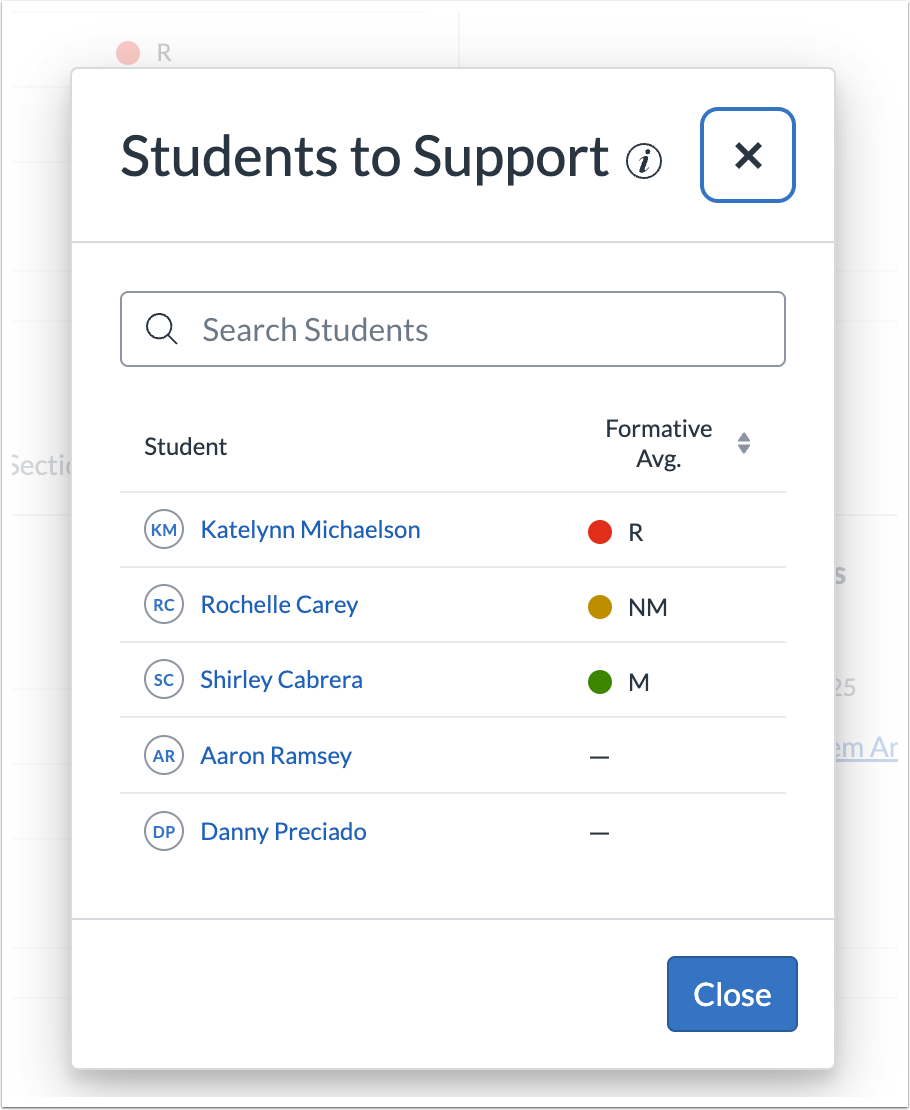
Students to Support Modal
The Students to Support modal displays all students in the tracker, sorted by average proficiency based on either formative Mastery Results or District Benchmark Results. The modal includes a search function to find students by name. If the tracker contains multiple sections, filtering by section is available. Currently, only Canvas-linked trackers support multiple sections.