At Impact, we are always happy to provide you with tips and tricks to make your life a bit easier. One such tip is to use campaigns to track your data insights. Here are some potential uses to track a targeted audience using tools within your LMS:
- Track custom user group with a specific tool such as first-year instructors using rubrics
- Monitor students at risk using popular tools (Grades, Files, Syllabus etc.)
- Following faculty cohort who completed a training workshop on a particular tool (Discussions, etc.)
Ready to Get Started?
Setting up a campaign to monitor your data is simple. Just use the following steps or follow along with the example.
- Open your Impact Expert Dashboard on app.eesysoft.com
- Click on the Campaigns tab, then select “Add Campaign”
- Create a name and intention for your Campaign (such as Faculty Training SP 2022 - Discussions)
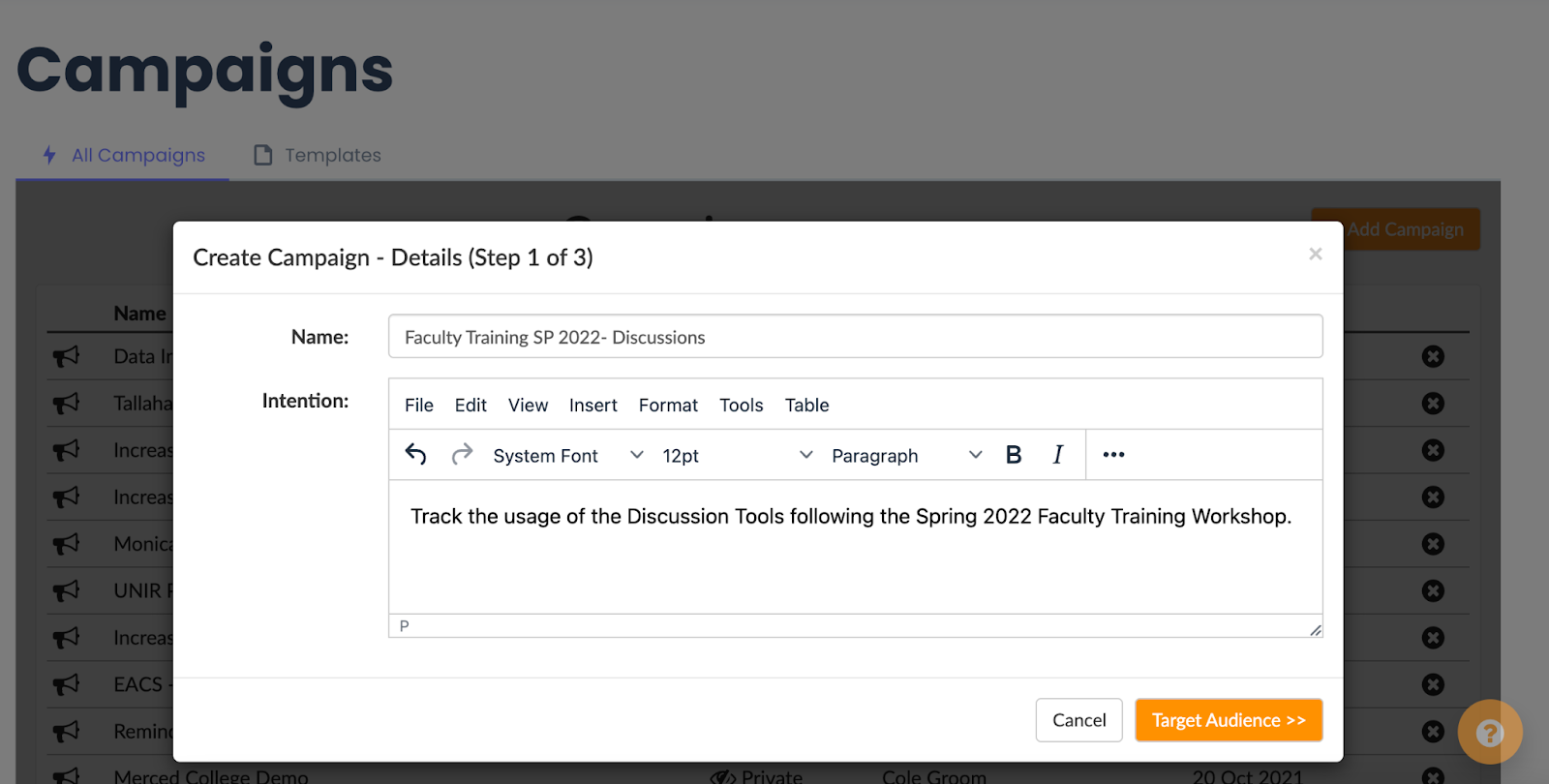
- Continue to “Target Audience.” Add people by role, filter, custom user group, or add individuals (in the example case, we would create a custom user group of faculty that attended the Discussions Training Session).
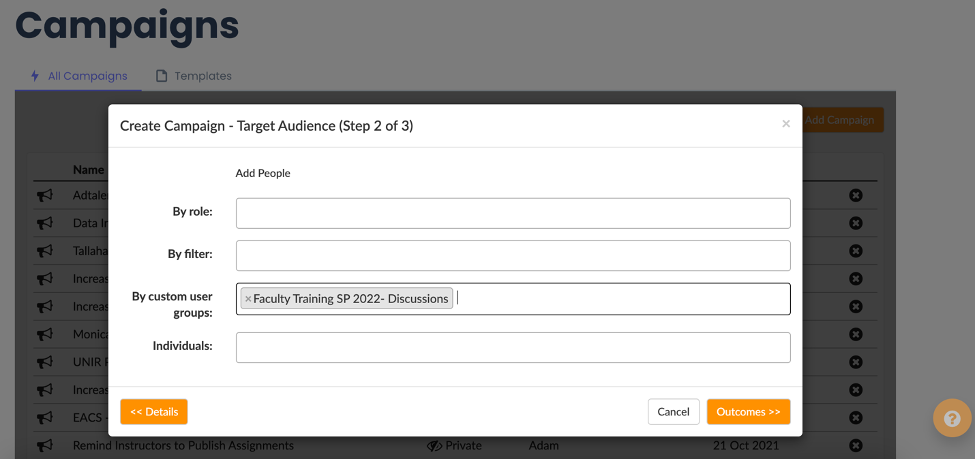
- Select Outcomes. Choose tools that you would like to see tool adoption statistics (such as “Instructor / Collaboration and Communication/ Discussions).

- Click Save, then Share Campaign, and Start Campaign.

- Monitor tool adoption by clicking Average Tool Adoption “View More.”
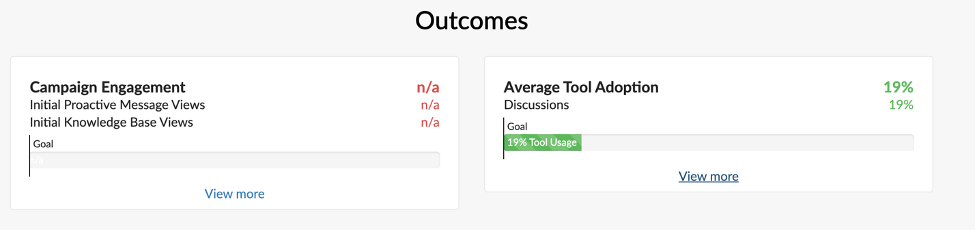
- View and discover your Insights Data.
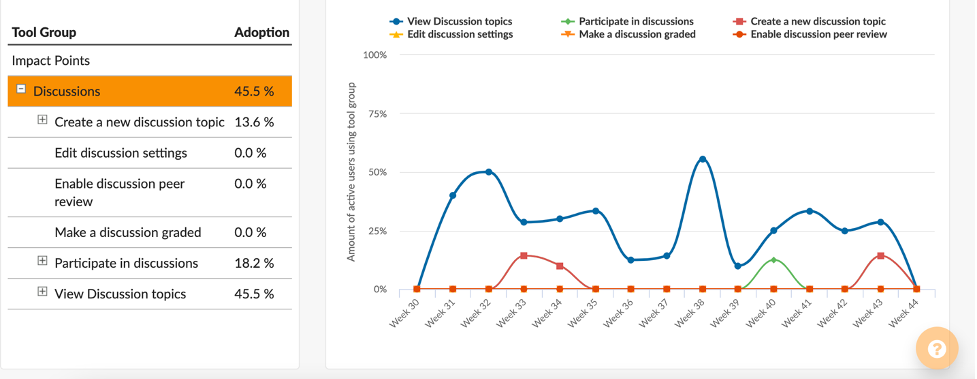
Of course, you can always add/edit the campaign as needed.
*Please note that the Tool Insights will begin grabbing data before the campaign is started--- however, the tracking starts at campaign creation.
If you would like assistance putting together a campaign to track your specific data insights, contact your Customer Success Manager! Or if you have fantastic use cases doing something similar, please share with the Impact team.