Canvas deploys contain code changes that are intended to fix bugs, improve performance, and prepare for new features. These deploys take place every two weeks and can be tested in the beta environment before the production deploy date indicated in the title of this document.
- Visit the Canvas Collaborative Roadmap to explore upcoming work and share feedback. Your input helps guide future product development.
- For Canvas Platform Service changes (API, GraphQL, Canvas Data), please see the appropriate page in the Change Log.
- Institutions are responsible for conducting thorough evaluations of their custom CSS/JS with each release and deploy to assess potential impacts.
- Canvas Next users can visit the IgniteAI Agent Release notes to stay up to date on the latest agent updates and improvements.
- For a breakdown of what’s included in each tier, see the Canvas Tier Feature Comparison.
Unless otherwise stated, all features in this deploy are available in the Beta environment on 2026-05-07 and the Production environment on 2026-05-20.
Updated Features
SpeedGrader
Current Student Indicator- Instructor
Feature Option Name to Enable | Performance and Usability Upgrades For Speedgrader
See the Canvas Feature Option Summary to learn more about Feature Options. |
|---|
Enable Feature Option Location & Default Status | Account (Enabled/Unlocked) |
|---|
Subaccount Configuration | No |
|---|
Account/Course Setting to Enable | None |
|---|
Permissions | Inherent to user |
|---|
Affects User Interface | Yes |
|---|
Affected Areas | SpeedGrader |
|---|
Summary
In SpeedGrader, the student drop-down menu includes an indicator showing which student is currently being viewed.
Change Benefit
Improved navigation clarity: Helps instructors quickly identify the currently selected student in SpeedGrader, making it easier to navigate submissions and reducing confusion when switching between students.
Feature Workflow

An indicator displays the currently viewed student name.
New Quizzes
Improved Quiz Accommodation Tray - Instructors [Delayed as of 2026-05-20]
This feature is currently delayed in production and will be included in a future deploy.
Feature Option Name to Enable | New Quizzes
See the Canvas Feature Option Summary to learn more about Feature Options. |
|---|
Enable Feature Option Location & Default Status | Account (Disabled/Unlocked) |
|---|
Subaccount Configuration | Yes |
|---|
Account/Course Setting to Enable | None |
|---|
Affects User Interface | Yes |
|---|
Affected Areas | New Quizzes |
|---|
Summary
The quiz accommodation tray in New Quizzes has been redesigned for clarity and ease of use. Instructors can apply time adjustments and reopen a student's quiz attempt in a single action. The tray also shows a real-time breakdown of all time sources, the base quiz time, any course-level accommodations, and the quiz-level adjustment, so instructors always know what the student's total allowed time will be before saving.
Notes:
- If a student is actively taking the quiz, the tray targets that in-progress session and will not reopen a previously graded one.
- If the quiz is past its due date, all accommodation fields are disabled. A message explains why no changes can be made.
- If granting extra time would push the student's completion past the due date, an informational warning is shown. The action is not blocked.
Change Benefit
- Streamlined Workflow: Combines time adjustments and attempt reopenings into a single action, eliminating the need to complete two separate steps in the correct order.
- Reduced Errors: Adds a confirmation step and surfaces the total allowed time upfront, so instructors can verify changes before saving.
Feature Workflow

In the quiz accommodation tray, open the Time adjustments dropdown menu [1] and click the Give additional time option [2]

The Total allowed time field [1] updates in real time as you adjust the time setting, showing the combined total from the quiz base time [2], any course-level accommodation [3], and the quiz-level adjustment [4] you're making.
The primary action button options [5] reflect the current state:
- Apply & Reopen — saves time changes and reopens the attempt (shown when the session is in a graded state and time settings were changed)
- Reopen — reopens the attempt without changing time settings (shown when the session is in a graded state and no time settings were changed)
Apply — saves changes only, without reopening (shown when reopen is not applicable)
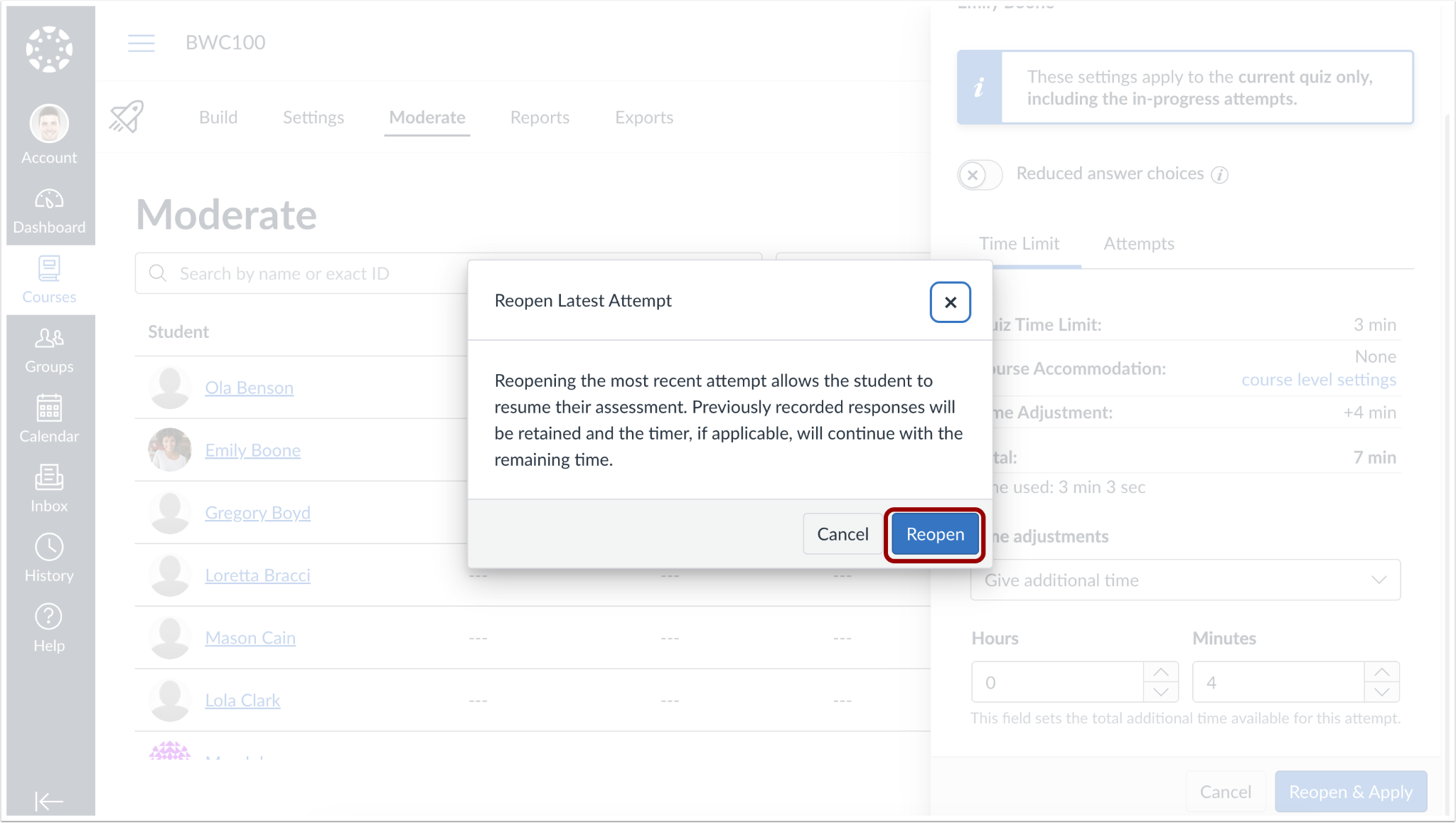
When clicking any Reopen button, a confirmation dialog appears. To proceed, click the Reopen button. The student's previous responses are retained and they can resume the attempt.
Other Updates
Notifications
User-Generated API Key Expiration Warning- All Users
Feature Option Name to Enable | N/A |
|---|
Enable Feature Option Location & Default Status | N/A |
|---|
Subaccount Configuration | N/A |
|---|
Account/Course Setting to Enable | None |
|---|
Permissions | Inherent to user |
|---|
Affects User Interface | No |
|---|
Affected Areas | Email Notifications |
|---|
Summary
Users with user-generated API keys receive an email warning 7 days before their token expires.
Change Benefit
- Improved API key management: Helps users avoid unexpected service interruptions by providing advance notice before token expiration, allowing time to generate a new key and maintain existing integrations.