This article is a copy of the original Canvas LMS Deploy notes and should be used for viewing translated versions only. To view the original copy in English and participate in release notes discussions for this release, please view the original Canvas LMS Release notes.
Canvas deploys contain code changes that are intended to fix bugs, improve performance, and prepare for new features. These deploys take place every two weeks and can be tested in the beta environment before the production deploy date indicated in the title of this document.
Unless otherwise stated, all features in this deploy are available in the Beta environment on 2026-04-09 and the Production environment on 2026-04-22.
Updated Features
Account Settings
Suppress Notification Setting- Admin
Feature Option Name to Enable | N/A |
|---|
Enable Feature Option Location & Default Status | N.A |
Subaccount Configuration | N/A |
Account Setting to Enable
| Suppress notifications from being created and sent out |
Permissions | Account-level settings-manage |
Affects User Interface | Yes |
Affected Areas | Account Settings |
Summary
In Root Account Settings, a Suppress notifications from being created and sent out checkbox is available. This setting lets admins suppress all notifications or select specific categories to suppress for all users.
Note: This setting is disabled by default.
Change Benefit
- Improved communication management: Admins can prevent unnecessary notifications, helping reduce inbox clutter and ensure users only receive relevant messages.
Feature Workflow

- Select the Suppress notifications from being created and sent out checkbox [1].
- Choose All notifications [2] or Specific categories only [3].
- If Specific categories only is selected, click the Choose categories button [4].
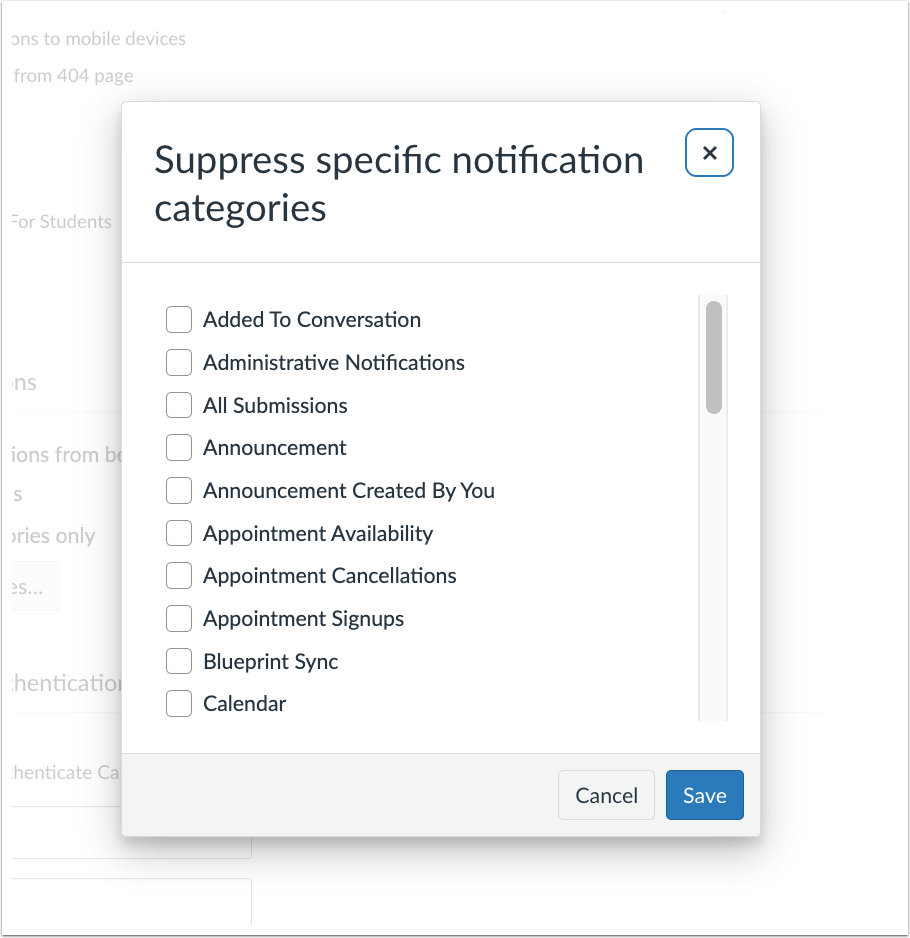
Admins can choose which notification categories to suppress.
New Quizzes
Partial Credit for Categorization Question Type- Instructor, Student
Feature Option Name to Enable | New Quizzes
See the Canvas Feature Option Summary to learn more about Feature Options. |
|---|
Enable Feature Option Location & Default Status | Account (Disabled/Unlocked) |
Subaccount Configuration | Yes |
Account/Course Setting to Enable | None |
Permissions | Name of Permission relevant to feature area |
Affects User Interface | Yes |
Affected Areas | New Quizzes |
Summary
Automatic partial credit scoring is available for Categorization question types.
- Student scores are calculated based on the total number of correct decisions rather than all-or-nothing scoring.
- Correct decisions include placing items in the correct category and correctly leaving distractor items unplaced.
Change Benefit
Improved grading accuracy: Partial credit scoring allows instructors to award points for correct categorization decisions, providing a more precise measurement of student understanding.
Feature Workflow

When building a Categorization question, the Grading section [1] displays in the Options drop-down menu. For descriptions of each grading option, click the Tooltip icon [2].

When partial credit is used, students can see the partial credit awarded for each question [1], and the total score is automatically calculated based on those partial points [2].
People
Temporary Enrollment Banner- All Users
Feature Option Name to Enable | Temporary Enrollments
See the Canvas Feature Option Summary to learn more about Feature Options. |
|---|
Enable Feature Option Location & Default Status | Account (Disabled/Unlocked) |
Subaccount Configuration | Yes |
Account/Course Setting to Enable | N/A |
Permissions | Users-Temporary Enrollments |
Affects User Interface | Yes |
Affected Areas | People |
Summary
On the People page, a user’s temporary enrollment status displays as a banner in the Name column. Banner statuses include:
- Temporary-Active
- Temporary-Future
- Temporary-Inactive
- Temporary-Completed
Change Benefit
- Improved visibility: Users’ temporary enrollment status is clearly displayed as a banner, making it easier for admins to identify and manage temporary enrollments at a glance.
Feature Workflow

A user’s enrollment status displays as a banner on the course People page.
Other Updates
DocViewer/SpeedGrader
Allow annotating on rotated pages- Instructor
Beta Environment Availability | 2026-03-26 Note: This date falls outside the regular beta release cadence. |
|---|
Account/Course Setting to Enable | N/A |
Permissions | N/A |
Related APIs | N/A |
Affects User Interface | Yes |
Affected Areas | DocViewer, SpeedGrader |
Summary
When annotating in SpeedGrader, pages can be rotated before annotations are added.
- Students view annotations in the orientation selected by the grader.
- After an annotation is added to a page, the page cannot be rotated unless the annotation is removed.
Change Benefit
- Improved grading efficiency: Instructors can rotate incorrectly oriented submission pages before adding annotations, making it easier to review and provide feedback without workflow interruptions.
Notifications
Suspended User Notifications- All Users
Affects User Interface | No |
|---|
Affected Feature Areas | Email |
Summary
When a user’s account is locked due to multiple failed login attempts, they receive an email notification informing them of the suspension.
Change Benefit
- Improved awareness: Users are notified when their account is suspended, helping them understand why access is restricted and when action may be needed.
Reports
Enrollments Provisioning Report Update- Admin
Affects User Interface | No |
|---|
Affected Feature Areas | Reports |
Summary
Deleted temporary enrollments are included in the Enrollments Provisioning report when the Include Deleted/Concluded Objects option is selected. Previously, this information was only available via API.
Change Benefit
- Improved data visibility: This update provides administrators with easier access to enrollment lifecycle data without requiring API calls.