Your institution may configure grade passback (GPB) from Canvas to Aspire. As an instructor, you can sync gradebook information from Canvas to your Aspire gradebook. When you sync your Canvas gradebook to your SIS, grades and assignments specified for SIS sync and included in a matching assignment group automatically display in your Aspire gradebook.
GPB Guidelines and Restrictions
- An assignment name must be 30 characters or fewer.
- The course and any assignments must be published.
- Assignments must include an "Everyone" or "Everyone Else" due date.
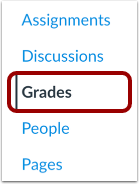
Open Grades
In Course Navigation, click the Grades link.
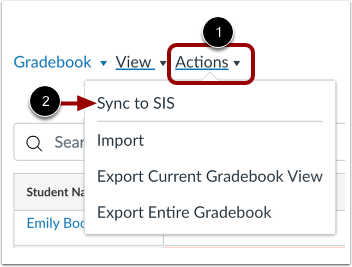
Open Sync to SIS
In the course Gradebook, click the Actionsmenu [1]. Then select the Sync to SIS option [2]. This will sync any grades that have been changed in the Gradebook within the last 30 days.
Review Grade Sync Request
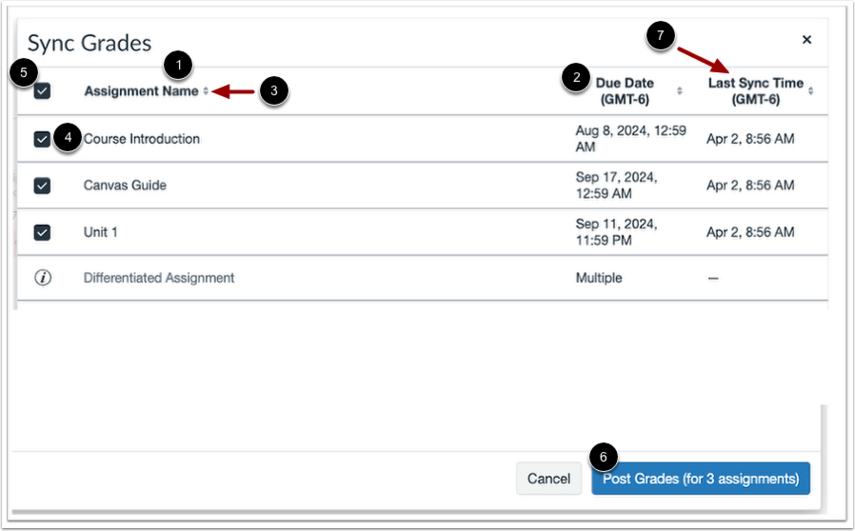
From the Sync Grades modal, you can review and modify the assignments and grades included in your grade sync request.
View a list of all assignments set up for SIS sync, including the assignment name [1] and due date [2]. To sort the list by ascending or descending name or date order, click the header Sort icon [3].
By default, all assignments are selected for SIS sync. To deselect an assignment, click the assignment checkbox [4]. Alternatively, you can deselect all assignments by clicking the Assignment Name checkbox [5]. Deselected assignments are not included in the SIS sync.
To sync grades, click the Post Grades button [6].
Note: Grade sync exchanges process only updated grade results. Assignments with no changes since the last sync are marked as successful, but no grade data is sent. The Last Sync Time [7] column displays for each assignment in the sync modal.
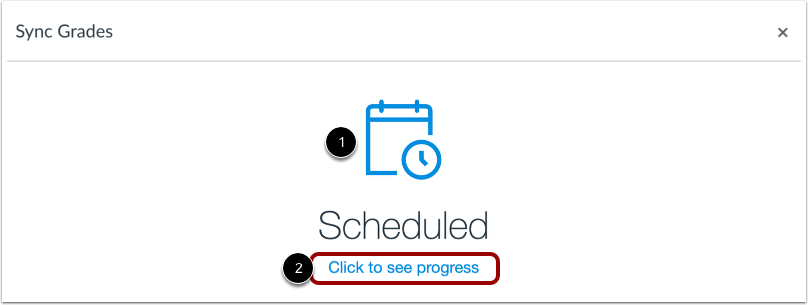
View Grade Sync Progress
After posting grades, Sync Grades displays a Scheduled notification [1]. To view grade sync progress in your course, click the Click to see progress link [2].