As an instructor, you can share individual quizzes in your course with other instructors at your institution. You can also copy an individual quiz into another course. When you share a quiz, any assets within that quiz (images, files, etc.) will be included in the shared file.
Notes:
- To share course content, you must have the Course Content - add / edit / delete permission enabled.
- Shared content does not count against course or user quotas.
- You can use the Send to feature to send course content to yourself.
View the video transcript
00:05: How do I send a quiz to another instructor?
00:08: In Course Navigation,
00:08: click the Quizzes link.
00:11: Locate the quiz you wish to send, then click the quiz Options icon. Select the Send
00:16: To option.
00:18: To send your quiz to another instructor, click or type in the Send to field.
00:23: Then click the name of the instructor to receive your quiz.
00:27: You can view all selected recipients in the Send to field. To remove a recipient,
00:32: click the Remove icon.
00:34: Click the Send button.
00:36: Canvas displays a notification when content sends successfully.
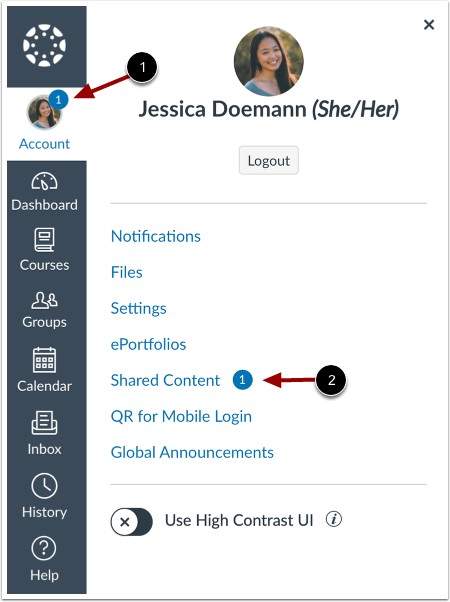
00:41: When an instructor receives shared content, a badge displays on the users's Account
00:45: icon and in the Shared Content link.
00:48: This guide covered how to send a quiz to another instructor.
Open Quizzes
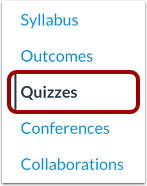
In Course Navigation, click the Quizzes link.
Open Quiz Options
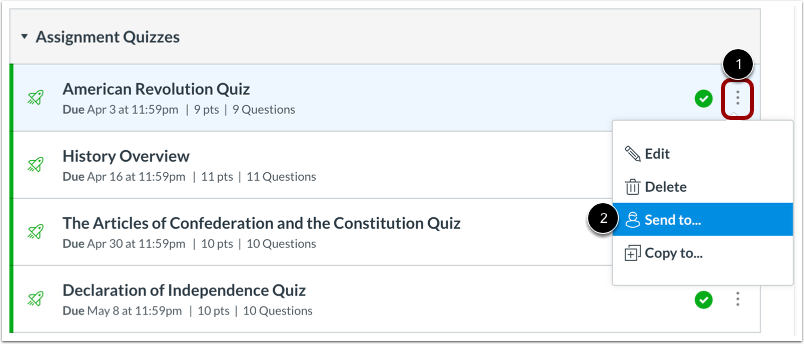
Locate the quiz you wish to send, then click the quiz Options icon [1]. Select the Send To... option [2].
Select Recipient
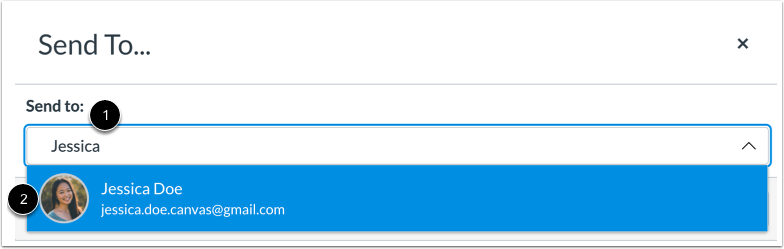
To send your quiz to another instructor, click or type in the Send to field [1]. Then click the name of the instructor to receive your quiz [2].
Note: You can send the quiz to multiple instructors at one time.
View Recipients
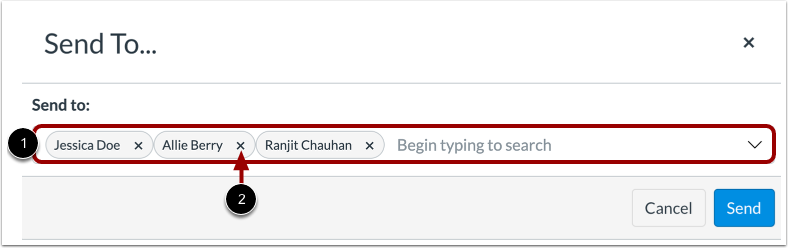
You can view all selected recipients in the Send to field [1].To remove a recipient, click the Remove icon [2].
Note: To share the quiz to yourself, add your name to the Send to field.
Send Quiz
Click the Send button.
View Sent Notification
Canvas displays a notification when content sends successfully.
View Shared Content
When an instructor receives shared content, a badge displays on the users's Account icon [1] and in the Shared Content link [2].
Learn how to manage received content.