External apps that support LTI 1.3 and LTI Advantage require configuration using a client ID. To find the client ID, talk to your Canvas Admin.
Note: Manually configuring an external app is an account permission. If you cannot configure an external app, this permission has not been enabled for your user role.
View the video transcript
00:07: How do I configure an external app for a course using a client ID?
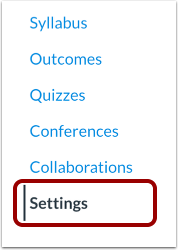
00:12: In Course Navigation, click the Settings link.
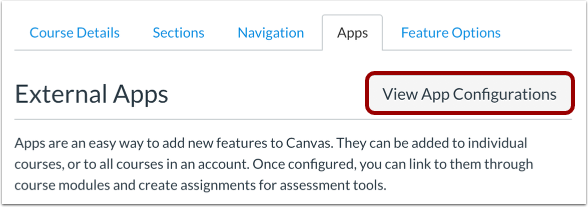
00:16: Click the Apps tab.
00:18: To configure an app, click the View App Configurations button.
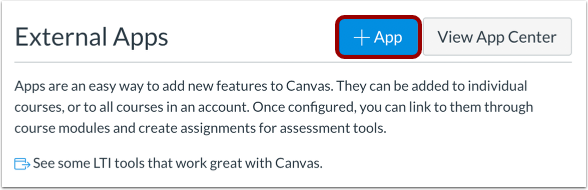
00:23: Click the Add App button.
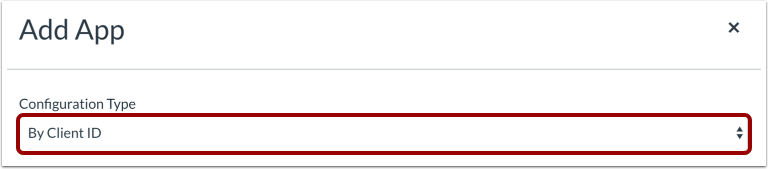
00:26: Select the Configuration Type drop-down menu and set the configuration type to By Client ID.
00:32: Enter the client ID in the Client ID field
00:36: Then click the Submit button.
00:39: If the submitted client ID is not found in your account's developer keys, Canvas will display an error message.
00:46: To install the app, click the Install button.
00:50: View your app.
00:51: To manage the app, click the Settings icon. To manage where the app displays in Canvas, click the Placements link.
00:59: To view the Deployment ID for the app, click the Deployment ID link. To delete the app, click the Delete link.
01:07: This guide covered how to configure an external app for a course using a client ID.
Open Settings
In Course Navigation, click the Settings link.
Open Apps
Click the Apps tab.
View App Configurations
To configure an app, click the View App Configurations button.
Add New App
Click the Add App button.
Set Configuration Type
Select the Configuration Type drop-down menu and set the configuration type to By Client ID.
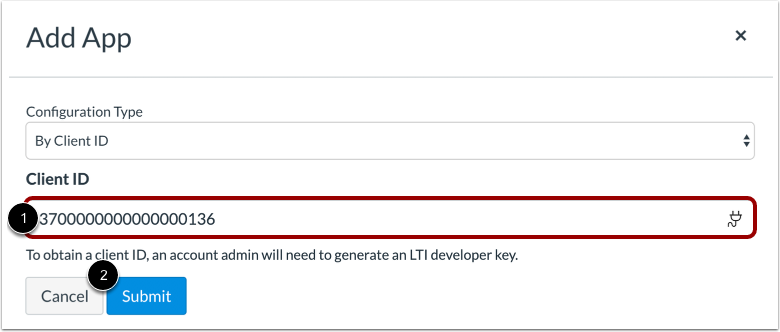
Enter Client ID
Enter the client ID in the Client ID field [1].
Then click the Submit button [2].
Note: If you do not have a client ID, contact your Canvas Admin.
View Error Message
If the submitted client ID is not found in your account's developer keys, Canvas will display an error message.
Install App
To install the app, click the Install button.
View App
View your app [1].
To manage your app, click the Settings icon [2].
To edit the app, click the Configure link [3]. To manage where the app displays in Canvas, click the Placements link [4]. To delete the app, click the Delete link [5].