Once Parchment Digital Badges is added to your course, you can add badges.
Notes:
- To add a badge to a course, you need to access Canvas setup in the course you would like the badge in.
- You can import badges and pathways into a new course from a previous course. However, you cannot use the Select Specific Content feature to copy badges and pathways and Groups are not copied to the new course.
Open Setup
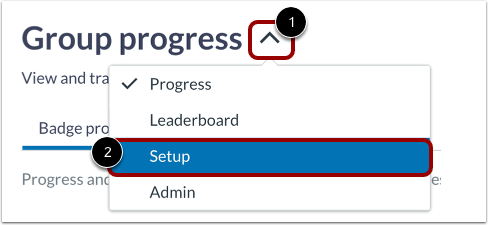
In the Group drop-down menu [1], click the Setup link [2].
Add Badge
To add a badge to your course, click the Add badge button.
Create Badge
To create a new badge, click the Options icon [1] and then click the Create New Badge link [2].
Add Badge Essentials
Enter a name in the Name field [1].
Enter a summarized description in the Description field [2].
Add a badge image using the file uploader [3]. A generated alt text displays. To edit Alt Text, click the Edit link [4].
To add an achievement type, select from the Achievement Type drop-down [5].
To have your badge show on your issuer and organization public pages, click the Show on issuer and organization public pages checkbox [6].
To add an earning criteria description, enter a description [7].
To preview your badge, click the Preview link [8].
To add a criteria URL, enter the URL in the Criteria URL field [9].
To add job-relevant skills that align with your badge, select from the suggested skills in the Add Skills field [10]. If IgniteAI Skill Suggestions is enabled for your organization, you can add AI-Recommended skills.
To add tags that can help people find your Badge, enter relevant keywords in the Add tag field [11].
To make the badge remain valid forever, select the Does not expire radio button [12]. To add an expiration, select the Automatically expires radio button [13]. Enter the expiration duration [14], and select the time unit for the expiration [15].
Note: Tags are limited to 50 characters. To add tags quickly, press Enter after typing each tag. This adds the tag immediately without requiring you to save the badge.
Add Additional Information
Click the Additional Info tab [1]. You can add Custom Badge Properties to appear on your badges [2]. To provide details on how to earn the badge, click the Add Additional Detail button [3].
When OB3 is enabled at the organization level, an OB3.0 Specific Details section displays. Issuers can optionally complete any of the additional fields [4].
For more details related to the fields, click the Learn More link [5].
To align a badge with published educational standards, click the Add Alignment button [6].
Enable Assessments Extension
To enable the assessment extension, click the Questions and grading tab [1], and click the Enable Assessments Extension checkbox [2].
Manage Print Certificate
To manage what the print certificate looks like, click the Print Certificates tab [1].
To view other templates, click the collapsible sections [2].
To allow recipients to use the template for printing, click the Enable template checkbox [3].
To set your chosen template as default, click the Set as default button [4].
To apply the changes, click the Save changes button [5].
Create Badge
To save your badge, click the Create badge button.
Select Award Type
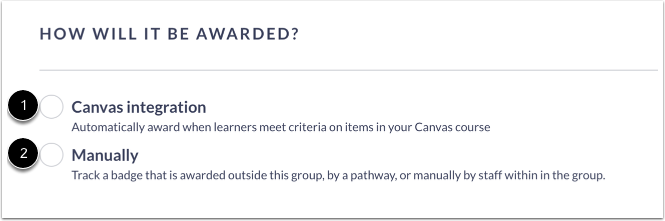
To award a badge based on criteria in your Canvas course, click the Canvas integration radio button [1].
To award a badge manually, click the Manually radio button [2].
Specify Requirements
If you choose the Canvas Integration award type, you can select which course item is required to complete the badge. Click the Course item drop-down menu [1].
To specify how many points a learner will receive on the leaderboard, enter a point number on the Leaderboard points field [2].
To have learners submit evidence for completion, click the Evidence required for Completion checkbox [3].
You can also select the type of trigger for the badge [4].
To award the badge as soon as the requirements are met, click the Award the badge as soon as the requirements are met radio button [5].
To set a date trigger for badge awarding, click the Set date trigger for badge awarding radio button [6].
Add Badge
To add your badge to your course, click the Add badge button.