Instructors can add manually awarded badges to a Group in order to track badges that are awarded outside the group.
Note: You can access the Group setup in a Canvas course or through the Issuers in Parchment Digital Badges.
Open Group Setup in Canvas Course
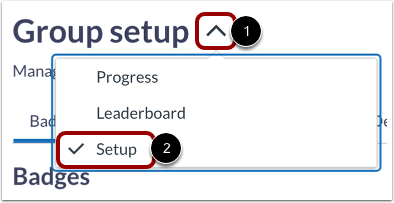
In the Group setup drop-down menu [1], click the Setup link [2].
Note: This interface applies when accessing Group setup within a Canvas course.
Open Group Setup in Parchment Digital Badges
In Parchment Digital Badges, click the Issuers tab [1]. Then, select an issuer [2].
Click the Groups tab [1]. Then, select an issuer group [2].
Note: This interface applies when accessing Group setup within Parchment Digital Badges.
Add Badge
To add a badge requirement to the group, click the Add Badge button.
Choose Badge
Select a badge from the list.
Choose Manual Awarding
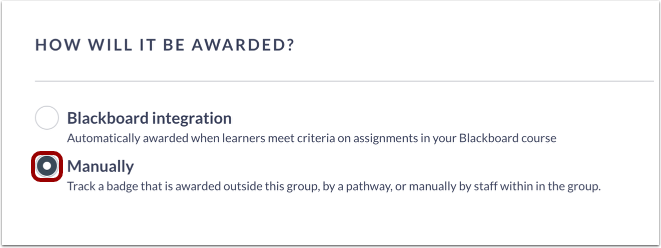
To award the badge manually, click the Manually radio button.
Note: This section is hidden for manually created groups.
Specify Requirements
You can enter a label and description of the badge requirements. The description field supports markdown.
Add Staff Note
You can add a note to help staff evaluate the learner's work required to earn this badge. The Staff Notes field supports markdown.
Add Automatic Recipient Enrollment
When adding a badge within a manually created group, click the Automatically add recipients to this group checkbox [1]. Enter the required start date [2], then add an optional end date [3].
When you have finished entering information about the badge requirements, click the Add badge button.
View Group Badge Requirements
The badge displays in the All badges tab [1], and the requirement label displays in the Requirement column [2].
Note: When accessing Group setup in Parchment Digital Badges, the badge list displays in the Badges tab.