00:05: How do I manage Canvas password requirements and login attempts for an account?
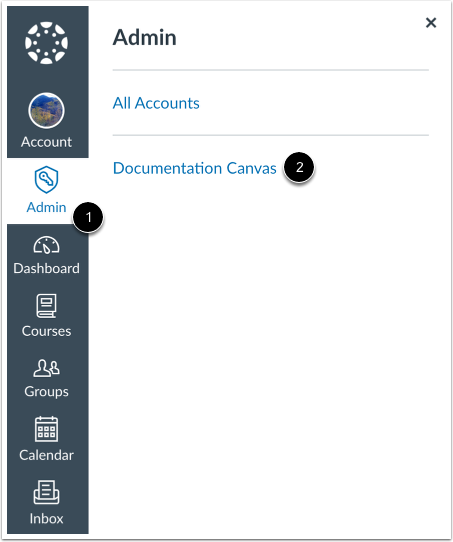
00:09: In Global Navigation, click the Admin link, then click the name of the account.
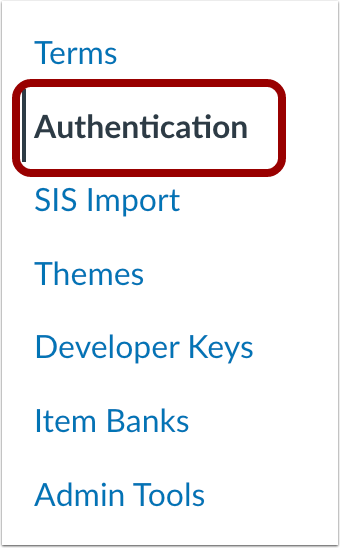
00:15: In Account Navigation,
00:16: click the Authentication link.
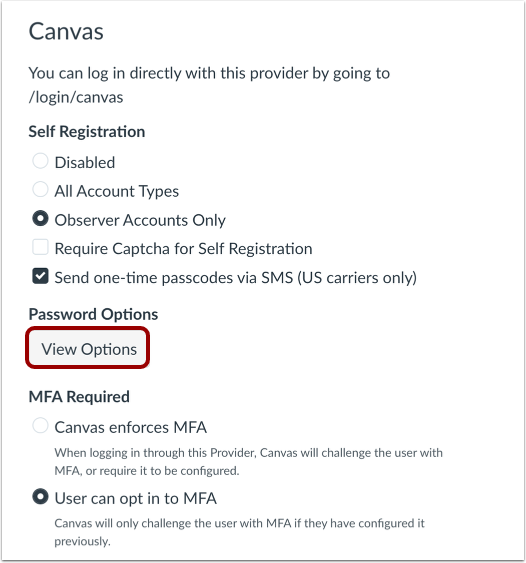
00:19: In the Password Options section of Authentication Settings, click the View Options
00:23: button.
00:25: In the Password Options tray, you can view the current password requirements, edit
00:29: password requirements, and manage login attempts.
00:33: By default, user passwords must include a minimum number of eight characters. To
00:39: increase the minimum number of characters required in passwords, keep the Minimum
00:43: character length checkbox enabled.
00:45: Then, enter a number in the minimum character length field or click the up and down
00:50: arrows.
00:50: (The minimum character length must be at least eight and no greater than 255).
00:57: To allow passwords of any length,
00:59: click the Minimum character length checkbox to disable the length
01:03: requirement.
01:04: To require user passwords to include numbers,
01:07: click the Require number characters (0...9) checkbox.
01:12: To require user passwords to include symbols,
01:15: click the Require symbol characters checkbox.
01:19: By default, some words/terms are forbidden; users cannot include them in their passwords. To
01:23: view a list of the common passwords, click the common password list link. To
01:28: add
01:29: your own words/terms to the
01:31: default list of forbidden words/terms, click the Use custom forbidden words/terms list checkbox. Create a
01:36: TXT file containing one word/term
01:38: per line. Then, click the
01:40: Upload button and select the text file.
01:46: text file.
01:48: When a user exceeds the maximum number of login attempts, their account is
01:51: suspended for five minutes.
01:54: After five minutes, the user can try to log in again, but the user is not allowed
01:59: more than 20 attempts.
02:02: By default, a single user is allowed ten unsuccessful consecutive login attempts. When
02:08: a user's account is locked due to multiple failed login attempts, they receive an
02:13: email notification informing them of the suspension.
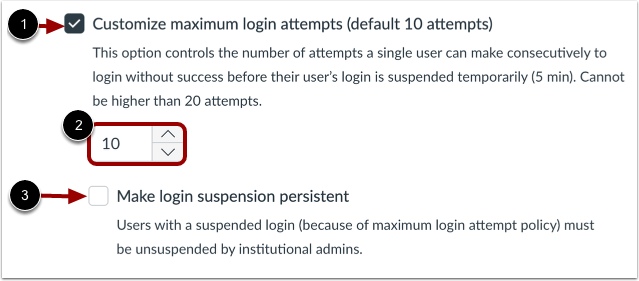
02:18: To change the maximum number of allowed attempts
02:20: before an account is suspended, click the Customize maximum login attempts
02:25: checkbox.
02:26: Then, enter a number in the Maximum Login Attempts field or click the up and down
02:32: arrows.
02:33: To require suspended accounts to be unsuspended by an institution admin,
02:38: click the Make login suspension persistent checkbox.
02:42: Click the Apply button.
02:44: A banner message confirms password setting changes.
02:48: This guide covers How to manage Canvas password requirements and login attempts
02:53: for an account.