00:05: How do I configure SSO settings for my authentication provider?
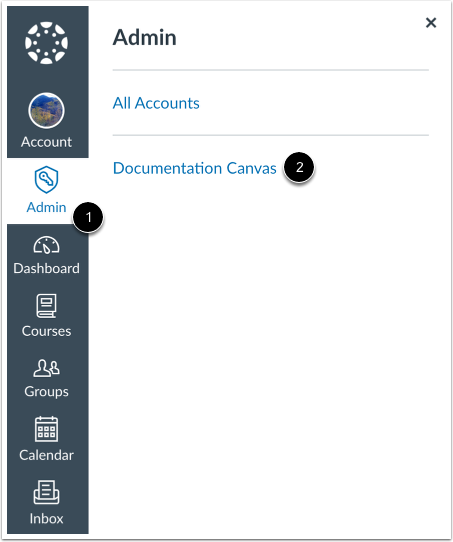
00:10: In Global Navigation, click the Admin link, then click the name of the account.
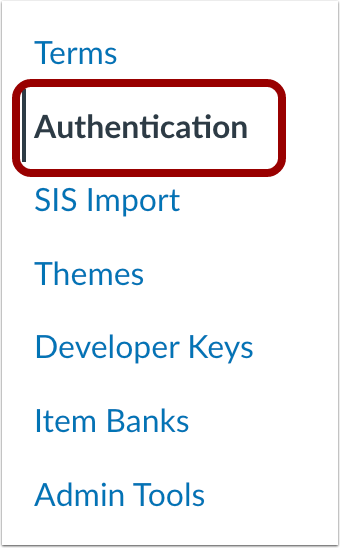
00:15: In Account Navigation,
00:16: click the Authentication link.
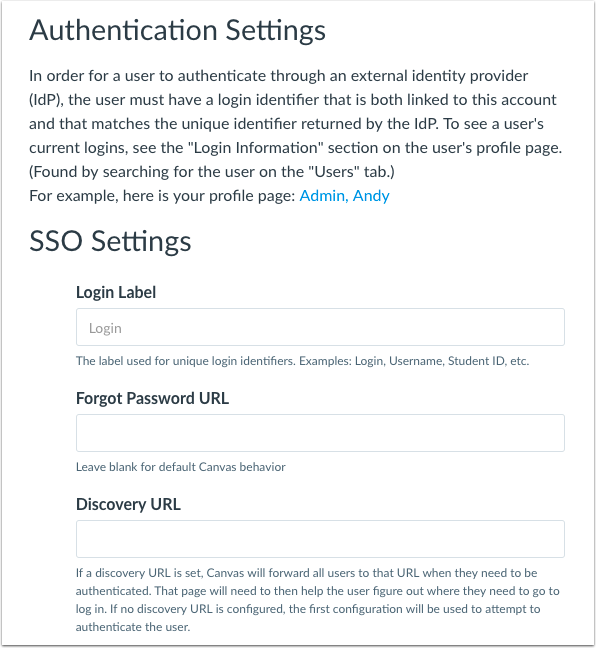
00:19: In the SSO Settings section, enter details for the appropriate fields.
00:24: In the Login Label field, you can enter a label that displays in the login page and
00:28: that students use to enter their unique
00:30: identifier. If no label is set, the login field defaults to Email.
00:35: You can enter labels such as username, student ID, etc.
00:40: In the Forgot Password URL field, you can enter the URL for your institution's
00:45: forgot password page. Leave this field blank
00:48: if you want users to view the default Canvas password reset page.
00:53: In the Discovery URL field, you can enter a URL for an authentication page,
00:57: if any. If no page is set, users are sent to the first authentication provider in
01:03: the authentication provider list.
01:05: When using a third-party authentication provider, you can also enter a URL that redirects
01:10: users if an authenticated user is not found in Canvas.
01:15: Click the Save button.
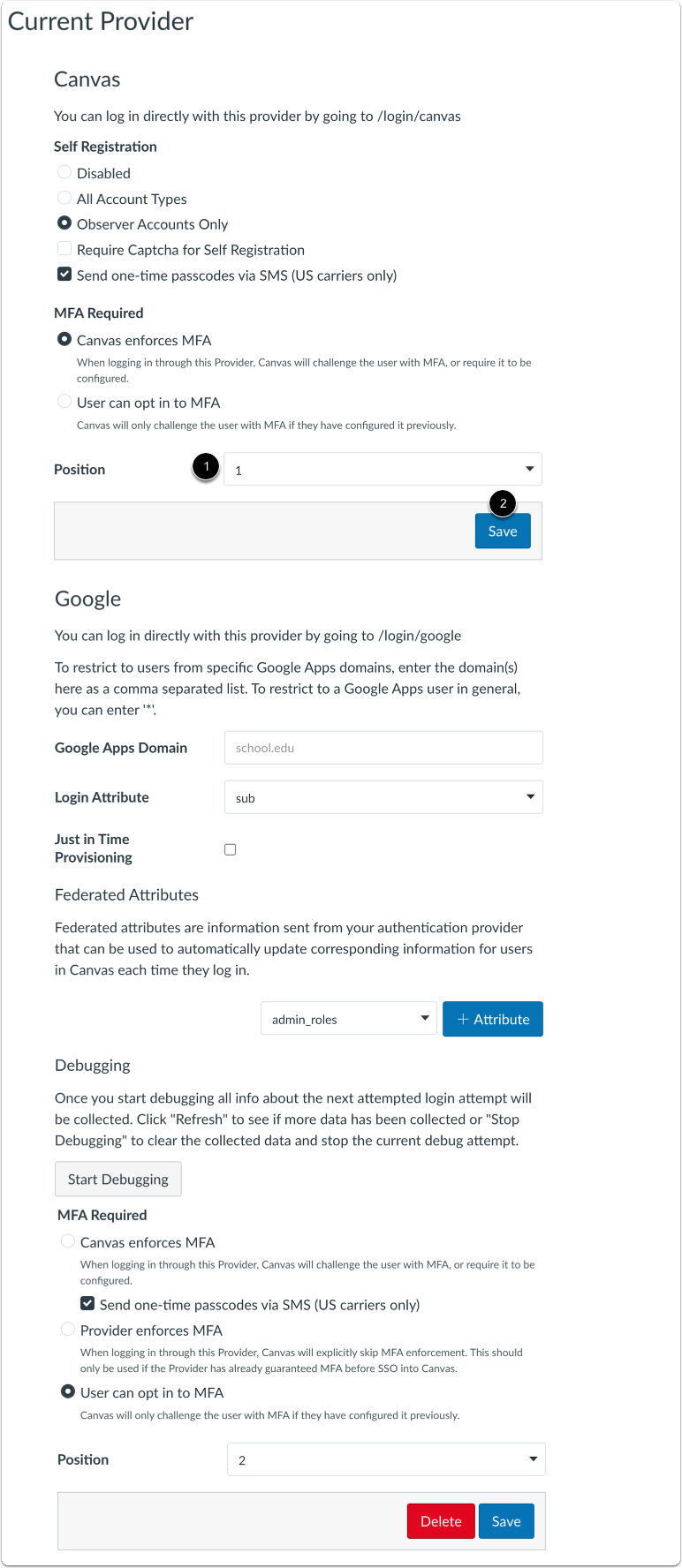
01:17: When you have more than one authentication provider in your account, Canvas
01:21: authentication defaults to the first position and is the default configuration for
01:26: the Discovery URL. To change the position of your authentication
01:30: providers, locate the provider and click the position menu.
01:34: Choose the placement number for the new position.
01:36: Then click the Save button.
01:40: This guide covers How to configure SSO settings for my authentication provider.