00:05: Once I publish a timed quiz, how can I give my students extra time?
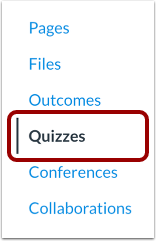
00:09: In Course Navigation,
00:10: click the Quizzes link.
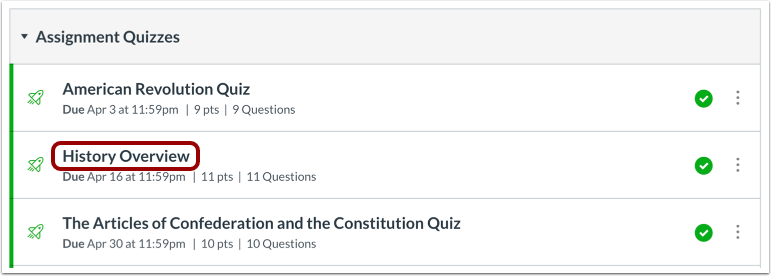
00:12: Click the name of the quiz.
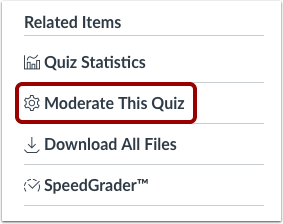
00:15: Click the Moderate
00:15: This Quiz link.
00:17: To moderate a quiz for one student, locate the student and click the Edit icon.
00:22: You can also filter students in your course by using the Search People field.
00:27: If you want to select multiple students, click the checkbox next to each of their
00:31: names.
00:33: If you want to select all students, click the top checkbox.
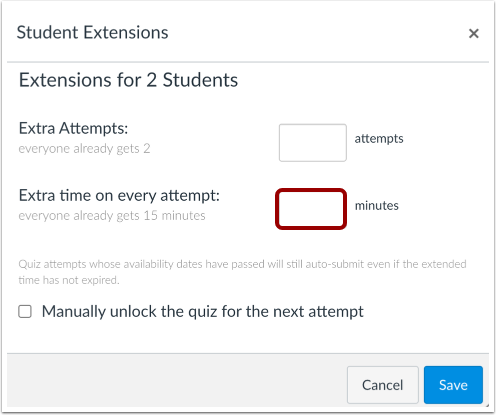
00:37: Click Change Extensions for number Selected Students button.
00:42: Type the number of extra minutes in the Extra Time on Every Attempt field. Extra
00:47: time can only be added in full-minute increments. If
00:50: you are adding time for multiple students, the student extension box will apply the
00:55: extra time for all selected students.
00:59: If the student has not taken the quiz, the extra time will be added to the student's
01:03: initial attempt and additional attempts.
01:05: Alternatively, you can give students extra attempts.
01:10: If a student is currently taking the quiz while you are viewing the Moderate Quiz
01:14: page, you can extend the quiz time as part of their current attempt.
01:19: For current attempts, the remaining time displays.
01:23: To extend the quiz time for the student, click the Clock icon.
01:28: In the Extend Quiz Time window, you can view what time the quiz began and what time
01:33: it is scheduled to end.
01:35: In the End the quiz field, enter the number of extra minutes
01:38: you want to give the student as part of their current attempt.
01:41: The maximum time you can extend a current attempt is one thousand four hundred forty minutes, or twenty-four hours.
01:49: In the minutes from drop-down menu, select whether you want to add those minutes to
01:53: the current time or the current end time.
01:55: If you want to end the quiz in relation to the current time, select the now option
02:00: in the drop-down menu.
02:03: For example, a student started a twenty-minute quiz at eleven thirty
02:07: AM. The quiz is set to end at eleven
02:10: fifty AM.
02:12: You moderated this quiz at
02:14: eleven forty AM, meaning that ten minutes have gone by. However, you want to have the quiz
02:21: end
02:21: at eleven forty-five AM. Since the current
02:24: time is eleven forty AM, you need to end the quiz in five minutes. Enter the number
02:29: five in the minutes field, and select the now option in the drop-down menu.
02:33: If you want to end the quiz in relation to the current end time of the quiz, select
02:39: the current end time option in the drop-down menu.
02:43: For example, a student started a twenty-minute quiz at eleven thirty
02:47: AM. The quiz is set to end at eleven
02:51: fifty AM. You moderated this quiz at
02:54: eleven thirty AM, meaning it was nearly the same time that the student started the quiz,
03:00: and you want to extend the quiz to end
03:03: at twelve noon. If the current end time
03:06: is eleven fifty AM and you want to extend it by ten minutes, enter the number ten
03:12: in the minutes field, and select the current end time option in the drop-down menu.
03:17: Click the Extend Time button.
03:20: Changing the time in relation to the Now option might mean that the student will
03:24: have less time than was originally on the clock.
03:28: In our example, the student still had 10 minutes remaining
03:31: when the instructor moderated the quiz. Changing the time to 5 minutes means
03:35: the student has 5 fewer minutes to take the quiz.
03:40: If you want to change this option, click the Cancel button. Otherwise, click the OK
03:45: button.
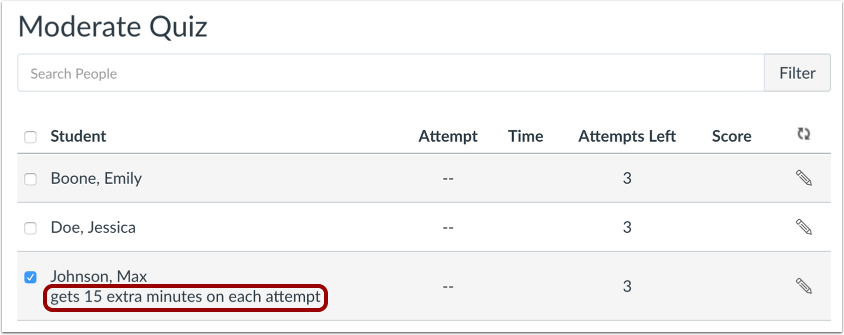
03:46: View student time extensions on the Moderate Quiz page.
03:50: This guide covered how to give students extra time on a timed quiz after you
03:54: publish it in Canvas.