As a Canvas Catalog admin, you can enable bulk purchase or enrollment for a catalog and its subcatalogs in the Catalog Info page.
Open Admin
To open the User Menu, click your username [1]. Then, click the Admin link [2].
Open Catalogs
In the navigation menu, click the Catalogs tab.
Select Catalog
To open an existing catalog, click the catalog or subcatalog name link.
View Catalog Info
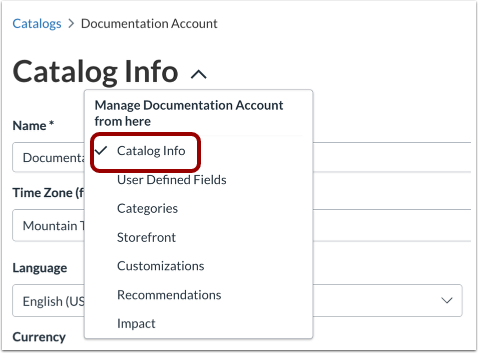
In the Catalog settings drop-down menu, the Catalog Info page displays by default.
Disable Bulk Purchase/Enrollment
In the Catalog Info page, Allow purchasing seats for others this Catalog and its subcatalogs is enabled by default. To disable bulk purchase/enrollment, click the Allow purchasing seats for others this Catalog and its subcatalogs drop-down menu [1] and select the No link [2].
Notes:
- Turning on this setting immediately enables the bulk purchase setting on all course listings under the catalog and its subcatalogs.
- Enabling bulk purchase/enrollment at the catalog level sets the default baseline for all listings, but it does not lock the setting. Subcatalog admins and listing-level managers can still disable bulk purchase/enrollment on an individual course or program listing at any time by turning off the Allow purchasing seats for others this Catalog and its subcatalogs toggle within the listings settings.
- Disabling this feature reverts the setting across all course listings and descendant catalogs — removing access to the feature from the user interface but does not restore previous states.
- If you are piloting this feature or enabling it for a limited audience, consider disabling Inherit Parent Settings in subcatalogs to manage visibility more granularly, and clearly communicate with subcatalog admins before activation.
Save Catalog Info
To save the catalog info, click the Save button.