View Parent App
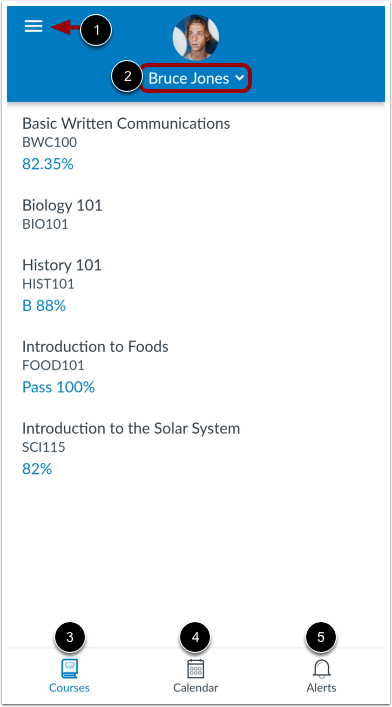
In the Canvas Parent app, you can view the User Menu [1], select a student [2], and view the student's courses [3], the student's weekly calendar [4], and alerts about the student's course participation [5].
Open User Menu
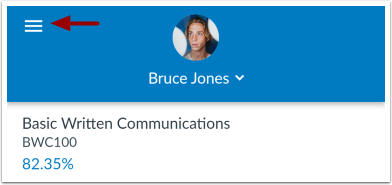
In the Dashboard, tap the Menu icon.
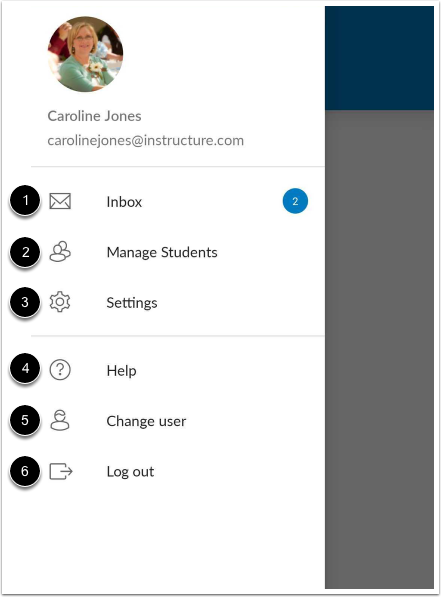
From the user menu, you can:
View Students
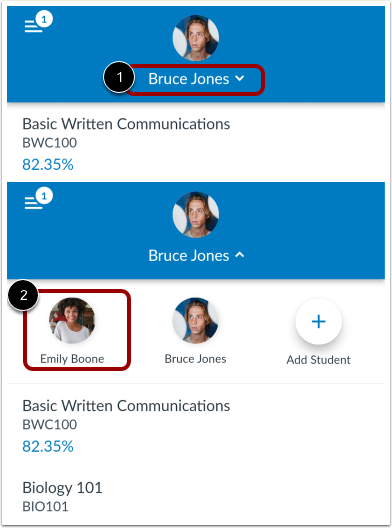
Your added student's name and profile picture display in the Parent app. If you have multiple students associated with your account, you can view another student by tapping the Student drop-down menu [1], then tapping the name of the student [2].
Note: Student profile pictures only display if the student's institution allows students to upload profile pictures.
View Courses
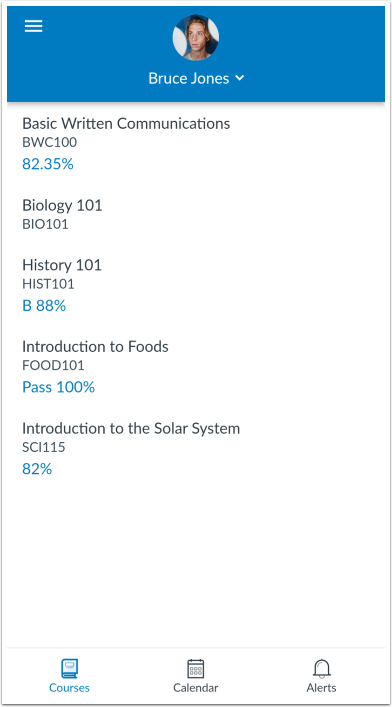
By default, the Parent app opens to the Courses page. You can view a list of courses and current course grades for the student you are viewing. Learn how to view course assignments and activity details.
Note: In the Courses page, when the course grade is set to display as a letter grade, the grade percentage also displays.
View Calendar
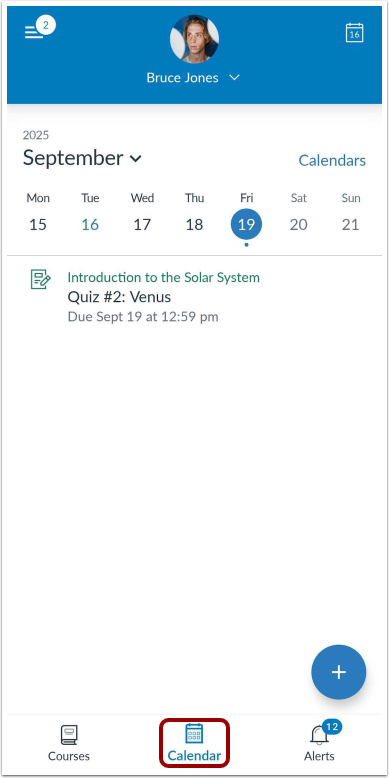
You can view course assignments and events in the Calendar page. Learn how to view the calendar.
View Alerts
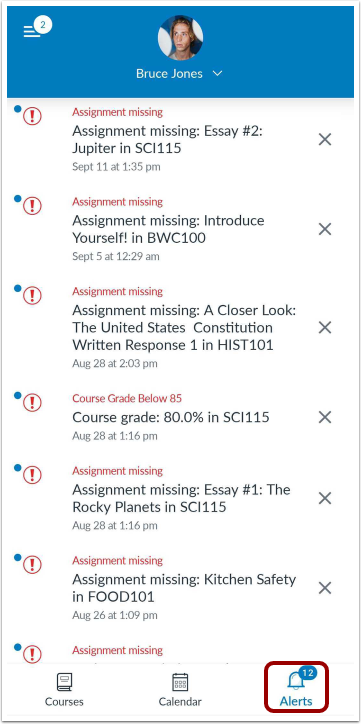
The Alerts page displays grade and assignment alerts. Learn how to view alerts.
Note: The Parent app displays assignment details and grades. Student assignment submissions can only be viewed in a Canvas browser.