00:05: How do I automatically assign peer reviews for an assignment?
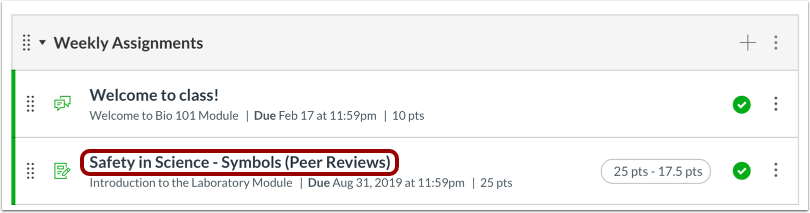
00:09: In Course Navigation, click the Assignments link.
00:13: Click the name of the assignment.
00:16: Under Related Items in the sidebar, click the Peer Reviews link.
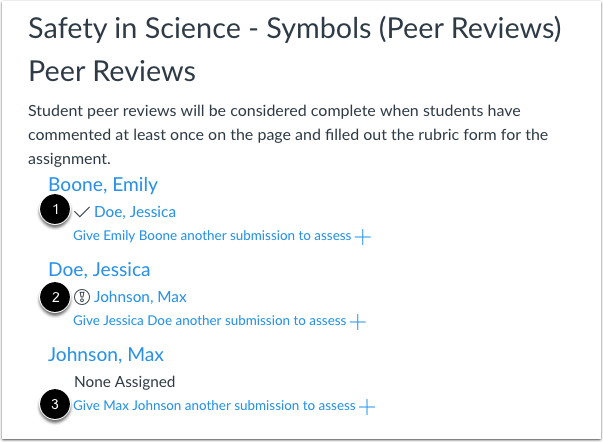
00:20: Canvas will automatically assign a peer-review to the student assigned peer
00:25: reviews appear underneath the student names.
00:28: A check mark indicates a peer review has been completed.
00:32: A warning icon indicates a peer review still needs to be completed.
00:37: If the student has not submitted the assignment or submits the assignment after the due
00:41: date, the student will not automatically be assigned
00:43: a peer review and you must manually assign one.
00:47: You can also remind students who still need to complete their assigned peer reviews.
00:52: Peer-review reminders are sent as notifications.
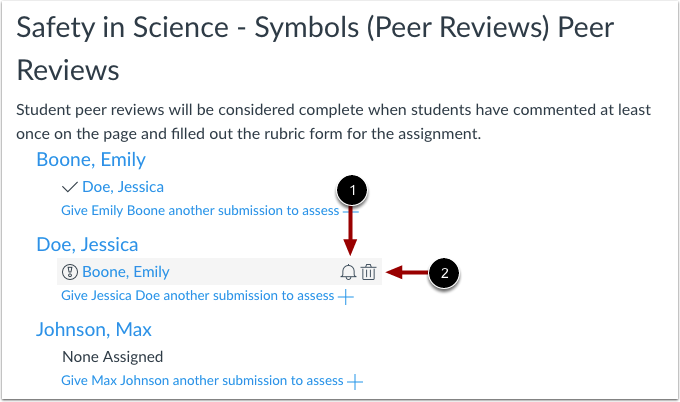
00:55: To send a reminder, hover your mouse over the assigned peer review and click
00:59: the reminder icon.
01:01: To cancel a peer review, click the Delete icon.
01:06: In the sidebar, click the Edit Assignment button.
01:09: To automatically assign peer reviews, click the Require Peer Reviews checkbox,
01:14: then select the Automatically Assign Peer Reviews radio button.
01:19: In the Reviews Per User field,
01:21: enter a positive whole number. This is a required field. Optionally, in the Assign
01:26: Reviews date picker, select the date and time on which Canvas assigns the reviewers.
01:31: If the date picker is left blank, Canvas uses the assignment's due date. To make peer
01:36: reviews anonymous,
01:37: check the Peer Reviews Appear Anonymously checkbox. By default, peer review
01:43: allocations automatically pair students based on available submissions rather than
01:48: by student, unless manually allocated.
01:52: In the Reviews Per User field,
01:53: enter a positive whole number.
01:55: This is a required field.
01:58: Optionally, in the Assign Reviews date picker, select the date and time on which
02:02: Canvas assigns the reviewers.
02:04: If the date picker is left blank, Canvas uses the assignment's due date.
02:10: To make peer reviews anonymous,
02:11: check the Peer Reviews Appear Anonymously checkbox. By default, peer review
02:16: allocations automatically pair students based on available submissions rather than
02:20: by student, unless manually allocated.
02:24: In group assignments, you also have the option to allow intra-group peer
02:28: reviews Peer reviews, require a student to review an individual submission
02:32: by another student. However, group assignment submissions are made
02:37: by one group member on behalf of the entire group and all group
02:41: members have the same submission. By default, the allow intra-group
02:45: peer reviews. Checkbox is not selected.
02:47: Which means canvas will exclude members of the same group when assigning
02:51: peer reviews, however, by selecting the checkbox reviews, can
02:55: be assigned, randomly, to all members of the course, including members of the same
02:59: group, To allow canvas to automatically assign a peer
03:03: review to any student in any other group, including students from within the students
03:07: own group, select the allow intra-group peer-review checkbox, selecting
03:13: the checkbox allows assignments to be truly random and disregard group
03:17: associations.
03:19: This guide covered how to automatically assign peer reviews for an assignment.