Canvas deploys contain code changes that are intended to fix bugs, improve performance, and prepare for new features. These deploys take place every two weeks and can be tested in the beta environment before the production deploy date indicated in the title of this document.
- New to deploy notes? Visit Understanding Release Notes for a guide on how to read and use this document.
- Visit the Canvas Collaborative Roadmap to explore upcoming work and share feedback. Your input helps guide future product development.
- For Canvas Platform Service changes (API, GraphQL, Canvas Data), please see the appropriate page in the Change Log.
- Institutions are responsible for conducting thorough evaluations of their custom CSS/JS with each release and deploy to assess potential impacts.
Unless otherwise stated, all features in this deploy are available in the Beta environment on 2026-10-22 and the Production environment on 2026-11-04.
Updated Features
Apps
Apps Update and Delete Confirmation Messages- Admins
Permissions | LTI Registrations - Manage |
|---|
Affects User Interface | Yes |
Affected Canvas Areas | Account Settings, Apps |
Summary
The Apps page displays a confirmation message after an admin updates or deletes an app configuration. When an admin updates a configuration, the message reads Configuration successfully updated. When an admin deletes an app, the message reads App deleted.
Change Benefit
- Update and deletion confirmation: Helps admins confirm that an app update or deletion succeeded without checking the app list.
Feature Workflow
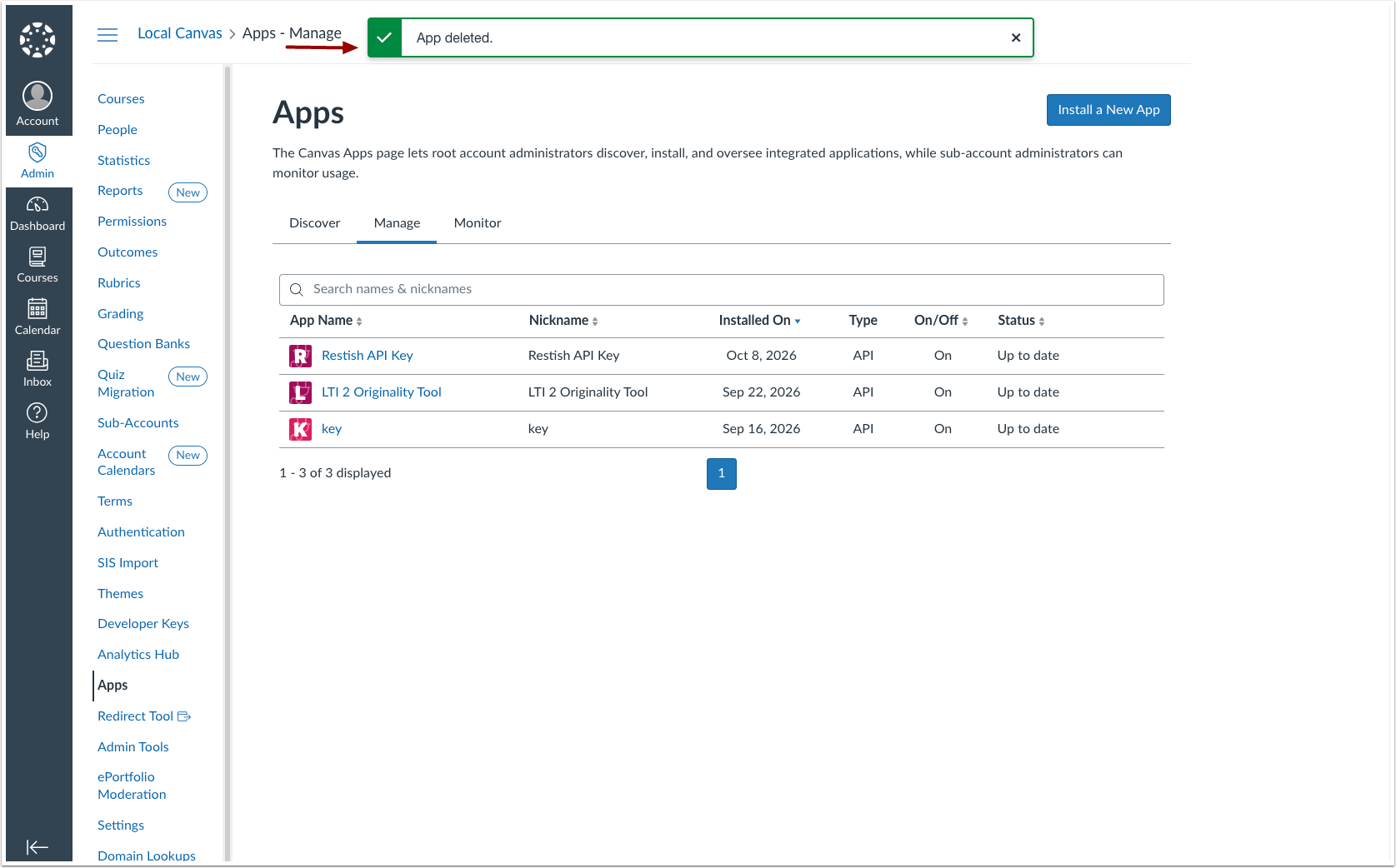
The Apps page displays a confirmation message after an admin updates or deletes an app configuration.
Assignments
Peer Review Settings- Admin, Instructor, TA
Permissions | Inherent to user role |
|---|
Affects User Interface | Yes |
Affected Areas | Assignments |
Summary
In the Assignment Settings page, the Peer Reviews section matches the current Canvas design, including updated fonts and date picker. All other Peer Reviews settings are unchanged.
When Automatically Assign Peer Reviews is selected, the Reviews Per User field requires a positive whole number. Previously, the field wasn’t validated. It starts at 0, so instructors must enter a higher number before they save the assignment. If the field stays at 0, the form won’t submit, and an error message displays.
Change Benefit
- Consistent design: Gives the Peer Reviews settings the same look as the rest of the updated Canvas interface.
- Valid reviewer counts: Prevents instructors from saving automatic peer review settings that assign no reviewers.
Feature Workflow

In assignment editing, select Require Peer Reviews [1], then select Automatically Assign Peer Reviews [2]. In the Reviews Per User field, enter a positive whole number [3]. When saving the assignment where the Reviews Per User field is still 0, the form does not submit and an error message displays [4].
Optionally, in the Assign Reviews date picker, select the date on which Canvas assigns the reviewers. If the date picker is left blank, Canvas uses the assignment's due date.
Courses
Student Signup Join Code Requirement- Student
Account/Course Setting to Enable | Account: Self Registration (All Account Types); Course: Let students self-enroll by sharing with them a secret URL or code |
|---|
Permissions | Inherent to user role |
Affects User Interface | No |
Affected Canvas Areas | Self Registration |
Summary
Canvas requires a valid course join code for every student signup made without the Users - manage login details permission. Previously, a student signup request sent without the self_enrollment parameter skipped the join code check and created a student account with no course enrollment.
Notes:
- When a student uses a course enrollment link, Canvas creates the account and enrolls the student in one step. If the course can’t enroll the student, Canvas doesn’t create an account.
- Teacher signups, parent signups, and signups by users with the Users - manage login details permission are unchanged.
- If the course’s default section has concluded, Canvas enrolls the student in an open section instead.
- If the course has no open section, Canvas rejects the signup and doesn’t create an account.
Change Benefit
- Join code on every student signup: Helps admins confirm that every student account created through signup comes with a valid course join code.
- No accounts left behind: Prevents a signup the course rejects from leaving an account with no enrollment.
Gradebook
Discussion Checkpoint Complete/Incomplete Grade Display- Instructor, Student
Feature Option Name to Enable | Discussion Checkpoints |
|---|
Enable Feature Option Location & Default Status | Account (Disabled/Unlocked) |
Subaccount Configuration | Yes
|
Affected User Roles | Students |
Account/Course Setting to Enable | N/A |
Affects User Interface | Yes |
Affected Areas | Gradebook, Grades |
Summary
In Discussion Checkpoints graded as Complete/Incomplete, the student Grades page displays the same overall grade as the Gradebook. Previously, it could show Complete even when one checkpoint was Incomplete. If any checkpoint is Incomplete, the discussion displays as Incomplete on the Grades page for students and in the Gradebook for instructors and admins. Expanding the discussion on the Grades page still displays each checkpoint’s status.
Change Benefit
- Matching grade status: Helps students and instructors trust that the Grades page, SpeedGrader, and Gradebook agree on checkpointed discussions.
Gradebook
Learning Mastery Gradebook Differentiation Tags Filter- Instructor, TA
Permissions | Manage Differentiation Tags |
|---|
Affects User Interface | Yes |
Affected Canvas Areas | Learning Mastery Gradebook |
Summary
The Learning Mastery Gradebook includes a Differentiation Tags filter in the Apply Filters menu. Instructors and TAs with the Manage Differentiation Tags permission can filter the gradebook by differentiation tag to view outcome results for specific students. The Apply Filters button displays even when no filter options are available.
Change Benefit
- Differentiation tag-level mastery review: Helps instructors and TAs focus on outcome results for students assigned a specific differentiation tag, making it easier to review mastery data for differentiated groups of students.
Feature Workflow

In the Learning Mastery Gradebook, click the Apply Filters button [1]. Then, select the Differentiation Tags filter [2] and choose a differentiation tag.
Gradebook
Learning Mastery Gradebook Export Student Sort Order- Instructor, TA
Permissions | Inherent to user role |
|---|
Affects User Interface | No |
Affected Canvas Areas | Learning Mastery Gradebook |
Summary
The Learning Mastery Gradebook report export lists students in the same order as the Students column in the gradebook. For example, when the Students column is sorted by name or SIS ID, the exported CSV file follows that sort. Previously, the export listed students with assessed outcomes first, followed by students without assessed outcomes, with each group sorted by user ID.
Change Benefit
- Consistent student order: Helps instructors and TAs match the exported report to the gradebook they see, making it easier to review outcome results for a course.
Login
Multi-Factor Authentication: Secret Key Instructions and Copy Button- All Users
Account/Course Setting to Enable | MFA: Required / Optional |
|---|
Permissions | Inherent to user role |
Affects User Interface | Yes |
Affected Canvas Areas | Login, MFA configuration |
Summary
The MFA setup page displays updated instructions for the secret key, along with a Copy to clipboard icon. Users who can’t scan the QR code can enter the secret key in their authenticator app instead. This includes screen reader users and users who set up MFA on the same device that runs their authenticator app. Before this change, the secret key displayed below the QR code without instructions or an easy way to copy it.
Change Benefit
- Accessible MFA setup: Helps screen reader users and users with visual, cognitive, motor, or dexterity impairments complete MFA setup without scanning a QR code.
- Easier setup on one device: Helps users who set up MFA on the same mobile device that hosts their authenticator app copy the secret key instead of retyping it.
Feature Workflow
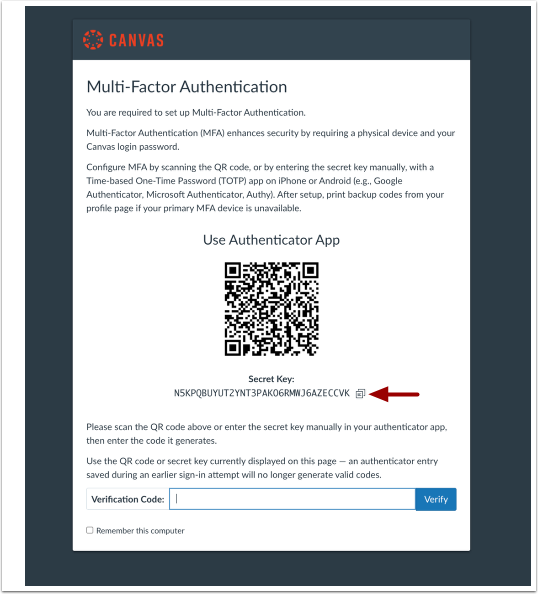
The Multi-Factor Authentication (MFA) setup page displays updated instructions for entering the secret key manually, along with a Copy to clipboard icon.
Other Updates
Authentication
SAML Entity ID Configuration- Admin [Added on 11-05-26]
Permissions | Inherent to user role |
|---|
Affects User Interface | Yes |
Affected Areas | Authentication |
Summary
Admins can configure the SAML entity ID for their institution. Previously, only Instructure could configure it.
Change Benefit
- Self-managed SAML settings: Helps admins manage their institution’s SAML entity ID without relying on Instructure.
SpeedGrader
Student List Status Icons- Instructor, TA, Admin [Added 2026-10-28]
Feature Availability | This feature is available in the Production environment on 2026-10-26. |
|---|
Permissions | Grades - View all grades, Grades - Edit |
Affects User Interface | Yes |
Affected Canvas Areas | SpeedGrader |
Summary
In SpeedGrader, the student list displays the orange dot for submissions that have been submitted but not graded. Students who haven't submitted display no icon, and the not submitted label under the student name is unchanged. Previously, submitted but ungraded work displayed the paper and pencil icon and work that hadn't been submitted displayed the orange dot icon in the student list.
Change Benefit
- Distinct submission indicators: Allows instructors and TAs to quickly distinguish unsubmitted assignments from pending submissions awaiting evaluation.
Change Log
Date | Description |
|---|
2026-11-05 | Addition
Authentication: SAML Entity ID Configuration- Admin |
2026-11-03 | Update SpeedGrader: Student List Status Icons -Updated Summary |
2026-11-02 | Update Apps: Apps Update and Delete Confirmation Messages -Updated image |
2026-10-30 | Addition SpeedGrader: Student List Status Icons- Instructor, TA, Admin Feature Availability This feature is available in the Production environment on 2026-10-26. |
2026-10-28 | Addition SpeedGrader: Student List Status Icons- Instructor, TA, Admin |