Release notes outline upcoming customer-impacting changes that are expected to display in beta and/or production environments. Please note that features considered for future development are not included in the notes.
- New to release notes? Visit Understanding Release Notes for a guide on how to read and use this document.
- Visit the Canvas Collaborative Roadmap to explore upcoming work and share feedback. Your input helps guide future product development.
- For Canvas Platform Service changes (API, GraphQL, Canvas Data), please see the appropriate page in the Change Log.
- Institutions are responsible for conducting thorough evaluations of their custom CSS/JS with each release and deploy to assess potential impacts.
- Canvas Next users can visit the IgniteAI Agent Release notes to stay up to date on the latest agent updates and improvements.
- For a breakdown of what’s included in each tier, see the Canvas Tier Feature Comparison.
Unless otherwise stated, all features in this release are available in the Beta environment on 2026-08-17 and the Production environment on 2026-09-19.
New Features
Portfolio
Assignment Import- Instructor, Students
Feature Option to Enable | N/A |
|---|
Enable Feature Option Location & Default Status | N/A |
Subaccount Configuration | N/A |
Account/Course Setting to Enable | None |
Permissions | Inherent to user role |
Affects User Interface | Yes |
Affected Areas | Portfolio Evidence |
Summary
Users can import multiple Canvas assignments at once and add them as requirements.
- Editable content: Imported assignments create separate requirement cards with titles and descriptions pulled from Canvas. Both fields, along with all standard evidence fields, remain fully editable after import.
- Link to source: Each imported assignment includes a link back to the original Canvas assignment for quick reference.
- No syncing: Edited evidence does not sync with Canvas assignments. Changes made in one location do not carry over to the other. A banner during import and on the evidence detail view makes this clear.
- New evidence type: A Course Assignment evidence type is available in the Requirement type for Showcase and Evaluation Evidence creation menus.
Change Benefit
- Faster requirement building: Saves time by bringing in assignment details automatically instead of recreating each requirement by hand, while keeping content fully editable and traceable back to the source.
Feature Workflow
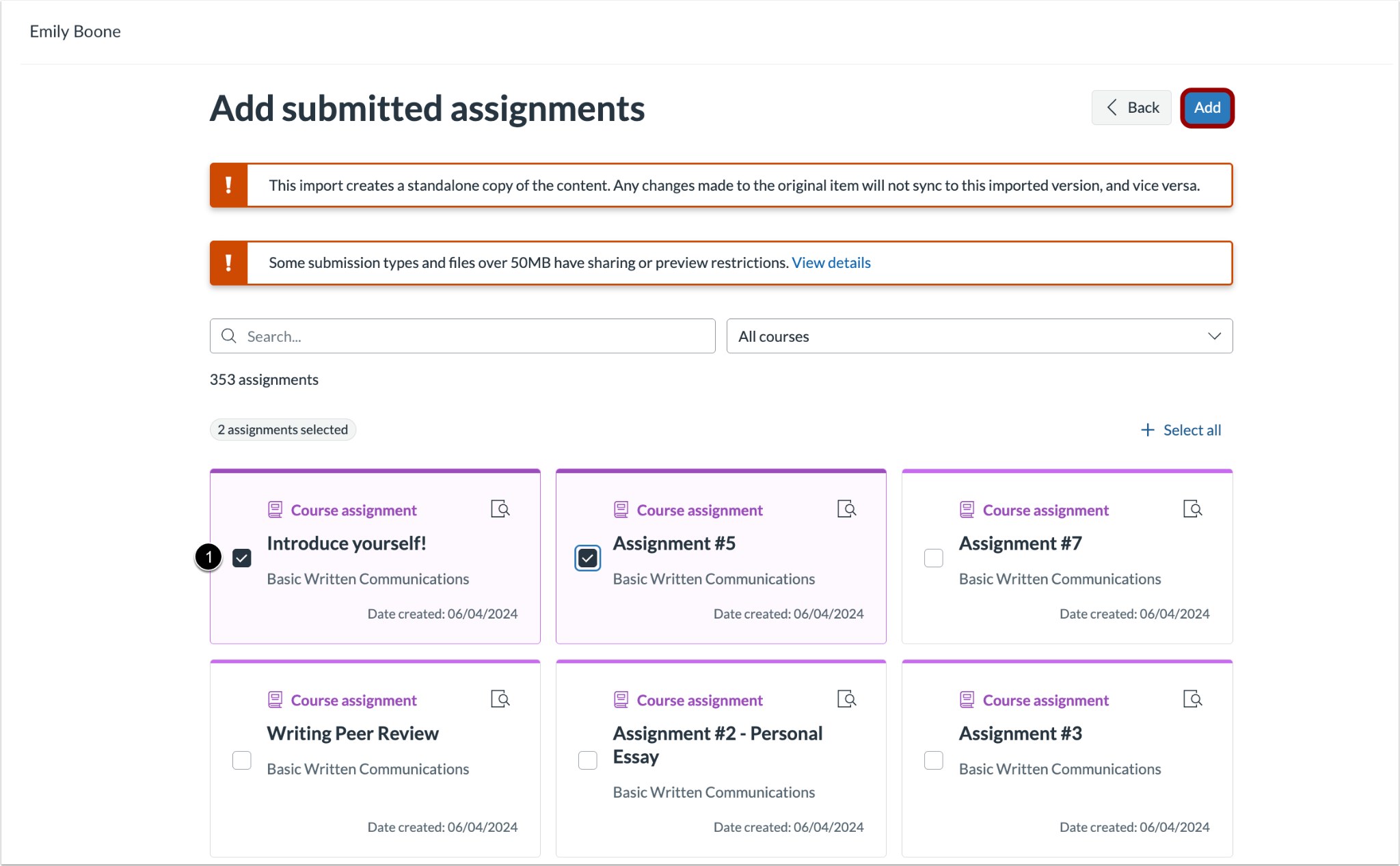
In the Add submitted assignments page, choose the desired assignments [1], then click the Add button [2].

Separate Course Assignment cards are created and displayed in the Evidence section.
- Click the desired assignment's Options menu icon [1].
- Choose Edit [2], Duplicate [3], or Delete [4].
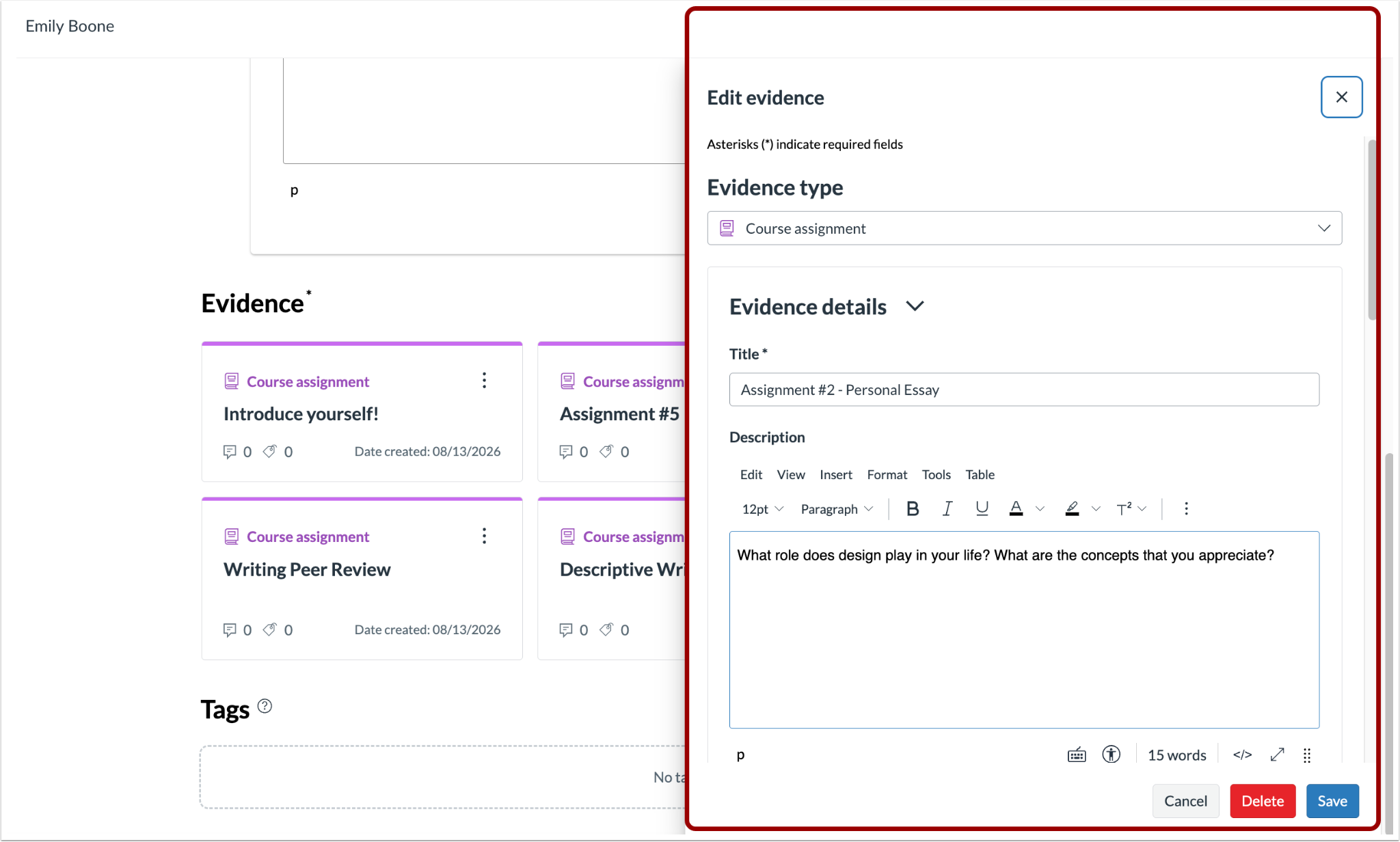
Users can edit the assignment in the Edit evidence tray.

To create a new assignment, click the Add evidence link [1], then click the Create new evidence link [2].

In the Create evidence tray, click the Evidence type drop-down menu [1], then choose the Course assignment option [2].

Student view of each imported assignment linking back to the original Canvas assignment for quick reference.

Instructor view of each imported assignment linking back to the original Canvas assignment for quick reference.
Feature Video: Not Available
Portfolio
Assignment Snapshot- Instructors, Students
Feature Option to Enable | N/A |
|---|
Enable Feature Option Location & Default Status | N/A |
Subaccount Configuration | N/A |
Account/Course Setting to Enable | None |
Permissions | Inherent to user role |
Affects User Interface | Yes |
Affected Areas | Portfolio Evidence |
Summary
Attaching an assignment submission as portfolio evidence automatically captures a snapshot of the submission's state.
- Snapshot on upload: When a submission is attached as evidence, a snapshot captures its current state, including the submission date. Later edits to the original assignment don't change what a viewer sees.
- Snapshot date: The most recent snapshot date displays on the submission.
- Multiple versions: Users can upload the same assignment multiple times to show progress across different snapshots.
- File size handling: Files under 50MB display with a preview and download option in the shared view. Files over 50MB aren't included in the shared view but remain available as a direct download link.
Change Benefit
- Reliable evidence sharing: Gives viewers a stable, accurate record of submitted work, with control over when updates are reflected and clear visibility into any file limitations.
Feature Workflow

A snapshot displays with the submission attachment and the submission date and time.
Portfolio
Assignment Sharing- Students
Feature Option to Enable | N/A |
|---|
Enable Feature Option Location & Default Status | N/A |
Subaccount Configuration | N/A |
Account/Course Setting to Enable | None |
Permissions | Inherent to user role |
Affects User Interface | Yes |
Affected Areas | Portfolio Evidence |
Summary
Learners can share assignment submissions as evidence in Evaluation and Showcase Portfolios, replacing the previous hidden assignment approach.
- Warnings: Clear warnings display when sharing evidence or a portfolio, noting file size restrictions and which files are affected.
- Files under 50 MB: Included in full in the shared view, with a preview and the option to download the submission.
- Files over 50 MB: Not shown in the shared view. The submission links out to the original assignment in Canvas and remains available for download by direct link in the non-shared view.
Change Benefit
- Direct submission sharing: Lets learners share coursework straight from an assignment, with upfront warnings about which files won't appear in the shared view.
Feature Workflow
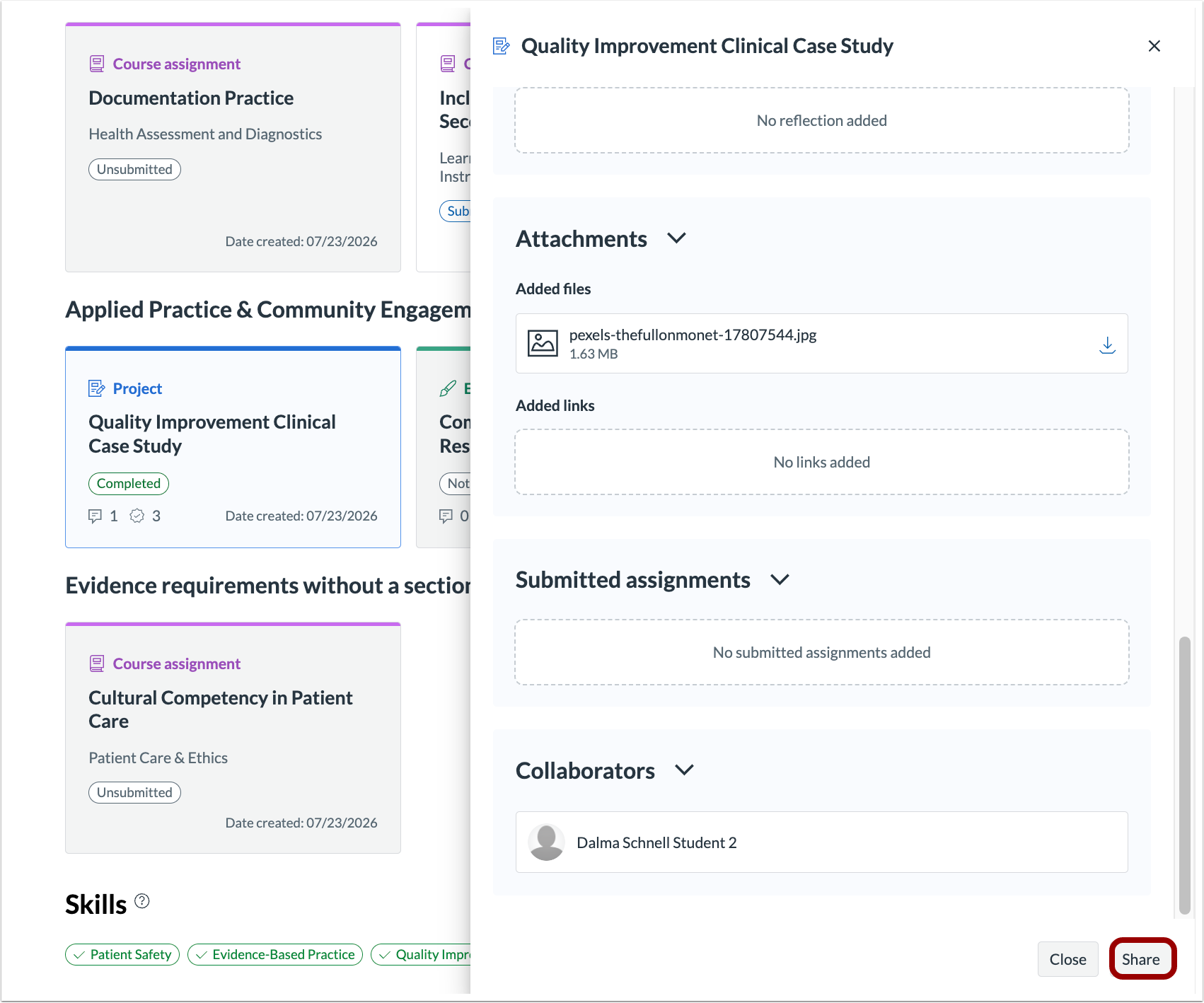
Once evidence has been saved, click the Share button.
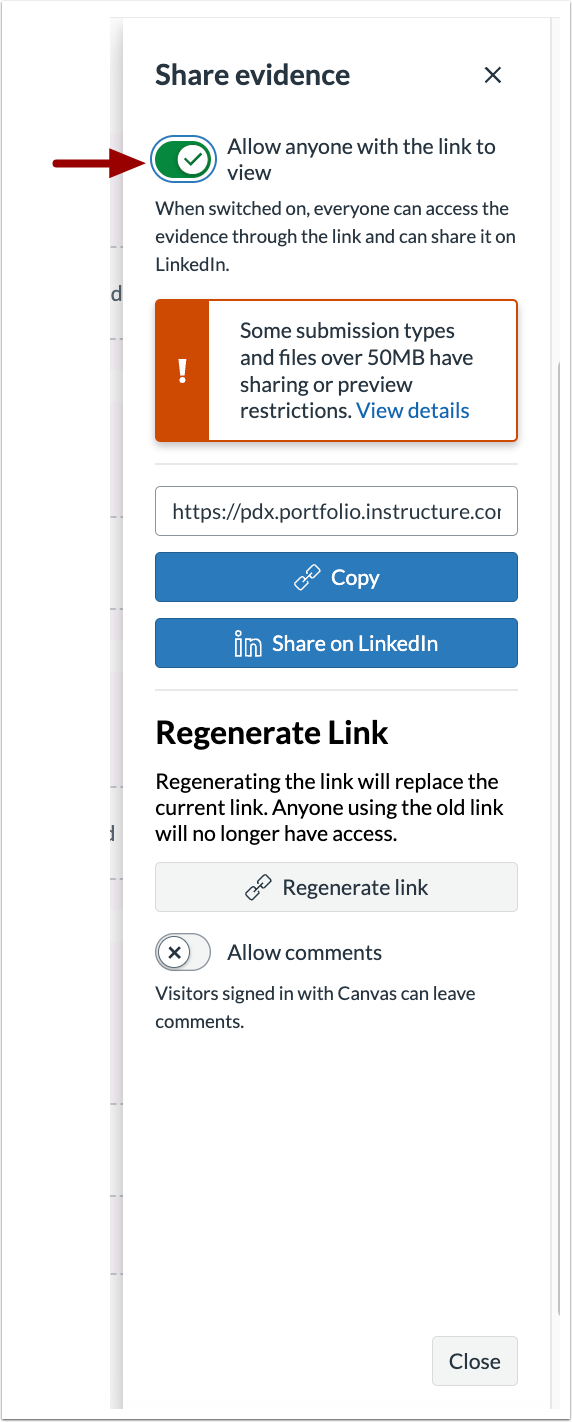
Toggle on the Allow anyone with the link to view feature. Warnings display letting users know if they have file size restrictions.
Feature Video: Not Available
Portfolio
Add Assignments submissions to Projects- Students
Feature Option to Enable | N/A |
|---|
Enable Feature Option Location & Default Status | N/A |
Subaccount Configuration | N/A |
Account/Course Setting to Enable | None |
Permissions | Inherent to user role |
Affects User Interface | Yes |
Affected Areas | Portfolio Evidence |
Summary
Learners can add assignment submissions directly to portfolio projects.
- Persistent access: Once added, assignment files remain viewable by learners and educators regardless of course or term status
- File restrictions: File size and format limits apply when attaching assignments.
Change Benefit
- Persistent portfolio evidence: Keeps portfolio evidence complete and reliable over time, even after a course closes or a term ends.
Feature Workflow
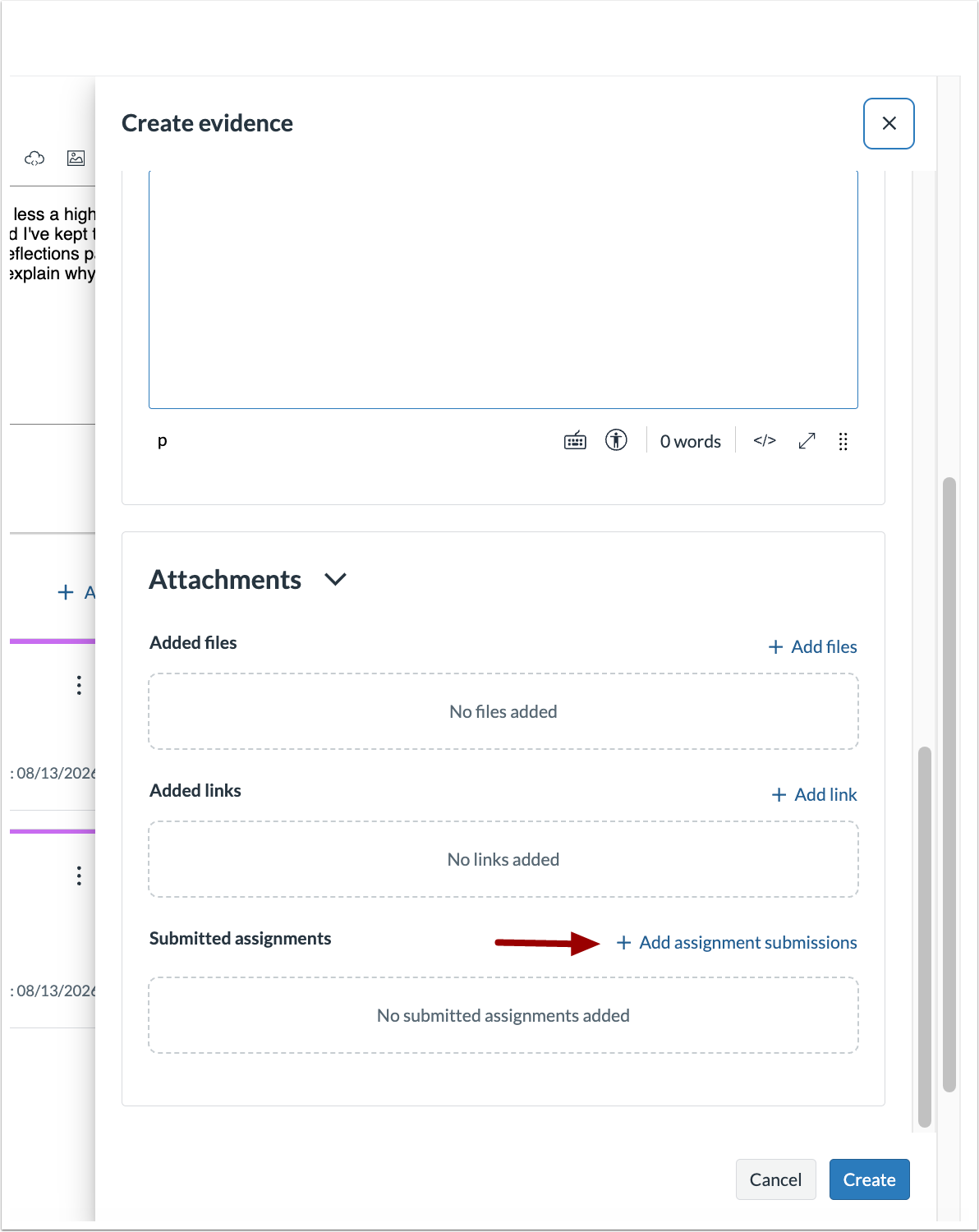
When creating evidence, click the Add assignment submissions to add submissions directly to the project.
Feature Video: Not Available
Portfolio
Shared Content Comments- Instructors, Students
Feature Option to Enable | N/A |
|---|
Enable Feature Option Location & Default Status | N/A |
Subaccount Configuration | N/A |
Account/Course Setting to Enable | None |
Permissions | Inherent to user role |
Affects User Interface | Yes |
Affected Areas | Portfolio Evidence |
Summary
Viewers of shared content can sign in with their Canvas account to leave comments on Portfolio evidence, no separate account or password needed. To leave comments the user needs to be from the exact same institution the evidence was shared from by the Portfolio owner.
- Sign in to comment: A Sign in to comment button displays on shared content. Viewers are redirected to their institution's Canvas login, and once signed in, they can post comments.
- Read-only access without signing in: Viewers can still see shared content without logging in, signing in is only required to comment.
- Showcase evidence supports comments: Commenting is available on showcase evidence, not just evaluation evidence.
- Owner control: Students can turn off commenting on their shared content at any time.
Change Benefit
- Faster feedback loop: Opens up commenting to viewers of shared content, making it easier to collect input from peers and outside reviewers using their existing Canvas login.
Feature Workflow
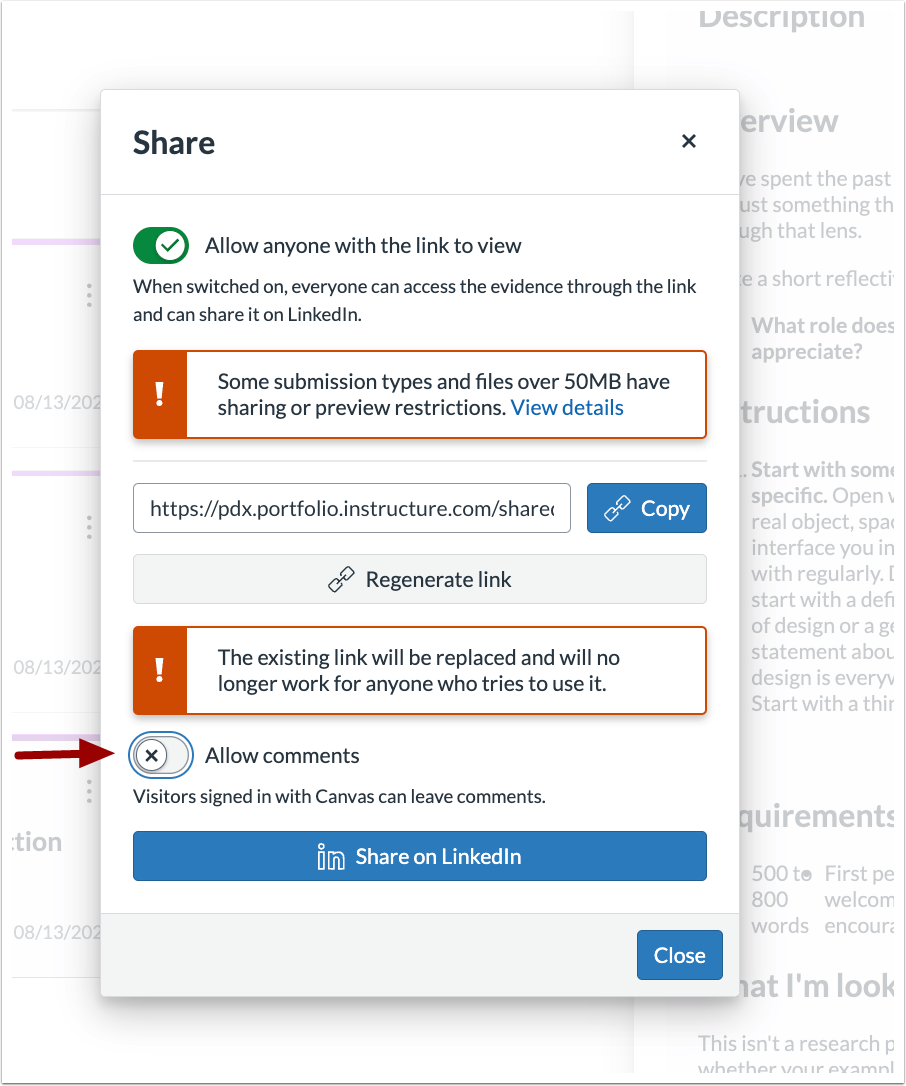
To let viewers comment on a shared portfolio evidence, turn on the Allow Comments toggle when you share it.
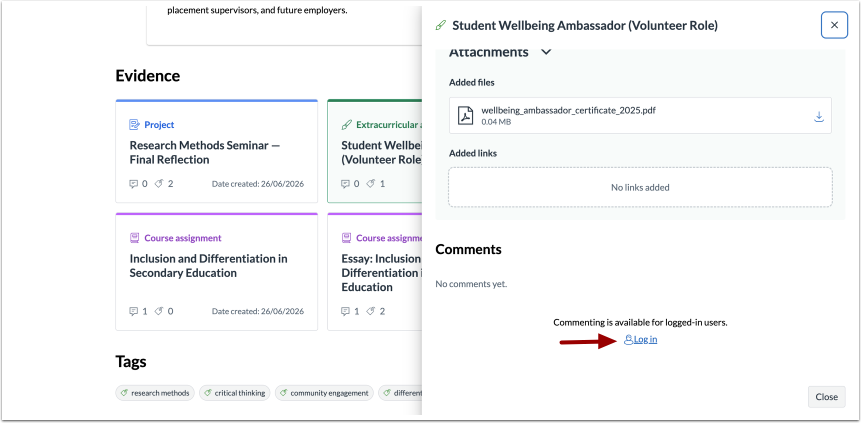
In the shared view, if comments are allowed, viewers who want to comment see a Login link.
Feature Video: Not Available
Portfolio
Embedded Content- Instructors, Students
Feature Option to Enable | N/A |
|---|
Enable Feature Option Location & Default Status | N/A |
Subaccount Configuration | N/A |
Account/Course Setting to Enable | None |
Permissions | Inherent to user role |
Affects User Interface | Yes |
Affected Areas | Portfolio Rich Content Editor |
Summary
Users can embed external HTML-based content in the Rich Content Editor (RCE), such as YouTube videos, Miro boards, Google Slides, and interactive prototypes directly into portfolios and evidence items, instead of uploading static files or linking out.
- View work in place: Embedded content displays directly in the portfolio, so reviewers can watch a video, scroll a document, or interact with a prototype without leaving the page.
Change Benefit
- Richer evidence, less friction: Lets users showcase interactive work exactly as intended, and lets reviewers engage directly in the portfolio instead of juggling external links and tabs.
Feature Workflow
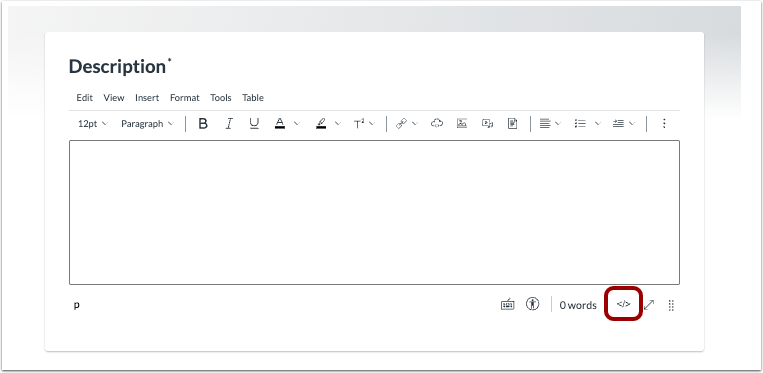
To embed content in the Rich Content Editor, click the HTML editor icon.
Feature Video: Not Available
Portfolio
Editing Published Portfolios- Instructors
Feature Option to Enable | N/A |
|---|
Enable Feature Option Location & Default Status | N/A |
Subaccount Configuration | N/A |
Account/Course Setting to Enable | None |
Permissions | Inherent to user role |
Affects User Interface | Yes |
Affected Areas | Published Evaluation Portfolios |
Summary
Instructors can make certain edits to an evaluation portfolio after it's published, instead of it being fully locked.
- Additive changes: Instructors can add a new course that updates learner enrollment, add a new requirement to any section, add a new section, and edit the portfolio title and description.
- Locked content: Instructors can't edit or delete an existing requirement, remove a skill tag from one, or delete a course already tied to the portfolio. To change a requirement substantively, add a new one alongside it.
- Explicit publishing: Editing a published portfolio doesn't auto-save. All changes stay in the browser until the teacher re-publishes and confirms.
- Student status updates: After re-publishing, student portfolio statuses are recalculated. A student marked Completed can move back to In Progress if a new requirement doesn't yet have matching evidence. Students in newly added courses automatically get a portfolio, starting at Not Started. Status updates appear live on the instructor's dashboard without needing to refresh.
Change Benefit
- Update without starting over:
- Lets instructors keep one portfolio running across multiple semesters or a full program, adding courses and requirements as students move through it instead of building a new portfolio each term.
- Lets instructors make changes to a published portfolio without needing to rebuild it, while protecting existing student progress from unintended changes.
Feature Video: Not Available